How to Convert Word to LaTeX: The Complete Guide (2026)
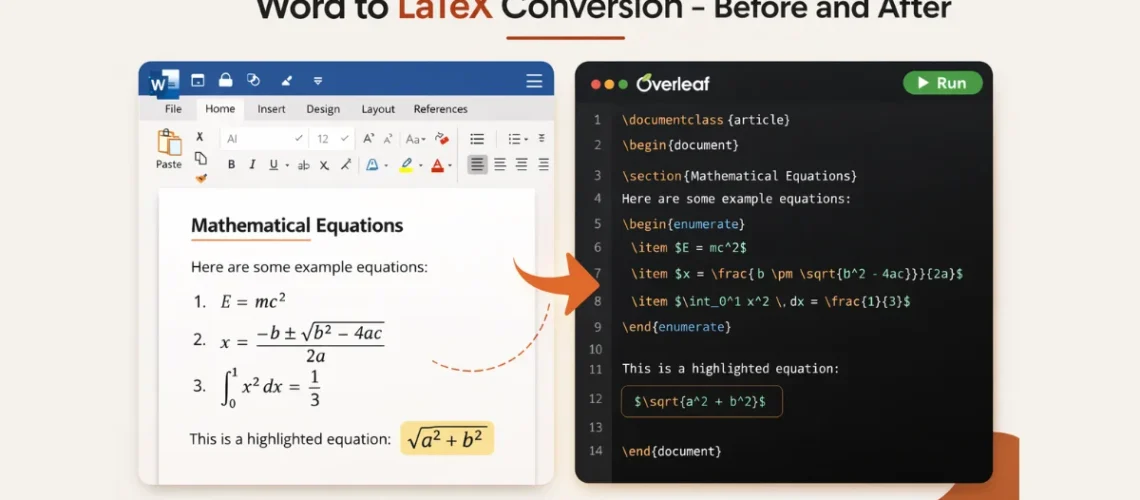
You’ve finished writing your research paper in Microsoft Word. The data is solid, the argument is tight, and you’re ready to submit. Then you read the journal’s submission guidelines: “Manuscripts must be submitted in LaTeX format.”
If that sentence just made your stomach drop, you’re not alone. Thousands of researchers face this exact situation every week – a finished paper in Word, a journal that demands LaTeX, and a deadline that isn’t moving.
Whether you call it Word to LaTeX, docx to latex, or Word to TeX, the process is the same fundamental reconstruction. This guide walks you through every practical method for converting a Word document to LaTeX in 2026 – from free command-line tools to professional services. You’ll learn what actually converts cleanly, what breaks every time, and how to choose the right approach based on your document’s complexity and your deadline.
⚡ Short on time?
If you need submission-ready LaTeX and don’t want to wrestle with conversion tools, our professional Word to LaTeX conversion service delivers compiled, template-compliant .tex files in 72 hours.
📑 In This Guide
01
Why You Need to Convert Word to LaTeX for Journal Submission
02
What “Converting Word to LaTeX” Actually Means
03
Method 1: Pandoc (Free, Command-Line)
04
Method 2: Dedicated Conversion Software
05
Method 3: Manual Conversion (Rewriting in LaTeX)
06
Method 4: Professional Word to LaTeX Conversion Service
07
Word to LaTeX: What the Process Looks Like
08
Comparison: Which Method Should You Choose?
09
Step-by-Step Checklist: Converting Your Paper
10
5 Common Mistakes That Break Conversions
11
Frequently Asked Questions
Why You Need to Convert Word to LaTeX for Journal Submission
Most journals in computer science, mathematics, physics, and engineering require LaTeX for a practical reason: it enforces the journal’s exact formatting rules through template files (.cls and .sty), so every paper in every issue looks identical — margins, fonts, headings, citation formats, and equation numbering all match automatically. Word documents, even when following a template, drift in formatting from author to author.
LaTeX also handles mathematical typesetting far better than Word’s equation editor — equations are vector-based, scalable, and follow professional typography conventions. And publishers can process a clean .tex file directly into their production pipeline without re-typesetting. The bottom line: if your target journal requires LaTeX, your Word document needs to become a .tex file that compiles cleanly.
What “Converting Word to LaTeX” Actually Means
Converting Word to LaTeX isn’t a single operation like saving a .docx as a .pdf. It’s a reconstruction. Your Word document stores content in XML wrapped in a ZIP archive. A LaTeX document is plain text with markup commands. Moving from one to the other requires translating every element of your paper into LaTeX syntax.
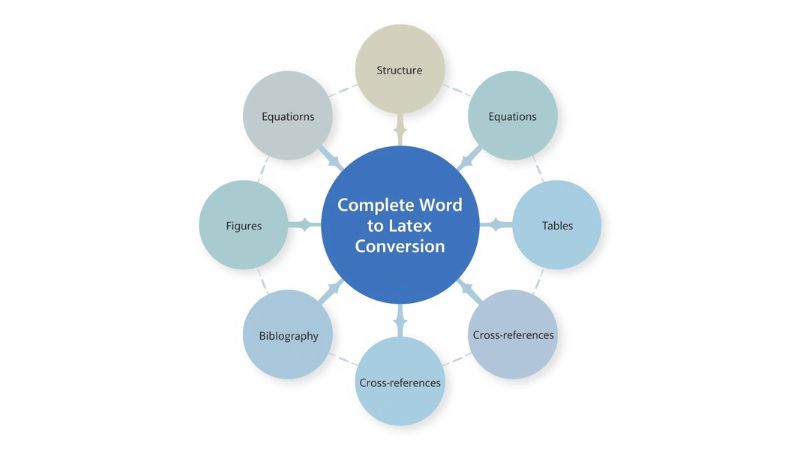
Here’s what needs to happen for a complete conversion:
- Document structure – Headings, sections, and subsections mapped to \section{}, \subsection{}, etc.
- Equations – Every equation rewritten in LaTeX math mode using proper environments (equation, align, gather)
- Tables – Rebuilt using tabular or booktabs with correct column alignment and borders
- Figures – Images extracted, saved in the right format (PDF/PNG/EPS), and placed using \includegraphics with captions and labels
- Bibliography – References exported to a .bib file with correct BibTeX entry types and fields, cited using \cite{} commands
- Cross-references – Figure references, table references, and equation numbers linked using \label{} and \ref{}
- Template compliance – The correct \documentclass loaded (e.g., IEEEtran, acmart, elsarticle) with all required packages and configuration
No automated tool handles all seven of these perfectly. Understanding where tools break helps you decide which approach to take.
Method 1: Pandoc (Free, Command-Line)
Pandoc is the most widely recommended free tool for document conversion. It’s an open-source command-line utility that converts between dozens of markup formats, including Word (.docx) to LaTeX (.tex).
How to Use Pandoc for Word to LaTeX Conversion
- Install Pandoc from pandoc.org (available for Windows, Mac, and Linux).
- Open your terminal or command prompt.
- Navigate to the folder containing your .docx file.
- Run the conversion command:
pandoc input.docx -f docx -t latex -s -o output.tex
- Open output.tex in your LaTeX editor or Overleaf to review the result.
If you’re using Overleaf, you can upload the converted .tex file directly to a new project. However, converting a Word document to Overleaf-compatible LaTeX still requires the same cleanup steps described below – Overleaf compiles your .tex file, it doesn’t fix what’s broken in it.
What Pandoc Handles Well
- Basic paragraph text, headings, bold/italic formatting
- Simple numbered and bulleted lists
- Footnotes and hyperlinks
- Basic tables (single-level, no merged cells)
- Some equations written in Word’s native equation editor (OMML format)
Why Equations, Tables, and Bibliography Break During Word to LaTeX Conversion
This is where most researchers hit a wall. Pandoc is excellent at text conversion but struggles with the elements that make academic papers complex:
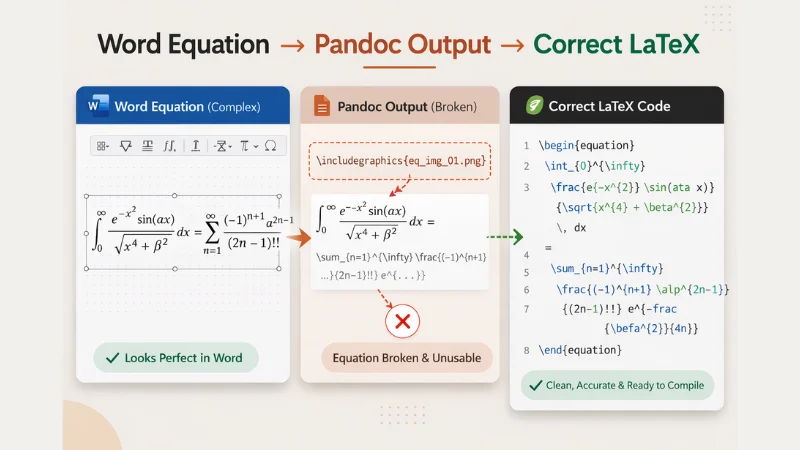
- Complex equations: Multi-line aligned equations, custom operators, and equations inserted as images (common in older Word files) are either lost or converted as image references instead of LaTeX math.
- Tables with merged cells: Word tables with merged rows or columns produce broken or misaligned \tabular output. Multi-page tables rarely survive intact.
- Bibliography: If you used Word’s built-in citation manager, Pandoc does not extract those references into a .bib file. You’ll need to export your references separately from Mendeley, Zotero, or EndNote.
- Figures: Embedded images are extracted, but captions, labels, and cross-references are frequently lost or misassigned.
- Journal templates: Pandoc outputs generic LaTeX with \documentclass{article}. It does not apply journal-specific templates like IEEEtran, acmart, or elsarticle. You’ll need to manually restructure the output to fit your target template. (See our guide on IEEE LaTeX template formatting for what that involves.)
- Unicode characters: Greek letters and special symbols typed directly in Word (not through the equation editor) may cause compilation errors because they’re inserted as raw Unicode rather than LaTeX commands like \alpha.
Verdict on Pandoc
Pandoc works well for short, text-heavy documents without complex math. For a 15-page research paper with 20+ equations, 4 tables, and 30 citations, expect to spend 4–8 hours cleaning up Pandoc’s output – and you still need to handle the bibliography and template application separately.
Method 2: Dedicated Word to LaTeX Conversion Software
Several commercial and specialized tools go beyond Pandoc by handling equations and formatting more carefully.
GrindEQ Word-to-LaTeX
GrindEQ is a Windows application that converts Word documents to LaTeX with significantly better equation handling than Pandoc. It supports Microsoft Equation Editor, MathType, and OMML equations, converting them into editable LaTeX math. It also handles tables, lists, cross-references, and basic formatting.
To use GrindEQ: install the software, open your .docx in Microsoft Word, then select the GrindEQ conversion option from the Word toolbar. Choose your output format (LaTeX, AMS-LaTeX, or Plain TeX), configure options for equation handling, and click Convert. GrindEQ generates a .tex file and extracts figures automatically.
Best for: Windows users with equation-heavy papers who have MathType installed. GrindEQ’s equation conversion is significantly better than Pandoc’s, especially for complex multi-line equations.
Limitations: Windows-only. No journal template application. Output still requires manual cleanup for complex layouts. Licensed software ($69–$99).
Docx2LaTeX
Docx2LaTeX is a web-based service that converts Word and Google Docs files to LaTeX. To use it: go to docx2latex.com, upload your .docx file, wait for processing, then download the generated .tex file and compiled PDF. The service handles equations, tables, and basic formatting, and produces a ready-to-edit LaTeX project.
Best for: Quick conversions where you need a starting point. Works on any platform since it’s browser-based. No software installation needed.
Limitations: Complex tables and custom formatting still need manual adjustment. No journal template application. Free tier has limitations on file size.
What All Automated Tools Have in Common
Every automated converter — Pandoc, GrindEQ, Docx2LaTeX, and others — shares the same fundamental limitation: they convert structure, not intent. They can translate a heading into \section{}, but they can’t determine whether your paper should use IEEEtran’s two-column layout with specific citation numbering, or Elsevier’s single-column format with author-year citations. Template compliance and the final 20% of cleanup is always manual work.
Method 3: Manual Conversion (Rewriting in LaTeX)
For papers under 10 pages with simple formatting, rewriting directly in LaTeX can sometimes be faster than cleaning up automated output. This approach makes sense when:
- Your paper has minimal equations (under 5)
- Tables are simple (no merged cells, no multi-page tables)
- You’re already comfortable with basic LaTeX syntax
- You want to learn LaTeX for future papers
If you go this route, start by downloading the correct journal template from the publisher’s website or from Overleaf’s template gallery. Copy your text section by section, converting formatting as you go. Handle equations, tables, and the bibliography last, since these are the most time-consuming elements.
Estimated time: 8 – 20+ hours depending on paper complexity, your LaTeX experience, and how many compilation errors you encounter. (See our post on the 10 most common LaTeX compilation errors.
Method 4: Professional Word to LaTeX Conversion Service
A professional Word to LaTeX conversion service handles the entire process: conversion, template application, equation typesetting, bibliography setup, and compilation testing.
This approach makes sense when:
- Your paper has 10+ equations, complex tables, or extensive citations
- Your journal requires a specific template (IEEE, ACM, Springer, Elsevier)
- Your deadline is tight and you can’t afford days of debugging
- You need your thesis converted (See: converting your PhD thesis from Word to LaTeX [INTERNAL LINK: /blog/convert-thesis-word-to-latex/])
What a Professional Service Delivers
- Clean .tex source file(s) with proper sectioning, equation environments, and figure placement
- Complete .bib file with all references in correct BibTeX format
- Journal template applied and verified – not just the \documentclass, but all required packages, citation style, and layout configuration
- Compilation-tested output – verified to compile with zero errors in Overleaf before delivery
- All source files (.tex, .bib, figures, .cls/.sty if needed) ready to upload to the journal’s submission system
What a .tex Project Actually Contains
If you’ve never worked with LaTeX before, here’s what to expect. A complete LaTeX project is a folder with several files that work together:
- main.tex – Your paper’s content and formatting commands. This is the file you compile.
- references.bib – Your bibliography database in BibTeX format. Each reference is an entry with fields like author, title, journal, year.
- figures/ folder – All your images saved as separate files (PDF for vector, PNG for raster). Referenced in main.tex using \includegraphics{}.
- Template files (.cls, .sty, .bst) – The journal’s formatting rules. These control the layout, fonts, and citation style. You don’t edit these.
When you upload this folder to Overleaf or compile locally, LaTeX reads main.tex, pulls in the figures and bibliography, applies the template rules, and produces a finished PDF.
📦 Need this done for you?
The LaTeX Lab converts Word documents to submission-ready LaTeX in 72 hours. Equations typeset in math mode, tables rebuilt, bibliography in clean BibTeX, and your journal’s template applied.
Guaranteed to compile. From $149.
Word to LaTeX Conversion: What the Process Looks Like
To understand what conversion actually involves, here’s a real example. Take a 15-page IEEE paper written in Word with 25 equations, 4 tables, and 30 citations:
In Word: Equations are in Word’s equation editor. Tables use Word’s table tool with merged cells and shading. Citations are managed by Mendeley or Word’s built-in manager. Figures are pasted inline. The document is single-column with Times New Roman font.
After Pandoc: Text transfers. About 60% of equations convert to LaTeX math, the rest become image references or garbled syntax. Tables lose alignment and merged cells. Citations appear as plain text, not \cite{} commands. The output uses \documentclass{article} with no template. Compilation produces 40–50 errors.
After professional conversion: Every equation is typeset in proper LaTeX math mode using \begin{equation} and \begin{align} environments. Tables are rebuilt with booktabs formatting. All 30 references are in a clean .bib file with \cite{} commands. IEEEtran template is applied with two-column layout, correct citation style, and proper figure placement. The file compiles with zero errors in
Overleaf. (See our guide on Word to LaTeX for IEEE journal submission)
Comparison: Which Word to LaTeX Method Should You Choose?
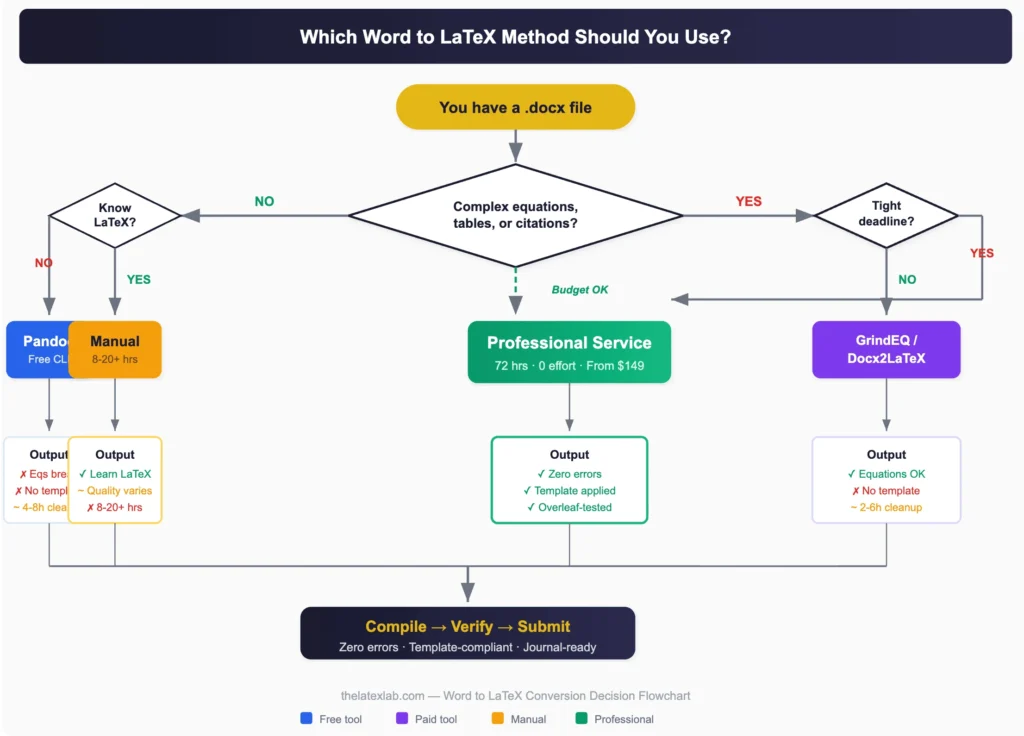
The right approach depends on three factors: your document’s complexity, your LaTeX experience, and your deadline. Here’s how the four methods compare on a typical 15-page research paper with equations, tables, and citations.
| Method | Cost | Time Required | Equation Quality | Template Applied | Compiles? |
|---|---|---|---|---|---|
| Pandoc | Free | 4–8 hrs cleanup | Poor–Fair | No | With errors |
| GrindEQ | $69–$99 | 2–6 hrs cleanup | Good | No | With errors |
| Manual rewrite | Free + your time | 8–20+ hours | Depends on skill | If you set it up | Eventually |
| Professional | $149–$499 | 0 hrs (your time) | Excellent | Yes, verified | Zero errors |
Use this decision flowchart to find the right method for your situation:
Step-by-Step Checklist: Converting Your Paper from Word to LaTeX
Regardless of which method you choose, this checklist covers every element you need to handle. Use it to verify nothing gets lost in conversion.
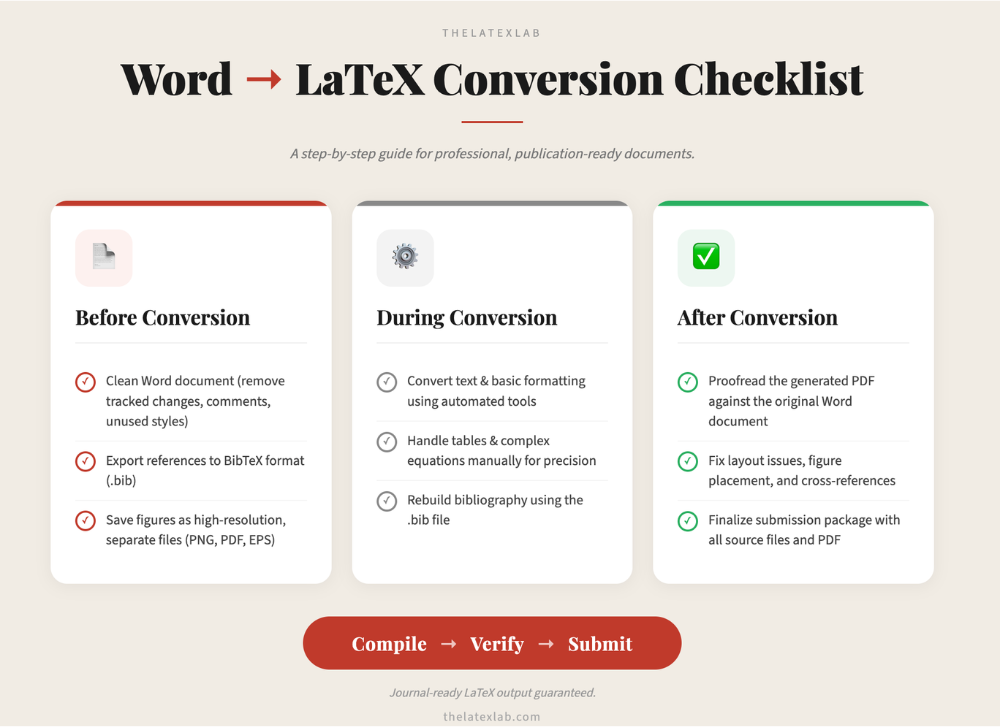
Before Conversion
- Clean up your Word document: remove track changes, accept all edits, fix inconsistent heading styles
- Export your references to a .bib file using Zotero, Mendeley, or EndNote’s BibTeX export
- Save all figures as separate high-resolution files (PDF for vector graphics, PNG for raster images at 300+ DPI)
- Download the correct LaTeX template from your journal’s author guidelines page
During Conversion
- Verify every equation compiles correctly and matches the original
- Check that all tables have correct alignment, borders, and no missing cells
- Confirm every \cite{} command has a matching entry in the .bib file
- Ensure figures are referenced with \label{} and \ref{} — not hardcoded numbers
- Verify the \documentclass and all required packages match your journal’s template
After Conversion
- Compile in Overleaf or your local LaTeX distribution (pdfLaTeX or XeLaTeX)
- Check the output PDF page by page against your original Word document
- Verify the reference list is complete and correctly formatted for your citation style
- Run a final compile — the log should show zero errors and minimal warning
5 Common Mistakes That Break Word to LaTeX Conversions
When you convert a Word document to LaTeX — whether using Pandoc, dedicated software, or manual rewriting — these five mistakes cause the most problems:
1. Leaving equations as images. If your Word file has equations pasted as images (common in older documents or PDFs), no converter can extract them as LaTeX math. They’ll appear as \includegraphics{eq_image.png} in your .tex file. Every equation needs to be retyped in proper LaTeX math mode.
2. Ignoring the bibliography. Word’s built-in citation manager stores references in a proprietary format that most converters can’t read. Always export to .bib format separately from your reference manager before converting.
3. Using the wrong template. Converting to generic \documentclass{article} and then trying to retrofit a journal template is harder than starting with the right template. Always begin with the journal’s .cls file.
4. Not compiling iteratively. Don’t wait until the entire document is converted to compile. Compile after every major section to catch errors early. A single misplaced brace can cascade into dozens of error messages. (See our guide on how to fix LaTeX compilation errors [INTERNAL LINK: /fix-latex-errors/] if you hit a wall.)
5. Hardcoding reference numbers. Never type “as shown in Figure 3” directly. Use \ref{fig:yourfigure} so LaTeX numbers figures automatically. If you add a figure later, all references update.
🚀 Ready to convert your paper?
Upload your Word document and tell us which journal you’re submitting to.
We’ll send you an exact quote within 2 hours.
Equations typeset in math mode · Tables rebuilt · Bibliography in clean BibTeX · Template applied · Guaranteed to compile
Most orders delivered in 72 hours · From $149 · IEEE, ACM, Springer, Elsevier templates
Frequently Asked Questions
How do I convert a Word document to LaTeX?
You have four options: use Pandoc (a free command-line tool) for basic text conversion, use dedicated software like GrindEQ or Docx2LaTeX for better equation handling, rewrite the document manually in LaTeX, or use a professional conversion service. For academic papers with equations, tables, and citations, automated tools typically require 4–20 hours of manual cleanup. A professional service delivers compiled, template-compliant files with zero effort from you.
Can I convert Word to LaTeX for free?
Yes. Pandoc is free and converts .docx to .tex. However, free conversion handles basic text well but breaks on equations, complex tables, bibliography management, and journal-specific templates. For a simple document without math, Pandoc works. For a research paper with equations and citations, expect significant manual work after the automated conversion.
What is the best Word to LaTeX converter?
It depends on your document’s complexity. Pandoc is the best free option for basic documents. GrindEQ produces better equation output than Pandoc and is the best tool for math-heavy Word files on Windows. For complete, submission-ready conversion including template application and compilation testing, a professional service produces the highest-quality result with the least effort.
How long does it take to convert Word to LaTeX?
Using Pandoc or similar tools, the automated conversion takes seconds, but cleanup takes 4–20+ hours depending on your paper’s complexity and your LaTeX experience. Manual rewriting takes 8–20+ hours. A professional conversion service typically delivers within 72 hours with zero time required from you.
Does converting Word to LaTeX preserve equations?
Partially. Equations written in Word’s native equation editor (OMML format) are often converted into LaTeX math by Pandoc and GrindEQ, though complex multi-line equations may break. Equations inserted as images cannot be converted automatically and must be retyped in LaTeX math mode. MathType equations convert more reliably when using GrindEQ.
