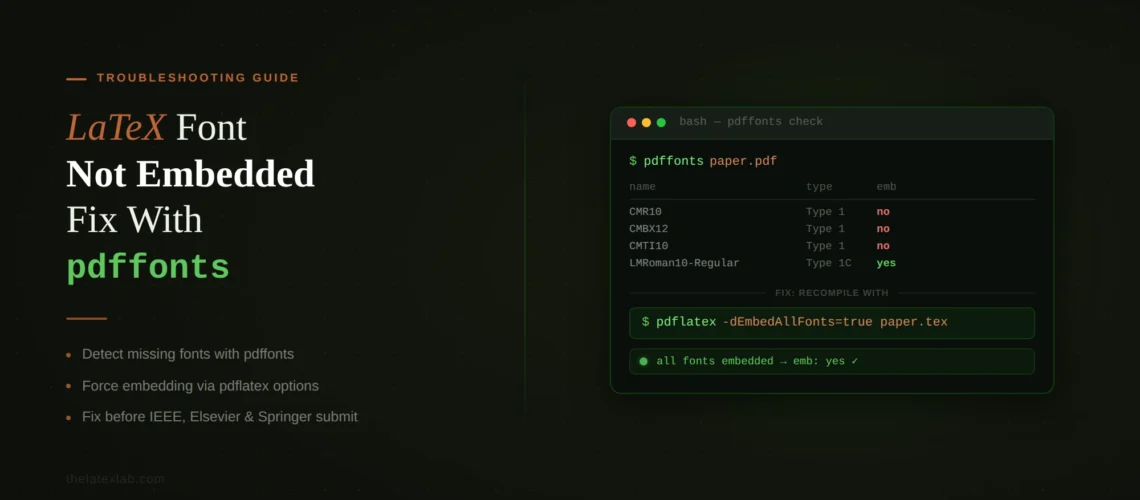
The Latex “font not embedded” error that just rejected your LaTeX PDF has almost nothing to do with your .tex file. pdflatex embeds every font it uses. The unembedded fonts in your PDF are inside the figures you included with \includegraphics{}. They came from MATLAB, R, matplotlib, Visio, PowerPoint, or Inkscape, and they carried their unembedded font references into your final document when pdflatex pulled them in.
This is the single most common reason journals, conferences, and preprint servers reject otherwise-correct LaTeX papers. IEEE PDF eXpress, ACM TAPS, AAAI, EDAS, arXiv, and university thesis repositories all check for it. The fix takes five minutes once you understand where the problem actually lives.
Quick answer: How to fix “font not embedded” in a LaTeX PDF?
The fastest fix: run your compiled PDF through Ghostscript to force-embed all fonts:
gs -dNOPAUSE -dBATCH -sDEVICE=pdfwrite -dPDFSETTINGS=/prepress -dEmbedAllFonts=true -sOutputFile=output.pdf -f input.pdf
But this is a workaround. The proper fix is to re-export your figures with fonts embedded at the source. The rest of this post explains how to do that for every common tool, how to verify your PDF before submitting, and what each publisher actually requires.
Why pdflatex Embeds Its Own Fonts but Your PDF Still Fails
This is the part that confuses everyone. You compiled with pdflatex. pdflatex embeds all the fonts it uses. So why does your PDF have unembedded fonts?
Because the unembedded fonts are not coming from pdflatex. They are coming from the PDF figures you included. When you write \includegraphics{figure1.pdf}, pdflatex takes that PDF figure and places it directly into your document. It does not re-render the figure. It does not touch the figure’s fonts. It copies the figure as-is, including whatever font references the figure contains.
If the software that created figure1.pdf did not embed its fonts (which is the default behavior for several popular tools), those unembedded font references now live inside your final compiled PDF. When a journal’s submission system checks your PDF, it finds fonts like Helvetica, Arial, Times-Roman, or Courier that are referenced but not embedded, and it rejects the file.
This means the fix is never in your .tex file. It is either in the figures themselves (re-export them with fonts embedded) or in the final PDF (post-process it with Ghostscript to force-embed everything).
How to Check Which Fonts Are Not Embedded
Before fixing anything, identify which fonts are the problem and which figures contain them.
On the command line (Linux, Mac, or Windows with TeX Live):
pdffonts yourpaper.pdf
This prints a table with every font in your PDF. The third column (emb) says yes if the font is embedded and no if it is not. Here is what a clean PDF looks like:
name                                 type              emb
------------------------------------  -----------------  ---
XAUHVA+CMR17                         Type 1            yes
EKPMOY+CMR12                         Type 1            yes
And here is a problem PDF:
Helvetica                            Type 1            no
Helvetica-Bold                       Type 1            no
Any row showing no in the emb column is a font that will cause rejection.
In Adobe Acrobat: Open your PDF, go to File, Properties, then click the Fonts tab. Every font should show “(Embedded)” or “(Embedded Subset)” next to its name. If a font shows no embedding status, it is the problem.
Narrow it down to the figure: If you have multiple figures and want to find which one contains the unembedded font, run pdffonts on each figure PDF individually: pdffonts figure1.pdf, pdffonts figure2.pdf, etc. The figure with no in the emb column is the one you need to fix.
We check every figure for font embedding before delivery.
Upload your manuscript and we will fix all font embedding issues across your figures, verify with pdffonts, and deliver a PDF that passes any submission system.
Fix LaTeX Font Not Embedded at the Source: Re-Export Your Figures
The best fix is to go back to the tool that created the figure and re-export it with fonts embedded. This produces a clean figure that will never cause problems in any document. Here is how to do it in the most common tools.
matplotlib (Python)
matplotlib uses Type 3 fonts by default. Type 3 fonts are bitmap-based and are rejected by IEEE, AAAI, and many other venues even when they are technically embedded. Switch to Type 42 (TrueType) fonts:
import matplotlib.pyplot as plt
plt.rcParams['pdf.fonttype'] = 42
plt.rcParams['ps.fonttype'] = 42
Add these two lines at the top of every plotting script. They tell matplotlib to use TrueType fonts in PDF and PostScript output, which are universally accepted. Alternatively, add these settings to your matplotlibrc file to make them permanent across all scripts.
For even cleaner output, use matplotlib’s PGF backend, which renders text using LaTeX directly: plt.savefig('figure.pdf', backend='pgf'). This produces figures with the same fonts as your document.
R (ggplot2, base R)
R’s default pdf() device does not embed fonts. Three alternatives that do:
Option 1: Use cairo_pdf() instead of pdf(). This is the simplest fix and works for both base R and ggplot2.
Option 2: Export to EPS and convert with epstopdf. The converted PDF will have fonts embedded.
Option 3: Use R’s built-in embedFonts() function after exporting: embedFonts("figure.pdf", outfile="figure_embedded.pdf"). This calls Ghostscript internally.
MATLAB
MATLAB’s exportgraphics() function (R2020a and later) embeds fonts in PDF output when possible. Use it instead of print or saveas:
exportgraphics(fig, 'figure.pdf', 'ContentType', 'vector')
If you are on an older MATLAB version or exportgraphics still produces unembedded fonts (which happens with some non-standard fonts), export to SVG instead and convert to PDF using Inkscape: inkscape figure.svg --export-pdf=figure.pdf. Inkscape embeds fonts during the conversion.
Microsoft Visio and PowerPoint
PDF exports from Visio and PowerPoint frequently reference system fonts without embedding them. The most reliable fix: open the exported PDF in a PDF printer (Adobe PDF, or any virtual PDF printer), uncheck “Rely on system fonts only; do not use document fonts,” and re-print to a new PDF. Alternatively, run the Ghostscript command from the next section on the exported PDF.
Inkscape
In Inkscape, go to File, Document Properties, and convert all text to paths before exporting. This replaces font references with vector outlines, eliminating font embedding issues entirely. Alternatively, ensure “Embed fonts” is checked in the PDF export dialog.
Fix It After the Fact: The Ghostscript Command
If you cannot re-export your figures (the source file is lost, the software is unavailable, or the deadline is in two hours), you can force-embed all fonts in your already-compiled PDF using Ghostscript.
The command:
gs -dNOPAUSE -dBATCH -sDEVICE=pdfwrite -dPDFSETTINGS=/prepress -dEmbedAllFonts=true -sOutputFile=paper_embedded.pdf -f paper.pdf
This takes your existing PDF, finds every font reference (embedded or not), and produces a new PDF with all fonts embedded. The -dPDFSETTINGS=/prepress flag sets high-quality output suitable for publication.
A shorter version that works in most cases:
ps2pdf14 -dPDFSETTINGS=/prepress paper.pdf paper_embedded.pdf
ps2pdf14 is a wrapper around Ghostscript that produces PDF 1.4 output. It is included with TeX Live and MiKTeX on all platforms.
After running either command: Verify the output with pdffonts paper_embedded.pdf. Every font should now show yes in the emb column. Also open the PDF visually and check that figures render correctly. In rare cases, Ghostscript can alter figure appearance slightly (particularly with complex transparency or color profiles).
Important: The Ghostscript fix works on fonts that are referenced but not embedded. It does not fix Type 3 bitmap fonts. If your problem is Type 3 fonts rather than unembedded fonts, see the next section.
We format papers for every major publisher.
Tell us the journal or conference. We deliver a PDF with all fonts embedded, Type 1 verified, and tested against the specific submission system your venue uses.
Type 3 vs Type 1: A Different Problem That Looks the Same
Some publishers (AAAI, certain IEEE venues) reject papers not just for unembedded fonts but specifically for Type 3 fonts. This is a different problem that produces a similar-sounding error message.
What are Type 3 fonts? Type 3 fonts are bitmap-based. They are designed for a fixed resolution (usually 300 DPI) and look pixelated when zoomed in or printed on high-resolution devices. Type 1 fonts are vector-based outlines that scale cleanly at any resolution. Type 42 (TrueType) fonts are also vector-based and equally acceptable.
Where do Type 3 fonts come from in LaTeX? Two sources. First, matplotlib defaults to Type 3 fonts in PDF output (fix: set pdf.fonttype = 42). Second, if you use \usepackage[T1]{fontenc} without having the cm-super or lmodern package installed, LaTeX falls back to Type 3 EC bitmap fonts instead of Type 1 outlines.
How to check: Run pdffonts yourpaper.pdf and look at the type column. If any font shows Type 3, it will be rejected by venues that require Type 1.
How to fix Type 3 fonts from LaTeX itself: Install the cm-super package (which provides Type 1 versions of the EC fonts), or add \usepackage{lmodern} to your preamble (which loads Latin Modern, a Type 1 font family that replaces Computer Modern). After either fix, recompile and check with pdffonts.
How to fix Type 3 fonts from matplotlib: Set plt.rcParams['pdf.fonttype'] = 42 as described in the matplotlib section above.
LaTeX “Missing Font” Errors During Compilation
This is a different problem from fonts not being embedded in your final PDF. A missing font error happens during compilation, before you even have a PDF to submit. Your .tex file fails to compile, or it compiles with warnings and produces ugly bitmap text in the output.
What you see: LaTeX Font Warning: Font shape 'T1/cmr/m/n' undefined, or Font OT1/ptm/m/n not available, or the compiled PDF has visibly pixelated, blurry text (especially noticeable in accented characters like e, u, or o).
Why it happens: When you add \usepackage[T1]{fontenc} to your preamble (which you should, because T1 encoding supports accented characters and proper hyphenation), LaTeX needs Type 1 versions of the fonts for that encoding. If your TeX installation does not have them, LaTeX silently falls back to Type 3 bitmap fonts (the EC fonts). These bitmaps compile without errors but produce blurry text and get rejected by publishers that check for Type 3 fonts.
The fix depends on your environment:
Overleaf: Add \usepackage{lmodern} to your preamble after \usepackage[T1]{fontenc}. Overleaf has both lmodern and cm-super pre-installed, so either works. lmodern is preferred because it also provides matching math fonts.
TeX Live (Linux/Mac): Install cm-super with tlmgr install cm-super, then run updmap-sys. Or add \usepackage{lmodern} to your preamble. If you get “font not available” errors for Times-like fonts, install the newtx package: tlmgr install newtx. The newtx package replaces the deprecated mathptmx and provides both text (\usepackage{newtxtext}) and math (\usepackage{newtxmath}) fonts.
MiKTeX (Windows): MiKTeX auto-installs missing packages on first use. If it does not, open MiKTeX Console, go to Packages, and search for cm-super or lmodern. Install the package and recompile. If you see a prompt during compilation asking to install a package, click “Install” rather than dismissing it.
How to verify: After applying the fix, recompile and run pdffonts yourpaper.pdf. Check the type column. Every font should show Type 1 or TrueType. If any font still shows Type 3, the fix did not take effect. Delete your .aux and .log files, recompile twice, and check again.
What Each Publisher Actually Requires
Different publishers check for different things. Here is what each one actually enforces.
IEEE (PDF eXpress): All fonts must be embedded. Type 3 fonts are flagged as warnings but not always rejected. The most common failure is Helvetica, Times-Roman, or Arial from included PDF figures. PDF eXpress will reject the file and email you the specific font names and how many times each appears unembedded. For a full walkthrough of IEEE-specific errors, see our IEEE LaTeX template guide.
ACM (TAPS): TAPS recompiles your LaTeX source and generates both PDF and HTML5. Font embedding in figures is handled during recompilation, so figure font issues are less common with TAPS. However, Type 3 fonts in the document body can cause problems.
AAAI: Explicitly rejects Type 3 fonts, including in graphics. This is stricter than IEEE. AAAI’s template requires Times, Helvetica, and Courier (not Computer Modern) as the document fonts, and mandates Type 1 for all math fonts.
Elsevier (Editorial Manager): Checks for font embedding during PDF compilation. If your included figures have unembedded fonts, the compiled PDF on EM will also have them, and production editors may flag it after acceptance.
Springer: Checks during production (after acceptance, not during submission). Vector graphics with embedded fonts are preferred. Similar requirements to Elsevier.
arXiv: Requires all fonts to be embedded. arXiv recompiles your source, so the main risk is from included PDF figures with unembedded fonts. arXiv also flags Type 3 fonts as warnings.
University thesis repositories: Requirements vary by institution but most require all fonts embedded for long-term archival. ProQuest (used by many US universities) specifically requires embedded fonts.
For publisher-specific troubleshooting beyond font issues, see our guides for Springer and Elsevier. For general LaTeX compilation errors, see our 10 most common LaTeX errors guide. The community-maintained font embedding reference by Karl Rupp also includes downloadable test scripts for ACM, Elsevier, IEEE, and Springer templates.
Overleaf-Specific Instructions
If you write in Overleaf, your document fonts are already embedded by pdflatex. The problem is still your figures.
How to check in Overleaf: Download your compiled PDF from Overleaf and run pdffonts on it locally. Overleaf does not provide a built-in font embedding check.
How to fix figures in Overleaf: You cannot run Ghostscript inside Overleaf. Instead, fix the figures before uploading them to your Overleaf project. Run pdffonts on each figure PDF locally, identify the ones with unembedded fonts, re-export them from the source tool with embedded fonts (or run the Ghostscript command on each figure individually), and upload the fixed figures to Overleaf.
How to fix Type 3 fonts in Overleaf: Add \usepackage{lmodern} to your preamble. Overleaf’s TeX Live installation includes both cm-super and lmodern, so either approach works. For matplotlib figures, set pdf.fonttype = 42 before generating the figures locally, then upload the fixed PDFs to Overleaf.
Overleaf’s own documentation covers font embedding in their FAQ under “My submission was rejected by the journal because Font XYZ is not embedded.” Their recommended fix is the same Ghostscript command described above, applied to your downloaded PDF.
