Elsevier’s LaTeX template looks deceptively simple. You open elsarticle-template-num.tex in Overleaf, see a clean preamble, and think you’re 20 minutes from submission. Then you hit “Build PDF for Approval” in Editorial Manager and get an error log instead of your paper. The .bib file you uploaded as “LaTeX file” doesn’t compile. Your figures are in a subfolder that EM can’t read. Your elsarticle.cls is two versions behind what the server expects.
Elsevier publishes 2,800+ journals, and all of them use the same elsarticle document class. That’s the good news — one template covers everything from The Lancet to Journal of Computational Physics. The bad news is that elsarticle has options most researchers never learn about (the 1p/3p/5p model system, the preprint-vs-final distinction) and Elsevier’s Editorial Manager submission system is notoriously strict about how files are uploaded and categorized. If you’d rather skip the template setup entirely, our Elsevier LaTeX formatting service handles the full submission package – elsarticle configuration, bibliography style, and Editorial Manager–ready files.
This guide covers the elsarticle-specific setup that trips people up: document class options, bibliography style selection, the Editorial Manager upload process, and the five errors we fix most often when formatting Elsevier submissions. If you’re coming from a Word manuscript, see our Word to LaTeX conversion guide first.
⚡ Need your Elsevier paper formatted correctly the first time?
Upload your manuscript and tell us the target Elsevier journal. We’ll handle elsarticle setup, bibliography style, and EM-ready files. Delivered in 72 hours. Guaranteed to compile.
elsarticle Document Class Options Explained
When you open the template, you’ll see multiple commented-out \documentclass lines. Here’s what each option actually does and when to use it:
% For initial submission (what most researchers need):
\documentclass[preprint,12pt]{elsarticle}

% For double-spaced peer review:
\documentclass[preprint,review,12pt]{elsarticle}

% For author-year citations (instead of numbered):
\documentclass[preprint,12pt,authoryear]{elsarticle}

% Journal layout options (use ONLY for camera-ready):
% \documentclass[final,1p,times]{elsarticle} % Model 1+ single col
% \documentclass[final,3p,times]{elsarticle} % Model 3+ single col
% \documentclass[final,3p,times,twocolumn]{elsarticle} % Model 3+ double
% \documentclass[final,5p,times]{elsarticle} % Model 5+ double col| Option | What It Does | When to Use | Key Detail |
|---|---|---|---|
| preprint | Single column, wide margins, Elsevier header | Initial submission to any Elsevier journal | Default and safest choice. Always use for first submission. |
| review | Like preprint but double-spaced | When journal requires double spacing for review | Check Guide for Authors — most don’t require this. |
| 1p / 3p / 5p | Mimics final journal layout | Camera-ready copy (CRC) journals only, or to check equation breaking | 1p=single col. 3p=single or double. 5p=always double col. |
| authoryear | Switches natbib to author-year | When journal uses (Smith, 2020) style citations | Default is numbered [1]. Check Guide for Authors. |
| final | Removes “Preprint submitted to” header | Camera-ready or when combined with 1p/3p/5p | Do NOT use for initial submission. |
Pro tip from formatting hundreds of Elsevier submissions: Even if your journal publishes in two-column format, submit in single-column preprint mode. Elsevier’s typesetters handle the final layout. But if you have long equations, temporarily switch to 5p to check they’ll break correctly in two columns — then switch back to preprint before uploading.
Choosing the Right Elsevier Bibliography Style
Elsevier provides multiple .bst files in the template package. The choice depends on your journal’s citation format:
| Style File | Citation Format | Example | Typical Journals |
|---|---|---|---|
| elsarticle-num.bst | Numbered [1] | [1], [2], [3–5] | Most STEM journals |
| elsarticle-num-names.bst | Numbered with author names | Jones et al. [21] | Some engineering journals |
| elsarticle-harv.bst | Author-year (Harvard) | (Smith, 2020) | Social sciences, ecology, some medical |
| model1-num-names.bst | Numbered, Model 1 journals | [1] | The Lancet, Cell, specific Elsevier titles |
| model1a-num-names.bst | Numbered, Model 1a variant | [1] | Check Guide for Authors |
How to find your journal’s required style: Go to your journal’s homepage on Elsevier.com → “Guide for Authors” → search for “reference style” or “bibliography.” If it says “numbered,” use elsarticle-num.bst. If “Harvard” or “author-year,” use elsarticle-harv.bst and add the authoryear option to your \documentclass.
If your journal’s Guide for Authors mentions a specific .bst file name, use exactly that. The .bst files in the elsarticle package are included in the “doc” folder of the template .zip — make sure you move them to the project root before compiling.
Submitting to Elsevier’s Editorial Manager
This is where most Elsevier LaTeX submissions fail. Editorial Manager (EM) is strict about file types, folder structure, and compilation order. Here’s the exact process:
File Upload Rules
- .tex, .bbl, .bst, .sty, .bib, .cls files → Upload as “Manuscript” item type
- Images (.eps, .pdf, .jpg, .png) → Upload as “Figure” item type
- No subfolders. All files must be flat in one directory.
- No duplicate filenames even with different extensions (e.g., figure1.pdf and figure1.eps will cause errors).
Compilation Order
EM tries LaTeX first, then pdfLaTeX if that fails. Unlike Overleaf, EM stops at every error — it won’t generate a partial PDF. If compilation fails, it produces an error log PDF instead. Always compile locally with zero errors before uploading.
Critical difference from Overleaf: Overleaf generates a PDF even with errors. EM does not. A paper that “compiles fine in Overleaf” can still fail in EM because Overleaf was silently ignoring warnings. Check the Overleaf log for any yellow or red warnings before submitting.
🔧 EM keeps rejecting your LaTeX files?
Our Build Doctor service fixes any compilation error in under 24 hours. Send us your .tex file and the EM error log. Fixed or free.
5 Elsevier-Specific LaTeX Errors and How to Fix Them
These are the errors we fix most often on Elsevier submissions. For general LaTeX errors, see our guide on common LaTeX compilation errors.
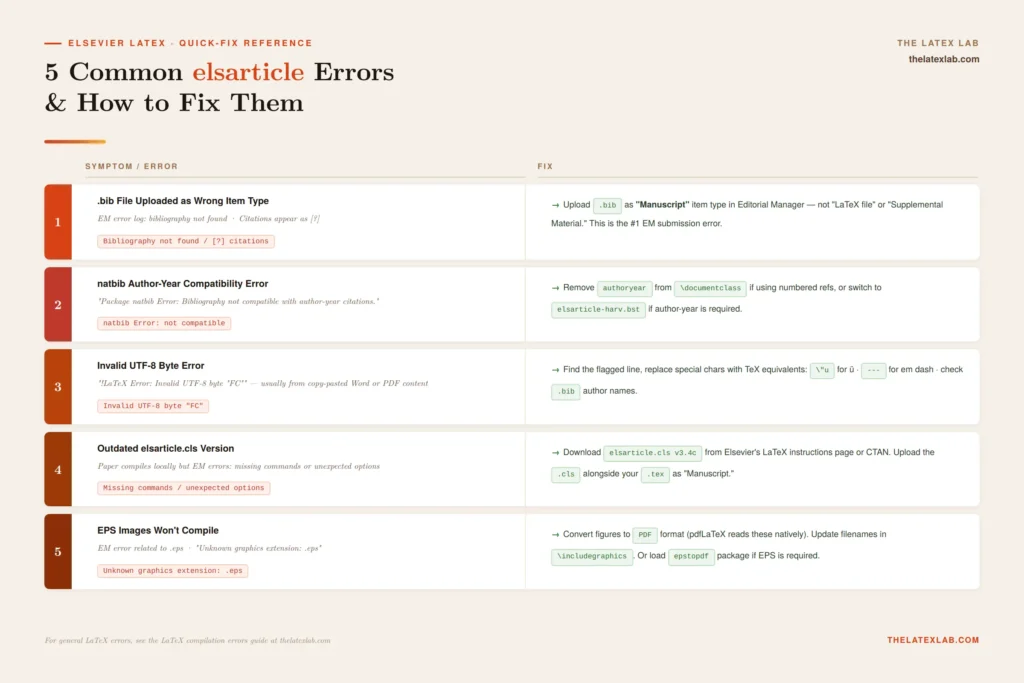
1. .bib File Uploaded as Wrong Item Type
Symptom: EM error log shows bibliography not found, or citations appear as [?].
Fix: Upload your .bib file as “Manuscript” item type, not “LaTeX file” or “Supplemental Material.” This is the #1 Elsevier EM submission error — the upload category name is misleading, but EM needs .bib files classified as Manuscript to process them during compilation.
2. natbib Author-Year Compatibility Error
Symptom: “Package natbib Error: Bibliography not compatible with author-year citations.”
Fix: If you’re using numbered references, remove “authoryear” from your \documentclass options. The line should be \documentclass[preprint,12pt]{elsarticle} — not \documentclass[preprint,12pt,authoryear]{elsarticle}. If you do need author-year, make sure your .bst file matches (use elsarticle-harv.bst, not elsarticle-num.bst).
3. Invalid UTF-8 Byte Error
Symptom: “!LaTeX Error: Invalid UTF-8 byte “FC”” or similar.
Fix: You have a special character (usually from copy-pasting from a Word document or PDF) that isn’t valid UTF-8. Common culprits: smart quotes, em dashes, accented characters from author names in your .bib file. Find the line number in the error, open that file, and replace the character with its TeX equivalent (e.g., \”u for ü, — for em dash).
4. Outdated elsarticle.cls Version
Symptom: Paper compiles locally but EM produces errors about missing commands or unexpected options.
Fix: Download the latest elsarticle.cls (v3.4c as of 2025) from Elsevier’s LaTeX instructions page or CTAN. Don’t rely on the version bundled with your TeX distribution — it may be years old. Upload the .cls file alongside your .tex as a “Manuscript” item.
5. EPS Images Won’t Compile
Symptom: EM error related to .eps files or “Unknown graphics extension: .eps.”
Fix: EM’s pdfLaTeX engine can’t handle all EPS files directly. Convert your figures to PDF format (which pdfLaTeX reads natively) and update the filenames in your \includegraphics commands. If you must use EPS, ensure the epstopdf package is loaded.
CAS Journals: The Other Elsevier Template
Some Elsevier journals use the Complex Article Service (CAS) workflow, which requires a different template: cas-sc.cls (single column) or cas-dc.cls (double column) instead of elsarticle.cls. If your journal’s Guide for Authors mentions “CAS” or links to cas-sc/cas-dc templates, use those instead.
The CAS templates have a different author/affiliation syntax and different bibliography handling. The key tell: if the Guide for Authors links to a template on support.stmdocs.in rather than the standard Elsevier LaTeX instructions page, it’s a CAS journal. The formatting for IEEE and Springer journals is entirely separate from both elsarticle and CAS.
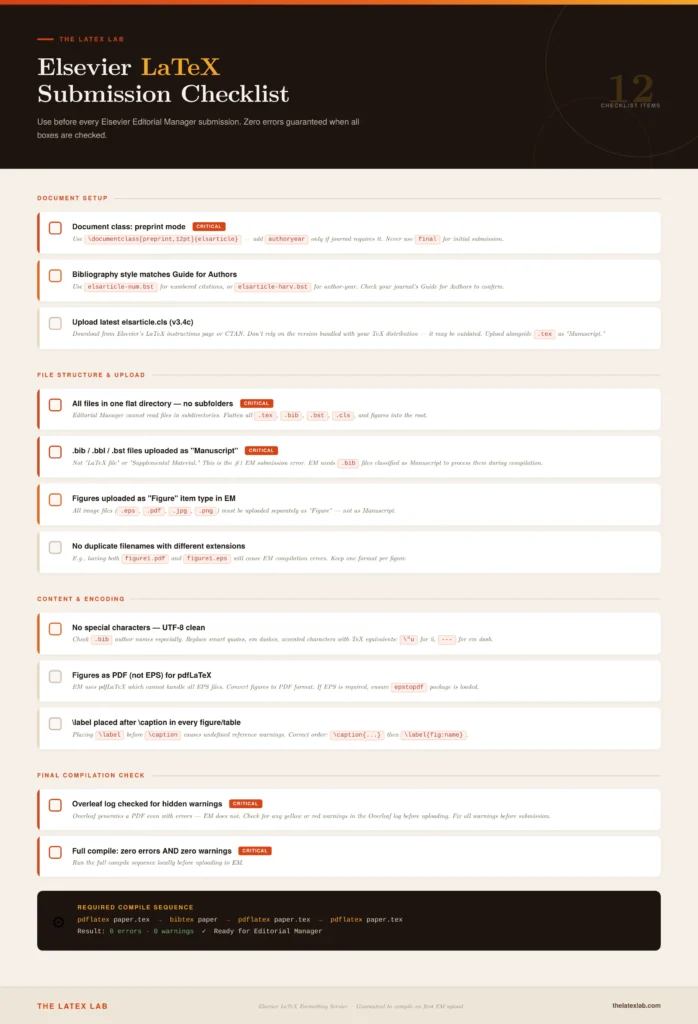
Elsevier LaTeX Submission Checklist
We use this for every Elsevier submission:
- Document class: \documentclass[preprint,12pt]{elsarticle} (add authoryear only if journal requires it)
- Bibliography style matches Guide for Authors (elsarticle-num.bst or elsarticle-harv.bst)
- All files in one flat directory — no subfolders
- .bib/.bbl/.bst files uploaded as “Manuscript” in EM (not “LaTeX file”)
- Figures uploaded as “Figure” in EM
- No duplicate filenames with different extensions
- No special characters — UTF-8 clean (check .bib author names)
- Latest elsarticle.cls (v3.4c) uploaded alongside .tex
- Figures as PDF (not EPS) for pdfLaTeX compatibility
- \label after \caption in every figure/table
- Full compile: pdflatex → bibtex → pdflatex → pdflatex = zero errors AND zero warnings
- Overleaf log checked for hidden warnings before EM upload