There are five real options for converting a Word document to LaTeX in 2026: Pandoc, GrindEQ, Docx2LaTeX, Writer2LaTeX, and professional conversion service. There are also dozens of online converters that are essentially Pandoc wrappers with a drag-and-drop interface. None of them produce submission-ready LaTeX from a complex academic paper without manual cleanup. But they differ significantly in which parts they handle well – equations, tables, citations, or template compliance – and knowing these differences saves you hours of wasted effort with the wrong tool.
This comparison is based on what we’ve seen across 500+ Word to LaTeX conversions at TheLatexLab, where we regularly use these tools as a first pass before doing the manual work. We rate each Word to LaTeX converter for academic papers on the four things that actually matter for journal submission: equation accuracy, table handling, citation migration, and publisher template support.
Quick answer: What’s the best Word to LaTeX converter for academic papers?
It depends on your document. GrindEQ is the best automated tool for equation-heavy papers (especially with MathType). Pandoc is the best free option for text-heavy documents with simple math. Docx2LaTeX is the easiest to use (browser-based, no installation). None of them handle complex tables, bibliography migration, or journal template application reliably. For a paper with 10+ equations, complex tables, and a submission deadline, a professional Word-to-LaTeX conversion service eliminates the cleanup work entirely.
What Actually Matters in a Word-to-LaTeX Converter
Most comparison articles list features like “supports bold and italic” or “converts headings.” That’s not useful – every tool handles basic text. What separates them is performance on the hard parts of academic paper conversion:
Equation accuracy. Can the tool convert Word’s OMML equations into correct LaTeX math? What about MathType equations? What about equations that were inserted as images? Complex multi-line equations with alignment, matrices, and piecewise functions are the real test.
Table handling. Does the tool preserve merged cells, produce correct column specifications, and handle multi-page tables? Or does every table need manual rebuilding?
Citation migration. Does the tool extract references into a .bib file and convert in-text citations to \cite{} commands? Or does it treat citations as plain text?
Publisher template support. Does the output use the correct \documentclass for your target journal (IEEEtran, elsarticle, acmart, etc.)? Or does it output generic LaTeX that needs to be restructured?
Every tool below is rated on these four criteria. We skip the basics that all tools handle (bold, italic, headings, lists) and focus on what makes or breaks a journal submission.
Pandoc
Type: Free, open-source, command-line tool
Platform: Windows, Mac, Linux
Website: pandoc.org
Pandoc is the most widely used document conversion tool in academia. It converts between dozens of formats, and Word-to-LaTeX is one of its core use cases. You install it, run a command like pandoc input.docx -o output.tex, and get a .tex file in seconds.
Equations: Pandoc converts simple OMML equations (fractions, subscripts, superscripts, Greek letters, basic integrals) into LaTeX math reasonably well. Multi-line aligned equations, matrices, and piecewise functions frequently break. MathType and legacy Equation Editor 3.0 objects are either ignored or extracted as images. Expect 60-70% of equations in a typical research paper to need manual correction.
Tables: Simple tables with no merged cells convert to longtable format and look functional. Tables with merged cells break – Pandoc’s internal representation does not compensate for horizontal merges, so column alignment goes wrong after the merged cell. Cell shading, custom borders, and table footnotes are dropped.
Citations: Pandoc does not extract Word citations into a .bib file. In-text citations become literal text (“[1]” or “(Smith, 2024)”). The bibliography section becomes formatted paragraphs, not a linked reference list. You must export your .bib separately from your reference manager and replace every citation manually.
Templates: Pandoc outputs \documentclass{article} by default. It does not apply journal-specific templates. You can pass a custom template with the --template flag, but you’d need to create that template yourself – which defeats the purpose if you’re not already comfortable with LaTeX.
When Pandoc is the right choice: Short, text-heavy documents with few or no equations, simple tables, and no strict template requirements. Grant proposals, reports, and humanities papers where the math is minimal.
When Pandoc fails: Equation-heavy STEM papers, any document with complex tables or merged cells, anything where you need a specific journal template applied.
GrindEQ
Type: Commercial software ($69-$99 license)
Platform: Windows only (requires Microsoft Word installed)
Website: grindeq.com
GrindEQ is a Word add-in that converts directly from within Microsoft Word. This gives it access to Word’s internal document model, which is a significant advantage over tools that parse the .docx XML externally.
Equations: This is GrindEQ’s strongest feature. It handles OMML, MathType, and legacy Equation Editor 3.0 objects, converting them into editable LaTeX math. MathType conversion is particularly strong because GrindEQ reads MathType’s internal format directly. Aligned environments and matrices convert more reliably than Pandoc. Still, complex multi-line equations with custom spacing may need manual adjustment. Expect 30-50% of complex equations to need cleanup – significantly better than Pandoc.
Tables: Better than Pandoc. GrindEQ reads Word’s table model directly and preserves more column width information. Simple merges are handled. Complex tables with both horizontal and vertical merges still break. No booktabs styling is applied – you get \hline and vertical rules, which need to be replaced for most journals.
Citations: GrindEQ does not generate a .bib file. Citations are converted as text, same as Pandoc. You still need to handle the bibliography separately.
Templates: Outputs generic LaTeX. No journal template application. You need to restructure the output to fit your target template manually.
When GrindEQ is the right choice: Equation-heavy papers, especially those with MathType equations. Windows users who need the best available automated equation conversion. If your paper has 20+ equations and most are in MathType, GrindEQ saves significant time compared to any other automated tool.
When GrindEQ fails: If you’re on Mac or Linux (GrindEQ is Windows-only). If you need bibliography migration or template application. If your tables are complex.
Docx2LaTeX
Type: Web-based service (free for basic conversion, paid tiers for additional features)
Platform: Any (browser-based)
Website: docx2latex.com
Docx2LaTeX is a web-based converter where you upload a .docx file and download the generated .tex file and compiled PDF. It’s the easiest tool to use – no installation, no command line, just upload and download.
Equations: Handles OMML equations at a level comparable to Pandoc, sometimes slightly better. Does not handle MathType as well as GrindEQ. The service appears to use a more sophisticated conversion pipeline than plain Pandoc, but complex equations still require manual correction.
Tables: Similar to GrindEQ – handles simple to moderately complex tables. Some users report good results even with moderately merged cells, but results vary by document. Like all automated tools, multi-page tables and tables with footnotes need manual work.
Citations: Does not generate a .bib file. Same limitation as all other automated tools.
Templates: Does not apply journal-specific templates. Outputs generic LaTeX.
When Docx2LaTeX is the right choice: When you want a quick starting point without installing anything. Good for getting a baseline .tex file that you’ll clean up manually. The compiled PDF preview lets you immediately see what broke.
When Docx2LaTeX fails: Same limitations as other automated tools – complex equations, complex tables, bibliography, and templates all need manual handling. Not suitable for confidential documents if you’re concerned about uploading to a third-party server.
Writer2LaTeX
Type: Free, open-source (LibreOffice/OpenOffice extension)
Platform: Windows, Mac, Linux (requires LibreOffice)
Website: writer2latex.sourceforge.net
Writer2LaTeX is a LibreOffice/OpenOffice extension that exports Writer documents to LaTeX. To use it with a Word document, you first open the .docx in LibreOffice, then export to LaTeX. This two-step process introduces a potential problem: LibreOffice’s rendering of Word documents is not always perfect, so some formatting may be lost before the LaTeX conversion even starts.
Equations: Handles LibreOffice Math equations well (since that’s its native format). However, Word’s OMML equations are first interpreted by LibreOffice when you open the .docx, and this interpretation step can alter equation rendering. MathType objects may not survive the Word-to-LibreOffice step at all. The equation conversion quality depends heavily on how well LibreOffice imported the original Word document.
Tables: Comparable to Pandoc. Simple tables convert. Complex tables with merges need manual work. Writer2LaTeX offers extensive configuration options for controlling table output, but using them effectively requires understanding both LibreOffice’s document model and LaTeX table environments.
Citations: Writer2LaTeX has a companion tool called Writer2BibTeX that can extract LibreOffice bibliography entries to a .bib file. This is a genuine advantage over Pandoc and GrindEQ – if your bibliography data is stored in LibreOffice’s citation manager, it can be exported. However, if the references came from Zotero or Mendeley plugins in Word, they may not survive the Word-to-LibreOffice step intact.
Templates: Does not apply journal templates. Outputs generic LaTeX, though it offers extensive configuration for controlling the document class and preamble.
When Writer2LaTeX is the right choice: If you already use LibreOffice as your primary word processor, or if your document was originally created in LibreOffice (not Word). The configuration flexibility is useful for power users who want fine-grained control over the LaTeX output.
When Writer2LaTeX fails: When converting from Word. The Word-to-LibreOffice-to-LaTeX pipeline introduces an extra conversion step where things can break. Not recommended as a primary Word-to-LaTeX tool unless you have specific reasons to use LibreOffice in the pipeline.
Mathpix (PDF-to-LaTeX, Not Word-to-LaTeX)
Type: Commercial SaaS (free tier with limited snips, paid plans from $4.99/month)
Platform: Windows, Mac, Linux, iOS, Android, web
Website: mathpix.com
Mathpix appears in every Word-to-LaTeX comparison, but it’s important to clarify: Mathpix does not convert .docx files directly. It converts PDFs and images to LaTeX using OCR (optical character recognition). To use it for a Word document, you’d export your .docx to PDF first, then convert the PDF with Mathpix.
This matters because OCR-based conversion is fundamentally different from structure-based conversion (what Pandoc and GrindEQ do). Mathpix looks at the visual rendering of your document and recognizes text, equations, and tables from the image. It doesn’t read the underlying document structure.
Equations: Mathpix’s equation recognition is excellent – arguably the best available for converting equation images to LaTeX. It handles printed equations (including complex multi-line expressions) and even handwritten equations with high accuracy. If your Word document has equations inserted as images (a common problem), Mathpix is the only tool that can recover them as LaTeX math.
Tables: Table OCR is reasonable for simple tables but struggles with complex layouts, merged cells, and tables where text wraps within cells. The output often needs manual correction for alignment and formatting.
Citations: No bibliography extraction. Citations in the PDF are just text to Mathpix’s OCR engine.
Templates: No journal template application. Outputs generic LaTeX.
When Mathpix is the right choice: When your equations are images (from PDF-to-Word conversion, screenshots, or old documents). When you need to convert a PDF (not a .docx) to LaTeX. As a supplementary tool alongside Pandoc or GrindEQ to handle equations those tools can’t parse.
When Mathpix fails: As a primary Word-to-LaTeX converter. The PDF-to-LaTeX pipeline loses all structural information that a direct .docx-to-.tex conversion preserves. It’s an OCR tool, not a document converter.
TheLatexLab has converted 500+ research papers from Word to LaTeX across IEEE, Elsevier, Springer, ACM, and 200+ other templates.
We use these tools as a first pass, then manually verify and fix every equation, table, and citation. Every file is compilation-tested before delivery.
Professional Conversion Service – TheLatexLab
Type: Human experts do the conversion for you
Cost: Typically $49-$299 depending on document length and complexity
Turnaround: 24-72 hours for most services
A professional conversion service combines automated tools with manual verification and correction. The workflow is similar to what a LaTeX-proficient researcher would do, but the person doing it converts papers daily and knows the common failure points by heart.
Equations: Should be 100% accurate – every equation is manually verified against the original.
Tables: Should be 100% accurate – tables are rebuilt using the correct LaTeX environments (booktabs, longtable, multirow, etc.).
Citations: Should be 100% accurate – references are exported to a .bib file, every citation key is matched, and the reference count is verified against the original.
Templates: The correct journal template is applied and configured. This is a major advantage over automated tools – services know how to set up IEEEtran, elsarticle, acmart, and other templates correctly, including bibliography styles, page layouts, and required packages.
TheLatexLab is our service. We have done this for 500+ papers across IEEE, Elsevier, Springer, ACM, MDPI, arXiv, and 200+ other journal and conference templates. We deliver a compiled .tex file, a .bib file, all extracted figures, and a PDF that matches your original document. Every file is compilation-tested in Overleaf before delivery. Turnaround is 72 hours for standard papers, faster for urgent requests. Pricing starts at $49 for a standard research paper.
There are other professional services too – Docx2LaTeX offers a managed service tier, and several freelancers on Fiverr and Upwork do LaTeX conversion work. The quality varies. If you go with any service, ask for a sample conversion of one page with your most complex equation and table before committing.
When a professional service is the right choice: When you have a submission deadline and can’t spend 10+ hours on conversion. When your document has complex equations, tables, and citations. When you need the correct journal template applied. When you don’t know LaTeX well enough to handle the cleanup yourself.
When a professional service is overkill: When your document is text-only with no math, tables, or citations – just use Pandoc. When you’re a LaTeX expert and enjoy the process. When budget is the primary constraint and you have time to learn.
Side-by-Side Comparison
Here’s how the five tools and two approaches compare on a typical 15-page research paper with 20 equations, 4 tables (one with merged cells), and 30 citations targeting an IEEE journal.
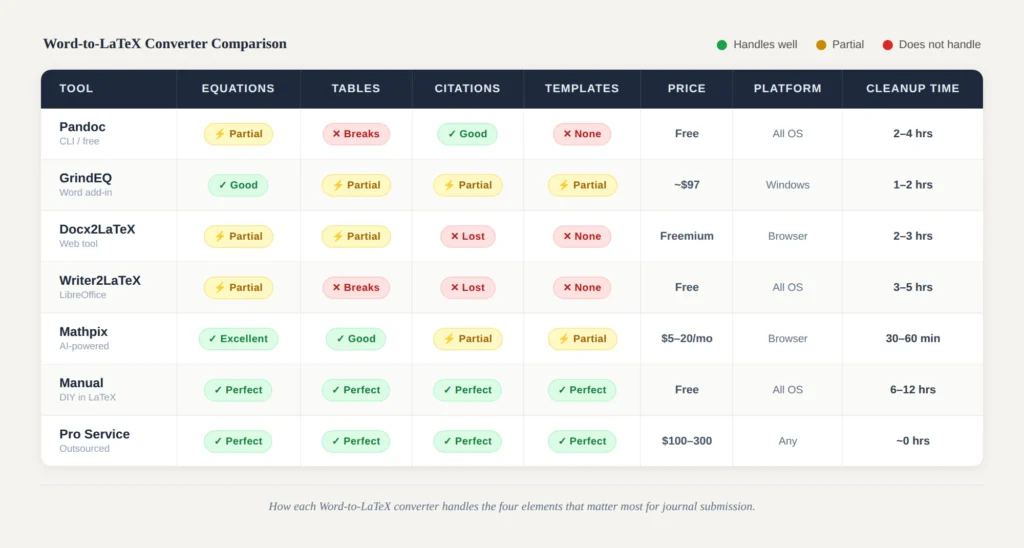
Our insight: When we get a new conversion project at TheLatexLab, we pick our starting tool based on the document’s composition. For OMML-heavy documents, we start with Pandoc. For MathType-heavy documents, we start with GrindEQ. For documents where the author only has a PDF (no .docx), we use Mathpix. Then we manually fix everything the tool got wrong – equations, tables, citations, and template application. The automated first pass typically saves 2-4 hours compared to a fully manual rewrite. But the manual work is where the actual quality comes from.
Tried converting yourself and spent hours on cleanup? We fix that.
Send us your Word document and we handle everything – equations, tables, bibliography, and template. Average turnaround: 72 hours. From $49.
When to Use a Tool vs. When to Hire a Service
Use a tool when your document has:
- Fewer than 5 equations, all simple (single-line, standard notation)
- Tables with no merged cells
- References managed in Zotero or Mendeley (easy .bib export)
- No strict template requirements, or you already know how to set up the target template
- No pressing deadline
Consider a service when your document has:
- 10+ equations, especially multi-line or complex notation
- Tables with merged cells, footnotes, or multi-page spans
- 30+ references that need .bib export and key matching
- A specific journal template that needs to be applied correctly
- A submission deadline within the next week
Our insight: The break-even point for most researchers is around 5-8 hours of cleanup time. If you estimate that fixing the automated conversion output would take more than that, a professional service at $49-$149 is almost always more cost-effective than your time. A postdoc earning $60,000/year earns roughly $30/hour – 8 hours of conversion work costs $240 in time, more than the price of most professional services.
Not sure which approach is right for your paper? Send us the document and we’ll tell you.
We review your Word file for free and provide an exact quote based on your document’s complexity. No commitment required.