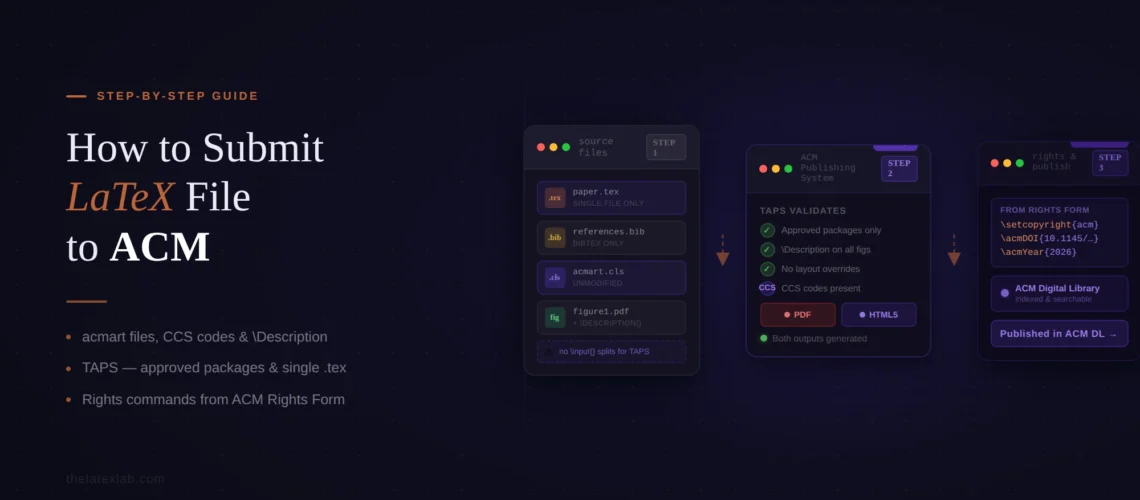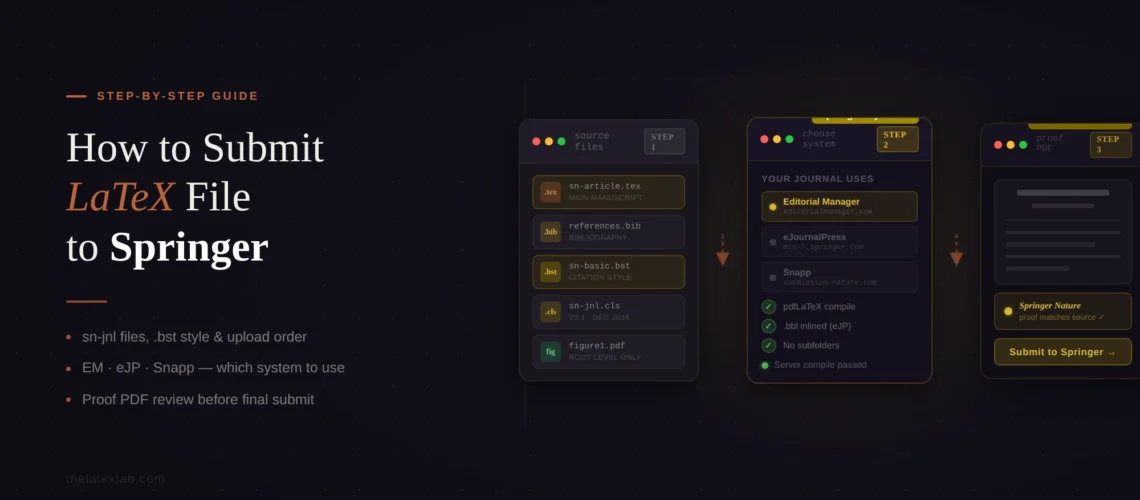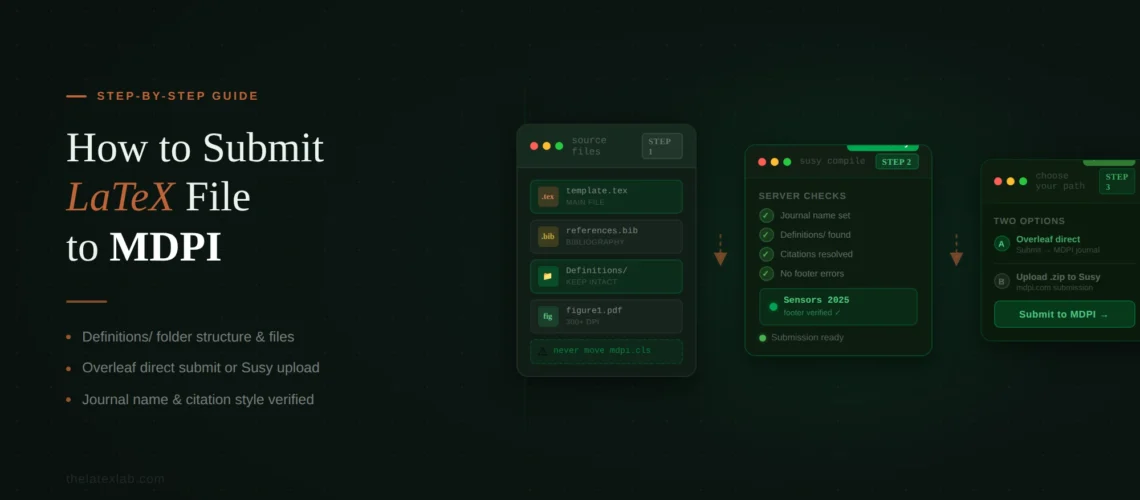
Your paper compiles perfectly in Overleaf. You download the source files, go to submit LaTeX to Elsevier Editorial Manager, and the PDF build fails. Or it builds, but the figures are missing. Or the bibliography shows [?] everywhere. You spend two hours reclassifying files, rebuilding, and reading cryptic TeX Live error codes. This is one of the most common frustrations in academic publishing, and it happens because Editorial Manager’s LaTeX compilation environment works differently from your local setup or Overleaf.
After preparing files for 500+ Elsevier submissions at TheLatexLab, we have seen every variant of this problem. The issues are almost never in your LaTeX code itself – they’re in how you prepare and classify the files for upload. This guide covers the exact steps, the classification rules that trip everyone up, and fixes for every common error.
Quick answer: How to submit LaTeX to Elsevier Editorial Manager
- Flatten all files into a single folder (no subfolders)
- Remove all file paths from
\includegraphicsand\bibliographycommands - Upload your .tex file and classify it as “Manuscript”
- Upload .bib, .bbl, .bst, .sty, and .cls files – all classified as “Manuscript”
- Upload figure files – classified as “Figure”
- Click “Build PDF” and check the generated PDF for errors
The most common submission error is classifying .bib or .sty files as “Supplemental” instead of “Manuscript.” EM can’t find files that aren’t classified as Manuscript during compilation. The second most common error is including folder paths in \includegraphics{figures/fig1.pdf} – EM puts all files in one directory, so the path breaks.
Before You Submit LaTeX to Elsevier Editorial Manager: Preparing Your Files
Most submission failures happen before you even open Editorial Manager. The preparation step is where you prevent 90% of the errors.
Flatten your file structure
This is the single most important rule: Editorial Manager cannot process LaTeX submissions containing subfolders. If your Overleaf project has a figures/ folder, a sections/ folder, and a bib/ folder, EM will fail. Every file – .tex, .bib, .bst, .sty, .cls, and all figure files – must be in the same directory level.
Copy all files into one flat folder before uploading. If you have files with the same name in different subfolders, rename them.
Remove all file paths
After flattening, search your .tex file for every \includegraphics, \input, \include, \bibliography, and \bibliographystyle command. Remove all directory paths. Change \includegraphics{figures/fig1.pdf} to \includegraphics{fig1.pdf}. Change \input{sections/methods.tex} to \input{methods.tex}. Change \bibliography{bib/references} to \bibliography{references}.
Even ./ (the current directory prefix) must be removed. \includegraphics{./fig1.pdf} will fail.
Clean up file names
EM has strict file naming rules. File names must not contain:
- Special characters (+, &, #, %, etc.) –
G+.epswill be rejected - More than one period –
fig.1.epswill fail because EM reads everything after the first period as the extension. Rename tofig1.eps - Reserved Windows names – CON, PRN, AUX, NUL, COM1-COM9, LPT1-LPT9 (even with different extensions)
Don’t include .pdf output files
Do not upload a PDF of your compiled manuscript. EM generates its own PDF from your source files. If you upload a PDF alongside your .tex, EM may try to use it and produce a duplicated or broken submission.
Avoid duplicate file names with different extensions
EM cannot process two files with the same name but different extensions. If you have both figure1.eps and figure1.pdf, delete one. Decide on one image format and stick with it.
Our insight: The file preparation step takes 5-10 minutes but prevents hours of debugging inside EM. We have a pre-upload checklist that we run on every project: flatten, strip paths, check file names, verify no duplicate basenames, confirm the .sty and .cls files are included. About 70% of the “EM won’t compile my LaTeX” support requests we see on ResearchGate are caused by subfolder paths or wrong file classification – both are preventable before upload.
TheLatexLab delivers every file submission-ready for Editorial Manager.
We compile and test in EM’s TeX Live 2022 environment before delivery. Flat file structure, correct classifications, zero compilation errors. If it doesn’t build in EM, we fix it free.
Step-by-Step LaTeX Submission to Elsevier Editorial Manager
Once your files are prepared, here’s the actual upload sequence in Editorial Manager.
Step 1: Start a new submission. Log into the journal’s Editorial Manager instance, click “Submit New Manuscript,” and select the article type (Research Article, Review, Short Communication, etc.). Click “Proceed.”
Step 2: Upload your primary .tex file. On the “Attach Files” screen, select the item type “Manuscript” from the dropdown, then upload your main .tex file. This is the file that EM will compile. If your manuscript uses \input{} to include other .tex files (like separate chapter or section files), upload those as well, each classified as “Manuscript.”
Step 3: Upload bibliography files. Upload your .bib file and classify it as “Manuscript” (not “Supplemental,” not “LaTeX file,” not any other type). If you use a custom .bst file, upload that too, also as “Manuscript.” If you’ve pre-compiled your bibliography, upload the .bbl file as “Manuscript.”
Step 4: Upload style and class files. If your submission uses a .sty or .cls file that isn’t part of the standard TeX Live distribution (for example, the journal’s own style file), upload it as “Manuscript.” EM needs these files to compile your document.
Step 5: Upload figure files. Upload each figure file individually and classify each one as “Figure.” Supported formats include .png, .pdf, .jpg, .jpeg, .eps, and .ps. EM supports .tif files but they cannot be used inside \includegraphics{} – convert .tif to .png or .pdf before uploading.
Step 6: Upload supplementary materials (if any). Data files, code, appendices, or other supplementary material that isn’t part of the main manuscript go under the “Supplemental” category. These files are not compiled by EM’s LaTeX engine.
Step 7: Check the file list. Before proceeding, verify every file has an item type assigned. Files showing “Choose” in red in the item type column will block the PDF build. Make sure .tex, .bib, .bbl, .bst, .sty, and .cls files are all “Manuscript.” Make sure figure files are all “Figure.”
Step 8: Click “Proceed” and fill in metadata. Enter the title, abstract, authors, keywords, and any other information the journal requires. Some of this may auto-populate from your .tex file, but verify it.
Step 9: Click “Build PDF.” EM compiles your .tex file using TeX Live 2022 and generates a PDF. This takes anywhere from 30 seconds to several minutes depending on document complexity.
Step 10: View the PDF. Click “View Submission” to check the built PDF. If compilation succeeded, you’ll see your formatted manuscript. If it failed, you’ll see pages of TeX compiler log output instead of your paper. Read the error log to diagnose the problem (see the errors section below).
The File Classification Rules That Break Everything
This is the section that will save you the most time. File classification in EM is unintuitive, and the wrong choice causes silent failures.
The rule is simple but counterintuitive: everything that EM’s compiler needs to access during compilation must be classified as “Manuscript.” This includes files that don’t look like manuscripts at all.
Classify as “Manuscript”:
- .tex files (main manuscript and any included files)
- .bib files (bibliography database)
- .bbl files (pre-compiled bibliography)
- .bst files (bibliography style)
- .sty files (style packages)
- .cls files (document class)
- .nls, .ilg, .nlo files (nomenclature)
Classify as “Figure”:
- .png, .jpg, .jpeg, .pdf (when used as figures), .eps, .ps, .mps, .jbig2, .jb2 files
Classify as “Supplemental” (or equivalent):
- Data files, code, appendices, and supporting materials not compiled by LaTeX
Our insight: The classification error that wastes the most researcher time is uploading the .bib file as anything other than “Manuscript.” Some journals have an item type called “LaTeX Source Files” or “Bibliography File,” and researchers logically choose that instead of “Manuscript.” But if the item type isn’t configured as a compilation source in that journal’s EM setup, the compiler can’t find the .bib file, and you get [?] marks throughout the paper. “Manuscript” is the safe choice for every compilation-essential file.
Stuck on an Editorial Manager compilation error? We fix it.
Send us your .tex files and the EM error log. We diagnose the problem, fix it, and return submission-ready files. Usually resolved within 24 hours. Our Build Doctor service handles exactly this.
Common Elsevier Editorial Manager LaTeX Errors and Fixes
When the PDF build fails, EM shows you TeX compiler log output instead of your formatted manuscript. Elsevier’s official error code guide covers some of these, but in practice the error messages are dense and the fixes aren’t always obvious. Here are the errors we see most often and exactly how to fix each one.
! LaTeX Error: File ‘something.sty’ not found
Cause: Your .tex file references a .sty package that isn’t included in EM’s TeX Live 2022 installation and wasn’t uploaded.
Fix: Upload the .sty file and classify it as “Manuscript.” If you’re unsure which .sty file is missing, check the error message for the exact filename. Common culprits include journal-specific style files that you installed locally but forgot to include in the upload.
!Package pdftex.def Error: File ‘figures/fig1.pdf’ not found
Cause: Your \includegraphics command includes a folder path. EM puts all files in one directory – there is no figures/ subfolder.
Fix: Remove the path from the command. Change \includegraphics{figures/fig1.pdf} to \includegraphics{fig1.pdf}. Also remove ./ prefixes.
Figures missing from the built PDF
Cause 1: Figure files were classified as something other than “Figure.” EM only includes files classified as “Figure” in the image search path.
Cause 2: The filename in your \includegraphics{} command doesn’t exactly match the uploaded filename. This is case-sensitive: Fig1.pdf is not the same as fig1.pdf.
Fix: Check that all figure files are classified as “Figure.” Verify filenames match exactly, including case.
Question marks [?] instead of citations
Cause 1: Your .bib file is missing or was classified as “Supplemental” instead of “Manuscript.”
Cause 2: Your \bibliography{} command includes the .bib extension. Use \bibliography{references}, not \bibliography{references.bib}.
Cause 3: Your .bib file includes a folder path. Use \bibliography{references}, not \bibliography{bib/references}.
Fix: Upload the .bib file as “Manuscript.” Remove the .bib extension and any folder paths from the \bibliography{} command. If the .bib file still isn’t working, try uploading a .bbl file instead and reference it with \input{filename.bbl}.
! LaTeX Error: Cannot determine size of graphic (no BoundingBox)
Cause: EM tried to compile with LaTeX (which expects EPS files) instead of pdfLaTeX (which handles PDF, PNG, JPG). EM auto-detects the engine, but sometimes picks wrong.
Fix: Add \pdfoutput=1 as the very first line of your .tex file (before \documentclass). This forces EM to use pdfLaTeX. Alternatively, convert your figure files to EPS format.
Package clash errors (e.g., subcaption conflict)
Cause: A package you loaded conflicts with the journal’s class file or with EM’s compilation environment. Common conflicts include \usepackage{subcaption} clashing with the elsarticle class.
Fix: Remove or comment out the conflicting package. Check if the journal’s class file already provides the functionality you need. The elsarticle class, for example, provides subfigure support through different commands than subcaption.
EM builds the PDF but it looks wrong
Cause: EM uses TeX Live 2022. If you’re compiling locally or in Overleaf with a newer TeX Live version, differences in package versions can cause subtle formatting changes. Overleaf also generates a PDF even when compilation errors occur, while EM stops at errors.
Fix: Set Overleaf to use TeX Live 2022 (Menu > TeX Live Version > 2022) and recompile. Fix any errors or warnings that appear. Then re-download the source files and upload to EM.
Our insight: The most frustrating EM error is when the PDF builds but contains TeX compiler log pages mixed in with your manuscript. This happens when EM encounters an error but continues compiling. The error log pages appear where the error occurred – sometimes between page 3 and page 4 of your paper. Always scroll through the entire built PDF, not just the first page. We’ve seen researchers submit manuscripts without realizing there were error log pages embedded in the middle of their paper.
Submitting From Overleaf to Editorial Manager
Most Elsevier LaTeX submissions originate in Overleaf. The transition from Overleaf to EM has specific gotchas. Elsevier’s official LaTeX submission guidelines cover the basics, but don’t mention the practical issues below.
Download the source files correctly. In Overleaf, go to Menu > Download > Source. This gives you a .zip of your entire project. Unzip it, flatten the folder structure (move everything from subfolders into one directory), fix the file paths in your .tex file, then upload to EM. Do not download just the PDF. If you haven’t started yet, Overleaf’s Elsevier template gallery has the official templates ready to use.
Overleaf hides compilation errors. Overleaf generates a PDF even when errors occur – it continues past errors and produces the best output it can. EM does not do this. EM stops at errors and shows you the compiler log instead of a PDF. This means a project that “compiles fine” in Overleaf might fail completely in EM. Before downloading from Overleaf, check the Overleaf log for any errors or warnings (click the “Logs and output files” button next to the Recompile button).
Match the TeX Live version. EM uses TeX Live 2022. Set Overleaf to the same version (Menu > TeX Live Version > 2022) before your final compilation. Some packages behave differently between TeX Live versions, and a paper that compiles on TeX Live 2024 may fail on 2022.
Our insight: A clean Overleaf-to-EM workflow that we recommend: (1) set Overleaf to TeX Live 2022, (2) recompile and fix any errors, (3) download source, (4) unzip, (5) flatten into one folder, (6) search-and-remove all folder paths in all .tex files, (7) test-compile locally with TeX Live 2022 if possible, (8) upload to EM. Steps 4-6 take 5 minutes. Skipping them costs hours.
What Happens After You Click Submit
After the PDF builds successfully and you approve it, you click “Submit.” Here’s what happens next, because this part is poorly documented.
EM freezes your files. Once submitted, you cannot modify your uploaded files. If you spot an error in the built PDF after submission, you’ll need to contact the journal editorial office and request to update your submission, or wait for the editor to return it with a request for revision.
The editor sees the built PDF, not your source files. During review, the editor and reviewers see the PDF that EM generated – not your .tex files directly. This is why the built PDF quality matters. If figures are low resolution, citations show as [?], or error log pages are embedded, that’s what reviewers see.
Source files are used later. If your paper is accepted, Elsevier’s production team uses your .tex source files to produce the final typeset version. This is when clean, well-structured LaTeX code matters most. Messy source files slow down production and may result in typesetting errors in the published version.
You may get a “source files needed” request. Some Elsevier journals accept PDF-only submissions for initial review and request LaTeX source files only after acceptance. If you receive this request, follow the same preparation and upload steps described above. The editorial assistant typically gives you a deadline of 1-2 weeks.
Need submission-ready LaTeX for Elsevier? We prepare and test them for EM.
We deliver flat file structures, correct item type classifications, and a PDF pre-built against TeX Live 2022. Zero EM errors, guaranteed. Average turnaround: 72 hours.