Converting a Word document to LaTeX sounds straightforward until you hit your first equation. The text transfers fine. The headings come through. But those carefully formatted equations you spent hours building in Word’s equation editor? They turn into broken code, garbled symbols, or worse: static images that no LaTeX compiler can touch. If you’ve searched for convert Word to LaTeX without losing equations, you already know this is the hardest part of the entire conversion process.
After converting 500+ research papers from Word to LaTeX, I can tell you the equation problem isn’t a bug in any one tool. It’s a fundamental mismatch between how Word stores math and how LaTeX renders it. Understanding that mismatch is the key to getting your equations through cleanly, whether you do it yourself or hand it off to a professional conversion service.
Quick answer: What’s the best way to convert equations from word to LaTeX?
It depends on how your equations were created. OMML equations (Word’s built-in editor, 2007+) can be partially converted using Pandoc or GrindEQ, though complex multi-line equations often break. MathType equations convert more reliably through GrindEQ. Equations inserted as images cannot be auto-converted at all and must be retyped in LaTeX math mode or recovered using OCR tools like Mathpix. For equation-heavy papers with 10+ equations, a professional LaTeX conversion service is typically the fastest path to clean, compilable math.
Why Equation from Word Document Break During LaTeX Conversion
Word and LaTeX store equations in completely different formats, and no converter translates perfectly between them.
Word’s native equation editor (introduced in Word 2007) stores math in a format called OMML – Office Math Markup Language. It’s an XML-based representation designed for on-screen rendering inside Word. When you type a fraction using Word’s equation toolbar, the underlying XML looks something like <m:f><m:num>...</m:num><m:den>...</m:den></m:f>.
LaTeX, on the other hand, represents the same fraction as \frac{numerator}{denominator} – a plain-text command that gets compiled into typeset output by the TeX engine.
The translation between OMML and LaTeX math sounds mechanical, but several things go wrong in practice:
Spacing and alignment information gets lost. Word’s equation editor stores visual spacing data (manual kerning, padding adjustments) that has no direct equivalent in LaTeX. When you’ve tweaked spacing inside a Word equation to make it look right, that information evaporates during conversion.
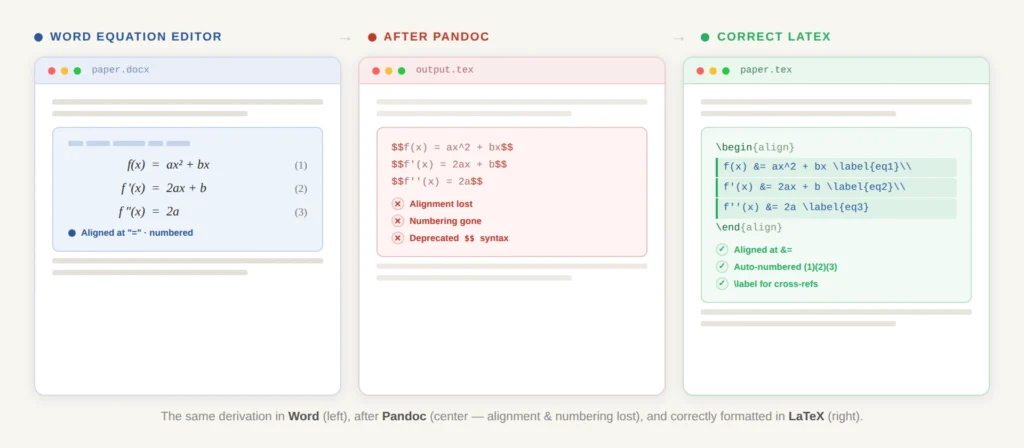
Multi-line equations lose their alignment points. If you built aligned equations in Word (say, a derivation where each line aligns at the equals sign), most conversion tools output each line as a separate, unlinked equation instead of a proper LaTeX align environment. The math is technically correct, but the alignment is gone.
Custom symbols and operators disappear. Word lets you insert symbols from a picker that maps to Unicode code points. LaTeX uses command names like \nabla, \partial, or \otimes. Converters handle common symbols well but choke on unusual ones – custom operators, decorations (overbars, underbraces), and stacked limits often come through corrupted or missing.
Equation numbering and cross-references break. In Word, equation numbers are typically manual text or auto-numbered captions. In LaTeX, they’re generated automatically by the equation environment and linked via \label/\ref. No automated converter reconstructs this linking. You get the math, but not the numbering system.
The Three Types of Equations in Word (and Why It Matters for Conversion)
Before you run any conversion tool, you need to know what kind of equations are in your document. Not all Word equations are created equal, and the type determines whether automated conversion is even possible.
Type 1: OMML equations (Word 2007 and later)
If you created equations using Word’s built-in equation editor (Insert → Equation, or the Alt+= shortcut), they’re stored as OMML. This is the best-case scenario for conversion. Tools like Pandoc and GrindEQ can parse OMML and output LaTeX math. Simple equations – fractions, superscripts, subscripts, Greek letters, basic integrals – convert reliably. Complex ones (matrices, piecewise functions, multi-line aligned derivations) are hit-or-miss.
TheLaTeXLab insight: About 60% of the Word documents we receive from researchers use OMML equations. Of those, roughly half contain at least a few equations complex enough to require manual cleanup after automated conversion. The most common failures are aligned environments and equations with custom spacing adjustments.
Type 2: MathType / Equation Editor 3.0 objects
Older documents (or papers authored by researchers who’ve used Word for decades) often contain MathType equations or legacy Equation Editor 3.0 objects. These are embedded as OLE objects – essentially mini-applications running inside your document. Microsoft removed Equation Editor 3.0 support in 2018 due to a security vulnerability, which means these equations may not even be editable in modern Word versions.
GrindEQ handles MathType-to-LaTeX conversion reasonably well because MathType’s internal format is closer to structured math than OMML. Pandoc, however, treats these as opaque objects and either ignores them or extracts them as images.
TheLaTeXLab insight: We still see Equation Editor 3.0 objects in roughly 15% of documents from authors in established research groups, especially in fields like mechanical engineering and applied physics where papers get passed between co-authors over years. If your document has these legacy equations and you try to open it in Word 365, some of them may appear as blank boxes or uneditable placeholders. Save a copy before doing anything.
Type 3: Equations inserted as images
This is the worst-case scenario and the root cause of the “LaTeX equations turned into images from Word” problem that frustrates so many researchers. There are several ways equations end up as images in Word documents:
- The author typed equations in a separate tool, took screenshots, and pasted them into Word
- The document was converted from PDF to Word (all equations become rasterized images)
- A co-author working on a different platform (Google Docs, LibreOffice) opened and re-saved the document, converting live equations to static images
- The document went through a copy-paste chain where equations lost their editable properties
No conversion tool can automatically turn an image of an equation back into LaTeX code. The image is just pixels. To recover these, you either retype each equation manually in LaTeX or use OCR tools like Mathpix Snip, which can extract LaTeX from equation images with reasonable accuracy for simple to moderately complex expressions.
TheLaTeXLab has converted 500+ research papers with zero equation errors in the final deliverable.
We handle OMML, MathType, and image-based equations. Every equation is verified against your original Word document before delivery.
When Your LaTeX Equations Turn Into Images From Word: How to Detect and Fix It
This problem is common enough that it deserves its own section. You run Pandoc or another conversion tool, open the .tex output, and instead of \frac{d}{dx} \int_a^x f(t)\,dt = f(x), you see something like \includegraphics{media/image12.png}. Your equations have been extracted as images instead of converted to math.
How to check if your Word equations are images
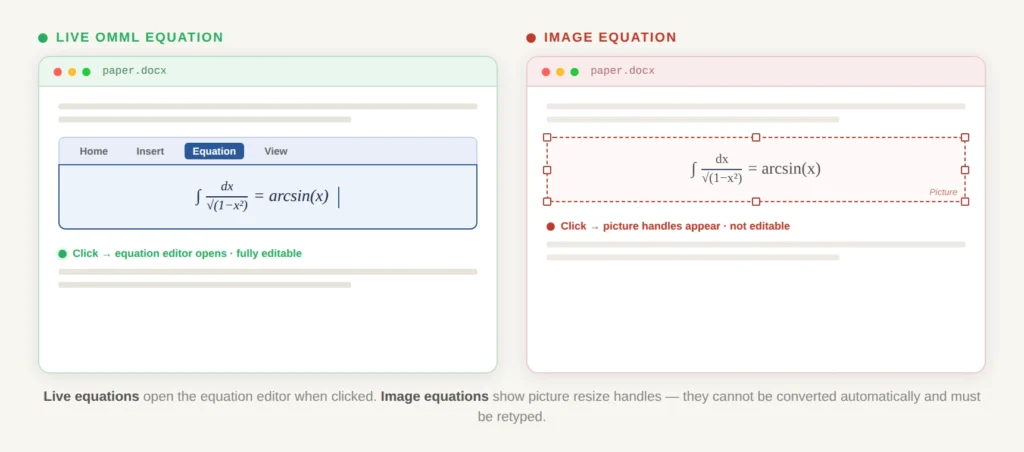
Before running any conversion, open your Word document and click on an equation. If it opens Word’s equation editor (you see the Equation tab appear in the ribbon, and you can place your cursor inside the math and edit individual symbols), it’s a live OMML equation. If clicking selects the entire equation as a single block with resize handles – like you’d see on a photo – it’s an image.
You can also check programmatically. Unzip the .docx file (it’s just a ZIP archive) and look in the word/media/ folder. If you find PNG or EMF files that look like equations, those equations are images.
TheLaTeXLab insight: Here’s a trick I use when triaging a conversion job. I open the .docx in a text editor (after unzipping) and search the word/document.xml file for <m:oMath> tags. Each tag represents one live OMML equation. Then I count the equation images in word/media/. If the image count is close to or exceeds the OMML count, I know a significant chunk of math will need manual recovery. This takes 30 seconds and saves hours of surprises later.
How to fix image equations
There is no magic button here, but you have three options depending on scale:
For 1–5 image equations: Retype them manually in LaTeX. If you can read the equation in the image, you can write it in LaTeX. For researchers who know basic LaTeX math syntax, this takes 2–5 minutes per equation.
For 5–20 image equations: Use Mathpix Snip. Take a screenshot (or crop each equation image), feed it to Mathpix, and it returns LaTeX code. Accuracy is high for printed equations – typically 90%+ for standard math notation. Handwritten equations or poor-quality scans have lower accuracy. Always verify the output against the original.
For 20+ image equations: At this point, the manual effort adds up to hours. This is typically where hiring a LaTeX equation conversion service makes economic sense, especially if the equations are complex (tensor notation, quantum mechanics bra-ket notation, long derivations).
TheLaTeXLab can fix your equations.
We do this daily for IEEE, Elsevier, Springer, ACM, and 80+ other journal templates. Average turnaround: 72 hours. Every equation is compiled and visually matched against your original.
Conversion Methods Ranked by Equation Fidelity
Here’s how each conversion approach handles the three equation types, based on our testing across hundreds of real-world research documents.
Pandoc
OMML equations: Converts simple to moderately complex equations. Fractions, subscripts, superscripts, summations, and single-line integrals come through cleanly. Multi-line aligned equations, matrices larger than 3×3, and piecewise functions frequently break. Equation numbering is always lost.
MathType / Equation Editor 3.0: Typically extracted as images or ignored entirely. Pandoc does not parse OLE objects.
Image equations: Extracted to the media/ folder as image files, referenced in the LaTeX via \includegraphics. No math recovery.
Overall equation fidelity: Good for simple OMML math. Expect 60-70% of equations to need manual attention in a typical research paper.
GrindEQ
OMML equations: Better than Pandoc. GrindEQ’s OMML parser handles aligned environments and matrices more reliably. Still struggles with heavily customized spacing and rare symbols.
MathType / Equation Editor 3.0: This is GrindEQ’s strength. It reads MathType’s internal format directly and produces clean LaTeX math. If your document is full of MathType equations, GrindEQ is your best automated option.
Image equations: Same limitation as every other tool – no recovery from images.
Overall equation fidelity: The best automated option for equation-heavy documents. Expect 30-50% of complex equations to need cleanup, and much less for MathType-heavy documents.
Manual rewriting
All equation types: 100% fidelity, because you’re reading each equation and typing the LaTeX yourself. This is the most reliable method and the most time-consuming. For a paper with 25 equations, expect 2–4 hours on equations alone (more if they include complex notation you need to look up).
Overall equation fidelity: Perfect, assuming you don’t make typos.
Professional conversion service
All equation types: A good LaTeX conversion service combines automated tools with manual verification. The workflow typically involves running an automated pass, identifying what broke, and fixing every equation by hand. The advantage is that the person fixing them does this daily and can spot errors that a researcher unfamiliar with LaTeX might miss – things like incorrect \displaystyle usage, missing \left/\right delimiters on brackets that need to scale, or environments that compile but don’t match the original visually.
Overall equation fidelity: Should be 100% if the service is competent. Ask for a sample conversion of a page with your most complex equation before committing.
TheLaTeXLab Playbook: How We Actually Handle Equation Conversion
When a researcher sends us a Word document for conversion, equations are the first thing we assess. Here’s the actual workflow we follow at TheLaTeXLab – not the theoretical “just run Pandoc” advice you’ll find elsewhere.
Step 1: Triage the equations
We open the document and classify every equation into one of the three types described above (OMML, MathType, or image). We note which equations are inline (within a sentence) and which are displayed (on their own line with numbering). We flag any equations that use unusual notation specific to a subfield – things like Dirac notation in physics, commutative diagrams in category theory, or circuit diagrams with embedded math in electrical engineering.
Step 2: Run the automated pass
For OMML-heavy documents, we run Pandoc first to get a baseline .tex file. For MathType-heavy documents, we use GrindEQ. This automated pass gives us the document structure and handles the simple equations. We never trust the output blindly.
Step 3: Equation-by-equation verification
We open the original Word document and the generated .tex file side by side. Every single equation gets compared – not just “does it compile?” but “does the compiled output match the original exactly?” This catches subtle issues like:
- Missing negative signs (a shockingly common conversion artifact)
- Swapped subscripts and superscripts on variables with both
- Lost
\cdot(multiplication dots) that become nothing, changing meaning - Limits on integrals and summations placed inline instead of above/below
- Parentheses and brackets that don’t scale with their contents
Step 4: Rebuild what broke
Any equation that doesn’t match gets rewritten from scratch in the appropriate LaTeX environment. We use equation for single numbered equations, align for multi-line derivations, gather for centered equation groups, and cases for piecewise functions. Every equation gets a \label{} so cross-references work correctly.
TheLaTeXLab insight: The equations that consistently cause the most trouble aren’t the most mathematically complex ones. They’re the ones with mixed notation – a fraction inside an integral inside a summation with a superscript that has a subscript. The nesting depth is what breaks converters, not the mathematical sophistication. A simple-looking equation like a Christoffel symbol with mixed indices will break more tools than a long but flat algebraic derivation.
Pre-Conversion Checklist: Preparing Your Equations
Regardless of which method or tool you use, doing these steps before conversion dramatically improves your equation output.
1. Convert all equations to OMML format. If your document has a mix of MathType and OMML equations, standardize them. In Word, you can use MathType’s “Convert Equations” feature to convert MathType objects to OMML (or vice versa, depending on your conversion tool of choice). Consistent input produces consistent output.
2. Switch equations to “Professional” (visual) mode. Word’s equation editor has two views: “Professional” (rendered math) and “Linear” (text-based input). Some equations get stuck in Linear mode, which looks like raw code inside Word. These often confuse converters. Click each equation, and if you see raw text instead of rendered math, right-click and select “Convert to Professional.”
3. Remove manual spacing hacks. If you added extra spaces, thin spaces, or manual line breaks inside equations to make them look right in Word, remove them. These inject invisible characters that cause strange artifacts in the LaTeX output. LaTeX handles equation spacing automatically and usually does it better than manual Word adjustments.
4. Check for equations that are actually text. It’s surprisingly common to find “equations” that were typed as regular text with Symbol font or superscript formatting instead of using the equation editor. These aren’t equations at all from the converter’s perspective – they’re styled text. You’ll need to identify these and either recreate them in the equation editor before conversion or plan to write them in LaTeX manually.
5. Document your notation. If your paper uses non-standard notation – custom operators, unusual decorations, field-specific conventions – write them down in a separate note. This helps anyone (including your future self) who is converting the equations know what the intended output should look like. The number of times I’ve seen a bold italic uppercase letter that could be either a matrix, a vector field, or a random variable depending on the paper’s convention is… high.
6. Export a PDF as your reference. Before you run any conversion, export your Word document to PDF. This becomes your visual ground truth. After conversion to LaTeX, you’ll compile the .tex file and compare every equation against this PDF. If you don’t have a reference, you won’t catch the subtle errors.
Not sure if your equations will survive conversion? Send us your document for a free assessment.
We’ll tell you how many of your equations are OMML, how many are images, and what it will take to get them into clean LaTeX. No commitment required.
