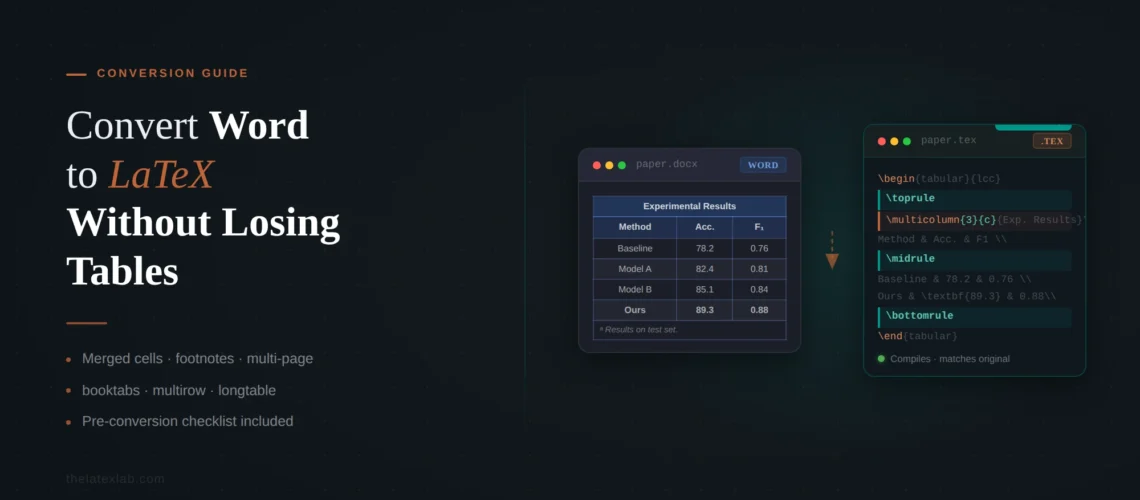
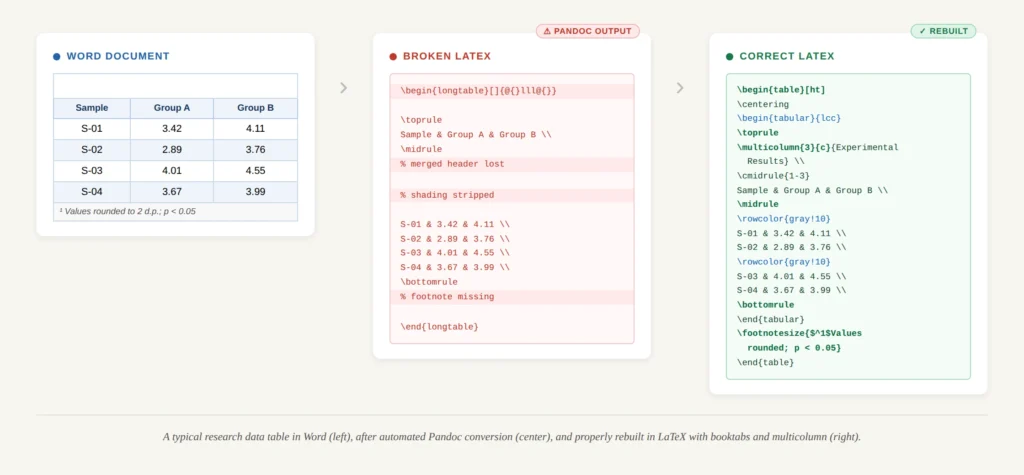
Tables are the element that breaks most often when you convert Word to LaTeX without losing tables and formatting. Equations get the attention, but tables cause more cleanup hours. A 4-column table with merged header cells, shaded rows, and a footnote in Word becomes a mess of misaligned columns, missing borders, and orphaned text after running through Pandoc or any other automated converter.
We have rebuilt tables in over 500 Word-to-LaTeX conversions at TheLatexLab, and tables consistently take 30-40% of the total conversion time on a typical research paper. Not because LaTeX can’t handle complex tables – it handles them better than Word – but because Word and LaTeX store table structure in fundamentally different ways, and no automated tool translates between them cleanly.
Quick answer: What’s the best way to convert Word tables to LaTeX?
No automated tool converts complex Word tables to LaTeX reliably. Pandoc handles simple tables (no merged cells, no shading, single page) but breaks on anything more complex. GrindEQ and Docx2LaTeX do slightly better. For tables with merged cells, multi-page data, or colored rows, manual rebuilding in LaTeX using the right combination of tabular, booktabs, multirow, multicolumn, and longtable is the only way to get accurate output. A professional Word-to-LaTeX conversion service handles this as part of the standard workflow.
Why Word Tables Break During LaTeX Conversion
Word stores tables as a grid of cells inside XML. Each cell can contain paragraphs, images, nested tables, or virtually any content. Cell properties like width, shading, borders, and merge status are stored as attributes on each individual cell. The table itself has no fixed column specification – Word calculates column widths dynamically based on content and window size.
LaTeX tables work differently. You declare the column structure upfront in a column specification string like {l c r p{5cm}}, and every row must conform to that specification exactly. There is no “auto-fit to content” behavior. Merged cells require explicit \multicolumn and \multirow commands that override the column spec for specific cells. Shading requires additional packages. Multi-page tables require switching from the tabular environment to longtable entirely.
This structural mismatch is why conversion tools fail. They have to reverse-engineer a fixed column specification from Word’s fluid grid, figure out which cells are merged and translate those merges into the correct combination of \multicolumn and \multirow commands, and decide whether the table should be a tabular, longtable, or tabularx based on properties the tool can’t easily infer.
TheLatexLab insight: The tables that break most consistently are the ones with both horizontal and vertical merges in the same table. A header row that spans 3 columns above 3 sub-headers is common in research papers, and Pandoc produces garbled output for this pattern roughly 90% of the time. The second most common failure is tables with footnotes – Word lets you add footnotes inside table cells, but LaTeX’s standard tabular environment does not support \footnote at all. You need workarounds like the threeparttable package or manual table notes.
Word Table Features and Their LaTeX Equivalents
Every Word table feature maps to a specific LaTeX package or command, but nothing does this mapping automatically. Here is how each feature translates.
Cell borders and rules
Word tables default to full borders on every cell – a grid of black lines. In LaTeX, this translates to | characters in the column spec and \hline between rows. But professional academic publishing almost never uses full grid borders. The booktabs package provides \toprule, \midrule, and \bottomrule for clean horizontal rules with proper spacing, and most journal style guides explicitly recommend this approach. When we convert a Word table, we typically strip all the grid borders and replace them with booktabs rules, because that is what reviewers and journals expect to see in a LaTeX document.
Merged cells (horizontal)
Word lets you select multiple cells and click “Merge Cells.” In LaTeX, you use \multicolumn{n}{alignment}{content} where n is the number of columns to span. This is straightforward for simple merges but gets complex when you have partial horizontal rules under merged cells – you need \cmidrule from booktabs instead of a full \midrule to draw a rule under only some columns.
Merged cells (vertical)
Vertically merged cells (one cell spanning multiple rows) require the multirow package and the \multirow{n}{width}{content} command. The tricky part is that every row that the multirow spans still needs an empty cell placeholder in the LaTeX code – you leave the cell empty with just & in the subsequent rows. Automated converters frequently get the row count wrong or forget the empty placeholders, causing column misalignment in every row after the merged cell.
Column widths
Word auto-calculates column widths. LaTeX requires you to specify them. You have several options: l, c, r for auto-width left/center/right aligned columns, p{width} for fixed-width paragraph columns that wrap text, or the tabularx package’s X column type which distributes remaining space proportionally. Choosing the right column type matters – using c for a column that contains paragraph-length text will overflow the page margin.
Cell shading and alternating row colors
Word’s “Banded Rows” design option has no direct equivalent in basic LaTeX. You need the xcolor package loaded with the [table] option, then use \rowcolors{start}{color1}{color2} for alternating colors or \cellcolor{} for individual cells. Many journal templates discourage or prohibit colored table cells, so this formatting often gets dropped during conversion anyway.
Table captions and cross-references
In Word, you typically add a caption using Insert > Caption. In LaTeX, the table goes inside a table floating environment with \caption{} and \label{} commands. This is one area where automated converters actually do a decent job – Pandoc usually extracts the caption text correctly. But the label for cross-referencing (the \ref{} link) is almost always lost or wrong.
Multi-page tables
Word tables that span multiple pages just flow naturally onto the next page. In LaTeX, the standard tabular environment cannot break across pages at all – if it is too tall, it overflows the bottom margin and disappears. You must use the longtable package, which has completely different syntax including header/footer definitions for continuation pages (\endfirsthead, \endhead, \endfoot, \endlastfoot). No automated converter reliably detects when a table needs longtable and applies the correct structure.
TheLatexLab insight: About 25% of the research papers we convert have at least one table that needs longtable. The most common case is results tables in experimental papers – the author didn’t realize the table would span two pages until they compiled the LaTeX. We always check every table’s compiled height against the text area height of the target template and preemptively switch to longtable where needed.
TheLatexLab has rebuilt 500+ tables in research papers across IEEE, Elsevier, Springer, and ACM templates.
Every table is verified against the original Word document and compiled with the target journal’s template. Merged cells, multi-page tables, and footnotes all handled.
How Each Word to LaTeX Converter For Equations and Tables Handles it
Pandoc
Pandoc converts simple Word tables reasonably well. A table with no merged cells, no shading, uniform column widths, and content that fits on one page will come through as a functional longtable (Pandoc defaults to longtable for all tables). However:
- Horizontally merged cells are lost – Pandoc’s internal AST (abstract syntax tree) has a known limitation where it does not compensate for merged cells, so column alignment breaks for all subsequent cells in the same row
- Vertically merged cells are treated as empty cells, which is actually less destructive but still wrong
- Cell shading and custom borders are dropped entirely
- Table width is not preserved – Pandoc produces tables that may be too wide or too narrow for the target template’s text width
- Footnotes inside tables become regular footnotes detached from the table
GrindEQ
GrindEQ handles tables somewhat better than Pandoc because it reads the Word XML directly rather than going through an intermediate representation. It preserves more column width information and handles simple merges. But complex tables with both horizontal and vertical merges still break, and GrindEQ does not apply journal-specific table styling.
Docx2LaTeX
Docx2LaTeX is a web-based converter that handles tables at a level similar to GrindEQ. Some users report good results with moderately complex tables, but the output still requires manual review and adjustment for any table that would need multirow, multicolumn, or longtable.
Manual rewriting
For any table with merged cells, footnotes, or multi-page content, manual rewriting in LaTeX is the only way to guarantee correct output. A simple 4-column, 10-row table with no merges takes about 5-10 minutes. A complex table with merged headers, a sub-header row, and booktabs styling takes 20-40 minutes. A multi-page longtable with continuation headers can take an hour or more to get right.
What Formatting Survives Conversion (and What Doesn’t)
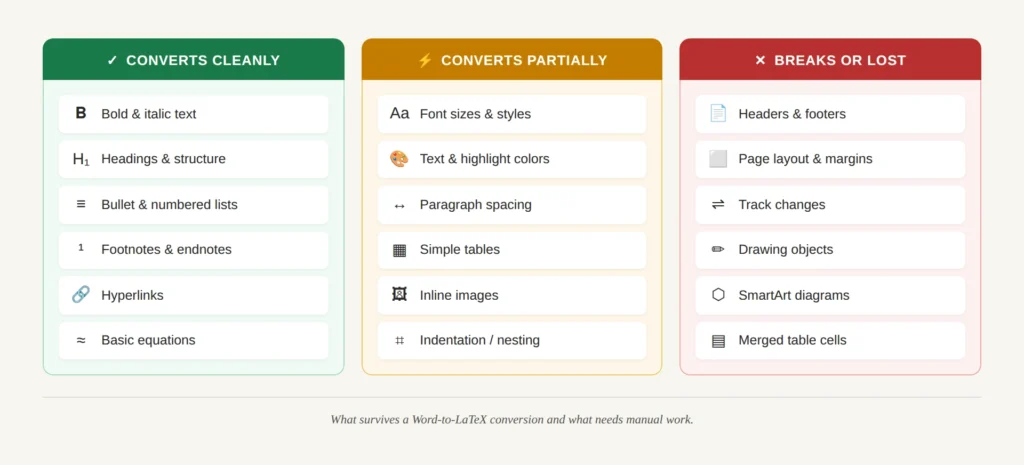
Beyond tables, “how to convert Word to LaTeX without losing formatting” is a broad concern. Here is a realistic breakdown of which formatting elements survive automated conversion and which need manual attention.
What converts cleanly
Basic text formatting transfers well in most tools. Bold text becomes \textbf{}, italic becomes \textit{}, headings become \section{} and \subsection{}, and numbered/bulleted lists become enumerate and itemize environments. Hyperlinks usually survive. Footnotes transfer as \footnote{} commands.
What converts partially
Font sizes convert to LaTeX size commands (\small, \large, etc.) but the mapping is approximate since Word uses point sizes and LaTeX uses named sizes. Text color converts if the converter supports the xcolor package, but many converters drop it. Indentation and spacing convert inconsistently – Word stores spacing in points, LaTeX uses its own length units, and the translation is rarely exact.
What breaks or gets lost
Headers and footers are almost always lost because they are stored in separate XML sections in the .docx and most converters ignore them. Page margins and page size are not transferred – you need to set these in the LaTeX preamble or rely on the journal template. Drop caps, text boxes, drawing objects, SmartArt, and any Word-specific visual elements have no LaTeX equivalent and are simply dropped. Track changes and comments are removed (Pandoc has a flag to preserve them, but the output is usually messy). Page numbers and automatic table/figure numbering are handled by the LaTeX template and don’t need to transfer, but any manual numbering you added in Word will conflict with LaTeX’s automatic system.
TheLatexLab insight: The formatting issue that wastes the most time is not something exotic – it’s inconsistent heading styles. Word lets authors type a heading, manually set it to bold 14pt, and never actually apply the “Heading 2” style. To the reader it looks right, but to a converter it’s just a bold paragraph. We see this in roughly 40% of Word documents from researchers. The fix is to apply proper heading styles in Word before conversion, or identify and manually tag each heading in the LaTeX output.
What Happens to Images During Word-to-LaTeX Conversion
Since people searching for how to convert Word to LaTeX without losing images often land on this topic, here is what you need to know.
Word embeds images directly in the .docx file (which is a ZIP archive – the images live in the word/media/ folder). Most conversion tools extract these images as separate files (PNG, JPEG, EMF, or WMF) and generate \includegraphics{} references in the LaTeX output. The image data itself is rarely lost.
What does get lost:
Image positioning. Word places images inline with text, anchored to a paragraph, or floating with text wrap. LaTeX uses the figure float environment, which places images at the top or bottom of a page (or a dedicated figures page) based on the compiler’s algorithm. The exact position from your Word document will not be preserved – and in most journals, it shouldn’t be, because the journal’s template controls float placement.
Captions and labels. Image captions sometimes transfer, sometimes don’t. Cross-references to figures (like “see Figure 3”) are almost always broken because the converter can’t reconstruct the \label{}/\ref{} system. You need to add these manually.
Image format. LaTeX (when compiling with pdflatex) requires images in PDF, PNG, or JPEG format. EMF and WMF files exported from Word need to be converted. If you’re using vector graphics (charts, diagrams), exporting them from Word as PDF or EPS gives much better quality than raster formats.
Image resolution. Screenshots and low-resolution images that look acceptable on screen in Word may appear pixelated when compiled in LaTeX at print resolution (300+ DPI). Check your images and replace any below 300 DPI with higher-resolution versions.
TheLatexLab insight: The most common image problem we encounter isn’t format or resolution – it’s Excel charts pasted into Word as linked objects. When the converter extracts these, they often come out as low-resolution EMF files with text rendered as paths instead of editable text. The best approach is to re-export charts directly from Excel as PDF before conversion. We ask authors to send us the original Excel files alongside their Word document for exactly this reason.
We have converted 97+ papers without a single table error in the final deliverable.
Tables, figures, equations, and bibliography – all verified against your original and delivered in 72 hours with your journal’s template applied.
How to Rebuild Word Tables in LaTeX the Right Way
If you’re doing the conversion yourself, here is the decision process for choosing the right LaTeX table setup.
Step 1: Does the table fit on one page?
If yes, use the standard tabular environment inside a table float. If no (or if you’re not sure), use longtable. When in doubt, compile with tabular first – if the table overflows the page or gets pushed to a float page on its own, switch to longtable.
Step 2: Does the table have merged cells?
Add \usepackage{multirow} to your preamble if you need vertical merges. Horizontal merges use \multicolumn which is built into LaTeX. If you have both, you’ll be nesting \multirow inside \multicolumn (not the other way around – this is a common mistake that produces errors).
Step 3: Are you targeting a journal?
Use booktabs for horizontal rules. Virtually every major journal style guide (IEEE, Elsevier, Springer, ACM, MDPI) expects or prefers booktabs-style tables with \toprule, \midrule, and \bottomrule instead of \hline and vertical rules. If your Word table has a full grid of borders, strip them all and use booktabs rules only.
Step 4: Does the table need to fill the text width?
Use tabularx with \begin{tabularx}{\textwidth}{...} and at least one X column that expands to fill available space. This prevents tables from being too narrow (a common problem when column widths aren’t specified) or too wide (which causes overfull hbox warnings and text running into the margin).
Step 5: Does the table have footnotes?
Standard LaTeX footnotes don’t work inside tabular. Use the threeparttable package, which wraps your table in a \begin{threeparttable} environment and lets you add table notes with \begin{tablenotes}. Alternatively, add notes manually below the table using \small text.
TheLatexLab insight: Here is the actual package combination we load for table handling in almost every conversion project: booktabs, multirow, tabularx, longtable, threeparttable, and xcolor with the [table] option. We add all of them to the preamble upfront because it’s faster than adding them one at a time as table complexity reveals itself. This combination covers 95% of table structures we encounter in Word documents.
Pre-Conversion Checklist for Tables and Formatting
Do these before running any conversion tool. They take 15-20 minutes and can save hours of cleanup.
1. Simplify table borders. If your tables have full grid borders, consider removing internal vertical lines before conversion. This makes the conversion output cleaner and brings the table closer to what journals expect in LaTeX anyway.
2. Unmerge cells you don’t actually need merged. Every merged cell is a potential failure point during conversion. If a merge is purely cosmetic (like centering a title across columns when it could just be a caption), remove it.
3. Apply proper heading styles. Make sure every heading in your document uses Word’s built-in heading styles (Heading 1, Heading 2, etc.) rather than manual bold formatting. This is the single most impactful thing you can do for formatting preservation.
4. Convert images to standalone files. Export every figure as a separate high-resolution PNG or PDF file. Don’t rely on the converter to extract them – extract them yourself so you control the quality. For charts from Excel, re-export as PDF directly from Excel.
5. Note which tables span multiple pages. Open your Word document in Print Preview and check which tables break across pages. Write down the table numbers. These will need longtable in LaTeX.
6. Document any table footnotes. If any tables have footnotes, note which table and which cells. These need special handling with threeparttable in LaTeX.
7. Check for nested tables. Word allows tables inside tables. LaTeX can technically do this too, but it’s fragile and almost never necessary for academic content. Flatten any nested tables into a single table before conversion.
8. Save a PDF as your reference. Export the Word document to PDF before converting. This is your visual ground truth for comparing every table, figure, and formatting element against the LaTeX output.
Not sure if your tables will survive conversion? We review Word documents for free before quoting.
We check your tables for merged cells, multi-page spans, and footnotes, then tell you exactly what the conversion involves. No commitment required.