
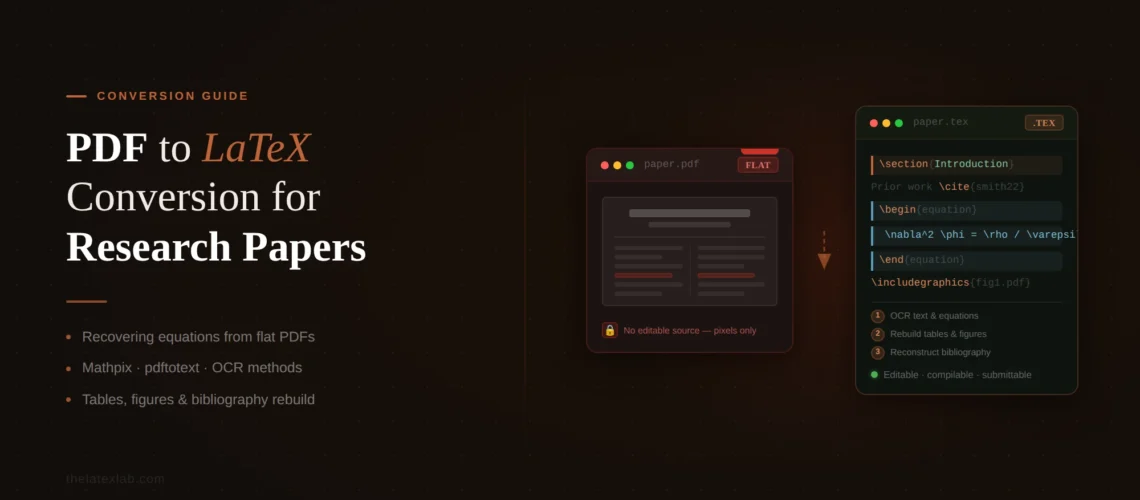
Sometimes the PDF is all you have. The original Word file was lost in a hard drive crash. A co-author from 2019 isn’t responding to emails. Your university requires LaTeX source for a paper you published five years ago in a different format. Or a journal asks for LaTeX source files and all you can find is the final PDF. PDF to LaTeX conversion for research papers is a real need – but it’s a fundamentally harder problem than Word-to-LaTeX, and the gap between what automated tools promise and what they deliver is wider here than anywhere else in academic document conversion.
After handling hundreds of PDF-to-LaTeX projects at TheLatexLab, I’ll be straightforward: there is no tool that converts a complex research PDF into submission-ready LaTeX. The best tool available (Mathpix) gets you maybe 60-70% of the way on a typical STEM paper. The rest is manual reconstruction. This guide explains why, what each approach actually produces, and how to set realistic expectations for your conversion project.
Quick answer: How to convert a research paper PDF to LaTeX
- Determine if your PDF has selectable text or is a scanned image
- Extract body text using a PDF text extractor or Mathpix
- Reconstruct every equation from scratch in LaTeX math mode
- Rebuild every table using booktabs and the correct LaTeX environment
- Rebuild the bibliography as a .bib file using Google Scholar or CrossRef
- Apply the target journal’s LaTeX template
No automated tool does all of this reliably. Mathpix handles equation OCR well. Everything else – tables, bibliography, template, cross-references – requires manual work. For a 15-page paper, expect 8-15 hours of self-conversion time. A professional PDF-to-LaTeX conversion service delivers in 72 hours.
Why PDF to LaTeX Conversion for Research Papers Is Harder Than Word-to-LaTeX
A Word document (.docx) is a structured file. Under the hood, it stores headings as headings, equations as equation objects, table cells as table cells, and bibliography entries as citation records. A converter can parse these structures and translate them – imperfectly, but with a meaningful starting point.
A PDF stores none of this. A PDF is a rendering format. It contains instructions for placing individual characters at specific coordinates on a page. The letter “E” at position (72, 340), the letter “=” at position (78, 340), the letter “m” at position (84, 340). That’s it. There is no concept of “this is an equation” or “this is a table cell” or “this is a heading.” The PDF renderer drew pixels that look like an equation, but the file has no idea it’s math.
This means every PDF-to-LaTeX tool is doing visual recognition, not structural conversion. It’s looking at an image of text and guessing what the underlying LaTeX should be. For body text, this works well enough. For equations, tables, and bibliographies, it fails constantly because the visual rendering of math is ambiguous without structural context.
Our insight: Here’s a concrete example of why this matters. In a PDF, the expression “xi2” renders as a small “i” below and to the right of “x” and a small “2” above and to the right. An OCR tool sees these positioned glyphs and has to determine: is this x_i^2 or x_{i}^{2} or x_i{}^2? These all render identically. For simple cases this doesn’t matter, but for nested expressions like \sum_{i=1}^{n} x_i^{2} versus \sum_{i=1}^n x_i^2, the structural ambiguity compounds with every level of nesting. A Word file stores the structure. A PDF makes you guess.
When You Actually Need PDF-to-LaTeX Conversion
Before starting a PDF-to-LaTeX conversion, check if you actually need one. This process is time-consuming enough that it’s worth exploring alternatives first.
Lost source files. The most common reason. The original .docx or .tex file no longer exists. You have the published PDF and that’s it. In this case, PDF-to-LaTeX is your only option.
Journal requires LaTeX source. Some journals require .tex source files for camera-ready submission, and your paper was originally written in Word. If you still have the Word file, do a Word-to-LaTeX conversion instead – it’s significantly easier. Only use the PDF if the Word file is also lost.
Reformatting a published paper for a different venue. You published in Conference A and want to submit an extended version to Journal B, which uses a different template. If the original was in LaTeX, just change the template. If the original was in Word and you only have the PDF, you need PDF-to-LaTeX conversion.
Including a published paper in your thesis. Some thesis formats require published papers to be reformatted in the thesis template rather than included as PDF pages. If you don’t have the source files, you need to reconstruct the content in LaTeX.
Digitizing old or legacy papers. Pre-digital papers, typewritten documents, or papers from the 1990s and early 2000s that only exist as scanned PDFs. These are the hardest to convert because they require full OCR before any LaTeX reconstruction can begin.
Our insight: About 40% of the PDF-to-LaTeX projects we receive turn out to have the Word file available somewhere – on a co-author’s machine, in a university shared drive, or in an old email attachment. Before committing to PDF conversion, spend 15 minutes searching for the original source file. Check your email for attachments with the paper title, ask co-authors, and look in cloud storage. If you find a .docx, the conversion is 3-4x faster and the output is better.
TheLatexLab rebuilds PDFs from scratch – we don’t rely on automated conversion tools for the final output.
Every equation is typeset in math mode by hand. Every table is reconstructed. Every reference is looked up and entered as clean BibTeX. Same pricing as our Word-to-LaTeX service.
Two Types of PDF (and Why It Matters)
Not all PDFs are equal for conversion purposes. The type of PDF you have determines which tools you can use and how much manual work is required.
Digitally created PDFs (selectable text)
If you can click and drag to select text in your PDF, it was created digitally – exported from Word, compiled from LaTeX, or generated by another application. These PDFs have an embedded text layer that conversion tools can read directly. Text extraction is straightforward. The challenge is equations, tables, and structure – the text layer doesn’t distinguish between body text and math, or between a table cell and a paragraph.
To check: open your PDF, try to select a word of body text. If it highlights and you can copy-paste it into a text editor, you have a digital PDF.
Scanned PDFs (image-only)
If you can’t select text – if clicking and dragging selects the entire page as an image – you have a scanned PDF. These are photos or scans of printed pages. There is no text layer at all. Everything, including body text, is just pixels. You need OCR (optical character recognition) to extract any content, and the accuracy depends heavily on scan quality, font clarity, and page condition.
Scanned PDFs are dramatically harder to convert. Expect roughly double the time and cost compared to digital PDFs. Old papers with faded print, photocopied pages, or unusual fonts make OCR accuracy drop further.
Tools for PDF to LaTeX Conversion for Research Papers
Mathpix
Mathpix is the best available tool for PDF-to-LaTeX conversion, particularly for equations. It uses OCR specifically trained on scientific documents and outputs LaTeX code that you can export to Overleaf or download as a .zip. Mathpix’s PDF converter gives you 20 free pages per month.
What Mathpix does well: Equation recognition is its core strength. Simple to moderately complex equations – single-line expressions, fractions, integrals, summations, Greek letters, subscripts, superscripts – convert with high accuracy (roughly 85-90% for standard printed math). It handles two-column layouts common in IEEE and ACM papers. Body text extraction is solid for digital PDFs. You get 20 free pages per month.
What Mathpix gets wrong: Multi-line aligned equations often lose their alignment structure – you get separate equations instead of a single align environment. Matrices larger than 3×3 sometimes have recognition errors. Equations with unusual notation (tensor indices, Dirac bra-ket, commutative diagrams) fail more often. Tables come through as text positioned on a page, not as structured tabular environments – you’ll need to rebuild them. Bibliography entries are extracted as text, not as .bib entries. No journal template is applied.
Our insight: We use Mathpix as a starting tool on most PDF conversion projects. Its equation OCR saves us significant time compared to typing every equation from scratch. But we never trust its output without verification. On a typical 15-page paper with 25 equations, Mathpix gets 18-20 equations right on the first pass. The remaining 5-7 need correction ranging from minor fixes (wrong delimiter, missing \left/\right) to complete rewrites (mangled multi-line derivations).
Nougat (Meta AI)
Nougat is an open-source, AI-based tool from Meta Research that converts academic PDF pages to Markdown (which can then be converted to LaTeX). It uses an encoder-decoder transformer model trained on scientific papers. The Nougat GitHub repository has installation instructions and pre-trained models.
What Nougat does well: Full-page conversion – it processes entire pages at once rather than element-by-element, which can preserve more document structure. It handles body text, section headings, and simple equations. It’s free and can be run locally.
What Nougat gets wrong: It hallucinates. This is the critical difference from OCR tools like Mathpix. Because Nougat is a generative model, it sometimes “invents” text that doesn’t appear in the original PDF – adding words, changing numbers, or generating plausible-looking but incorrect equations. You cannot trust any output without line-by-line verification against the original. Table handling is weak. Bibliography extraction is inconsistent.
Our insight: Nougat’s hallucination problem makes it unsuitable as a primary conversion tool for research papers where accuracy is critical. If a tool changes a coefficient from 0.73 to 0.78 in your results table and you don’t catch it, that’s a retraction-level problem. We’ve tested Nougat extensively and don’t use it in our production workflow because the verification time required to catch hallucinations negates the time saved by the automated conversion.
Underleaf
Underleaf is a newer AI-powered PDF-to-LaTeX converter with Overleaf integration. It processes up to 5 pages free and offers paid subscriptions for larger documents.
What Underleaf does well: The Overleaf integration is convenient – one click to open the converted document in Overleaf. Handles basic document structure (headings, paragraphs, lists). User interface is simpler than Mathpix for non-technical users.
What Underleaf gets wrong: Same fundamental limitations as all OCR-based tools – complex equations, tables, and bibliographies need manual work. As a newer tool with a smaller training base than Mathpix, equation accuracy is generally lower on complex math.
Online free converters (Vertopal, Aspose, etc.)
Various free online tools offer PDF-to-LaTeX conversion. These typically produce the lowest quality output.
What they do: Extract selectable text from digital PDFs and wrap it in basic LaTeX commands. Equations are either skipped entirely or converted to embedded images (\includegraphics{eq_01.png}). Tables are lost. No bibliography extraction. No template application.
When to use them: Almost never for research papers. Potentially useful if you just need the body text extracted and plan to manually typeset everything else. But at that point, copy-pasting from the PDF is equally effective.
Realistic Expectations: What You’ll Get vs. What You Need
Here’s what a typical automated conversion produces versus what a journal submission requires, based on a real 15-page IEEE paper with 25 equations, 4 tables, and 30 citations.
Body text: Automated tools extract 95%+ of body text correctly from digital PDFs. Minor issues include ligatures (fi, fl) not resolving correctly, hyphenation artifacts from line breaks being preserved as hyphens, and occasional character substitution (l vs 1, O vs 0). These are quick fixes. This is the one area where automated tools genuinely help.
Equations: Mathpix converts roughly 70-80% of equations correctly on the first pass. The remaining 20-30% need manual correction or complete rewriting. Display equations fare better than inline math (which OCR tools sometimes don’t recognize as math at all). Equation numbering is always lost – you need to add \label{} and \ref{} manually.
Tables: No automated tool produces usable LaTeX tables from PDFs. The output is either positioned text (not a tabular environment) or a rough table with wrong column specifications. Every table in the paper needs to be rebuilt from scratch in LaTeX. For a 4-table paper, budget 1-2 hours for tables alone.
Figures: Figures embedded in the PDF can be extracted as images using tools like pdfimages or Adobe Acrobat. The images are usually lower resolution than the originals. If you have the original high-resolution figures, use those. If not, the extracted images may be acceptable for most journals if they’re above 300 DPI.
Bibliography: No automated tool extracts a usable .bib file from a PDF. The reference list is extracted as formatted text. You need to rebuild it by looking up each reference on Google Scholar, publisher websites, or CrossRef (doi.org) and downloading the BibTeX entries. For 30 references, this takes 1-2 hours. Citation keys in the .bib file must be matched to \cite{} commands placed manually throughout the text.
Template and formatting: No automated tool applies journal templates. The output is generic LaTeX. You need to restructure the document into the target template’s \documentclass, add the correct packages, and configure the bibliography style.
Our insight: The honest summary is that automated tools handle body text well, equation OCR moderately well (Mathpix specifically), and everything else poorly. For a 15-page paper, the automated first pass saves you roughly 3-4 hours of text typing. The manual work that follows – fixing equations, rebuilding tables, reconstructing the bibliography, applying the template – takes 8-12 hours. Total: 8-15 hours for self-conversion. That’s why many researchers conclude that a PDF-to-LaTeX conversion service is the more practical option.
We have reconstructed 90+ research papers from PDF to LaTeX across IEEE, Elsevier, Springer, and ACM templates.
Every equation typeset by hand. Every table rebuilt. Every reference verified against the original. Delivered in 72 hours. From $49.
The Manual Reconstruction Process
If you’re doing the conversion yourself, here’s the workflow that produces the best results. This is essentially the same process we use at TheLatexLab, minus the experience advantages.
1. Set up the target template first. Get the journal’s LaTeX template compiling with placeholder content before you start adding real content. This is the same advice we give for Word-to-LaTeX conversion, and it’s equally important here.
2. Extract body text. Use Mathpix or simple copy-paste from the PDF to get the body text into your .tex file. Clean up ligature issues, remove hyphenation artifacts, and verify paragraph breaks. This is the fastest part of the conversion.
3. Typeset every equation from the PDF. Open the PDF on one screen and your LaTeX editor on the other. Read each equation from the PDF and type it in LaTeX math mode. Do not trust OCR output for equations without verification – always compare the compiled LaTeX against the original PDF. Use equation for single numbered equations, align for multi-line aligned derivations, and gather for centered equation groups.
4. Rebuild every table. Look at each table in the PDF and reconstruct it in LaTeX using booktabs for styling, multirow/multicolumn for merged cells, and longtable if the table spans pages. Double-check every data value against the PDF – transcription errors in results tables are the kind of mistake that leads to corrections and retractions.
5. Extract or replace figures. Use pdfimages to extract embedded images from the PDF, or request the original figure files from co-authors. Place each figure using \includegraphics{} inside a figure environment with the correct caption and a \label{} for cross-referencing.
6. Reconstruct the bibliography. For each reference in the PDF’s reference list, search for it on Google Scholar and click “Cite” > “BibTeX” to get a clean .bib entry. Alternatively, if you have the DOI, go to doi.org/[DOI] and use a BibTeX lookup tool. Build your .bib file entry by entry. This is tedious but produces clean, verified reference data.
7. Replace in-text citations. Go through the body text and replace every literal citation (“[1]” or “(Smith et al., 2024)”) with the correct \cite{key} command. Verify the count: the number of unique \cite{} commands should match the number of references in the original PDF’s bibliography.
8. Compile, compare, and fix. Compile the full document and compare the output PDF page by page against the original. Check every equation, every table, every figure caption, every reference. Fix discrepancies.
Special Case: Scanned Documents and Old Papers
Scanned PDFs – photocopies, old typewritten papers, printed documents that were rescanned – are the hardest conversion case. There is no text layer. Every character, including body text, must be recognized through OCR.
Scan quality matters enormously. A clean 300+ DPI scan of a laser-printed page produces OCR accuracy above 95% for body text. A 150 DPI photocopy of a dot-matrix printout from 1993 might produce 70% accuracy – meaning 3 out of every 10 characters are wrong. At that accuracy level, you’re almost better off typing from scratch.
OCR options for scanned PDFs:
Mathpix handles scanned pages if the print quality is decent. Its equation recognition works on scanned math, though accuracy drops compared to digital PDFs.
ABBYY FineReader is the gold standard for general OCR accuracy on scanned documents. It doesn’t output LaTeX, but it produces clean text that you can then manually format in LaTeX. Better than Mathpix for pure text extraction from poor-quality scans.
Tesseract (free, open-source) is serviceable for clean scans but struggles with math, unusual fonts, and degraded print quality.
Our insight: For scanned documents, we charge an additional $149 for OCR preprocessing. This covers running the document through ABBYY FineReader, manually verifying the text output, and correcting recognition errors before starting the LaTeX reconstruction. For a clean scan, this adds 2-3 hours to the project. For a poor-quality scan, it can add a full day. If you have access to the original printed document, rescanning at 300+ DPI in grayscale (not color – color adds noise without improving text recognition) produces dramatically better OCR results than working with an existing low-quality scan.
Have a PDF that needs to be in LaTeX? Send it to us for a free assessment.
We’ll tell you whether it’s a digital or scanned PDF, estimate the conversion complexity, and provide an exact fixed-price quote. No commitment required.