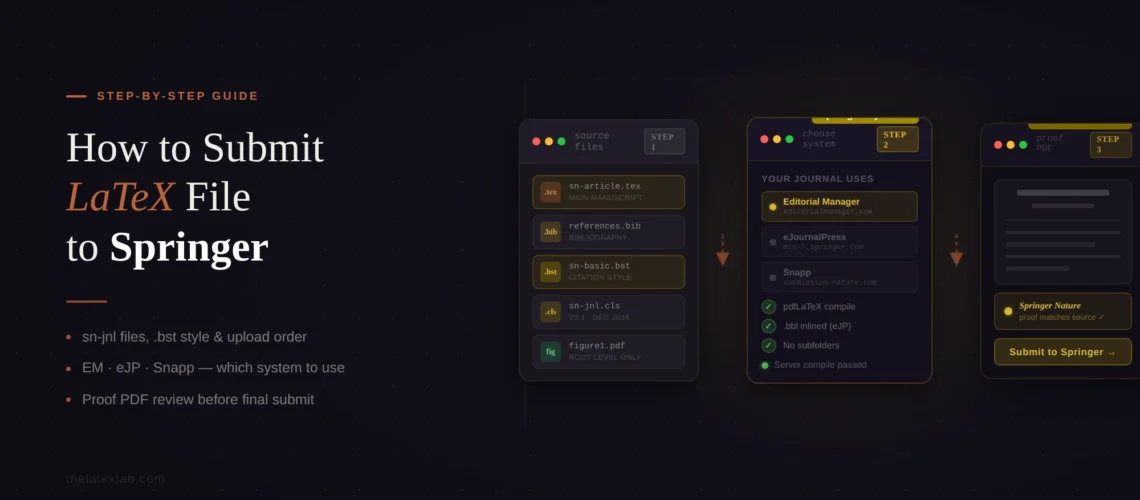
To Submit LaTeX to Springer Editorial Manager sounds like a solved problem until the system shows you an error log instead of your paper. The compilation fails, your references show as question marks, your figures vanish, and the error messages reference a version of TeX Live from 2018. Most researchers discover this the night before a deadline, because nothing in Springer Nature’s author guidelines prepares you for the gap between “my paper compiles locally” and “Editorial Manager can build a PDF from my source files.” If you have searched for how to submit a LaTeX to Springer Editorial Manager or tried to fix a Springer LaTeX submission error, you already know the documentation is scattered across five different Springer Nature pages with no single walkthrough.
We handle Springer journal submissions regularly at TheLaTeXLab, and Editorial Manager is consistently the system that generates the most support requests from our clients. This guide covers the full workflow: figuring out which Springer submission system your journal actually uses, setting up the sn-jnl template correctly, preparing your files so Editorial Manager can compile them, fixing the bibliography problems that trip up nearly every first-time submitter, and resolving the specific errors that EM throws at LaTeX users.
Quick answer: How to submit a LaTeX to Springer Editorial Manager
- Use the Springer Nature LaTeX template (sn-jnl.cls, version 3.1, December 2024) with the correct reference style option for your journal
- Flatten your project into a single directory with no subfolders
- Remove all directory paths from
\includegraphics{}and\bibliography{}commands - Upload .tex, .bib/.bbl, .bst, .sty, and .cls files as “Manuscript” item types; upload figures as “Figure” item types
- Do not upload a compiled PDF alongside your .tex file (EM will build its own)
- Click “Build PDF” and check the result for compilation errors
The most common failure is figures in subfolders that EM cannot find. The second most common is a missing or incorrectly tagged .bst file. Both are fixable in under five minutes once you know what to look for.
Which Submission System Is Your Springer Journal Using?
This is the first thing you need to figure out, because Springer Nature runs three separate submission systems with different LaTeX requirements. The system your journal uses determines what TeX Live version will compile your paper, how you package your files, and what workarounds you need.
Editorial Manager (EM) is the system most Springer journal authors will encounter. You can identify it by the URL prefix https://www.editorialmanager.com or the “em Editorial Manager” banner at the top of the page. EM compiles LaTeX files using TeX Live 2018. This matters because TeX Live 2018 is significantly behind current distributions, and packages or features introduced after 2018 may not be available on the server.
Snapp (Springer Nature Article Processing Platform) is Springer Nature’s new peer review platform that is actively replacing Editorial Manager across many journals. If your journal has migrated to Snapp, you will see a Springer Nature-branded login page at https://submission.nature.com/. Snapp compiles files using TeX Live 2021, and it requires all source files to be compressed in .zip format and compilable with pdflatex. If your journal recently switched to Snapp, your old Editorial Manager account will not work. You need to register a new Springer Nature account.
eJournalPress (eJP) is used primarily by Nature-branded journals, Nature Research journals, npj journals, Scientific Data, and Communications journals. You can identify it by the URL prefix https://mts- or the eJournalPress logo. eJP uses TeX Live 2021 and requires the pdflatex option in your document class declaration.
Our insight: The TeX Live version difference between EM (2018) and Snapp/eJP (2021) catches more authors than any other single issue. A paper that compiles perfectly in Overleaf (which uses TeX Live 2024) or on your local machine (likely 2023 or 2024) may fail in Editorial Manager because a package was updated after 2018. We had a researcher whose paper used the siunitx package version 3 syntax, which did not exist in TeX Live 2018. The fix was reverting to version 2 syntax for the EM submission. Check your packages against the TeX Live 2018 package list if you are submitting to a journal still on EM.
Setting Up the Springer Nature LaTeX Template
Springer Nature provides a single unified template (sn-jnl.cls) for all Springer, Nature Portfolio, and BMC journal submissions. The current version is 3.1, last updated December 2024. You can download it from Springer Nature’s LaTeX author support page or use the pre-loaded version on Overleaf.
The template takes a “content first” approach with minimal formatting. This means it does not replicate the exact published layout of any specific journal. Instead, Springer’s production team handles final formatting after acceptance. Your job is to get the content structure and reference style right.
The \documentclass line is where you select the reference style for your target journal. The template provides several options:
\documentclass[pdflatex,sn-mathphys-num]{sn-jnl}  % Math/Physics numbered
\documentclass[pdflatex,sn-mathphys-ay]{sn-jnl}   % Math/Physics author-year
\documentclass[pdflatex,sn-basic]{sn-jnl}          % Basic/Chemistry
\documentclass[pdflatex,sn-nature]{sn-jnl}         % Nature Portfolio
\documentclass[pdflatex,sn-aps]{sn-jnl}            % American Physical Society
\documentclass[pdflatex,sn-vancouver-num]{sn-jnl}  % Vancouver numbered
\documentclass[pdflatex,sn-vancouver-ay]{sn-jnl}   % Vancouver author-year
\documentclass[pdflatex,sn-apa]{sn-jnl}            % APA
\documentclass[pdflatex,sn-chicago]{sn-jnl}        % Chicago Humanities
Each option loads a corresponding .bst file (sn-mathphys-num.bst, sn-basic.bst, etc.). Check your target journal’s Instructions for Authors to find which reference style it uses. Getting the wrong style will not cause a compilation error, but your references will be formatted incorrectly and the editorial office may return the paper.
One critical instruction from the template itself: do not use \input{...} to include other .tex files. Submit your manuscript as one .tex document. All figures and supplementary files should be uploaded separately, not embedded in the .tex document. This rule matters for Editorial Manager because EM’s file handling can misorder multiple .tex files.
We configure the sn-jnl template for any Springer journal, with the correct reference style and declarations.
From manuscript to submission-ready files, compiled and tested against EM’s TeX Live 2018. Delivered in 72 hours.
Preparing Your LaTeX for Submission to Springer Editorial Manager
This is where most Springer LaTeX submissions fail. Editorial Manager has specific requirements for how files are structured, named, and categorized that are different from how you organize a LaTeX project locally.
The flat directory rule
Editorial Manager cannot process subfolders. All files must be in a single flat directory. If your local project has figures in a /figures/ folder, bibliography files in a /bib/ folder, or style files in a /bst/ folder, you need to move everything to the root level before uploading.
This also means you must remove all directory paths from your .tex file. Change \includegraphics{figures/fig1.pdf} to \includegraphics{fig1.pdf}. Change \bibliography{bib/references} to \bibliography{references}. Remove even the current-directory prefix: \includegraphics{./fig1.pdf} will fail because EM strips the ./ during processing.
Our insight: Springer’s own template download puts .bst files in a subfolder called bst/. If you download the template from springernature.com and upload the extracted files directly to EM without moving the .bst files to the root, your references will fail. The Overleaf version of the same template has the .bst files at root level, which is why papers compile fine in Overleaf but break in EM. We catch this in about 1 in 3 Springer submissions we process.
File item types
When uploading files to EM, you must assign each file an “item type” from a dropdown. Getting the item type wrong is a silent failure mode. The file uploads successfully but EM does not include it in the compilation, and you get an error with no obvious cause.
The correct item types are: tag your .tex, .bib, .bbl, .bst, .sty, .cls, .nls, .ilg, and .nlo files as “Manuscript” (or “Revised Manuscript” for revisions). Tag your image files (.png, .pdf, .jpg, .eps) as “Figure.” Do not tag any LaTeX source file as “Supplemental” or “LaTeX file” even if those options appear in the dropdown. Some journal configurations show different item type names, but the principle is the same: source files go under the manuscript category, images go under the figure category.
Filename rules
EM cannot process two files with the same base name but different extensions. If you have figure1.pdf and figure1.eps in your upload, EM may fail or use the wrong file. Pick one format per figure and remove duplicates.
Avoid special characters in filenames. Periods within filenames (other than the extension) cause EM to misread the file extension. A file named fig.3a.results.eps will fail because EM reads .3a as the extension. Rename it to fig3a-results.eps.
The following filenames are reserved by EM’s Windows-based server and cannot be uploaded: CON, PRN, AUX, NUL, COM1 through COM9, and LPT1 through LPT9. Also avoid these names with extensions (e.g., AUX.tex will be rejected).
Do not upload a compiled PDF
EM compiles your .tex files into a PDF on its server. If you also upload a compiled PDF of your manuscript, EM may include both the compiled version and your uploaded PDF in the reviewer package, creating confusion and duplicate pages. Upload only your source files and figures. If the journal requires a separate PDF for initial review, check the specific instructions, but for most Springer journals submitting through EM, source files alone are sufficient.
The Bibliography Problem (and How to Fix It Reliably)
Bibliography handling is the single most frustrating aspect of Springer Editorial Manager submissions. Forum posts, ResearchGate threads, and blog comments going back over a decade are filled with researchers unable to get their references to compile in EM. The core issue is that EM’s BibTeX processing is unreliable, and the error messages do not clearly indicate what went wrong.
There are two approaches, listed in order of reliability:
The most reliable approach (recommended by Springer Nature): Compile your paper locally (or in Overleaf), then copy the contents of the generated .bbl file and paste them directly into your main .tex file, replacing the \bibliography{references} command with the raw \begin{thebibliography}...\end{thebibliography} block. This completely bypasses EM’s BibTeX processing and ensures your references appear exactly as they do locally. It is more work, but it eliminates the most common class of EM errors in one step.
The standard approach: Upload your .bib file and .bst file, both tagged as “Manuscript” item types. Make sure the .bst file is at the root level (not in a /bst/ subfolder). Make sure your .tex file references both without directory paths: \bibliographystyle{sn-mathphys-num} and \bibliography{references} (no .bib extension, no path). EM will attempt to run BibTeX during compilation.
If you submit a .bbl file instead of a .bib file, it must be explicitly referenced in your .tex file via \input{references.bbl}. EM only processes the .bbl if the .tex file calls for it. Uploading a .bbl without referencing it is a silent failure that results in missing references.
Our insight: After processing hundreds of Springer submissions, our default workflow is to always inline the .bbl content into the .tex file for EM submissions. It adds about 5 minutes of work and eliminates an entire category of errors. When researchers ask us to debug an EM submission that shows [?] marks for all references, the fix is the .bbl inline approach about 70% of the time. The other 30% is a missing or miscategorized .bst file.
If you are using biblatex with a biber backend instead of traditional BibTeX, there is an additional problem. EM’s TeX Live 2018 has a broken L3 extension that biblatex requires. The workaround is to add casechanger=latex2e to your biblatex options:
\usepackage[casechanger=latex2e,backend=biber,...]{biblatex}You also need to upload the .bbl file generated locally by biber, since EM cannot run biber on its server. If you are coming from Elsevier and wondering how their EM instance compares, our guide on formatting LaTeX for Elsevier covers the elsarticle-specific differences.
The Declarations Section Springer Requires
The Springer Nature template includes a Declarations section after the main body of your paper. This section is mandatory, and submissions missing required declarations will be returned as incomplete.
The required declarations are:
Funding. State all sources of financial support. If no funding was received, state “The authors did not receive support from any organization for the submitted work.”
Competing Interests. Some Springer journals use “Conflict of Interest” as the heading instead. Check your journal’s guidelines. All financial and non-financial interests must be disclosed. Note that Competing Interest information must also be provided through the EM submission interface, not just in the manuscript. Only the information entered through the interface is used in the published version.
Ethics Approval and Consent to Participate. Required for research involving human participants or animal subjects.
Consent for Publication. Required if your manuscript includes identifying patient information.
Data Availability. State where data supporting the results can be accessed, or explain restrictions.
Materials Availability. State whether materials used are available and how to access them.
Code Availability. State whether custom code is available and provide repository links if applicable.
Author Contributions. Describe each author’s contribution to the work.
If any section is not relevant to your manuscript, include the heading and write “Not applicable.” Do not delete the heading. Springer’s production pipeline expects all eight subsections to be present under the Declarations heading.
We prepare the complete Declarations section for any Springer journal.
Funding, competing interests, data availability, ethics, author contributions. All formatted to match your journal’s specific guidelines. Part of every Springer submission package we deliver.
Common Springer Editorial Manager LaTeX Errors and Fixes
When EM cannot compile your .tex files, it generates an error log PDF instead of your paper. The log starts with a TeX Live version header and contains the compilation output. Here is how to read it and fix the most common Springer Editorial Manager LaTeX errors.
“File ‘trackchanges.sty’ not found” (or any missing .sty)
Cause: Your .tex file references a package not installed in EM’s TeX Live 2018, or you forgot to upload a custom .sty file.
Fix: If it is a custom .sty file, upload it tagged as “Manuscript.” If it is a standard package missing from TeX Live 2018, find an alternative or download the .sty from CTAN and upload it alongside your manuscript.
“File ‘Figures/flow.pdf’ not found: using draft setting”
Cause: Your \includegraphics command includes a directory path. EM puts all files in a flat directory, so path references break.
Fix: Remove all directory paths from figure references. Change \includegraphics{Figures/flow.pdf} to \includegraphics{flow.pdf}. Also remove ./ prefixes.
“Cannot determine size of graphic” (no BoundingBox)
Cause: EM is compiling with latex (DVI mode) instead of pdflatex. In DVI mode, .pdf and .png images cannot be processed.
Fix: Add %&pdflatex as the very first line of your .tex file (before \documentclass). This forces EM to use pdflatex. Alternatively, make sure the pdflatex option is in your \documentclass line.
Question marks instead of references
Cause: BibTeX did not run correctly. The .bib file was tagged as the wrong item type, the .bst file is missing, or the .bib was in a subfolder.
Fix: Verify .bib and .bst files are uploaded as “Manuscript” items. Remove directory paths from \bibliography{} and \bibliographystyle{}. If the problem persists, inline the .bbl content into your .tex file as described in the bibliography section.
“Unable to build PDF” email with no error details
Cause: EM sometimes fails silently, especially when you reupload a .tex file with the same filename as a previous upload.
Fix: Rename your .tex file (add a version number, e.g., manuscript-v2.tex) and reupload. EM caches previous filenames and can fail to process the new version if the name matches. This is a known EM behavior.
Figures appear in different positions than your local PDF
Cause: EM’s server may use a different default paper size than your local setup.
Fix: Usually not worth fixing at submission. Springer’s production team handles final layout after acceptance. As long as all figures are present and referenced, position differences in the review PDF are acceptable.
Embedded fonts in EPS images cause failure
Cause: EM cannot process embedded fonts within EPS files.
Fix: Convert EPS figures to PDF locally and upload the PDF versions, or convert to PNG at 300+ DPI. If you must use EPS, remove embedded fonts by re-exporting from your graphics application.
Non-ASCII characters crash compilation
Cause: Smart quotes, en-dashes, or other non-ASCII characters pasted from Word into the .tex or .bib file cause pdflatex to crash. German umlauts and accented characters must be in TeX notation.
Fix: Open your .tex and .bib files in a plain text editor and search for non-ASCII characters. Replace smart quotes with ``...'' and accented characters with TeX equivalents like \"a, \"o, \'e.
Our insight: The single most time-consuming EM error to debug is the silent build failure where EM sends you an “Unable to build PDF” email with no log. In our experience, this happens in two scenarios: either you reuploaded a .tex file with the same name as a previous attempt, or your .tex file has a non-ASCII character that crashes pdflatex before it can generate a log. Opening the .tex in a plain text editor and searching for non-ASCII characters usually reveals the culprit within minutes.
We format and submit Springer papers through Editorial Manager regularly, without a single build failure.
We handle sn-jnl template setup, bibliography configuration, file packaging, and EM troubleshooting. Delivered in 72 hours.
Pre-Submission Checklist to Submit LaTeX to Springer Editorial Manager
Run through this before clicking “Build PDF” in EM.
1. Correct template version. You are using sn-jnl.cls version 3.1 (December 2024) or the version specified by your journal.
2. Correct reference style. Your \documentclass line uses the reference style option matching your target journal’s requirements.
3. Flat directory. All files are at root level with no subfolders. The .bst files from Springer’s download have been moved out of the /bst/ subfolder.
4. No directory paths. All \includegraphics{}, \bibliography{}, and \bibliographystyle{} commands reference filenames only. No folder paths, no ./ prefixes.
5. No duplicate filenames. No two files share the same base name with different extensions.
6. No reserved filenames. No files named CON, PRN, AUX, NUL, COM1-9, or LPT1-9.
7. Correct item types. Source files (.tex, .bib, .bbl, .bst, .sty, .cls) tagged as “Manuscript.” Images tagged as “Figure.”
8. Bibliography tested. References compile without [?] marks locally. If using .bbl inline, the \begin{thebibliography} block is pasted into the .tex file.
9. Declarations section complete. All eight subsections present under Declarations, with “Not applicable” for those that do not apply.
10. Single .tex file. No \input{} calls to other .tex files. All manuscript content in one document.
11. pdflatex forced. Either %&pdflatex on line 1, or pdflatex option in \documentclass.
12. No compiled PDF uploaded. Unless your journal specifically requests one for initial submission.
13. No special characters in filenames. No periods (other than extension), no spaces, no +, &, or # characters.
