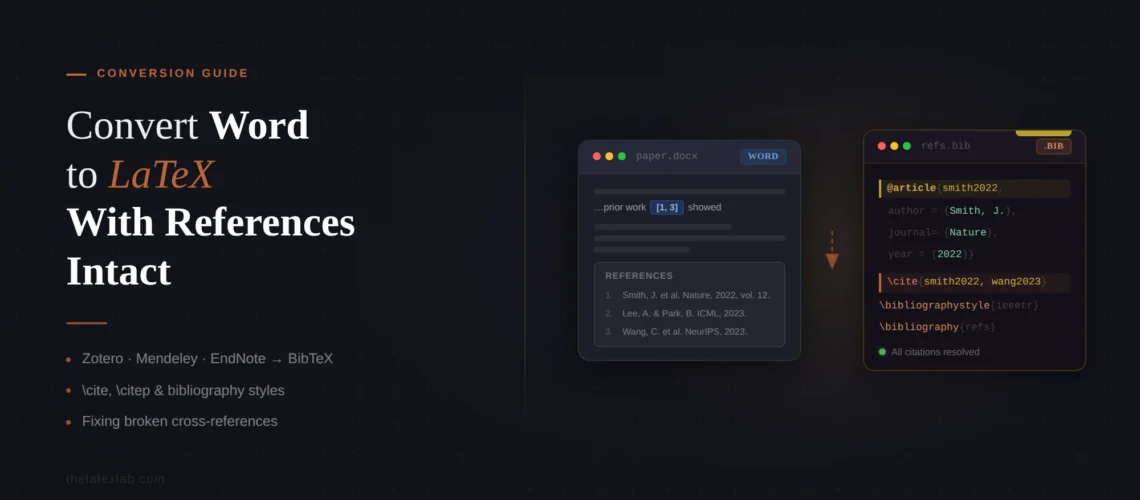
You’ve converted your Word document to LaTeX. The text looks right, the equations compile, and the tables are rebuilt. Then you scroll down to where the bibliography should be and there’s nothing there. Or worse – your citations show up as [?] throughout the entire paper. If you’ve searched for how to convert Word to LaTeX with references intact, this is probably the exact problem you’re facing right now.
No automated converter – not Pandoc, not GrindEQ, not any online tool – extracts Word citations into a working BibTeX bibliography. The references in your Word document are stored in a format that is completely separate from how LaTeX handles citations. Converting them requires a manual export-and-rebuild process that involves your reference manager, a .bib file, and careful matching of citation keys. After handling references in 200+ Word-to-LaTeX conversions, I can tell you it’s not technically hard, but it is tedious and easy to get wrong.
Quick answer: How do I keep my references when converting Word to LaTeX?
You need to do three things separately: (1) export your references from Zotero, Mendeley, or EndNote as a .bib file, (2) replace every in-text citation in the LaTeX document with a \cite{key} command that matches a key in your .bib file, and (3) add the correct bibliography commands to your .tex file (\bibliography{} for BibTeX or \printbibliography for biblatex). No conversion tool does all three automatically. If your LaTeX bibliography is not showing, the problem is almost always a mismatch between citation keys, a missing compilation step, or a .bib file that wasn’t loaded correctly.
Why References Don’t Survive Word-to-LaTeX Conversion
When you cite a source in Word using Zotero, Mendeley, EndNote, or Word’s built-in citation manager, the reference data is stored in one of two ways depending on the tool. Zotero and Mendeley insert field codes into the document that link back to your reference library. Word’s built-in manager stores references in the document’s XML as structured data. Either way, the citation in your text is a live link to a database entry, not a standalone piece of data.
LaTeX handles citations completely differently. Your references live in a separate .bib file – a plain-text database where each entry has a unique key (like smith2024 or einstein1905). In your .tex file, you write \cite{smith2024}, and the bibliography system (BibTeX or biber) looks up that key in the .bib file, formats the reference according to the journal’s style, and inserts both the in-text citation and the bibliography entry.
The problem should be obvious: there is no .bib file in your Word document, and the citation format Word uses has no concept of citation keys. When Pandoc converts your .docx to .tex, it sees the citations as plain text – “[1]” or “(Smith, 2024)” – and converts them as literal text strings, not as \cite{} commands. Your bibliography section becomes a block of formatted text, not a linked reference list.
Our insight: The worst case we encounter is when researchers have used Word’s built-in citation manager (Insert > References in Word) rather than Zotero, Mendeley, or EndNote. Word’s built-in tool stores references in a proprietary XML format inside the document, and there is no clean way to export them as .bib. The researcher often has to re-enter every reference from scratch or use a tool like AnyStyle.io to parse the formatted bibliography text back into structured entries. If you’re writing in Word and plan to convert to LaTeX later, use Zotero or Mendeley from the start – they make the .bib export trivial.
How to Export Your References as a .bib File
The export process depends on which reference manager you use. Here’s what works for each one.
Zotero
Zotero has the cleanest BibTeX export of the three major reference managers, especially if you install the Better BibTeX plugin (free, open source).
Basic export: Open Zotero, select the references you need (or the entire collection/library), go to File > Export Library (or right-click > Export Collection), choose “BibTeX” as the format, and save the .bib file in the same folder as your .tex document.
Better BibTeX export (recommended): Install the Better BibTeX plugin from retorque.re/zotero-better-bibtex. This gives you two advantages: it generates stable, readable citation keys (like smith_neural_2024 instead of Zotero’s default random-looking keys), and it can keep your .bib file automatically synced with your Zotero library. Export using “Better BibTeX” or “Better BibLaTeX” format instead of plain “BibTeX.”
Our insight: We recommend Better BibTeX for every researcher who uses both Zotero and LaTeX. The auto-sync feature means you can add a reference to Zotero and it appears in your .bib file within seconds – no re-export needed. For conversion projects, the stable citation keys make the key-matching process (described below) dramatically faster. About 70% of the Zotero users we work with don’t know this plugin exists.
Mendeley
Mendeley can sync BibTeX automatically. In Mendeley Desktop, go to Tools > Options > BibTeX tab, enable “BibTeX syncing,” and choose whether to create one .bib file for your entire library or one per collection. Set the path to the folder where your .tex file lives. Mendeley will generate and update the .bib file automatically.
If you’re using Mendeley Reference Manager (the newer web-based version), the BibTeX sync feature is not available. You’ll need to export manually: select your references, click the export button, and choose BibTeX format.
EndNote
EndNote’s BibTeX export is less straightforward than Zotero or Mendeley. Go to the EndNote tab in Word, change the output style to “BibTeX Export,” then copy the formatted bibliography and save it as a .bib file. Alternatively, in EndNote itself, select your references, go to File > Export, and choose “BibTeX” as the output style. Note that EndNote’s default BibTeX export sometimes produces entries with formatting issues – check the output for missing commas, unescaped special characters, and incorrect entry types.
Our insight: EndNote’s BibTeX export is the most error-prone of the three tools. Common issues include author names with unescaped accented characters (like “M” instead of “M\”{u}ller”), journal names that are fully spelled out when the style expects abbreviations, and URLs wrapped incorrectly. We always run a validation pass on .bib files exported from EndNote before using them. For a 30-reference paper, this check takes about 10 minutes and catches 2-3 errors on average.
Word’s built-in citation manager
If you used Word’s built-in References feature (not Zotero, Mendeley, or EndNote), you have a harder path. Your options are:
- Re-enter references from scratch – Find each source on Google Scholar, publisher’s site, or DBLP, and download the BibTeX entry directly. This is actually the most reliable method because you get clean, verified entries.
- Parse the formatted bibliography – Copy your bibliography text into AnyStyle.io, which uses machine learning to parse formatted references into structured BibTeX entries. Accuracy is around 85-90% for standard formats, less for non-standard ones. Always verify the output.
- Use Zotero’s reference extractor – The tool at rintze.zelle.me/ref-extractor can extract Zotero and Mendeley field codes from a Word document and re-import them into Zotero, which you can then export as BibTeX.
Matching Citation Keys Between Your .bib File and LaTeX Document
This is where most people lose references during conversion, and it’s the step that no automated tool handles.
Your .bib file contains entries with keys like @article{smith_neural_2024, ...}. Your LaTeX document needs \cite{smith_neural_2024} in every place where the original Word document had a citation. The problem: the converted .tex file has no \cite{} commands. It has literal text like “[1]” or “(Smith et al., 2024)” that Pandoc treated as regular text.
You need to go through the LaTeX document and manually replace every in-text citation with the correct \cite{} command pointing to the matching key in your .bib file.
For a paper with 30 citations, this takes about 30-60 minutes. Here’s how to do it efficiently:
1. Open the original Word document and the .tex file side by side. Work through the paper paragraph by paragraph. When you see a citation in the Word version, find the same spot in the .tex file.
2. Replace the literal citation text with \cite{key}. For numbered citations like “[1, 3, 5]”, replace with \cite{key1, key3, key5}. For author-year citations like “(Smith et al., 2024; Jones, 2023)”, replace with \cite{smith2024, jones2023}.
3. Keep a checklist. Mark each .bib entry as “used” when you’ve placed its \cite{} command. After going through the entire paper, check your .bib file for uncited entries – these might be references you missed, or they might be extras from a library-wide export that you don’t need.
Our insight: We use a simple verification script that compares the number of unique citations in the LaTeX file against the number of entries in the .bib file and against the number of references in the original Word bibliography. If the Word document has 35 references, the .bib file has 40 entries, and the .tex file has 33 unique \cite{} commands, we know we’re missing 2 citations and have 5 extra .bib entries to clean up. This takes 30 seconds and catches mismatches every single time.
TheLatexLab delivers every conversion with a verified .bib file and matched citation keys.
We verify the reference count against your original document. Zero missing citations, zero [?] marks. Every paper is compiled and checked before delivery.
BibTeX vs biblatex – Which One Your Journal Expects
LaTeX has two main bibliography systems, and using the wrong one causes the classic “LaTeX bibliography not showing” problem. You need to know which one your journal’s template uses before setting up your references.
BibTeX (traditional)
BibTeX is the older, more widely supported system. Most journal templates (IEEE, Elsevier, Springer, MDPI) use BibTeX. You’ll know your template uses BibTeX if the .tex file contains:
\bibliographystyle{stylename}– sets the formatting style (e.g.,IEEEtran,elsarticle-num,plain)\bibliography{filename}– points to your .bib file (without the .bib extension)
BibTeX requires a specific compilation order: pdflatex > bibtex > pdflatex > pdflatex. If you skip the bibtex step or only compile once, your citations will show as [?] and the bibliography will be empty.
biblatex (modern)
biblatex is the newer system, increasingly used in humanities and social science journals. You’ll know your template uses biblatex if the .tex file contains:
\usepackage[backend=biber]{biblatex}in the preamble\addbibresource{filename.bib}(note: include the .bib extension here)\printbibliographyat the end of the document
biblatex uses biber as its backend processor instead of bibtex. The compilation order is: pdflatex > biber > pdflatex > pdflatex. Running bibtex when biblatex expects biber (or vice versa) is one of the most common reasons for the bibliography not appearing.
Our insight: IEEE, Elsevier, and Springer templates all use traditional BibTeX. ACM’s acmart template can use either but defaults to BibTeX. If you’re submitting to any of these publishers, export your .bib file in standard BibTeX format (not BibLaTeX format – the entry types and field names differ slightly). We’ve seen submissions rejected because the .bib file used biblatex-specific fields like date instead of BibTeX’s year.
Numbered vs Author-Year Citations – Getting the Right Style
Word’s citation manager formats citations in whatever style you selected (APA, IEEE, Chicago, etc.). When you convert to LaTeX, the citation style is controlled by the bibliography package and style file, not by what the Word document looked like. You need to match the right combination.
Numbered citations [1, 2, 3]
Used by IEEE, Elsevier (some journals), Springer (some journals), and most engineering/CS journals. In BibTeX, this is typically handled by the journal’s .bst file (e.g., \bibliographystyle{IEEEtran}). In biblatex, use style=numeric.
If your Word document used numbered citations, the conversion is straightforward – replace each [1] with \cite{key} and the bibliography system handles the numbering automatically.
Author-year citations (Smith, 2024)
Used by APA, Chicago, Harvard, and most social science and humanities journals. In BibTeX, this requires the natbib package with an appropriate .bst file. The \cite{} command is replaced by \citep{} for parenthetical citations (Smith, 2024) and \citet{} for textual citations Smith (2024). In biblatex, use style=authoryear.
If your Word document used author-year citations, pay attention to whether each citation in the text is parenthetical or textual, because LaTeX distinguishes between the two and Word doesn’t.
Common style mismatches
A frequent error is using \cite{} in a template that expects \citep{}/\citet{} (natbib), or vice versa. If you get “undefined control sequence” errors on your citation commands, check whether the template loads natbib. If it does, switch all \cite{} to \citep{}. If it doesn’t load natbib, use \cite{} only.
Why Your LaTeX Bibliography Is Not Showing (and How to Fix It)
This is the most common LaTeX bibliography problem, and it appears on LaTeX forums daily. Here are the causes in order of likelihood.
1. You only compiled once. LaTeX’s bibliography system requires multiple compilation passes. Run: pdflatex > bibtex (or biber) > pdflatex > pdflatex. If you’re using Overleaf, it handles this automatically, but sometimes you need to click “Recompile from scratch” under the compile menu dropdown.
2. Your .bib file isn’t being found. Make sure the .bib file is in the same directory as your .tex file. In the \bibliography{} command, don’t include the .bib extension: use \bibliography{references} not \bibliography{references.bib}. For biblatex with \addbibresource{}, you do include the .bib extension.
3. Citation key mismatch. Citation keys are case-sensitive. If your .bib entry is @article{Smith2024, ...} and your document has \cite{smith2024}, BibTeX won’t find it. Check your .blg file (the BibTeX log) for warnings like “I didn’t find a database entry for…”
4. Syntax error in the .bib file. A single missing comma, unclosed brace, or unescaped special character in any .bib entry can silently break the entire bibliography. Common culprits include: missing commas between fields, ampersands in journal names (use \&), percent signs in titles, and accented characters that need LaTeX escaping.
5. Wrong backend. If the template uses \usepackage[backend=biber]{biblatex} and you’re running bibtex instead of biber, nothing will work. Check the template’s preamble and configure your editor to run the correct tool.
6. Stale auxiliary files. Sometimes old .aux and .bbl files from previous compilation attempts contain errors that persist. Delete all auxiliary files (*.aux, *.bbl, *.blg, *.log, *.out) and recompile from scratch.
7. No \cite{} commands in the document. BibTeX only includes references that are actually cited. If you haven’t replaced the literal citation text with \cite{} commands yet, the bibliography will be empty because BibTeX doesn’t know which entries to include. Use \nocite{*} temporarily to include all entries while you’re still replacing citations.
TheLatexLab has set up 300+ bibliographies for papers across IEEE, Elsevier, Springer, and ACM.
We export your references, match every citation key, configure the correct style, and verify the reference count matches your original document. No [?] marks, guaranteed.
Verifying No References Are Lost After Conversion
After you’ve exported the .bib file, replaced all in-text citations with \cite{} commands, and the document compiles with a complete bibliography, you still need to verify that nothing was lost. Here’s the process we use.
1. Count references. Open the original Word document and count the entries in the bibliography section. Then compile the LaTeX document and count the entries in the generated bibliography. These numbers must match. If the LaTeX version has fewer, you’ve missed some \cite{} commands. If it has more, you’ve cited entries that weren’t in the original.
2. Check the .blg file for warnings. The BibTeX log file (.blg) lists every citation key that was referenced but not found in the .bib file, and every .bib entry that was not cited. Read this file – it’s short and tells you exactly what’s wrong.
3. Search the .tex file for leftover literal citations. Search for patterns like “[1”, “[2”, “(20” (for years in author-year citations), or author last names followed by years. Any literal citation text that wasn’t replaced with \cite{} will appear as plain text in the compiled PDF instead of as a proper linked reference.
4. Spot-check 5-10 references. Pick a few references at random from the compiled LaTeX bibliography and compare them against the original Word bibliography. Check that author names, titles, journal names, years, volume numbers, and page numbers match. BibTeX formatting can change capitalization (BibTeX lower-cases titles by default unless you protect them with braces), abbreviate first names, or drop fields like DOIs depending on the style.
5. Check for duplicate entries. If you exported your entire Zotero or Mendeley library instead of just the references used in the paper, the .bib file may contain hundreds of entries. This doesn’t cause errors but increases compilation time. More importantly, if you have two slightly different .bib entries for the same source (common when importing from different databases), one might get cited while the other sits unused, leading to subtle inconsistencies.
Our insight: The verification step that catches the most errors is checking the .blg file. In roughly 30% of conversion projects, the .blg file reveals 1-3 citation key mismatches that would have shown up as [?] in the final PDF. These are almost always caused by special characters in author names generating different citation keys in the .bib export versus what the converter assumed. Reading the .blg file takes 60 seconds and is the single most valuable debugging step in the entire bibliography process.
Converting a paper with 30+ references? Our team handles the entire bibliography pipeline.
Export, key matching, style configuration, and reference-count verification are included in every Word-to-LaTeX conversion. Average turnaround: 72 hours.