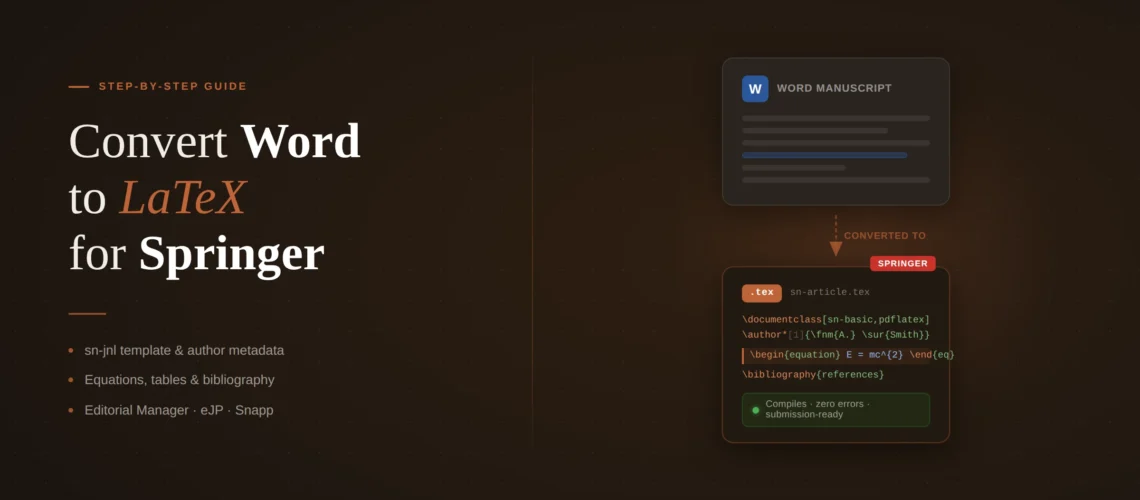
If you need to convert Word to LaTeX for Springer, this guide walks you through the entire process – from choosing the right Springer template to uploading your final .tex file to their submission system. Springer’s LaTeX setup is more complicated than most publishers because they have multiple template systems, multiple submission platforms, and a legacy document class (svjour3) that still circulates online but is officially deprecated. Most researchers hit errors not because LaTeX is hard, but because they picked the wrong starting point for their Springer LaTeX manuscript conversion.
The short version
Template: Use sn-jnl.cls (v3.1, December 2024) for all Springer, Nature Portfolio, and BMC journal articles. Do not use svjour3 – it is deprecated and some journals will reject submissions using it.
Conversion method: Manual section-by-section transfer into the sn-jnl template is the only reliable method. Pandoc and automated converters break Springer’s author metadata structure, reference style configuration, and float placement.
Time estimate: 12-30 hours for a first-timer depending on paper complexity. The bibliography and equation conversion take the longest.
Fastest option: A professional Word to LaTeX conversion service delivers a Springer-ready .tex file in 72 hours with zero compilation errors.
svjour3 vs sn-jnl: which Springer template to use in 2026
This is the first mistake most researchers make during conversion, and it wastes hours. If you search “Springer LaTeX template” you will find two different document classes floating around the internet: svjour3.cls and sn-jnl.cls. They are not interchangeable, and using the wrong one can get your submission rejected before anyone reads a word of your research.
svjour3.cls is the legacy Springer template. It was the standard for over a decade and still appears on Overleaf, GitHub repositories, and university LaTeX guides. Some older Springer journals still technically accept it. But Springer Nature officially replaced it with sn-jnl in 2018, stopped distributing svjour3 through their author support page, and has been migrating all journals to the new template. If you convert your Word into svjour3 today, you risk submitting to a journal that no longer accepts it – and you will have to redo the entire conversion.
sn-jnl.cls (current version: v3.1, December 2024) is the unified template for all Springer Nature journal articles, including Springer journals, Nature Portfolio journals, and BMC journals. This is the template you should use for any new conversion.
The two templates have different author metadata structures, different bibliography setups, and different preamble options. A document built for svjour3 will not compile with sn-jnl without significant changes. So before you spend hours converting your Word file, make sure you are building into the right template.
There is one exception: if your target journal’s submission guidelines explicitly state “use svjour3,” follow their instructions. Some long-running Springer journals have not yet migrated. Check your journal’s author guidelines page on SpringerLink before starting.
Before you start: what to extract from your Word file
Before you touch a .tex file, spend 20 minutes pulling the key components out of your Word document and organizing them. This saves time later because you will be working through the conversion systematically instead of jumping between Word and LaTeX.
Author metadata. Springer’s sn-jnl template has a specific structure for author names, affiliations, ORCID IDs, corresponding author designation, and email addresses. In Word you probably have this as formatted text at the top of the page. In sn-jnl, each author gets a separate \author command linked to affiliations via numeric tags. Write out every author’s full name, every affiliation (with full address as Springer requires), and note which author is corresponding. You will need this ready when you set up the preamble.
Equations. Open your Word file and count the equations. Note which ones are inline (within a sentence) and which are display equations (on their own line, numbered). If your Word file uses MathType, the equations will need to be manually rewritten in LaTeX math mode. If it uses Word’s built-in equation editor (the one that accepts LaTeX-like input), some equations may convert more easily, but you will still need to verify each one. Note any equations that use unusual symbols or multi-line alignment – these will take the most time.
Tables. Springer has specific table formatting requirements: no vertical lines, headers separated by a horizontal rule, and captions above the table (not below). Your Word tables almost certainly do not match this format. Count your tables and note which ones have merged cells, multi-row headers, or span the full page width – these require more complex LaTeX markup.
Figures. Export every figure from your Word file as a separate image file. Springer accepts EPS, PDF, TIFF, PNG, and JPEG. For line art and charts, PDF or EPS at 600+ DPI is preferred. For photographs, TIFF or JPEG at 300+ DPI. Do not try to extract images by copying and pasting from Word – use “Save as Picture” or extract them from the .docx archive (rename .docx to .zip, then find the images in the word/media folder).
References. Export your reference list. If you used Zotero, Mendeley, or EndNote, export to BibTeX format directly from the reference manager. If you typed references manually in Word, you will need to create BibTeX entries for each one. This is the most tedious part of the conversion for papers with 30+ references.
Would rather skip the manual conversion?
Upload your Word and tell us the target Springer journal. We handle the template setup, equation typesetting, bibliography formatting, and compilation testing. Delivered in 72 hours.
Step-by-step Word To LaTex Conversion for Springer
Step 1: Set up the sn-jnl template in Overleaf. Go to Overleaf’s Springer Nature template and open it directly. This gives you sn-jnl.cls, all eight .bst files, and the sample article sn-article.tex. Alternatively, download the December 2024 .zip from Springer Nature’s LaTeX author support page and upload it to a new Overleaf project.
Step 2: Choose the right document class option. Open sn-article.tex. You will see multiple commented-out \documentclass lines. Uncomment the one that matches your journal’s reference style and comment out the rest. If you are unsure which style your journal uses, go to your journal’s page on SpringerLink, click “Submission guidelines,” and search for “reference style.” When in doubt, sn-basic works for the widest range of Springer journals. Always include the [pdflatex] option – it is required for eJP submission and does not hurt on other systems.
Step 3: Fill in the author metadata. Replace the sample author block with your information. The structure looks like this:
\author*[1,2]{\fnm{First} \sur{Last}}\email{[email protected]}
\author[2]{\fnm{Second} \sur{Author}}

\affil*[1]{\orgdiv{Department}, \orgname{University},
\orgaddress{\street{Street}, \city{City},
\postcode{12345}, \state{State}, \country{Country}}}
\affil[2]{\orgdiv{Department}, \orgname{University},
\orgaddress{\city{City}, \country{Country}}}
The asterisk after \author* marks the corresponding author. The numbers in square brackets link authors to affiliations. Get this exactly right – Springer’s production system parses these fields automatically, and errors here delay publication.
Step 4: Transfer your text section by section. Copy your body text from Word and paste it into the appropriate sections of the .tex file. Replace Word’s heading formatting with LaTeX section commands: \section{}, \subsection{}, \subsubsection{}. Remove any Word-specific formatting artifacts like tab characters, non-breaking spaces, and smart quotes. Smart quotes (the curly kind) can cause compilation errors – replace them with straight quotes or use the csquotes package.
Step 5: Convert equations. This is usually the most time-consuming step. See the dedicated section below.
Step 6: Rebuild tables. Springer’s sn-jnl template expects tables with \toprule, \midrule, and \bottomrule from the booktabs package (already loaded in the template). Remove all vertical lines. Place the caption above the table using \caption{} inside the table environment but before \begin{tabular}.
Step 7: Add figures. Upload your extracted figure files to the Overleaf project. Use the standard figure environment with \includegraphics{}. Springer requires captions below figures (opposite of tables). Use descriptive filenames – not fig1.png but rather “experimental-setup.pdf” – as Springer’s production system sometimes uses filenames in the proofing workflow.
Step 8: Set up the bibliography. See the dedicated section below.
Step 9: Compile, debug, and verify. Compile in Overleaf using pdfLaTeX (not XeLaTeX or LuaLaTeX – Springer’s submission systems use pdfLaTeX). Fix any errors. Then compare your compiled PDF against your Word original page by page: check that every equation renders correctly, every table matches, every figure appears, and every reference cites properly. For a detailed walkthrough of common errors, see our guide on common LaTeX compilation errors.
Convert Equation From Word to LaTex for Springer
Equations are where Word-to-LaTeX conversions break down most often, and Springer papers tend to be equation-heavy. Here is how to handle each type:
Word’s built-in equation editor (available since Word 2007) uses a UnicodeMath syntax that looks similar to LaTeX but is not identical. Simple equations like x^2 + y^2 = z^2 translate directly. But the moment you have fractions, matrices, or aligned multi-line equations, you need to rewrite them. Word’s equation editor stores equations in OMML (Office Math Markup Language), which is an XML format that no tool converts reliably to LaTeX math.
MathType equations can be batch-converted. If you have MathType installed, select all equations (MathType > Convert Equations > check “Whole document”), then convert to LaTeX. The output is usually 80-90% correct but requires manual cleanup – especially for alignment environments, spacing commands, and Springer-specific math packages.
Springer-specific math considerations: sn-jnl loads the amsmath package automatically. Use \begin{equation} for single numbered equations, \begin{align} for multi-line aligned equations, and \begin{equation*} or \[...\] for unnumbered display math. Do not use the deprecated $$...$$ syntax – it causes spacing inconsistencies with Springer’s class file. For theorems, lemmas, and proofs, use sn-jnl’s built-in environments (\begin{theorem}, \begin{proof}) rather than defining your own – they are already styled to Springer’s specifications.
If your paper has more than 15-20 equations, the conversion time for this section alone can exceed 8-10 hours. For equation-heavy manuscripts, hiring a professional to handle the Word conversion to LaTeX for Springer is often faster and guarantees zero compilation errors and submission-ready files on the first attempt.
Rebuilding your bibliography for Springer’s .bst files
The bibliography is the second biggest time sink in a Word-to-LaTeX Springer conversion. Here is why: Springer uses eight different bibliography style (.bst) files, and the one you need depends on the document class option you chose. If you selected sn-mathphys-num, your bibliography must use sn-mathphys-num.bst. Mixing styles causes either compilation errors or – worse – a bibliography that compiles but formats citations incorrectly.
If your references are in a reference manager (Zotero, Mendeley, EndNote): Export to BibTeX (.bib) format. Open the exported .bib file in a text editor and check for common issues: missing DOI fields (Springer expects them), inconsistent author name formatting (“Last, First” vs “First Last”), missing journal abbreviations, and entries with no entry type. Google Scholar BibTeX exports are particularly unreliable – they often have incorrect entry types and missing fields.
If your references are typed manually in Word: You need to create a .bib file from scratch. For each reference, create a BibTeX entry with all required fields. This is tedious but necessary. A 30-reference paper takes roughly 60-90 minutes to convert manually. Use JabRef (free, open-source) to make this less painful – it provides a GUI for entering BibTeX fields and validates entries as you go.
Springer-specific bibliography requirements: Always include DOIs where available. Use the \bibliography{your-file} command (not \begin{thebibliography} with manual entries) so the .bst file controls formatting. If you are submitting via eJP, Springer recommends pasting the contents of the compiled .bbl file directly into your .tex file in place of the \bibliography{} command – this avoids compilation failures on their server. For full details on Springer’s reference style options, see our Springer LaTeX template formatting guide.
Bibliography conversion eating your hours?
We rebuild every reference in clean BibTeX with DOIs, correct entry types, and Springer-compliant formatting. Your .bib file will work with any Springer .bst style.
Springer-specific conversion errors and fixes
These are the errors that specifically come up during Word-to-LaTeX conversion for Springer – not general LaTeX errors, and not template configuration errors (for those, see our Springer template error guide). These are problems caused by content that worked in Word but breaks in Springer’s LaTeX environment.
“Missing $ inserted” on special characters. Word allows you to type characters like %, &, #, _, and ~ as normal text. In LaTeX, these are reserved characters. During conversion, every instance needs to be escaped: \%, \&, \#, \_, \textasciitilde{}. This is the single most common conversion error. A 15-page paper typically has 10-30 instances that need fixing.
Smart quotes causing “Undefined control sequence.” Word uses Unicode curly quotes (” ” ‘ ‘) by default. LaTeX expects straight quotes or TeX-style quotes (``...'' for double, `...' for single). If you paste text directly from Word, the smart quotes will either cause compilation errors or render as garbled characters. Find and replace all smart quotes before compiling. In Overleaf, use Ctrl+H with regex enabled.
“Float(s) lost” warning. When you convert Word tables and figures, you place them in float environments (\begin{table}, \begin{figure}). If you put a float inside another environment (like a list, a proof, or a minipage), LaTeX cannot place it and you get this warning. This happens most often when converting Word documents where a table appears inside a bulleted list or inside a text box. Move the float outside the enclosing environment.
Overfull hbox warnings on URLs. Word wraps long URLs automatically. LaTeX does not. If your paper includes URLs in the text or in references, they will frequently overflow the text margin. Add \usepackage{url} and wrap URLs in \url{}. For references, make sure your .bib file includes URLs in the url = {} field so the .bst file handles line breaking.
natbib conflict after pasting a custom preamble. If you are converting a document that was previously formatted with a different LaTeX template (common when resubmitting a rejected paper from another journal), your preamble might include \usepackage{natbib} or \usepackage[options]{natbib}. Springer’s sn-jnl loads natbib internally through the document class option. Having it loaded twice causes the error “Option clash for package natbib.” Delete any standalone natbib declaration from your preamble.
Uploading to Springer’s submission systems
Springer Nature uses three different submission systems, and each handles LaTeX files differently. Knowing which one your journal uses before you start saves you from last-minute reformatting.
Editorial Manager (EM) – URL starts with editorialmanager.com. Compiles LaTeX using TeX Live 2018. This is the most common system for Springer-branded journals. Upload your .tex file as the main manuscript, your .bib file as a related file, all .bst files, figures as separate files, and sn-jnl.cls. EM will compile everything server-side and generate a proof PDF. Check this PDF carefully – EM’s older TeX Live version occasionally renders things differently from Overleaf.
eJournalPress (eJP) – URL starts with mts-. Used primarily for Nature-branded and Nature Research journals. Compiles using TeX Live 2017 (even older). Requires the [pdflatex] option in your document class. Springer recommends pasting your .bbl content directly into your .tex file instead of using \bibliography{} to avoid server-side BibTeX compilation failures.
Snapp – URL starts with submission.nature.com. The newest system. Requires pdfLaTeX compilation and .zip upload. Compile locally first, confirm zero errors, then zip all source files together and upload.
Whichever system you use, compile your document locally (or in Overleaf) and confirm zero errors and zero warnings before uploading. Springer’s server-side compilers are less forgiving than Overleaf and use older TeX Live versions. A document that compiles with warnings in Overleaf may fail entirely on Springer’s servers. For the full breakdown of each system, see our Springer submission systems guide.
Ready to submit to Springer?
We convert Word to Springer-ready LaTeX for 200+ Springer journals. sn-jnl template, correct .bst style, all equations in proper math mode, compilation-tested in Overleaf. From $149.