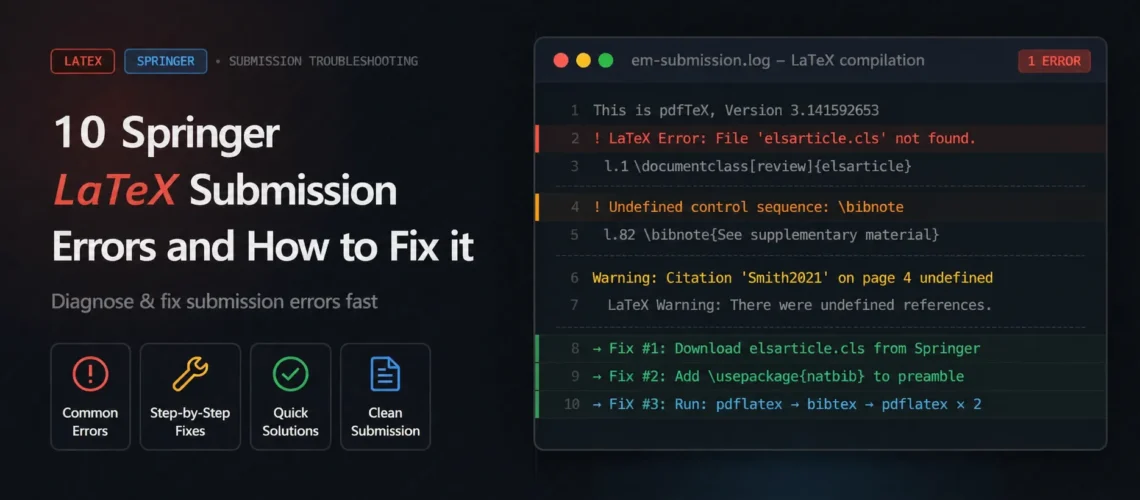
Every Springer LaTeX submission error comes down to one of about ten causes, and most of them have nothing to do with your actual research. You uploaded your .tex files, the submission system tried to compile them, and instead of a PDF you got an error log or a mangled output. Springer Nature runs three separate submission platforms, each with a different TeX Live version and different file handling rules. A paper that compiles cleanly in Overleaf can fail on all three for entirely different reasons.
This post walks through each Springer-specific LaTeX error we see repeatedly, with the exact error message, the root cause, and the fix. If you are setting up the sn-jnl template from scratch, start with our Springer LaTeX template guide instead. This post assumes your paper is already written and the submission system is rejecting it.
Quick answer: Why won’t your Springer LaTeX paper compile?
Springer Nature’s submission systems rejected your paper because of a file or configuration problem. The most common causes:
- You are using svjour3 instead of sn-jnl, or sn-jnl instead of llncs for a conference paper
- The [pdflatex] option is missing from your \documentclass line (required by eJP and Snapp)
- Your .bst files are in a subfolder instead of the project root
- You are using biblatex/biber, which none of Springer’s submission systems support
- Your sn-jnl.cls is outdated and missing commands like \bibcommenthead
Each error below includes the symptom, the cause, and the exact fix. None of these require rewriting your paper.
1. You Are Using the Wrong Springer Template
What you see: The submission system returns your paper with a note about incorrect formatting, or the compiled PDF looks nothing like published articles in your target journal. In some cases, compilation fails entirely because the system does not recognize your document class.
Why it happens: Springer Nature has multiple document classes for different publication types, and researchers frequently pick the wrong one. The three you need to know about: sn-jnl.cls is for all Springer Nature journal articles (Springer journals, Nature Portfolio, BMC). llncs.cls is for Lecture Notes in Computer Science conference proceedings. svjour3.cls is the old journal template that Springer no longer distributes.
The confusion is understandable. Many Overleaf templates and university guides still reference svjour3. If you started from one of those, your paper is built on a deprecated class. Some journals may still accept svjour3 submissions, but Springer officially recommends sn-jnl for all new journal submissions.
The fix: For journal articles, use \documentclass[pdflatex,sn-basic]{sn-jnl} (or whichever reference style your journal requires). For LNCS conferences, use \documentclass[runningheads]{llncs}. Never mix them. The bibliography styles, affiliation syntax, and frontmatter structure are completely different between sn-jnl and llncs. Download the latest template (v3.1, December 2024) from Springer Nature’s LaTeX author support page.
2. The [pdflatex] Option Is Missing
What you see: Your paper compiles locally and in Overleaf, but fails when uploaded to eJournalPress (eJP) or Snapp. The error log may reference font issues, graphics problems, or simply fail without a clear message.
Why it happens: Two of Springer’s three submission systems (eJP and Snapp) require the [pdflatex] option in your document class declaration. Without it, the system may attempt to compile with a different engine or fail to process your graphics correctly. This option is not required for local compilation or Overleaf, which is why your paper works fine until you submit.
The fix: Add [pdflatex] to your \documentclass line: \documentclass[pdflatex,sn-basic]{sn-jnl}. Include it even if your journal uses Editorial Manager rather than eJP, because it does not cause problems on EM and protects you if the journal migrates systems. Also check that you have not loaded packages incompatible with pdflatex, like fontspec (which requires XeLaTeX or LuaLaTeX).
We handle all three Springer submission systems.
Upload your manuscript and tell us the journal. We configure the right template, the right reference style, and deliver files ready for EM, eJP, or Snapp.
3. Springer’s Three Submission Systems Handle LaTeX Differently
This is the root cause behind many Springer LaTeX submission errors that seem random. Springer Nature does not have one submission portal. It has three, each running a different TeX Live version:
Editorial Manager (EM): URL starts with editorialmanager.com. Runs TeX Live 2018. Used by most traditional Springer journals. Accepts .bib or .bbl files as “Manuscript” item types.
Snapp: URL starts with submission.nature.com. Runs TeX Live 2021. Used by newer Springer Nature journals. Requires files compressed as .zip and compiled with pdflatex.
eJournalPress (eJP): URL starts with mts-. Runs TeX Live 2017. Used by Nature-branded journals, npj series, Scientific Data, and Communications journals. Requires the [pdflatex] option. Bibliography files should be uploaded as “related manuscript file.”
The practical consequence: a package or command that exists in TeX Live 2021 (Snapp) may not exist in TeX Live 2017 (eJP). A paper that compiles on one system can fail on another. Before submitting, identify which system your journal uses by checking the URL when you log in, and test your paper against the corresponding TeX Live version.
Our insight: The most reliable approach across all three systems is to pre-compile your .bib into a .bbl file locally, then paste the .bbl content directly into your .tex document in place of the \bibliography{} command. This avoids BibTeX compilation issues on every server. In Overleaf, you can download the .bbl from the Logs and Output panel after a successful compile.
4. Your .bst Files Are in a Subfolder
What you see: I couldn't open style file sn-mathphys-num.bst or similar “style file not found” errors. Citations appear as [?] throughout the document.
Why it happens: When you download the Springer Nature template .zip from their website, the .bst files are stored inside a subfolder. If you extracted the archive without moving the .bst files to the project root, the compiler cannot find them. This is one of the most common Springer-specific bibliography errors because Springer’s own download is structured this way.
The fix: Move all eight .bst files (sn-basic.bst, sn-mathphys.bst, sn-mathphys-num.bst, sn-vancouver.bst, sn-vancouver-num.bst, sn-apa.bst, sn-chicago.bst, sn-nature.bst) into the same directory as your .tex file. Alternatively, start from the official Overleaf template, which already has everything in the root. After moving the files, delete your .aux and .bbl cache files and recompile from scratch to avoid stale references.
5. You Are Using Biblatex or Biber
What you see: Compilation fails with errors related to bibliography processing, or references appear as [?] even though they work locally. The error log may mention missing commands like \printbibliography or backend issues.
Why it happens: None of Springer Nature’s three submission systems support biber as a bibliography backend. They all expect BibTeX. If your paper uses biblatex with biber (which is increasingly common in modern LaTeX workflows), the server cannot process your references.
The fix: You have two options. The cleanest approach: compile your paper locally with biber, then take the generated .bbl file and paste its contents directly into your .tex file, replacing the \printbibliography command. This gives the server pre-compiled references and removes the biber dependency entirely. The alternative: switch from biblatex back to natbib with BibTeX. This means changing \parencite{} to \citep{}, \textcite{} to \citet{}, and replacing \printbibliography with \bibliography{yourfile}. The sn-jnl class loads natbib automatically through the document class options.
Bibliography problems are the #1 reason Springer submissions fail.
We convert biblatex to natbib, pre-compile .bbl files, and verify references render correctly on the target submission system.
6. Your sn-jnl.cls Is Outdated
What you see: Undefined control sequence \bibcommenthead or similar errors pointing to commands that should exist in the template but do not.
Why it happens: You downloaded the Springer Nature template months or years ago, or you copied sn-jnl.cls from a colleague’s project. The class file has been updated multiple times, and newer .bst files reference commands that only exist in the latest sn-jnl.cls. The \bibcommenthead error is the most common symptom of this mismatch.
The fix: Download the latest template (v3.1, December 2024) from Springer Nature’s LaTeX author support page and replace your sn-jnl.cls with the new version. Also replace the .bst files. Do not mix old and new files from different template versions. If you started from the Overleaf gallery template, check the template version listed in the comments at the top of the .tex file. Overleaf templates are not always up to date.
7. The dvips Option Is Breaking pdflatex
What you see: Errors about graphics not being found, unknown graphic extensions, or PostScript-related failures when processing figures.
Why it happens: Your preamble includes \usepackage[dvips]{graphicx}. The dvips option tells LaTeX to expect PostScript graphics (.eps), but Springer’s submission systems compile with pdflatex, which expects PDF, PNG, or JPG images. The two are incompatible.
The fix: Change \usepackage[dvips]{graphicx} to \usepackage{graphicx} (without any driver option). pdflatex will automatically select the correct driver. If you have EPS figures, either convert them to PDF using epstopdf, or add \usepackage{epstopdf} to your preamble and let pdflatex convert them automatically during compilation.
8. Special Characters and Diacritics
What you see: Square boxes in the compiled PDF where accented characters should be, or compilation errors referencing Unicode characters or encoding issues. Common in author names in .bib files.
Why it happens: Author names in BibTeX entries often contain diacritics (umlauts, accents, cedillas) that were copy-pasted from a reference manager or a website. Springer’s systems, especially eJP on TeX Live 2017, may not handle raw UTF-8 characters reliably.
The fix: Convert all special characters to TeX encoding in both your .tex and .bib files. Common conversions: \"a for a, \"o for o, \"u for u, \'e for e, \c{c} for c, \ss{} for ss. If you have many entries, most reference managers can export BibTeX with TeX-encoded characters. In JabRef, check the “Use TeX encoding” export option.
9. Your Figures Do Not Meet Resolution Requirements
This is not a compilation error. Your paper compiles fine, but Springer’s production team returns it after acceptance because the figures are below minimum resolution. It delays publication and requires rework.
Springer’s requirements: Line drawings and scanned line art need a minimum of 1200 DPI. Photographs and halftones need 300 DPI minimum. Combination artwork (photos with text overlays, labeled diagrams) need 600 DPI minimum. Vector graphics must have fonts embedded.
The fix: Export figures from their source application (MATLAB, R, Python matplotlib, Illustrator) in vector format (PDF or EPS) whenever possible. Vector graphics scale infinitely and always pass resolution checks. For raster images, check the DPI before submitting: in most image editors, look under Image Properties or Image Size. If your raster images are below the threshold, re-export from the source at a higher resolution rather than upscaling an existing low-resolution file.
For a broader overview of LaTeX errors across all publishers, see our guide to common LaTeX compilation errors. If you are also submitting to Elsevier, our Elsevier LaTeX template guide covers Editorial Manager-specific issues. Researchers on ResearchGate have also documented many Springer bibliography issues in detail.
10. You Are Using \input{} for Multi-File Submissions
What you see: Missing content in the compiled PDF, or compilation fails because referenced .tex files cannot be found on the server.
Why it happens: Springer’s template explicitly states: “Please do not use \input{…} to include other tex files. Submit your LaTeX manuscript as one .tex document.” Some submission systems do not process auxiliary .tex files even if you upload them. They expect a single self-contained .tex file.
The fix: Merge all your \input{} files into a single .tex document before submitting. Copy the contents of each included file into the main document at the location of the \input{} command. Figures and .bst files should remain as separate files, but all text content should be in one .tex file.
Pre-Submission Checklist
Run through this before uploading to any Springer Nature submission system.
Template: sn-jnl for journal articles, llncs for LNCS conferences. Not svjour3. Download the latest version (v3.1, December 2024).
Document class: Includes [pdflatex] option and the correct reference style for your journal.
File structure: All .bst files in the project root, not in subfolders. Single .tex file (no \input{} for other .tex files). No absolute file paths in \includegraphics{}.
Bibliography: Uses BibTeX (not biblatex/biber). Consider pre-compiling .bbl and pasting into the .tex file for maximum compatibility. No manually loaded natbib (sn-jnl handles it).
Graphics: No [dvips] option on graphicx. Figures in PDF, PNG, or JPG format. Line art at 1200 DPI, photos at 300 DPI, combination at 600 DPI.
Characters: All diacritics in TeX encoding in both .tex and .bib files.
Submission system: Identify whether your journal uses EM, Snapp, or eJP. Check the URL when you log in. Follow the system-specific rules for file tagging and upload format.
