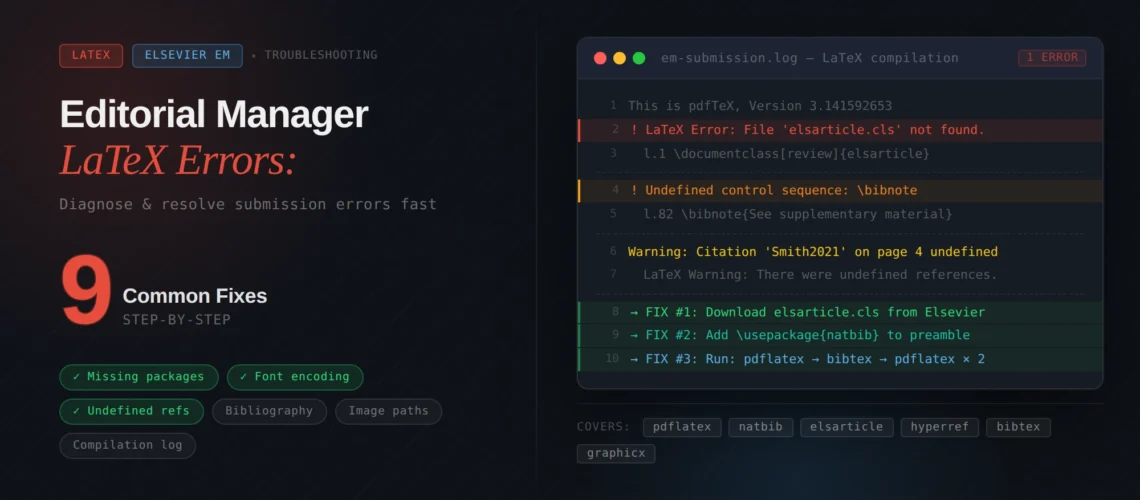
Every Elsevier Editorial Manager LaTeX error you are staring at right now has a specific cause and a specific fix. You uploaded your .tex files, hit “Build PDF for Approval,” and got an error log instead of your paper. The problem is almost never your research. It is your file setup, your upload configuration, or a silent version mismatch between your local TeX installation and Elsevier’s server. Researchers across TeX forums and academic communities describe the same experience: a paper that compiled perfectly in Overleaf produces nothing but an error dump when uploaded to EM.
This post covers the 9 specific Elsevier LaTeX submission errors that cause EM to reject your files, paired with the exact fix for each one. If you are setting up elsarticle from scratch instead, start with our Elsevier LaTeX template guide first.
Quick answer: Why did Elsevier reject your LaTeX paper?
Elsevier’s Editorial Manager rejected your paper because it could not compile your .tex files into a PDF. The most common causes:
- Your .bib file was tagged as “LaTeX file” instead of “Manuscript” in EM
- Your project had subfolders that EM cannot process
- Your elsarticle.cls version does not match EM’s TeX Live 2022
- Your bibliography style file does not match your citation options
- Your compiled in Overleaf but Overleaf was silently ignoring errors EM will not
None of these mean your paper’s content was reviewed and found lacking. Each one is a technical file-setup issue with a fix that takes under five minutes.
1. Your .bib File Was Tagged as the Wrong Item Type
This is the single most common reason Elsevier rejects LaTeX submissions through Editorial Manager, and it is the most frustrating because the fix takes ten seconds.
What you see: Citations appear as [?] in the built PDF, or the error log shows “bibliography not found.” Your references section is completely empty even though your .bib file was uploaded.
Why it happens: When you upload files to EM, you assign each one an “item type.” The .bib file needs to be classified as “Manuscript.” Most researchers pick “LaTeX file” or “Supplemental Material” because those names sound more logical. But EM only processes files tagged as “Manuscript” during compilation. Anything else is treated as supplementary and ignored by the compiler.
The fix: Go to Edit Submission, find your .bib file, change its item type to “Manuscript,” and rebuild the PDF. The same rule applies to .bbl, .bst, .sty, and .cls files. Every file that your .tex file references with \bibliography{}, \bibliographystyle{}, \usepackage{}, or \documentclass{} must be tagged as “Manuscript.”
Our insight: We once received an Elsevier submission where the author had uploaded 14 files. Twelve were tagged correctly. The .bib file was tagged as “LaTeX Source File” and the custom .bst was tagged as “Other.” Two wrong tags, zero references in the compiled PDF. The fix took under a minute once we identified the issue.
2. Your Project Has Subfolders
What you see: Error log shows !Package pdftex.def Error: File 'Figures/flow.pdf' not found or similar “file not found” errors for images that clearly exist in your project.
Why it happens: EM cannot process any directory structure in LaTeX submissions. If your Overleaf project has an /images/ or /figures/ subfolder (which is standard practice in Overleaf), EM will not find those files. It flattens everything into a single directory and then tries to compile.
The fix: Move all files to the root directory. Then update every \includegraphics{} command in your .tex file to remove the folder path. For example, change \includegraphics{figures/fig1.pdf} to \includegraphics{fig1.pdf}. If you are submitting a ZIP archive, make sure the archive does not contain a top-level folder wrapping your files.
This also applies to .bst files. The elsarticle template package stores bibliography style files inside a doc/ subfolder. If you downloaded the template and did not move the .bst file out, EM will not find it.
Spending hours debugging EM errors instead of doing research?
Upload your .tex files and tell us the Elsevier journal. We fix every compilation error and deliver EM-ready files. If it does not compile on the first upload, we fix it free.
3. Your elsarticle.cls Version Does Not Match EM
What you see: Your paper compiles locally and in Overleaf, but EM produces errors about undefined commands, unexpected options, or missing macro definitions.
Why it happens: Editorial Manager runs TeX Live 2022. If you are developing on a newer TeX Live installation (2024 or 2025) or on Overleaf (which updates its TeX distribution annually), the elsarticle.cls version on your machine may be newer than what EM has. New features in v3.4 of elsarticle are not available on EM if EM is still running v3.3.
The fix: Include your local copy of elsarticle.cls in the upload. Tag it as “Manuscript.” EM will use the version you uploaded instead of its system copy. Alternatively, you can set Overleaf’s TeX Live version to 2022 (Project Settings, TeX Live version) and recompile. If it breaks in Overleaf on 2022, it will break in EM. Fix it before uploading.
Our insight: The version mismatch issue has gotten worse since 2023 because Overleaf updated to TeX Live 2024 while many Elsevier journals still run EM with TeX Live 2022. We now include the exact .cls file in every Elsevier submission package we deliver, which eliminates this problem entirely.
4. Your Bibliography Style Does Not Match Your Citation Options
What you see: ! Package natbib Error: Bibliography not compatible with author-year citations.
Why it happens: Your \documentclass line includes the authoryear option, but your \bibliographystyle{} points to elsarticle-num.bst (a numbered style). Or the reverse: you are using elsarticle-harv.bst without the authoryear option in your document class. The natbib package, which elsarticle loads internally, throws a fatal error when the citation scheme and the bibliography style disagree.
The fix depends on which citation style your journal requires:
For numbered citations (most STEM journals): Use \documentclass[preprint,12pt]{elsarticle} with \bibliographystyle{elsarticle-num}. Remove the authoryear option if it is present.
For author-year citations (ecology, social sciences): Use \documentclass[preprint,12pt,authoryear]{elsarticle} with \bibliographystyle{elsarticle-harv}.
Check your target journal’s Guide for Authors page on elsevier.com. Search for “reference style” or “bibliography” to find the required format. If the guide names a specific .bst file, use exactly that file.
5. Your EPS Images Have Embedded Fonts
What you see: EM error log mentions EPS files specifically, or images render as blank boxes, or compilation halts at an \includegraphics{} line pointing to an .eps file.
Why it happens: EM cannot process EPS image files that contain embedded fonts. Different software (MATLAB, Illustrator, R, matplotlib) creates EPS files with different font handling. Some embed the font data directly, which EM’s compiler cannot parse.
The fix: Convert your EPS files to PDF before uploading. You can do this with Adobe Illustrator, Inkscape, or the command line tool epstopdf. Then change your \includegraphics{} references to point to the PDF versions. If you must use EPS, open the file in Illustrator, outline all fonts (Type, Create Outlines), and re-save.
Alternatively, switch entirely to PDF or PNG for your figures. pdfLaTeX (which EM tries as a fallback) handles PDF, PNG, and JPG natively but cannot process EPS at all. If your document is set up for pdfLaTeX, EPS files will always fail.
Tired of guessing which TeX Live version EM is running?
We test every submission against EM’s exact configuration. Upload your manuscript, tell us the journal, and get files that compile on the first try.
6. Your Paper Compiled in Overleaf But Fails in EM
This deserves its own section because it catches so many researchers off guard.
The core issue: Overleaf generates a PDF even when compilation errors occur. It pushes through warnings, ignores non-fatal errors, and produces output. EM does the opposite. It stops at the first error and produces only an error log PDF.
A paper that “compiles fine in Overleaf” might have 15 warnings and 3 non-fatal errors that Overleaf silently ignored. EM will stop at the first one. This frustration is so widespread that ResearchGate threads about EM LaTeX failures have dozens of researchers sharing the same experience.
How to catch this before submitting:
Open your Overleaf project. Click the log icon next to the Recompile button. Look for any yellow (warning) or red (error) entries. If you see any red entries, EM will fail. Fix them before downloading your source files.
Better yet, set your Overleaf project to TeX Live 2022 (Settings, TeX Live version) and recompile. This simulates EM’s environment. Any error you see here will appear in EM.
For a broader walkthrough of LaTeX compilation problems, see our guide to the 10 most common LaTeX errors.
7. You Used the Wrong Class File Entirely
What you see: The paper compiles but looks nothing like other articles in your target journal. Or EM produces errors about unrecognized commands like \begin{highlights} or \begin{graphicalabstract}.
Why it happens: Elsevier has three different class file families, and choosing the wrong one is more common than you think:
elsarticle.cls is the standard for most Elsevier journals. It handles basic frontmatter (title, authors, abstract, keywords) and works with natbib for citations.
cas-sc.cls and cas-dc.cls are newer templates for journals that go through Elsevier’s Complex Article Service (CAS) workflow. They support structured author statements, graphical abstracts, research highlights, and CRediT author contributions. If your journal asks for highlights or a graphical abstract, you likely need cas-sc (single column) or cas-dc (double column), not elsarticle.
ecrc.sty is for camera-ready copy journals only, like the Procedia series. It layers on top of elsarticle and adds CRC-specific commands.
How to determine which one you need: Go to your journal’s Guide for Authors. If it mentions “graphical abstract” or “highlights” as required elements, check whether it specifies cas-sc or cas-dc. If it just says “LaTeX” or “elsarticle,” use the standard elsarticle template. If it says “camera-ready,” check if it is a Procedia journal and use ecrc.
Not sure which Elsevier template your journal needs?
Tell us the journal name. We will identify the correct template (elsarticle, cas-sc, cas-dc, or ecrc), configure it, and deliver EM-ready files.
8. You Have Invalid Characters From Copy-Paste
What you see: ! Package inputenc Error: Unicode character - (U+96) not set up for use with LaTeX. Or similar errors pointing to a specific line number with a character encoding issue.
Why it happens: You pasted text from a Word document, a PDF, or a website into your .tex or .bib file. That text contained invisible characters that look identical to their ASCII equivalents but are different bytes. The most common culprits: smart quotes (” ” instead of ” “), em dashes (– instead of —), en dashes, non-breaking spaces, and accented characters from author names in BibTeX entries.
The fix: Open the file referenced in the error at the line number it specifies. Replace the problem character with its TeX equivalent:
Smart quotes become `` and ''. Em dashes become ---. Accented characters become TeX commands (\"u for u, \'e for e). Non-breaking spaces become regular spaces.
If you cannot find the character visually, open the file in a text editor that shows hex values (like Notepad++ with the Hex Editor plugin or VS Code with a hex viewer). Search for bytes above 0x7F, which indicate non-ASCII characters.
9. Your Filenames Break EM’s Rules
What you see: Files silently excluded from the build, or EM refuses to accept the upload, or compilation fails with “file not found” even though you uploaded it.
Why it happens: EM has strict filename rules that are not obvious:
Filenames with more than one period are rejected. fig.1.eps fails because EM reads everything after the first period as the extension. Rename to fig1.eps.
Special characters in filenames (like +, &, parentheses, or spaces) cause silent failures. Rename to alphanumeric characters and underscores only.
Reserved filenames are blocked entirely. EM will not accept files named CON, PRN, AUX, NUL, COM1 through COM9, or LPT1 through LPT9, even with different extensions (like NUL.txt). These are Windows system reserved names.
Duplicate filenames with different extensions cause conflicts. If you have figure1.pdf and figure1.eps, EM cannot determine which one your .tex file references. Keep only the format you are actually using.
Pre-Submission Checklist
Run through this list before hitting “Build PDF” in Editorial Manager. Each item maps to one of the rejection reasons above.
File structure: All files in a single flat directory. No subfolders. No duplicate filenames with different extensions.
File tagging: Every .tex, .bib, .bbl, .bst, .sty, and .cls file tagged as “Manuscript.” Images tagged as “Figure.” Nothing tagged as “Supplemental Material” unless it truly is supplementary.
Class file: Correct class for your journal (elsarticle vs cas-sc vs cas-dc). If you are uncertain, check the Guide for Authors. Include your local elsarticle.cls in the upload to avoid version mismatches.
Bibliography: Citation style in \documentclass matches your .bst file. Numbered uses elsarticle-num.bst without the authoryear option. Author-year uses elsarticle-harv.bst with the authoryear option.
Images: No EPS files with embedded fonts. No file paths in \includegraphics{}. Preferably PDF or PNG format.
Encoding: No smart quotes, em dashes, or invisible Unicode characters from copy-paste. Check the Overleaf log for encoding warnings.
Overleaf check: Set TeX Live version to 2022 in project settings. Recompile. Fix all red errors and review yellow warnings.
If any of these checks fail, your EM upload will fail too. Fix them locally before submitting.
For general LaTeX errors not specific to Elsevier, our common LaTeX compilation errors guide covers undefined control sequences, missing packages, and BibTeX issues across all publishers.
