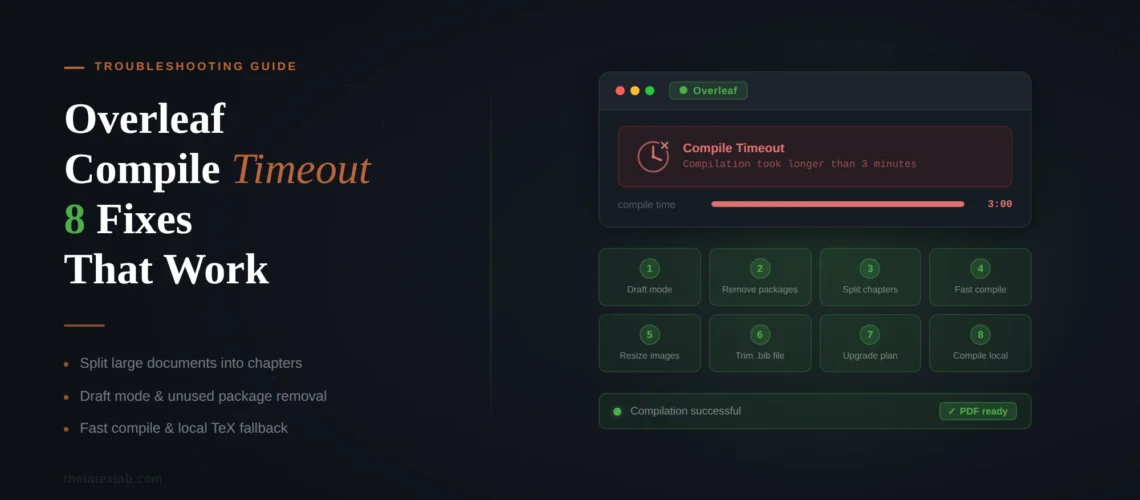
An Overleaf compile timeout means your project took longer to compile than Overleaf’s server allows. It is not a LaTeX error. Your code might be perfectly valid, but the server ran out of time before pdflatex finished producing the PDF. The free plan gives you 20 seconds. When it runs out, Overleaf shows “Your project exceeded the compile timeout limit on our free plan.” Paid plans give more, but even paid projects can time out if something in the project is genuinely slow.
This post covers why Overleaf projects time out and how to fix each cause. If your project is failing with a specific LaTeX error (not a timeout), see our guides to the most common errors: undefined control sequence, missing $, missing brace, and more.
Quick answer: Why is your Overleaf project timing out?
The most common causes, in order of frequency:
- Accumulated LaTeX errors are causing the compiler to spin. Enable “Stop on first error” to find them
- TikZ or PGFPlots figures are being redrawn on every compile instead of being cached
- Large image files (multi-MB PNGs or uncompressed PDFs) are slowing down pdflatex
- Bibliography processing is stuck in a loop or processing a very large .bib file
- Your project is genuinely too large for the free plan’s 20-second limit
Start with “Stop on first error” mode. It solves the majority of timeouts immediately.
1. Enable “Stop on First Error” Mode
This is the first thing to do with any Overleaf timeout. By default, Overleaf uses “Try to compile despite errors” mode, which means the compiler keeps going when it hits an error. If your project has several errors, the compiler spends time trying to recover from each one, which can push the total compile time past the limit.
Click the small triangle next to the Recompile button and select “Stop on first error.” Overleaf will now halt at the first problem and show you the exact error message and line number. Fix that error, recompile, fix the next one, and repeat until the project compiles cleanly.
In many cases, this alone resolves the timeout. The project was not actually slow. It was broken, and the compiler was wasting time trying to work around the errors.
2. Externalize TikZ and PGFPlots Figures
TikZ and PGFPlots are the number one cause of genuine compile slowness (as opposed to error-induced timeouts). Every time you recompile, LaTeX redraws every TikZ figure from scratch. A single complex plot can take several seconds. Five or six of them can push you past the timeout.
The fix: externalize. Add these lines to your preamble:
\usetikzlibrary{external}
\tikzexternalize[prefix=figures/]
This tells TikZ to compile each figure once, save it as a cached PDF, and reuse the cached version on subsequent compiles. The first compile after enabling this will still be slow (it has to generate all the caches), but every compile after that will be fast.
Make sure the figures/ directory exists in your Overleaf project. Create it as an empty folder before recompiling.
Overleaf timeouts before a submission deadline are stressful.
Upload your project and we will optimize it for fast compilation, fix all errors, and deliver files that compile within any timeout limit.
3. Compress Your Images
Large image files make pdflatex slow. A 10 MB PNG figure takes noticeably longer to process than a 200 KB version of the same image. If your project has several large images, the cumulative effect can cause a timeout.
How to diagnose: Switch to Fast [draft] mode from the Recompile dropdown. This skips image rendering entirely. If your project compiles in draft mode but times out in normal mode, images are the bottleneck.
How to fix: Compress your images before uploading them to Overleaf. Convert PNGs to JPG for photographs (JPG is much smaller for photographic content). Resize images to the actual dimensions they will appear in print. A full-page figure in a two-column paper is roughly 7 inches wide, so there is no reason to upload a 4000×3000 pixel image when 2100×1500 will produce the same quality at 300 DPI. For vector graphics (PDF, EPS), make sure they do not contain embedded raster images at unnecessary resolution.
4. Fix Bibliography Loops
Overleaf uses latexmk, which automatically runs pdflatex, bibtex/biber, and pdflatex again as many times as needed. If something in your bibliography setup causes latexmk to think it needs to keep rerunning, it can loop until the timeout.
Common causes: A .bib file with syntax errors that bibtex partially processes on each run but never fully resolves. Conflicting bibliography commands (loading both natbib and biblatex). A \bibliography{} command pointing to a filename that does not match your actual .bib file (remember that Overleaf filenames are case-sensitive).
How to fix: Check the log for bibliography-related warnings. Make sure your .bib filename matches exactly (including case). Remove any duplicate bibliography package loading. If you have a very large .bib file (1000+ entries), consider splitting it or removing entries you do not cite, as processing time scales with .bib file size.
5. Remove Unused Packages
Every \usepackage{} line adds to compile time. Most projects accumulate packages over time that are no longer used. Some packages are particularly expensive:
minted requires shell-escape and runs an external Python process for each code block. If you are not using code highlighting, remove it.
fontspec (with XeLaTeX or LuaLaTeX) loads system fonts, which is slower than pdflatex’s built-in font handling. If you do not need custom fonts, switch to pdflatex in your project settings.
mhchem has become slower in recent versions. If you are using it for simple chemical formulas, the chemformula package may compile faster.
Review your preamble and remove any package you are not actively using in the document.
6. Check Your TeX Live Version
Overleaf lets you choose which TeX Live version your project uses. Go to Menu (top left), then TeX Live version under Settings. Older TeX Live versions may lack packages or have bugs that cause compilation to hang. Newer versions may have updated packages that compile faster.
If your project was created years ago, it might be pinned to an old TeX Live version. Try updating to the latest available version. If that breaks something (a package changed its behavior), you can always switch back.
This is also relevant when your paper compiles locally but not on Overleaf. Your local TeX Live installation and Overleaf’s may be on different versions, causing packages or commands to behave differently.
7. Split Large Projects
Theses, dissertations, and book-length documents can legitimately exceed Overleaf’s compile time. If you have optimized images, externalized TikZ, removed unused packages, and the project still times out, the document is simply too large to compile in one pass.
The fix: Use \include{} and \includeonly{} to compile individual chapters during editing. Add \includeonly{chapter3} to your preamble and only chapter 3 will be compiled. Remove the \includeonly line when you need the full document (for final submission, for example).
If the full document never compiles within the time limit, you may need a paid Overleaf plan for the extended compile time, or compile the final version locally using your own TeX Live installation.
For other LaTeX compilation problems not specific to Overleaf, see our guide to common LaTeX compilation errors. The Overleaf documentation on compile timeouts also covers additional edge cases and platform-specific settings.
8. When It Is Not a Timeout
Not every Overleaf compilation failure is a timeout. If you see a specific error message (not “compilation timed out”), the problem is a LaTeX error, not a performance issue. Here are the most common ones and where to find the fix:
“Undefined control sequence” means a command is misspelled or its package is missing. See our undefined control sequence fix.
“Missing $ inserted” means a special character (underscore, percent, caret) was used without escaping. See our missing $ inserted fix.
“Missing } inserted” means an unmatched brace somewhere in the document. See our missing brace fix.
“File not found .sty” means a package or class file is missing from the project. See our file not found fix.
