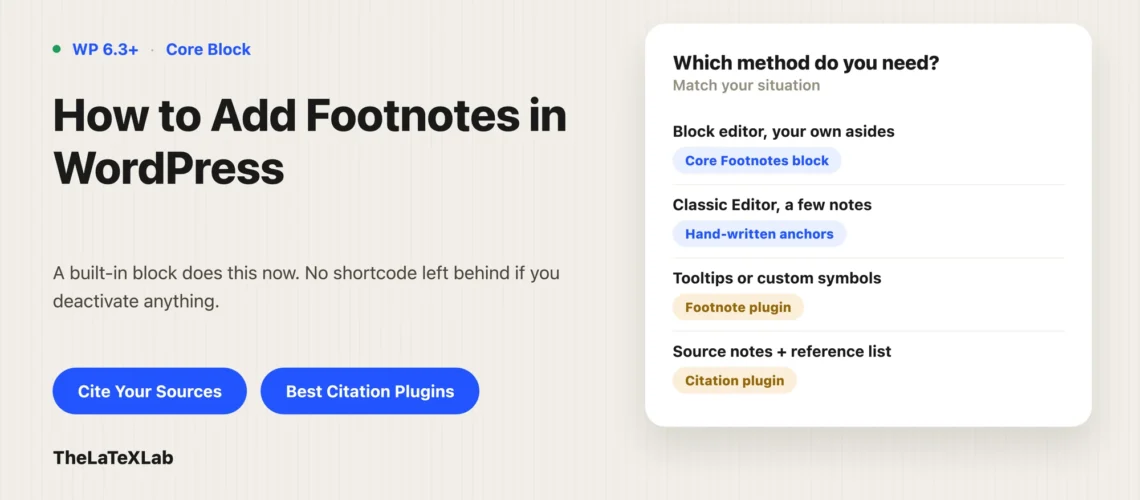
Footnotes in WordPress no longer need a plugin. Since WordPress 6.3 the block editor has a built-in Footnotes block, and on WordPress 7.0 it handles numbering, backlinks, and reordering on its own. It also has real limits, stores your notes somewhere you would not expect, and does nothing at all in the Classic Editor. Here is how to add footnotes in WordPress with the core block, how to do it without a plugin if you are on Classic, and when a footnote plugin is still the right call.
How to add footnotes in WordPress with the built-in block
You do not insert the Footnotes block first. You create a note, and the block appears on its own.
- Edit a post or page in the block editor.
- Highlight the word or phrase the note belongs to.
- In the block toolbar that appears, click the down arrow at the right end to open the Rich Text menu (the same menu that holds inline code and strikethrough).
- Choose Footnote.
WordPress drops a superscript number at your cursor, creates the Footnotes block at the bottom of the post if it is not already there, and moves your cursor into the new note so you can type it. Each note gets a “go back” link automatically, so readers can jump to the note and return.
This works in the Paragraph and Heading blocks and other blocks with rich text. You cannot type into the Footnotes block directly; it only displays notes created from the content above it.
Move your blocks around afterwards and the numbering updates itself to match the new reading order. That single behavior is the main reason to prefer the core block over hand-rolled anchors.
How to delete or move footnotes in WordPress once they exist
This trips people up, so it is worth being explicit.
- To delete one footnote, delete its superscript reference in the body text. The note disappears from the block. There is no way to delete an individual note from inside the Footnotes block itself.
- To remove the block, select it, open the three-dot menu, and choose Remove Block. WordPress warns you first, because the footnote references in your content stay where they are. Reinsert the block later and every note comes back.
- To clear everything, delete all the references in the content, then remove the block.
So a post that looks like it has no footnotes can still be carrying the whole set. If numbers are showing in your text but no list appears at the bottom, someone removed the block, not the notes.
How to add footnotes in WordPress without a plugin in the Classic Editor
The Footnotes block is a block editor feature. If you are on the Classic Editor, you do not have it, and the answer to how to add footnotes in WordPress without a plugin is plain HTML anchors. Switch to the Text tab and write the link pair yourself:
Some claim in your paragraph.<sup id="ref1"><a href="#fn1">1</a></sup>

<hr />
<ol>
<li id="fn1">Source details here. <a href="#ref1">Back</a></li>
</ol>
The id on the superscript and the href on the note point at each other, which gives you the jump down and the jump back. It works on any theme with no dependencies.
What it does not give you is automatic numbering. Insert a new note in the middle and you renumber every note and every anchor by hand. Fine for three notes in a post you will not touch again. Painful for twenty in something you keep editing, which is where a plugin starts to pay for itself.
Where WordPress stores footnotes and why it matters
Core footnotes are not in your post content. WordPress keeps the note text in post meta under the key footnotes, as a JSON string, while only the superscript references live in post_content.
That split matters in three situations:
- Migrations and exports. Anything that copies post content but not post meta will move your references and leave the notes behind. You get numbered superscripts pointing at nothing. Check that your migration tool carries post meta.
- Manual database work. Search-and-replace across
post_contentwill not touch footnote text, because it is not there. - Custom fields. The meta key is public (no leading underscore), so it shows up in the Custom Fields panel. Editing it there by hand is a good way to break the JSON.
Worth checking after any site move: open a post that you know has footnotes and confirm the list still renders.
Add Footnotes, Citation, References, BibTeX etc in WordPress
Our free WordPress plugin turns a DOI, PMID, ISBN, or arXiv ID into a formatted citation, marks it in the text, and appends the numbered reference list at the end of the post. Eight styles. Block editor and Classic. No account needed.
What the built-in footnotes block still cannot do
The core block covers the common case well. Its gaps, as of WordPress 7.0:
- Numbers only. No roman numerals, no symbols, no per-post numbering scheme. If your style guide wants daggers and asterisks, core will not do it.
- No tooltips or popovers. Notes live at the bottom of the post. There is no hover preview.
- Not available in templates. You cannot put a Footnotes block in a template part; it belongs to a post or page.
- Custom post types need the right support. WordPress 6.5 extended footnotes to custom post types, but only where the type supports the REST API, custom fields, revisions, and the editor. A CPT registered without those will show a placeholder instead of the block.
- No bibliography. Footnotes are free text. Nothing formats them, sorts them, or turns them into a reference list.
When you need a footnote plugin for WordPress
Reach for a footnote plugin for WordPress when you need something core has decided not to do:
- Tooltips or hover previews instead of a jump to the bottom.
- Custom symbols, custom numbering, or per-post-type control.
- Footnotes inside custom post types that do not meet core’s requirements.
- Design control over how the note list looks that goes past typography, border, and color.
- Source notes rather than asides, where the note text should be a formatted reference and the list should renumber itself. That is a citation plugin rather than a footnote plugin, covered below.
Two things to check before installing any of them, and they matter more than the feature list. First, is it still maintained. Several well-known footnote plugins have not been updated in years. Second, what happens to your content if you deactivate it. Plugins that store notes as shortcodes leave visible shortcode text all over your posts the moment they are switched off, which is a genuinely bad day. We go through the current options, maintenance status and lock-in risk in our roundup of the best WordPress citation plugins.
How to add source footnotes in WordPress with a citation plugin
There are two different things people mean by a footnote. One is an aside: your own commentary, free text, sitting at the bottom of the post. The core block handles that. The other is a source note: a mark in the text that points to a numbered reference at the end. If you are writing anything research-adjacent, that second kind is usually what you are after, and typing formatted references into core footnotes by hand gives you no consistency, no reuse between posts, and nothing that renumbers when you edit.
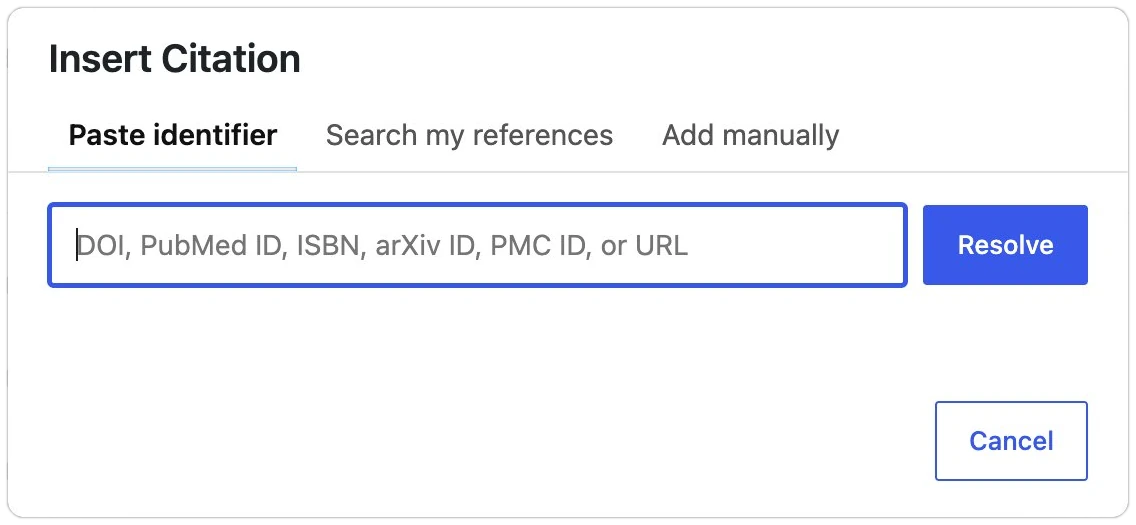
Our free Academic Citations and Bibliography plugin does the source version. You paste a DOI, PubMed ID, PMC ID, ISBN, or arXiv ID, it pulls the verified record, and it inserts a formatted in-text mark. The reference list is appended at the end of the post or page automatically, and every in-text mark links to its entry.
You add a note the same way you add a core footnote: select your text, then pick Insert Citation. In the block editor it sits in the More menu of the formatting toolbar, the same menu the core Footnote option lives in.
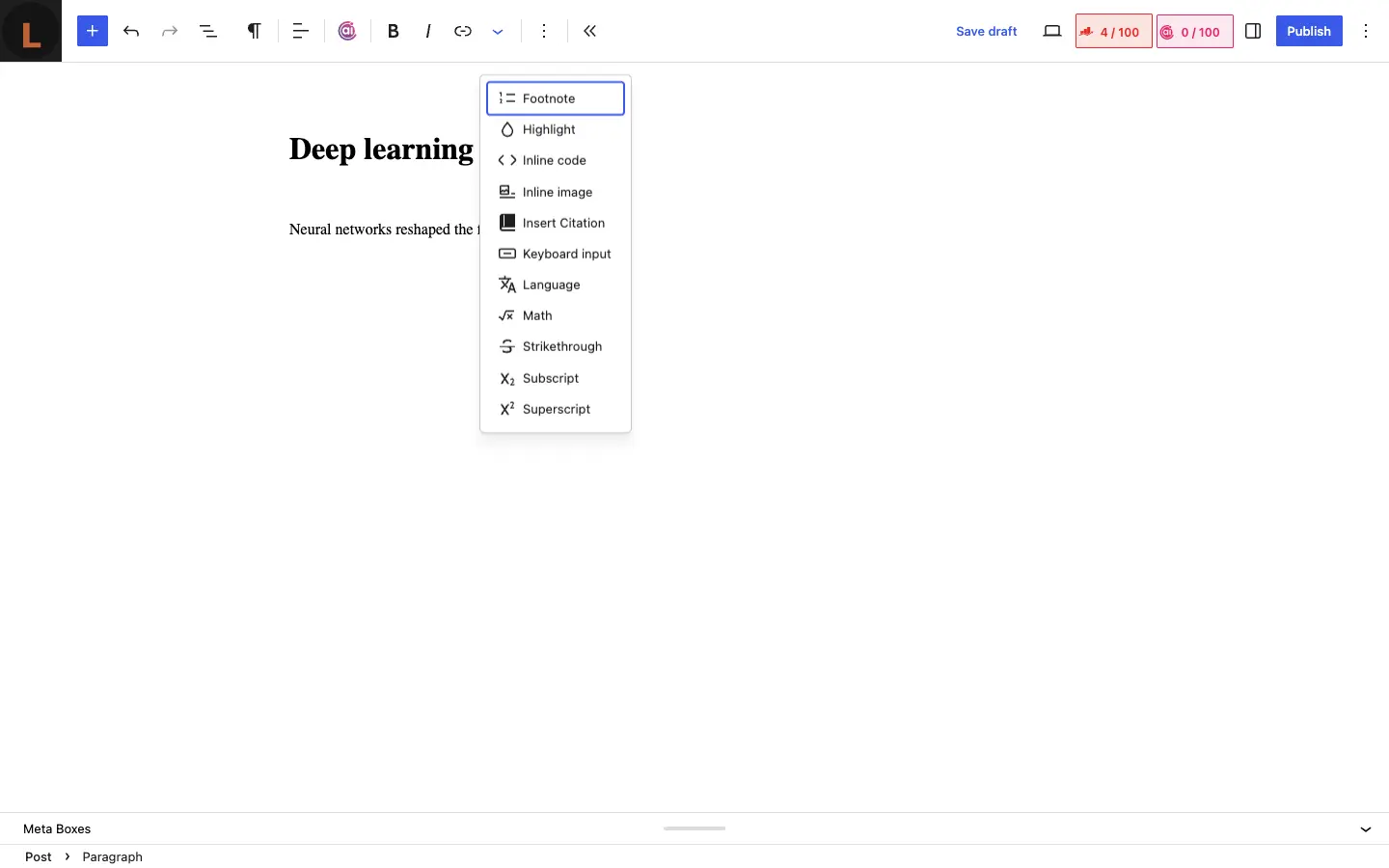
In the Classic Editor it is a button on the toolbar, which is worth pointing out because the core Footnotes block does not exist there at all.

Either one opens the same popup, where you paste the identifier, search references you have already saved, or add one by hand.
Two settings make it behave like classic footnotes:
- Pick a numbered style. IEEE, Vancouver, Nature, and AMA give numbered in-text marks and a numbered list at the end. The author-date styles (APA 7, MLA 9, Chicago author-date, Harvard) show a name and year instead.
- Force superscript marks. There is a setting for it, so the mark renders as a superscript number rather than an inline bracket. Superscript number in the text, numbered list at the foot of the post, each one linked: that is a footnote.
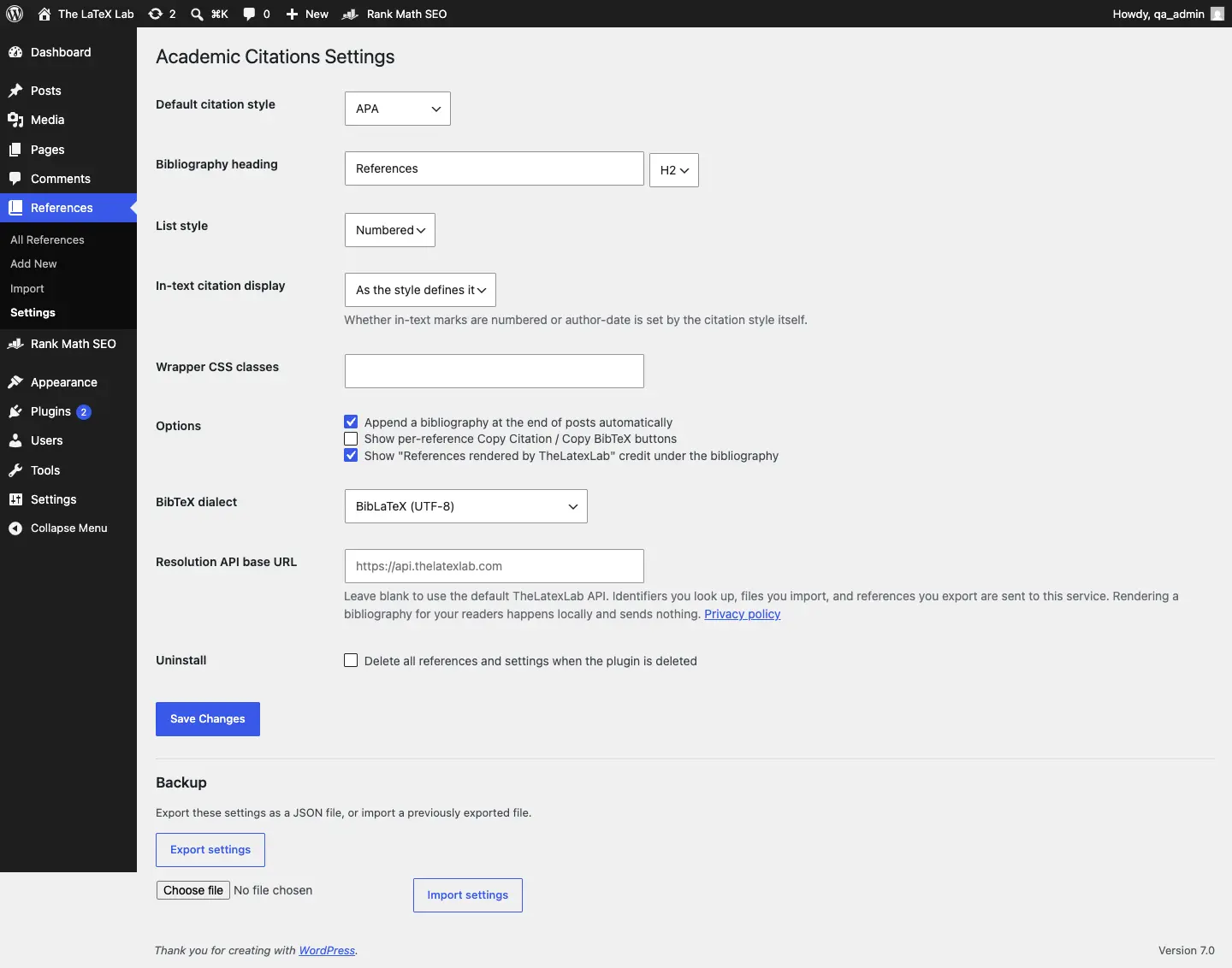
The automatic placement at the end of the post can be switched off in settings if you would rather control it, in which case you use the Bibliography block or the [scholar_bibliography] shortcode to put the list exactly where you want it. There is a site-wide default style you can override per post, and it works in both the block editor and Classic, which is worth noting because the core Footnotes block does not.
The two systems do different jobs and do not conflict, so the usual setup for an academic post is both: the core Footnotes block for your own asides, the plugin for your sources.
Which footnote method to use in WordPress
- Block editor, ordinary notes and asides: the core Footnotes block. No plugin, no shortcodes, nothing to remove later.
- Classic Editor, a handful of notes: hand-written anchors.
- Classic Editor, notes you will keep editing: a maintained plugin, or move that post to the block editor.
- Tooltips, custom symbols, or awkward custom post types: a footnote plugin.
- Source notes and a reference list: a citation plugin, set to a numbered style with superscript marks.
- Both kinds in one post: the core block for asides, a citation plugin for sources. They coexist.
For your own asides, the default answer in 2026 is the core block. It is the only option that cannot break your posts later, because there is nothing to deactivate. For sources, hand-typing them into that block is the thing to avoid.
