Academic Citations and Bibliography WordPress Plugin
Paste a DOI, PubMed ID, ISBN, or arXiv ID and get a clean citation and a formatted bibliography. No account needed. Works in both Block and Classic Editor. Free.

Why this plugin
Paste an identifier, get a verified citation
DOI (CrossRef), PubMed ID (PMID), PMC ID, ISBN, arXiv ID, or a URL from a known source. The record is verified against the source, never guessed; if it cannot be verified you get a clear message, not a wrong citation.
A formatted bibliography in eight styles
APA 7, MLA 9, Chicago (author-date), Harvard, IEEE, Vancouver, Nature, AMA. Set a site default, override per post.
Block editor and Classic Editor, both
One Insert Citation tool, same popup, either editor.
No sign-up needed, no lock-in
Nothing to sign up for. In-text citations are stored as plain readable text, so deactivating the plugin never breaks your posts. This is the lock-in problem that pushed people off the abandoned Academic Blogger's Toolkit.
Bring your library
Import BibTeX, RIS, EndNote, and PubMed files. Export anything back out.
Free, actively maintained, no premium upsell
Completely free, kept up to date, with no premium tier waiting behind a feature you actually need.
Who it is for
- Academic and research bloggers who cite sources in posts.
- PhD students and postdocs writing in public.
- Research labs and university sites publishing articles and reading lists.
- Anyone leaving Academic Blogger's Toolkit who wants a maintained replacement.
Support
- Documentation: this page, top to bottom.
- Support forum: the plugin's support forum.
- Maker: TheLaTeXLab, the team behind the free DOI to BibTeX tool.
Documentation
Everything you need to use Academic Citations & Bibliography.
1. Requirements and installation
- WordPress 6.0 or newer.
- PHP 7.4 or newer.
- No account, no API key.
Install:
- In WordPress admin, go to Plugins, Add New, search for "Academic Citations & Bibliography", install, and activate.
- On activation you land on a short welcome screen with the three-step quick start.
- Open References, Settings to pick your default citation style.
(You can also upload the .zip from Plugins, Add New, Upload Plugin.)
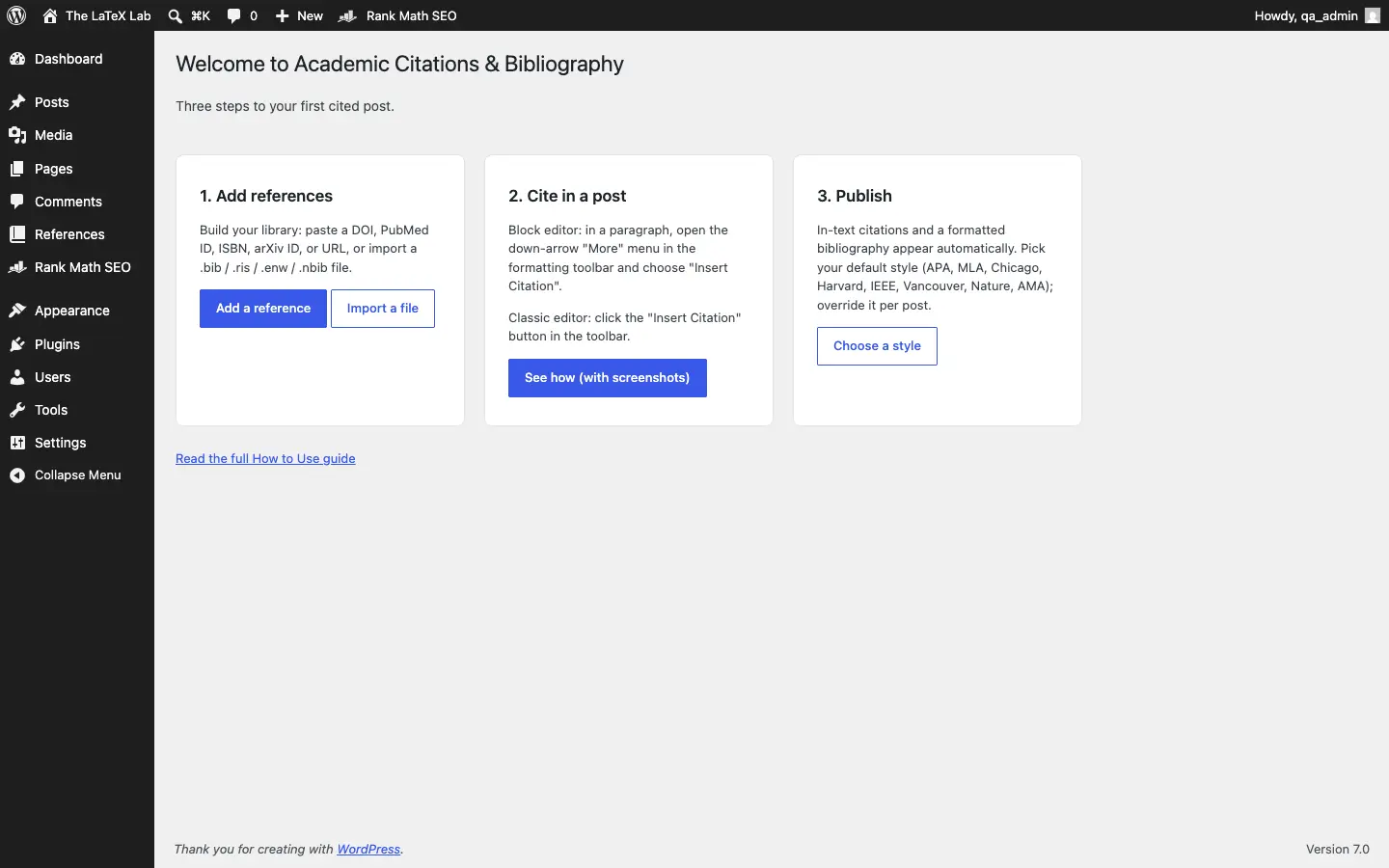
2. How the plugin works
There are two parts:
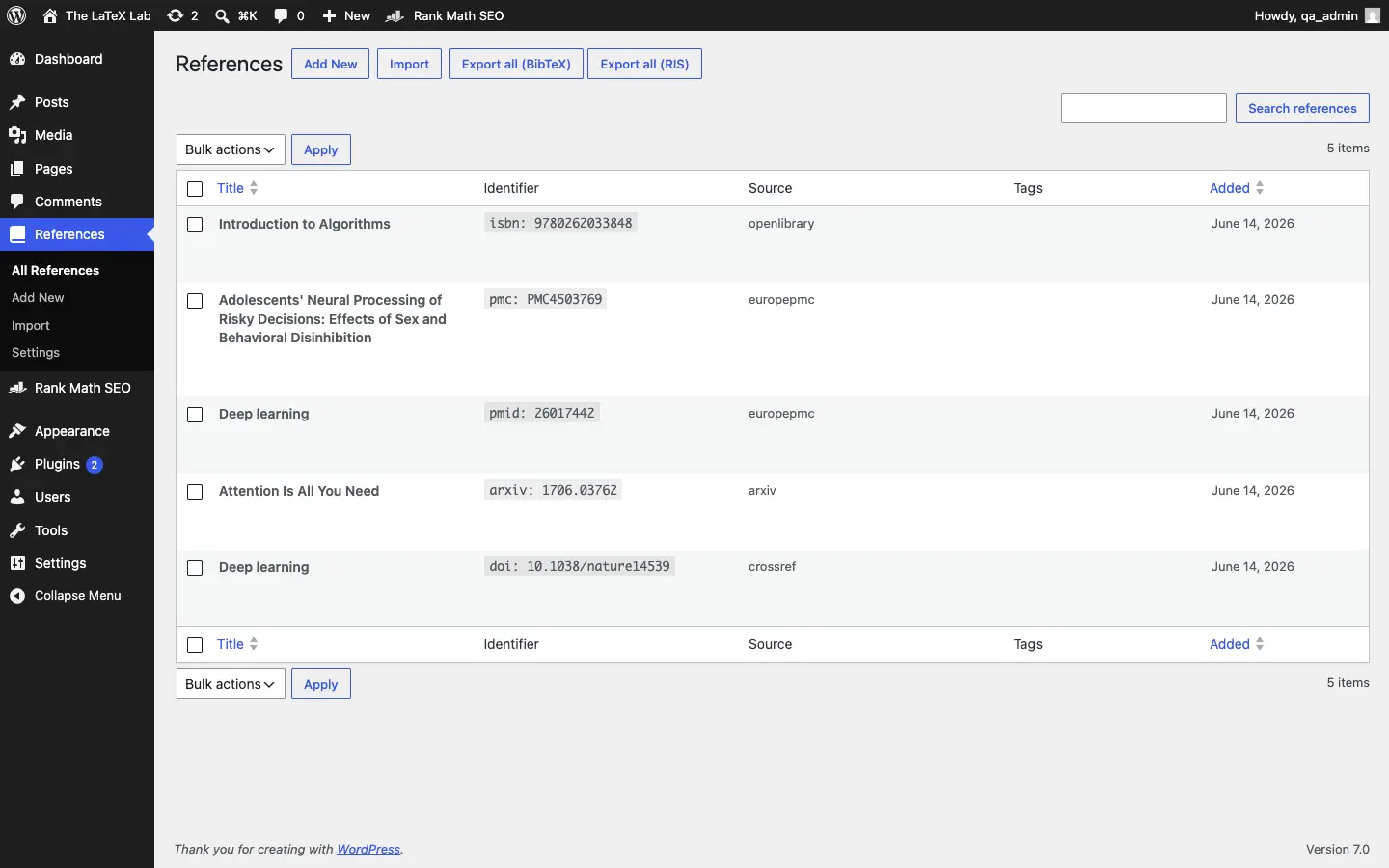
- A Reference Library (the References menu). Your reusable list of sources, shared across the whole site. Build it once.
- In-text citations you place inside posts and pages. Each links to its entry, and a formatted bibliography is generated for the post.
Resolving an identifier happens once and is cached; rendering the bibliography for your readers happens on your own server, so published pages do not depend on any external service at view time.
3. Step 1: Build your reference library
Three ways to add references, all under the References menu.
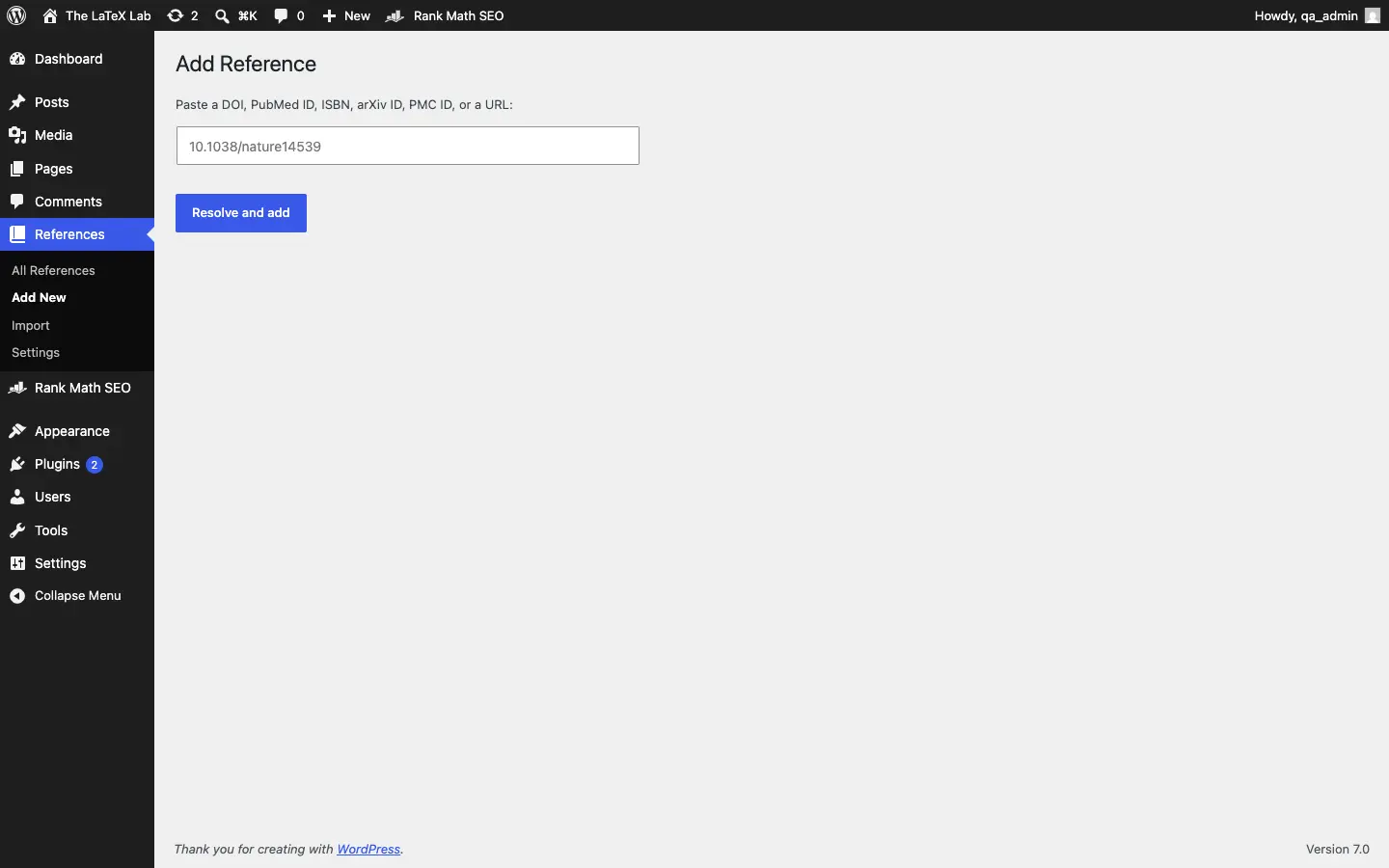
A. Paste an identifier (Add New)
Paste any of these and the full record is fetched and verified:
- DOI, for journal articles (for example 10.1038/nature14539)
- PubMed ID (PMID) and PMC ID
- ISBN-10 or ISBN-13, for books
- arXiv ID, for preprints
- A URL from doi.org, arxiv.org, PubMed, or a publisher page that contains one of the above. The identifier is extracted and verified; pages with no identifier are declined rather than guessed.
B. Import a file (Import)
Upload BibTeX (.bib), RIS (.ris), EndNote (.enw), or PubMed (.nbib). Entries whose DOI is already in your library are skipped.
C. Add manually
In the Insert Citation popup (next step), the "Add manually" tab lets you type a reference by hand when there is no identifier.
4. Step 2: Insert citations while you write
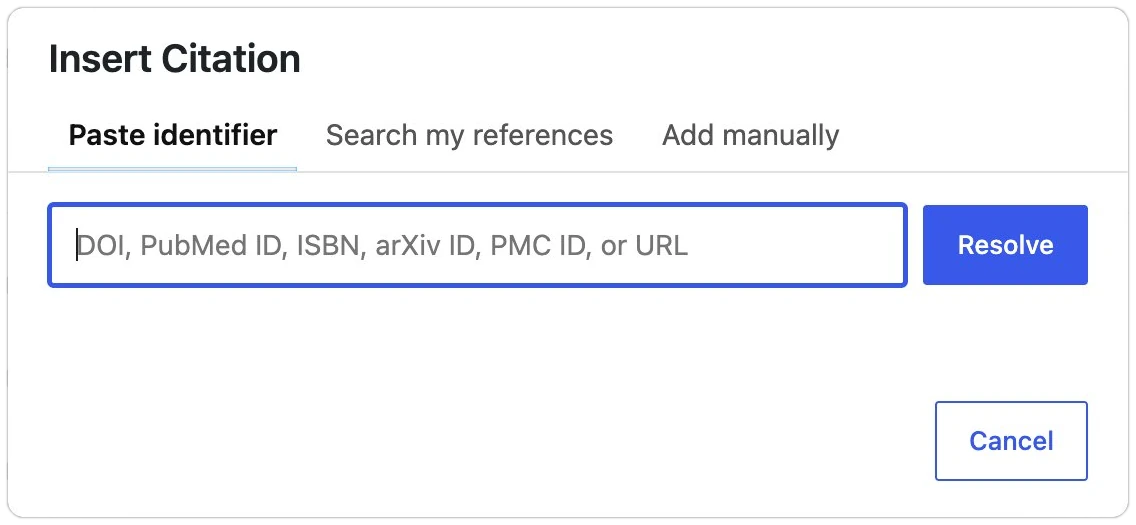
Both editors open the same popup, which has three tabs: Paste identifier, Search my references, and Add manually.
Block editor (Gutenberg)
- Click inside a paragraph and place the cursor where the citation should go. The formatting toolbar appears only while you are editing text.
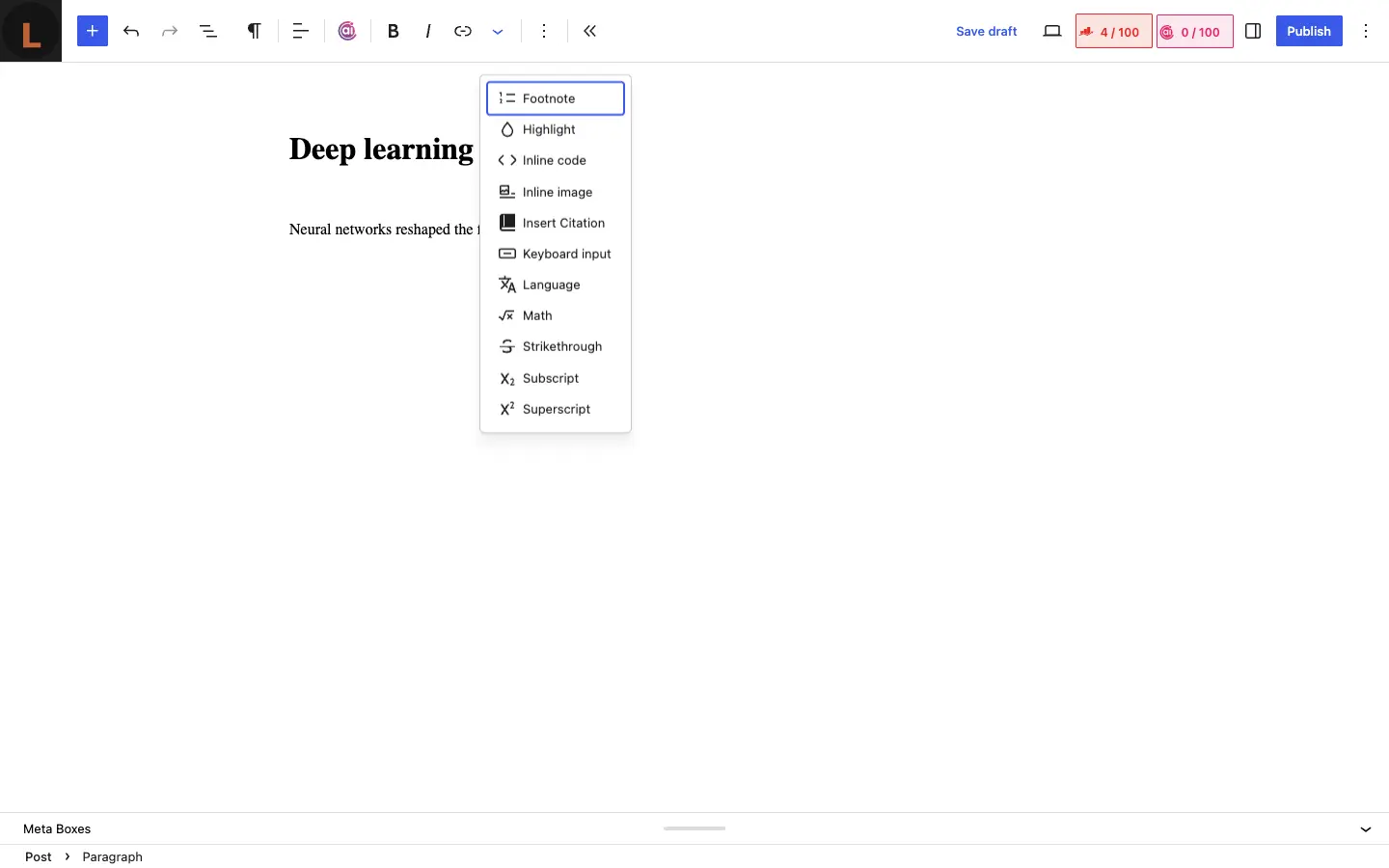
- In the formatting toolbar, click the down-arrow "More" button (the chevron next to Bold, Italic, and Link).
- Choose "Insert Citation" (the book icon).
- Paste an identifier, or switch to "Search my references", then click Insert.
The first time you open the block editor, a one-time tip points you to this menu.
Classic Editor
- Place the cursor where the citation should go.
- Click the "Insert Citation" button in the toolbar.
- Paste an identifier or search your library, then Insert.

In both cases the in-text mark is inserted at the cursor. Its appearance (numbered or author-date) follows the citation style you choose.
5. Step 3: Place the bibliography
You have three options:
- Automatic (default). A bibliography is appended at the end of the post.
- Bibliography block (block editor). Add the "Bibliography" block where you want the list to appear.
- Shortcode (any editor). Put
[scholar_bibliography]where the list should render.
The reference list is numbered or author-date sorted to match the style, and each in-text mark links to its entry (see the example at the top of this page).
6. Choosing a citation style
- Site default: References, Settings, "Default citation style".
- Per post: the "Citation Style" box in the editor sidebar (block editor) or below the editor (Classic) overrides the default for that post.
- Supported: APA 7, MLA 9, Chicago (author-date), Harvard, IEEE, Vancouver, Nature, AMA.
- The style decides whether in-text marks are numbered (IEEE, Vancouver, Nature, AMA) or author-date (APA, MLA, Chicago, Harvard). You can also force superscript in-text marks in Settings.
7. Importing an existing library
References, Import. Supported files:
- BibTeX (.bib)
- RIS (.ris)
- EndNote (.enw)
- PubMed (.nbib)
Entries with a DOI already in your library are skipped, so re-importing is safe. Very large files are processed up to a sane cap; split a huge export into parts if needed.
8. Exporting references
- Per reference: each row in the References list has Export actions for BibTeX, RIS, formatted Citation, and CSL-JSON.
- Whole library: the References screen has "Export all (BibTeX)" and "Export all (RIS)".
Use this to move your library between sites or into a reference manager.
9. Publications list (for researcher and lab sites)
Render your references as a sortable, filterable list, ideal for a CV or a lab output page.
- Block: add the "Publications List" block and set filters in the block sidebar.
- Shortcode:
[scholar_publications]with optional attributes:
| Attribute | What it controls |
|---|---|
style | A specific citation style for the list (default: your site default) |
tag | Show only references with this tag |
type | Show only a CSL type (for example article-journal, book, chapter) |
year | Show only a given year |
orderby | date or title (default date) |
order | ASC or DESC (default DESC) |
Example: [scholar_publications type="article-journal" order="DESC"]
10. Settings reference
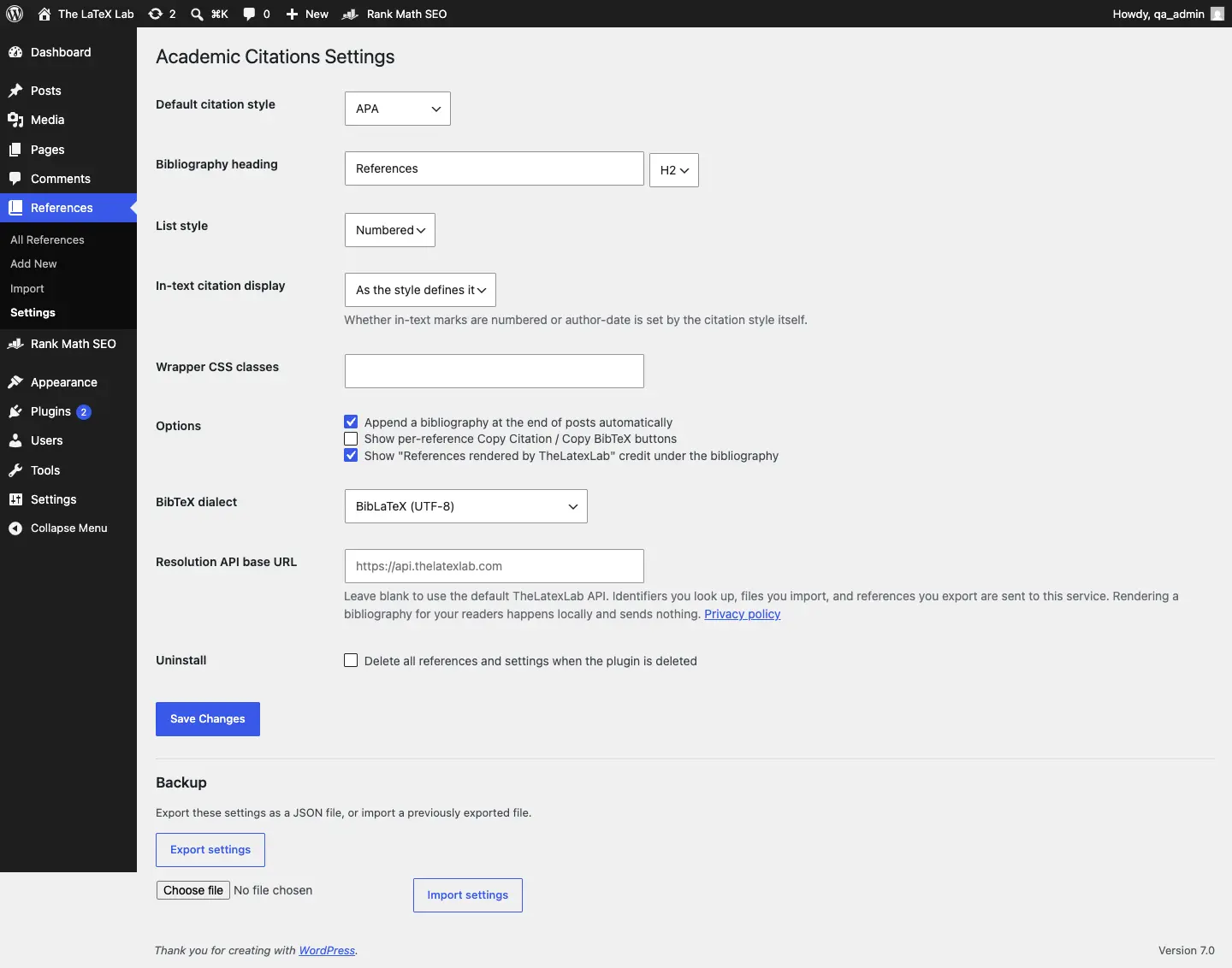
References, Settings:
11. Shortcode reference
[scholar_bibliography]marks where the bibliography for the current post should render.[scholar_publications]renders a publications list (see section 9 for attributes).
12. What happens if you deactivate the plugin
Your content stays readable. In-text citations were saved as plain text spans, so they remain as normal text instead of breaking. The auto-generated bibliography is produced by the plugin, so it stops appearing while the plugin is inactive and returns when you reactivate. By default your references and settings are kept, so nothing is lost.
13. Privacy and external services
The plugin uses TheLatexLab's citation API for three things: resolving an identifier or URL, parsing an imported file, and regenerating BibTeX or RIS on edit or export. What is sent:
- The identifier or URL you look up.
- The contents of a file you import.
- The reference data you edit or export to RIS.
- Your site URL, for diagnostics and abuse prevention.
No personal data, post content, or visitor data is sent, and nothing is sent when a reader views a page: rendering the bibliography happens locally on your server. API endpoint: https://api.thelatexlab.com. See the privacy policy.
14. Troubleshooting
Frequently asked questions
Everything publishers ask before switching from Zotero or Academic Blogger's Toolkit.
Trusted globally by researchers and academics from 40+ countries.
Add proper citations to your WordPress site.
Free, no account, works in both the block and Classic editors, with eight citation styles.