TheLaTeXLab Citation Generator - BibTeX, DOI
Google Docs Add on for Citation & References - BibTeX, DOI, PubMed ID, ISBN, etc
Paste a DOI, PubMed ID, ISBN, arXiv ID, or BibTeX and get a clean in-text citation and a formatted bibliography, right inside Google Docs. Eight styles: APA, MLA, Chicago, Harvard, IEEE, Vancouver, Nature, AMA. No account. Free.

Why this add-on
Paste an identifier, get a verified citation
DOI, PubMed ID (PMID), ISBN, arXiv ID, a URL that contains one, or BibTeX. Each record is verified against its source, never guessed - if it cannot be verified you get a clear message, not a wrong citation.
A formatted bibliography in eight styles
APA 7, MLA 9, Chicago (author-date), Harvard, IEEE, Vancouver, Nature, AMA. Switch the style any time and your in-text citations and reference list update together.
Insert citations while you write
Drop a citation at your cursor as you write. When you are ready, click Update citations and bibliography and every citation is rendered in your chosen style with the reference list at the end of the document.
A reference library in your Google account
Nothing to sign up for. Every source you add is saved to a personal library stored in your own Google account, available across all your documents. Search, tag, and edit your references and reuse them anywhere.
Bring your library
Import BibTeX (.bib), RIS (.ris), EndNote (.enw), and PubMed (.nbib) files, including references exported from tools like Zotero, Mendeley, or EndNote. Export your whole library as BibTeX or JSON, or copy BibTeX for any single reference.
Free, and built for researchers
Completely free, with no premium tier. Made by TheLaTeXLab, the team behind the free DOI to BibTeX tool and the LaTeX workflow services researchers already use.
Who it is for
- Researchers and graduate students writing papers in Google Docs.
- PhD students and postdocs preparing a thesis, dissertation, or manuscript.
- Anyone who wants a free citation manager that lives inside Google Docs, with no separate app to learn.
- Writers moving between Google Docs and a LaTeX workflow who need BibTeX in and out.
- Publishing on WordPress instead? See our Academic Citations & Bibliography plugin.
Support
- Quick start & docs: this page, top to bottom.
- Contact: Contact TheLaTeXLab.
- More tools: DOI to BibTeX and other free identifier-to-BibTeX converters.
- Maker: TheLaTeXLab, the team behind the free DOI to BibTeX tool.
Quick start and documentation
Everything you need to add citations and a bibliography to Google Docs. Running into an issue? Email us at help@thelatexlab.com
1. Install the add-on
- Open the add-on's Google Workspace Marketplace listing and click Install.
- Approve the permissions. The add-on only ever edits the document you have open, and looks up references through TheLaTeXLab's service.
- Open any Google Doc. Extensions → TheLaTeXLab Citation Generator → Open citation manager
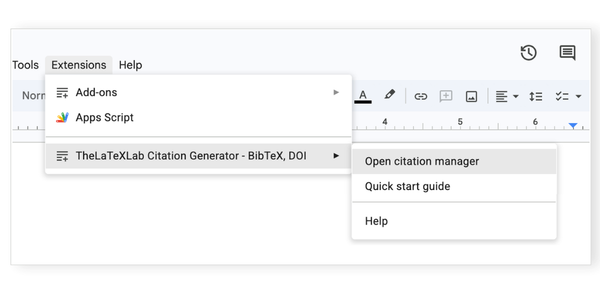
There is no account to create and no API key. Your reference library lives in your own Google account.
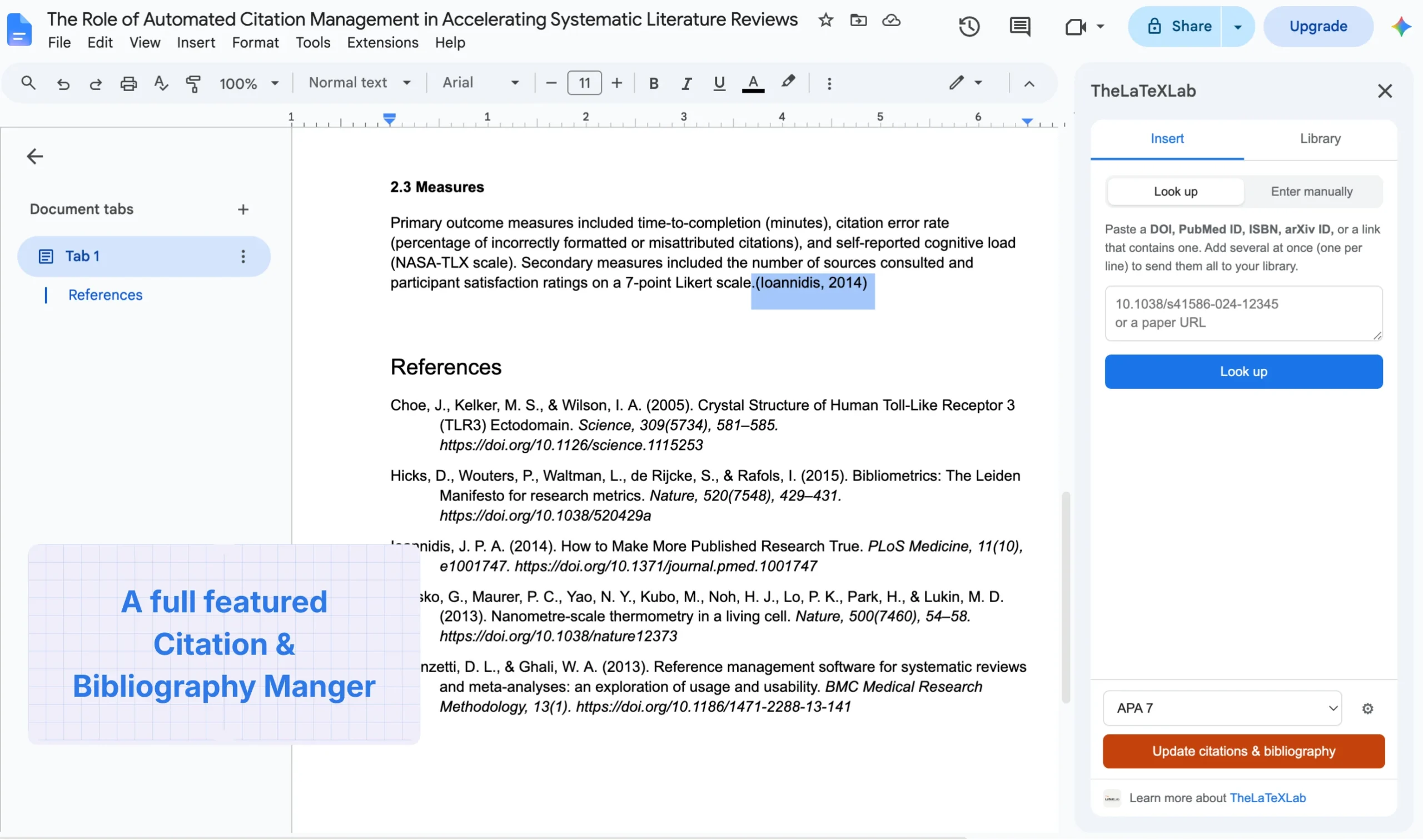
2. How it works
There are two parts:
- A reference library (the Library tab). Your reusable list of sources, stored in your Google account and available across every document. Build it once.
- In-text citations you insert into the document at your cursor. When you click Update citations and bibliography, every citation is formatted in your chosen style and a reference list is written at the end of the document.
Inserting a citation is instant: a lightweight mark is placed at the cursor right away, and the exact, fully formatted citation is rendered when you click Update. Formatting happens locally, so your work stays fast.
3. Step 1: Look up and insert a citation
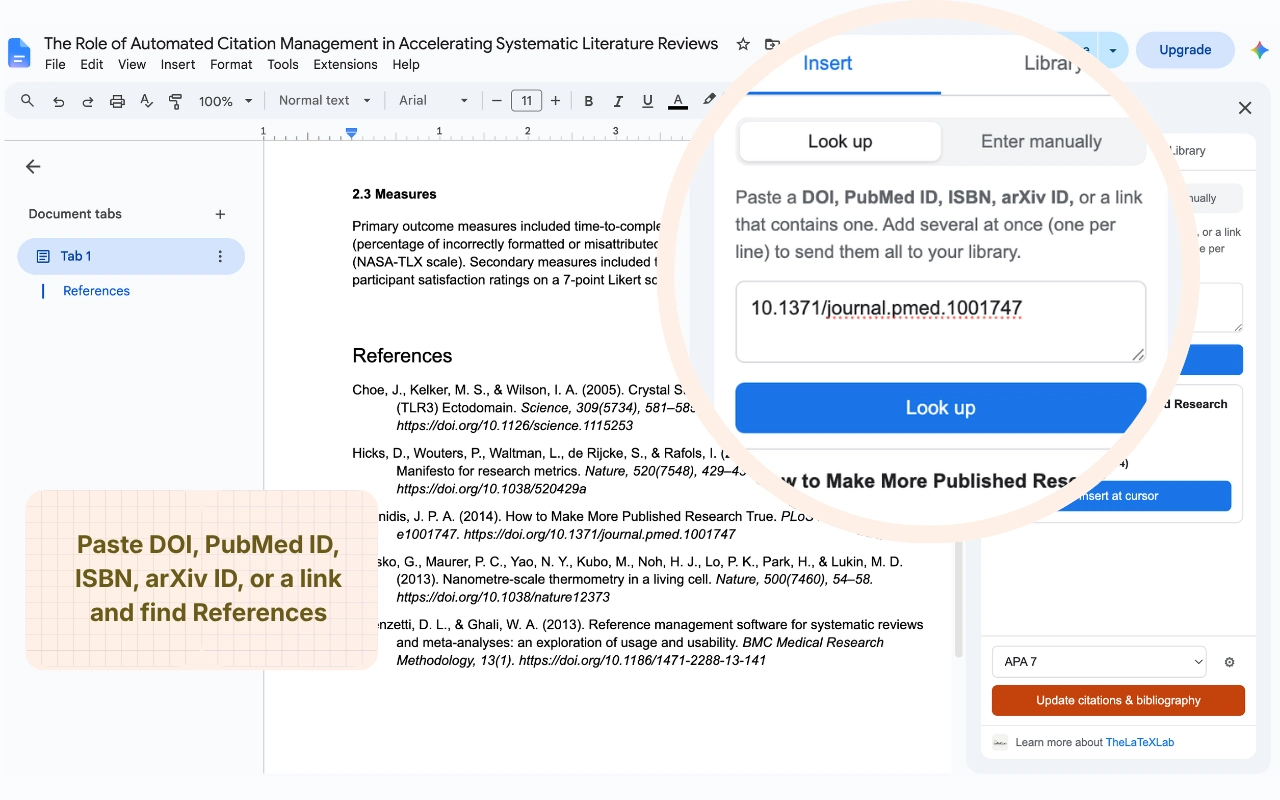
In the Insert tab, paste any of these into the box and click Look up:
- A DOI, for journal articles (for example 10.1038/s41586-020-2649-2)
- A PubMed ID (PMID)
- An ISBN-10 or ISBN-13, for books
- An arXiv ID, for preprints
- A URL from doi.org, arxiv.org, PubMed, or a publisher page that contains one of the above
- BibTeX pasted directly
The reference is fetched and verified, and you see a preview. Place your cursor where the citation should go, then click Insert at cursor. The reference is also saved to your library automatically.
4. Step 2: Update citations and bibliography
When you have inserted your citations, click Update citations and bibliography at the bottom of the sidebar. The add-on:
- renders every in-text citation in your chosen style, and
- writes a formatted reference list at the end of your document.
You can re-run Update as often as you like. It replaces the reference list in place, so it never duplicates. Numbered styles renumber automatically as you add references, and Nature and AMA render the in-text marks as superscripts.
5. Choosing a citation style
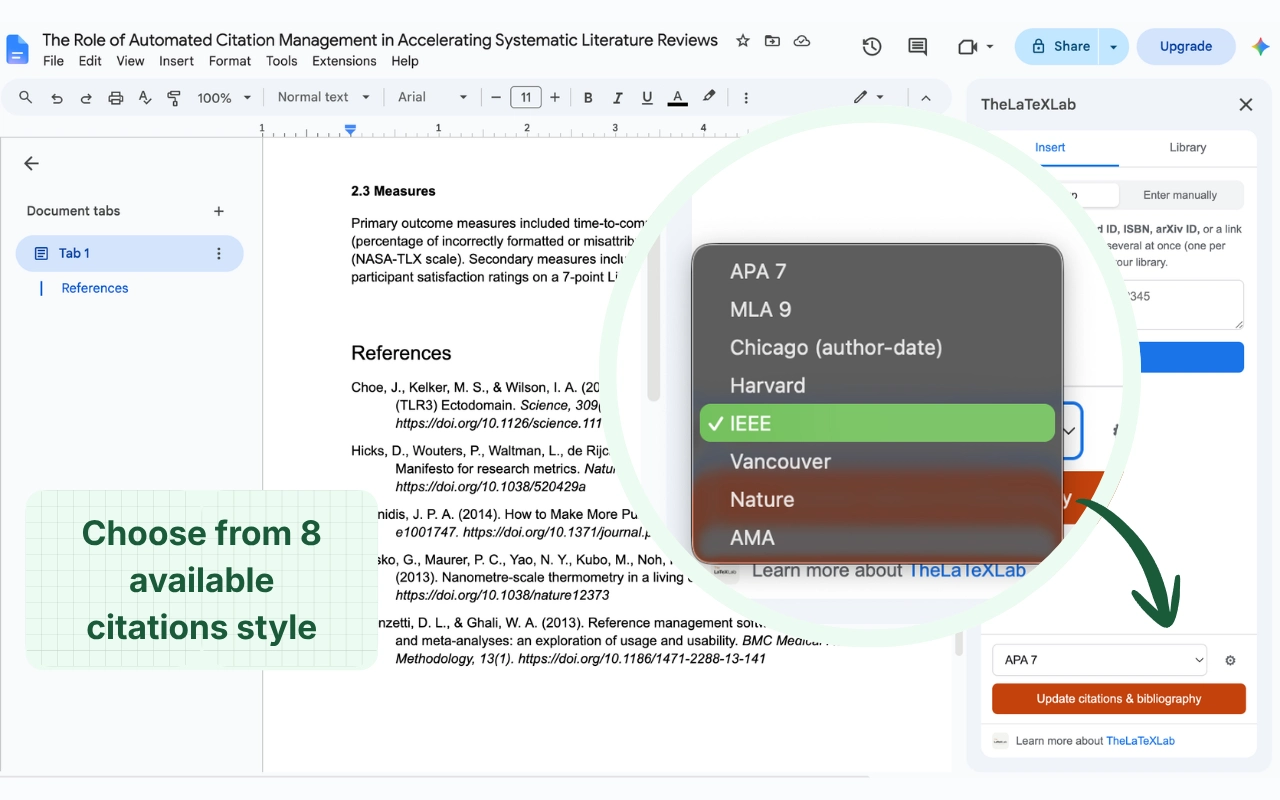
- Pick a style from the dropdown at the bottom of the sidebar.
- The dropdown only sets the style; click Update citations and bibliography to apply it to the citations already in your document.
- Supported styles: APA 7, MLA 9, Chicago (author-date), Harvard, IEEE, Vancouver, Nature, AMA.
- The style decides whether in-text marks are numbered (IEEE, Vancouver, Nature, AMA) or author-date (APA, MLA, Chicago, Harvard).
6. Your reference library
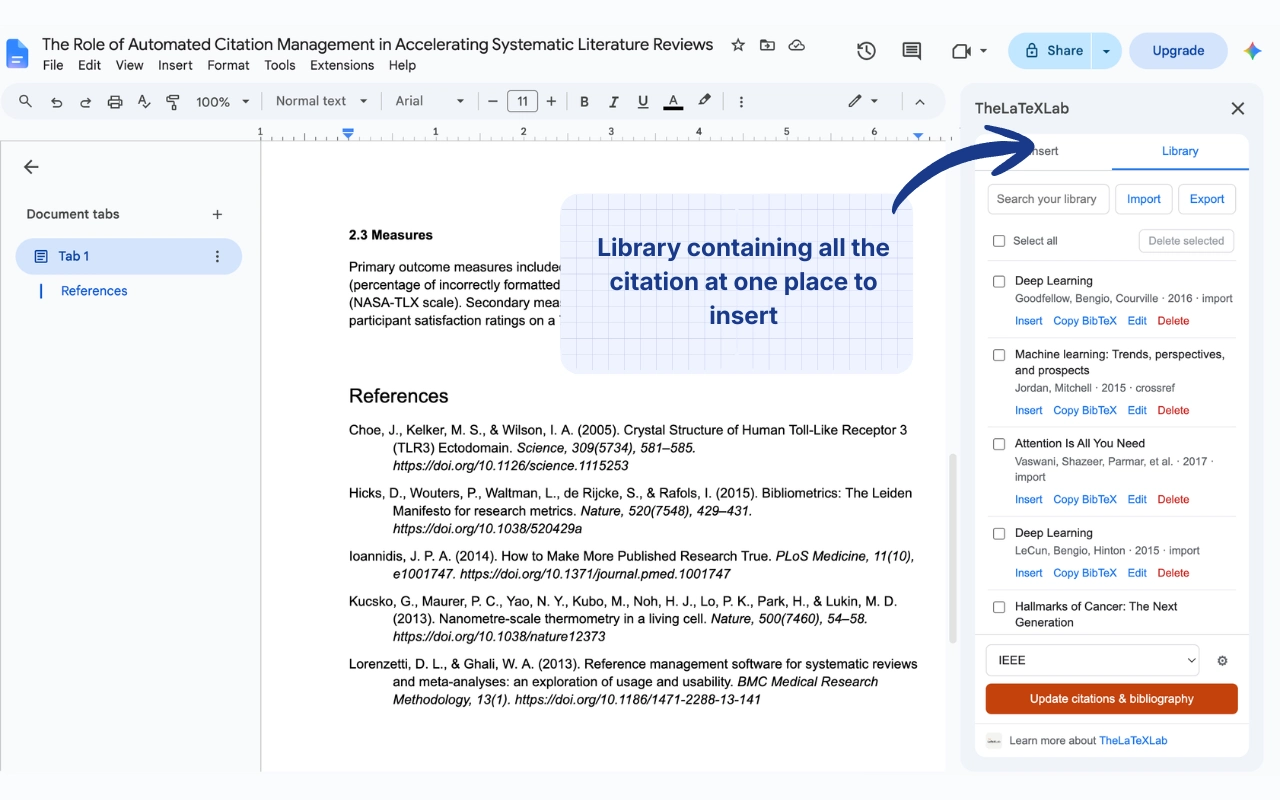
The Library tab holds every reference you have added, stored in your Google account and available in any document.
- Search by title, author, year, or source.
- Tag and edit any reference.
- Insert a saved reference into the current document with one click.
- Copy BibTeX or delete a reference from its row.
7. Bulk lookup
Need to add several references at once? In the Insert tab, paste many identifiers (one per line) and look them up together. Verified references are added to your library, and any that could not be found are listed so you can fix them.
8. Importing references
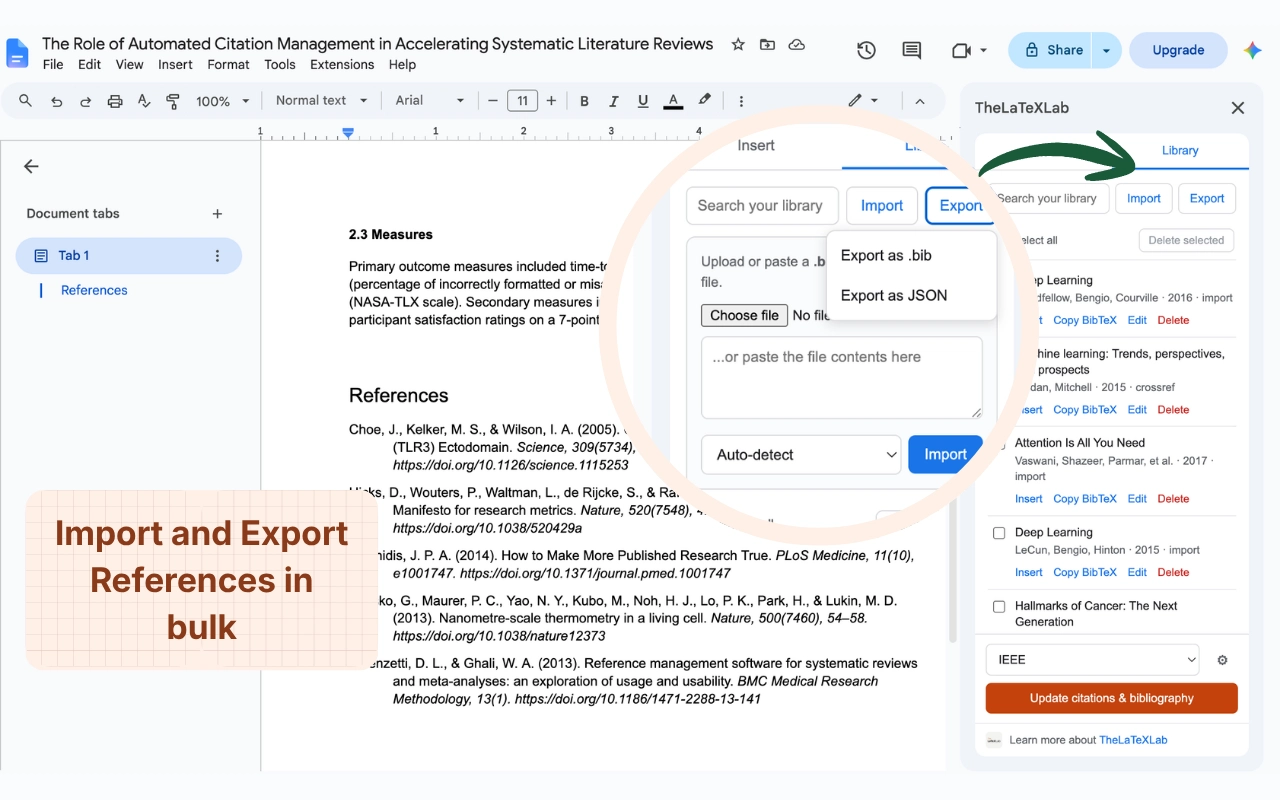
From the Library tab, use Import to upload or paste a file. Supported formats:
- BibTeX (.bib)
- RIS (.ris)
- EndNote (.enw)
- PubMed (.nbib)
This includes references exported from tools like Zotero, Mendeley, or EndNote. Entries whose DOI is already in your library are skipped, so re-importing is safe.
9. Exporting and copying BibTeX
- Whole library: from the Library tab, export everything as BibTeX (.bib) or JSON.
- Per reference: use Copy BibTeX on any row to grab a single entry - handy for a LaTeX workflow or our DOI to BibTeX tool.
10. Adding a reference manually
No identifier? In the Insert tab, switch to Enter manually and type the reference by hand. Only a title is required; add authors, year, journal, and more as you have them. The reference is saved to your library like any other.
11. Privacy and external services
The add-on uses TheLaTeXLab's citation service for two things: resolving an identifier or URL, and parsing or converting bibliography files. What is sent:
- The identifier or URL you look up.
- The contents of a file you choose to import.
The contents of your Google document are never sent anywhere, and your reference library is stored in your own Google account, not on our servers. API endpoint: https://api.thelatexlab.com. See the privacy policy.
12. Troubleshooting
-
"Extensions" is not showing in the Google Docs menu.
When you upload a .docx file to Google Drive and open it in Google Docs, the file stays in Microsoft Word format and add-ons are not available yet - so Extensions is missing from the menu bar.
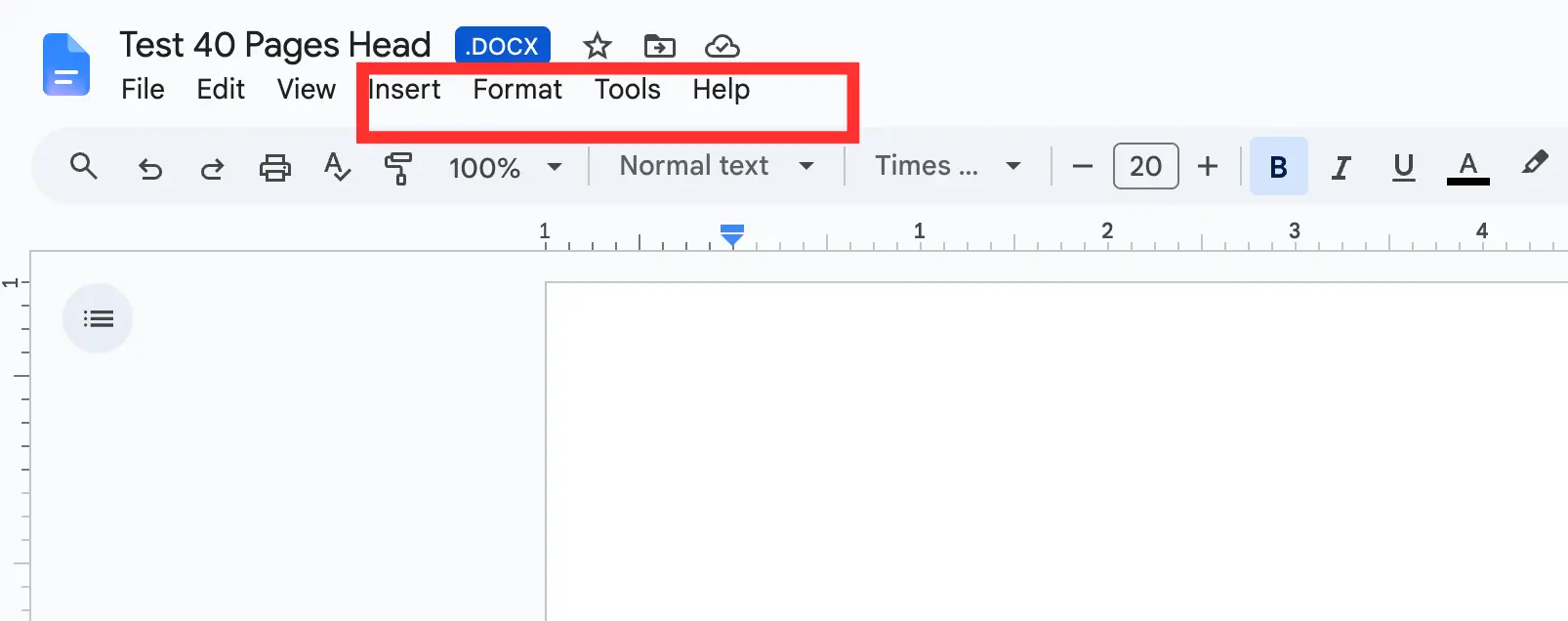
The Extensions menu is missing while the file is still in .docx format. To fix it, click File → Save as Google Docs. Once it saves as Google Docs, the Extensions menu will appear.
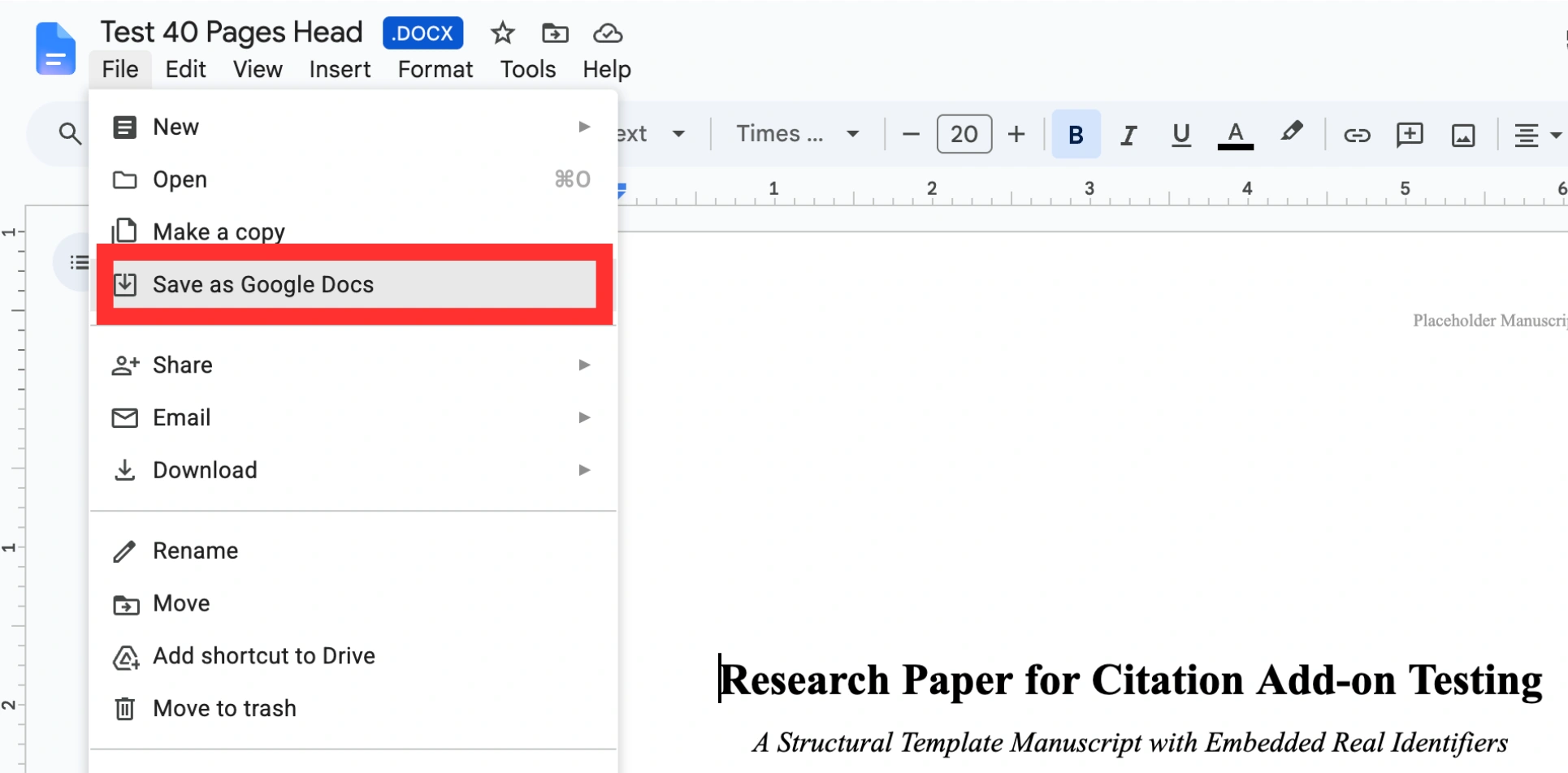
File → Save as Google Docs converts the file so add-ons become available. - "Place your cursor in the document..." The add-on inserts at your cursor. Click inside a paragraph first, then click Insert at cursor.
- "Could not reach the lookup service." The resolution service was briefly unreachable. Check your connection and try again. References already in your library still format, because formatting is local.
- A reference could not be found. The identifier did not verify against its source. Check it, or add the reference manually.
- My in-text citations still look approximate. Click Update citations and bibliography. Inserting is instant and approximate; Update renders the exact citation text.
- The bibliography should stay at the end. Keep the reference list as the last content in your document so Update can replace it cleanly.
Frequently asked questions
What researchers ask before adding a citation tool to Google Docs.
Free
No account, eight styles, your library in your Google account. Add it to Google Docs in a minute.
Install Google Docs Add-on
Add Citations, References and Bibliography to Google Docs in a minute
Email us help@thelatexlab.com