The Google Docs BibTeX problem is short to state: Google Docs has a citation tool, and it cannot read a .bib file. If you have a bibliography built in LaTeX, exported from Zotero, or handed to you by a co-author, there is no import button anywhere in Docs. This covers how to use BibTeX in Google Docs anyway, with an add-on that reads .bib files directly, and the other routes worth knowing.
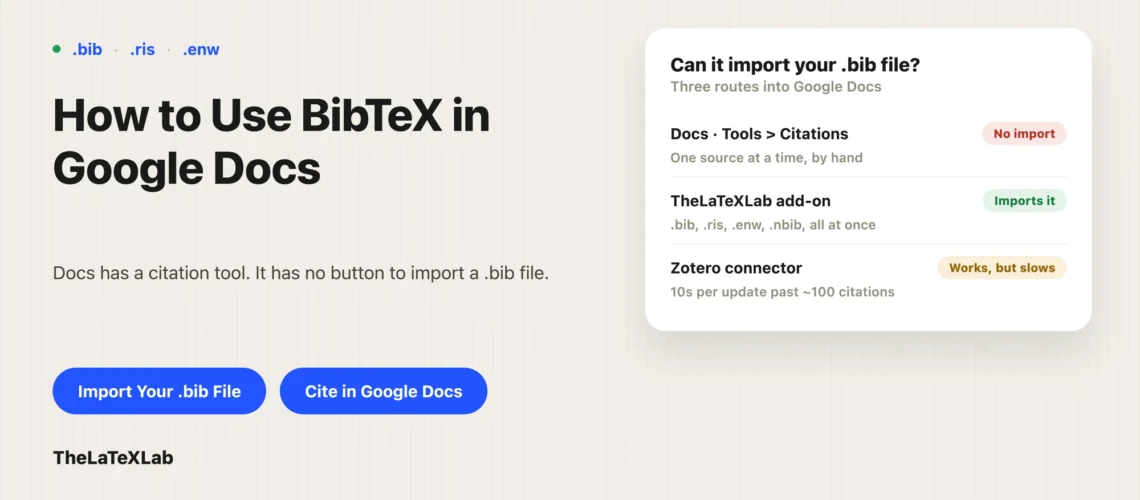
Google Docs cannot read a BibTeX file on its own
The built-in tool lives under Tools > Citations. It works, and for a short paper written from scratch it is fine. Its workflow is one source at a time through a form: pick the source type, say how you accessed it, then fill in the fields.
What it does not have is any file import. No BibTeX, no RIS, no .bib, nothing. If you arrive with a forty-entry bibliography, the built-in tool expects you to retype all forty into that form. It also offers MLA 8th edition rather than MLA 9.
So “use BibTeX in Google Docs” always means adding something. The question is which something.
How to import BibTeX into Google Docs with the add-on
Our free Google Docs citation add-on reads .bib files, which is the piece Docs is missing. Install it from the Workspace Marketplace, then open a document on a computer and open the Citation Manager from the right side panel.
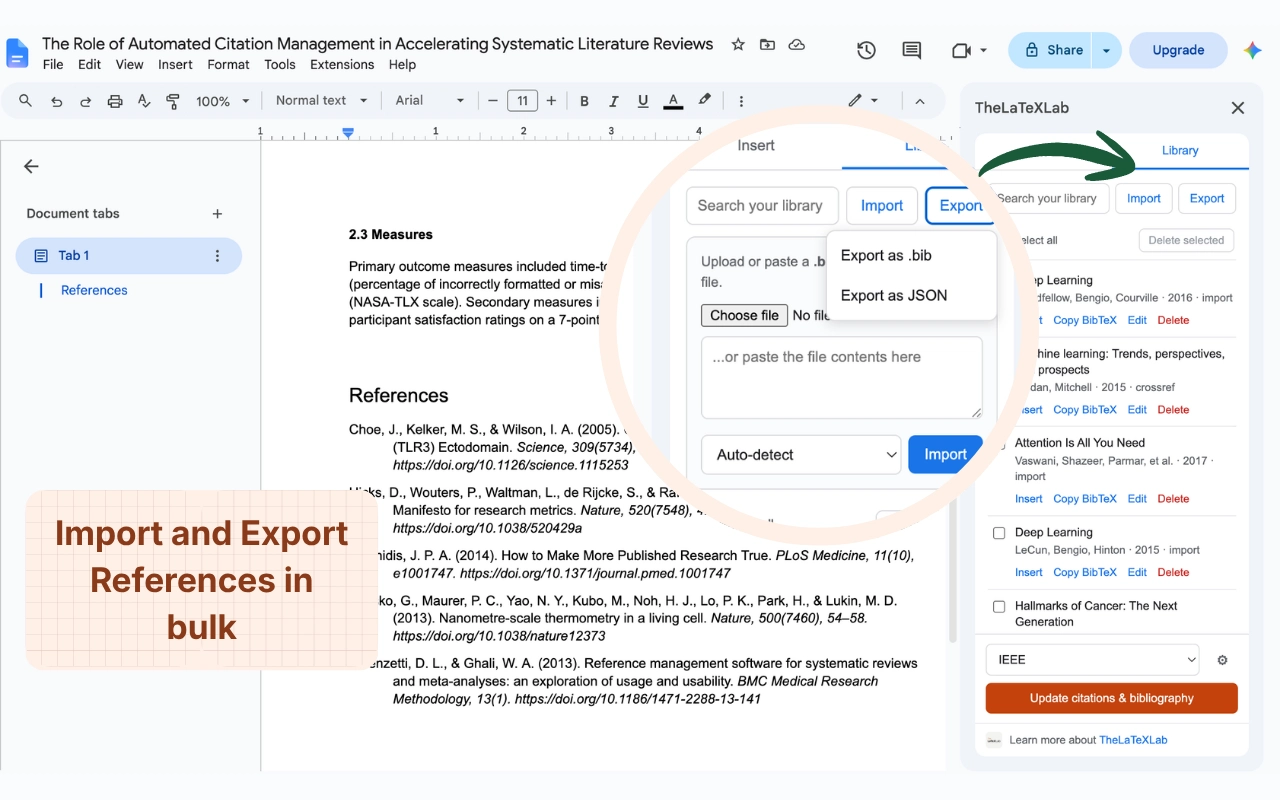
Go to the Library tab and import the file. It accepts .bib, and also .ris, .enw (EndNote) and .nbib (PubMed), so whatever your reference manager exports is likely to work.
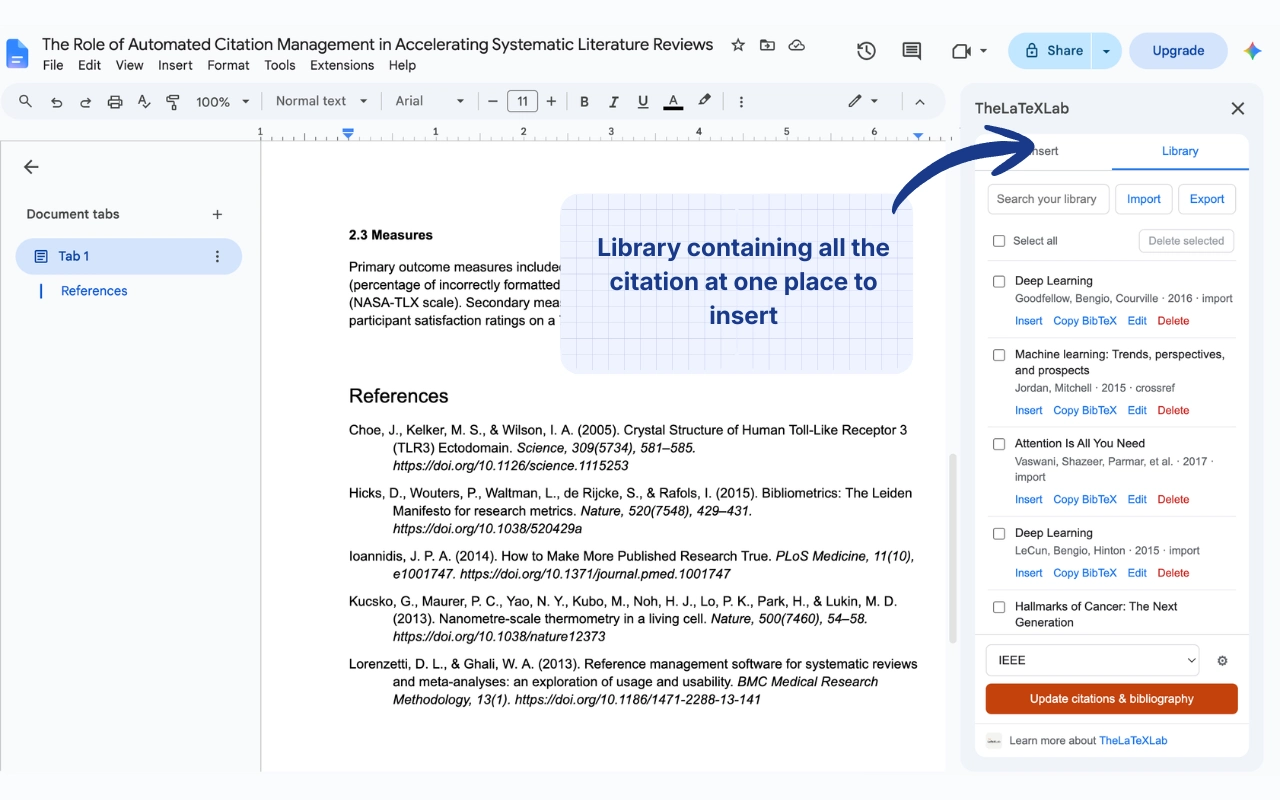
Your whole bibliography lands in the library at once, stored in your own Google account. From there it behaves like any other saved reference: search it by title, author, year or source, and insert what you need.
One thing to expect: entries only carry what was in the .bib file. If your LaTeX bibliography had no DOIs, the imported entries have no DOIs either. Importing does not enrich anything.
How to paste a BibTeX citation into Google Docs
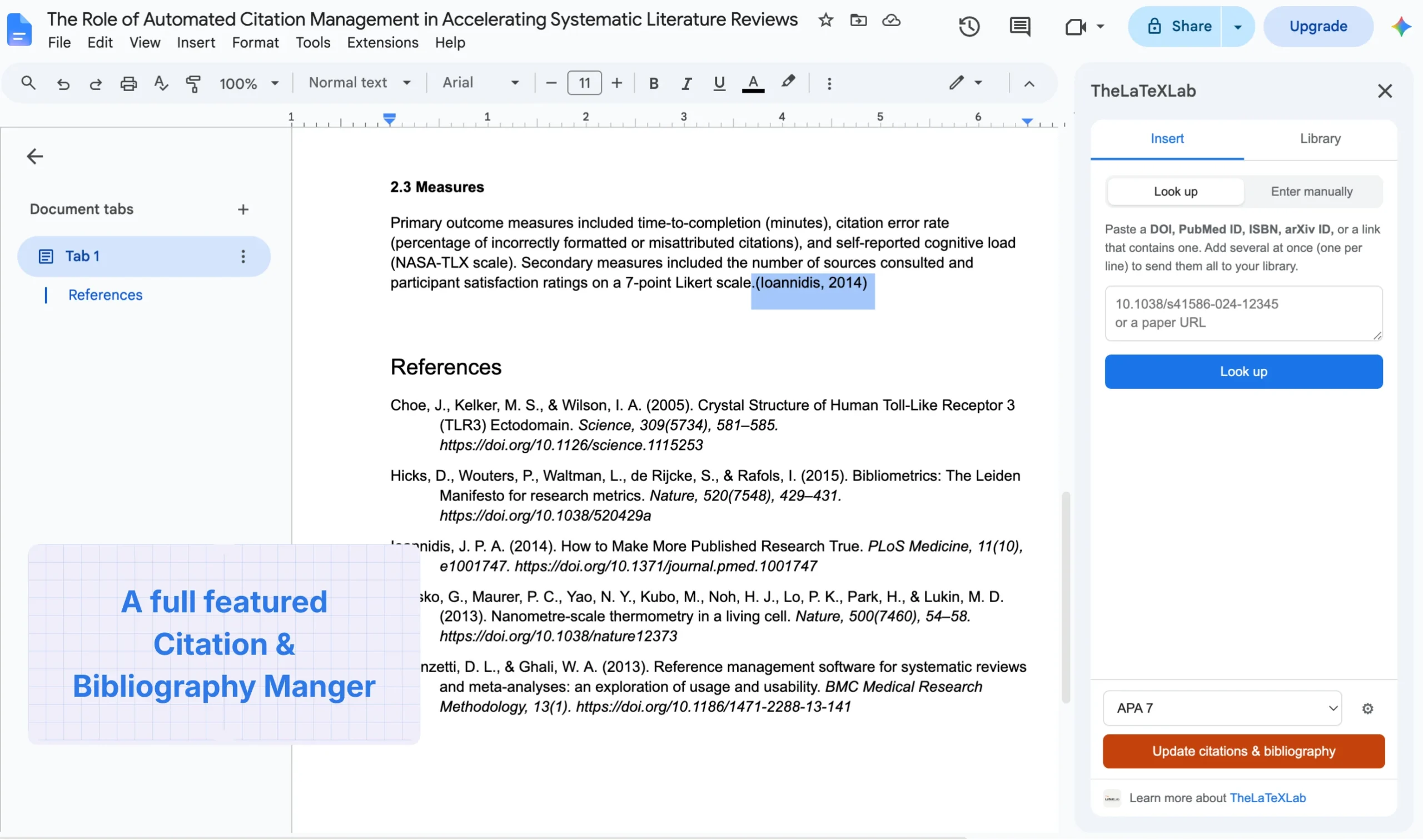
For one reference you do not need the import at all. The Insert tab accepts BibTeX text directly. Paste the entry into the lookup box, click Look up, check the preview, put your cursor where the citation goes and click Insert at cursor.
That same box also takes a DOI, PubMed ID, ISBN or arXiv ID, so in practice you paste whichever you happen to have. The full walkthrough of the insert side is in our guide to adding citations in Google Docs.
Pick your style from the dropdown, then click Update citations and bibliography to build the reference list. Eight styles: APA 7, MLA 9, Chicago author-date, Harvard, IEEE, Vancouver, Nature and AMA.
Import your .bib file straight into Google Docs using “TheLaTeXLab Citation Generator Add-on”
The add-on reads .bib, .ris, .enw and .nbib files, keeps the references in your Google account, and formats citations in eight styles. Free, no sign-up.
Using a .bib file exported from Zotero, Mendeley or JabRef
Same route, with one step before it. Export from your manager as BibTeX, then import that file into the add-on library.
- Zotero: right-click a collection, Export Collection, format BibTeX.
- Mendeley: select references, File, Export, BibTeX.
- JabRef: the library is already a
.bibfile, so use it as it is.
Worth checking the export before you import: some managers write fields the way their own database stores them, which is not always the way you want them cited. Journal-name abbreviations and missing DOIs are the two that show up most.
Using Zotero’s Google Docs connector instead
If you already live in Zotero, its own Google Docs integration is a genuine alternative and it is worth being fair about. You import your .bib into Zotero, install the Zotero Connector browser extension, and cite from a Zotero menu that appears in the Docs toolbar. It runs locally, and co-authors can insert and edit citations in a shared document.
Its documented limits, which matter on a long paper:
- It slows down as citations accumulate. Past about a hundred citations, a single citation update can take up to ten seconds, and Zotero’s own advice is to turn off automatic updates on long documents.
- Citations cannot be copied between documents and stay live.
- Formatting falls back where Google Docs cannot do what the style asks, for example small caps.
- It needs the desktop app plus the browser connector running, so it is not an option on a locked-down machine.
Reasonable rule: if your references already live in Zotero and will stay there, use Zotero. If you have a .bib file and no particular attachment to a manager, importing it straight into the add-on is fewer moving parts.
When you only need the formatted reference list
Sometimes there is nothing to cite in the text. You have a .bib file and you need a formatted bibliography to paste at the end of a document, and that is the whole job.
For that, skip the citation tooling. Run the file through a converter and paste the output. BibTeX to APA does it in the browser, and there are versions for MLA, Chicago, Harvard, IEEE, Vancouver and AMA. The result is plain formatted text, which is exactly what you want when nothing needs to stay linked to in-text marks.
The trade-off is that the list is static. Add a source later and you regenerate the whole thing rather than clicking update.
What does not come across from LaTeX
If the .bib file is coming out of a LaTeX project, expect a few things to need attention. The references themselves usually import cleanly. Around them:
- Your
\citecommands do not convert. Text pasted from a.texfile keeps\cite{smith2020}as literal text. Those have to be replaced with real citations. - Brace protection shows up as braces. A title stored as
{BERT}: Pre-trainingis meant for BibTeX styles. Check imported titles and clean the stray braces. - LaTeX escapes in author names.
M{\"u}llermay or may not resolve depending on how the file was written. Scan the author list after importing. - Math in titles will not render. Google Docs has no equation support in a reference list.
Cleaning the .bib before importing is usually less work than fixing entries afterwards.
Getting BibTeX back out of Google Docs
Papers move both ways, and co-authoring in Docs before compiling in LaTeX is a common pattern. The library exports as well as imports, so you can pull the references back out as .bib and drop the file into your LaTeX project.
What does not come back is the in-text citations. Google Docs citations are formatted text, not \cite commands, so a document drafted in Docs needs its citations rewired when it moves to LaTeX. Plan for that if you know the paper is heading to a LaTeX template. The LaTeX side of the workflow is in how to cite in LaTeX.