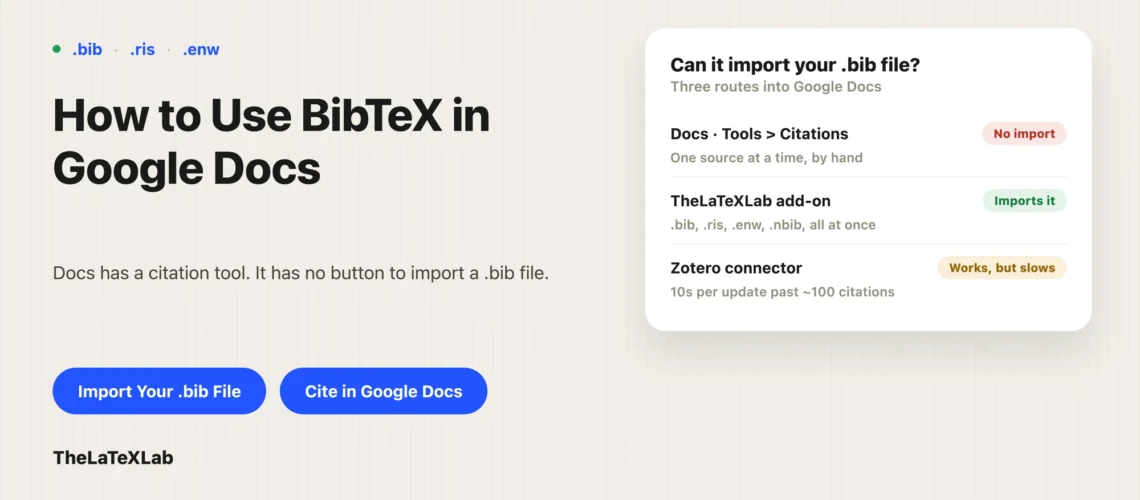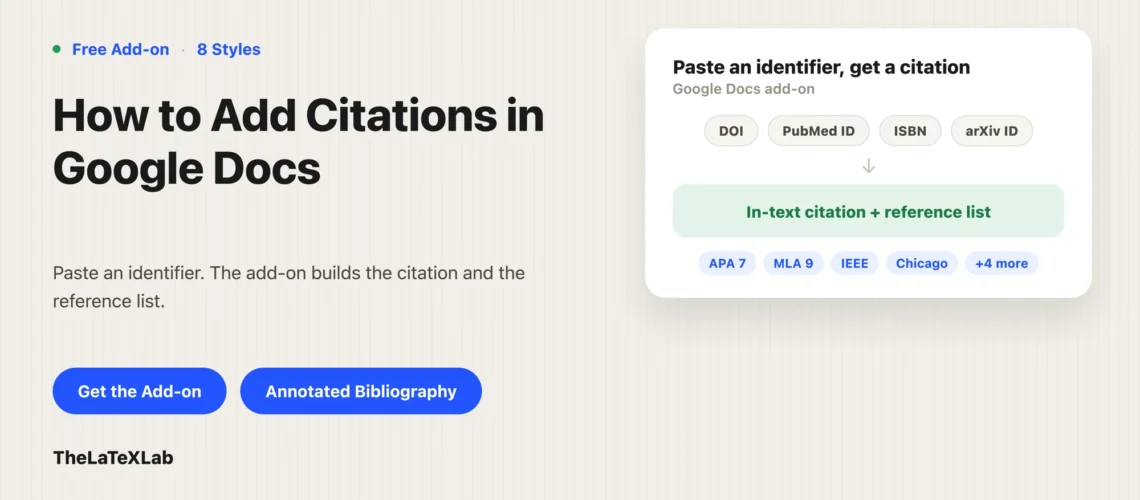
If you want to know how to add citations in Google Docs without typing out every reference by hand, the fastest way is a free add-on. With our Google Docs citation add-on, you paste a DOI, PubMed ID, ISBN, arXiv ID, or a BibTeX entry, and it inserts a clean in-text citation and builds your reference list at the end, in any of eight styles. No sign-up, no separate reference manager, and you never leave the document. Here is the whole workflow, start to finish.
Install the Google Docs citation add-on
- Open the add-on’s Google Workspace Marketplace listing and click Install.
- Approve the permissions. The add-on only edits the document you have open, and it uses your existing Google account, so there is no account to create and no API key to paste.
That is the whole setup. It is free, with no paid tier.
Open the Citation Manager in Google Docs
Open any Google Doc on a computer. The add-on appears in the right side panel. Click its icon, then choose Open Citation Manager. The panel has two tabs: Insert, where you look up and place citations, and Library, where your saved references live.
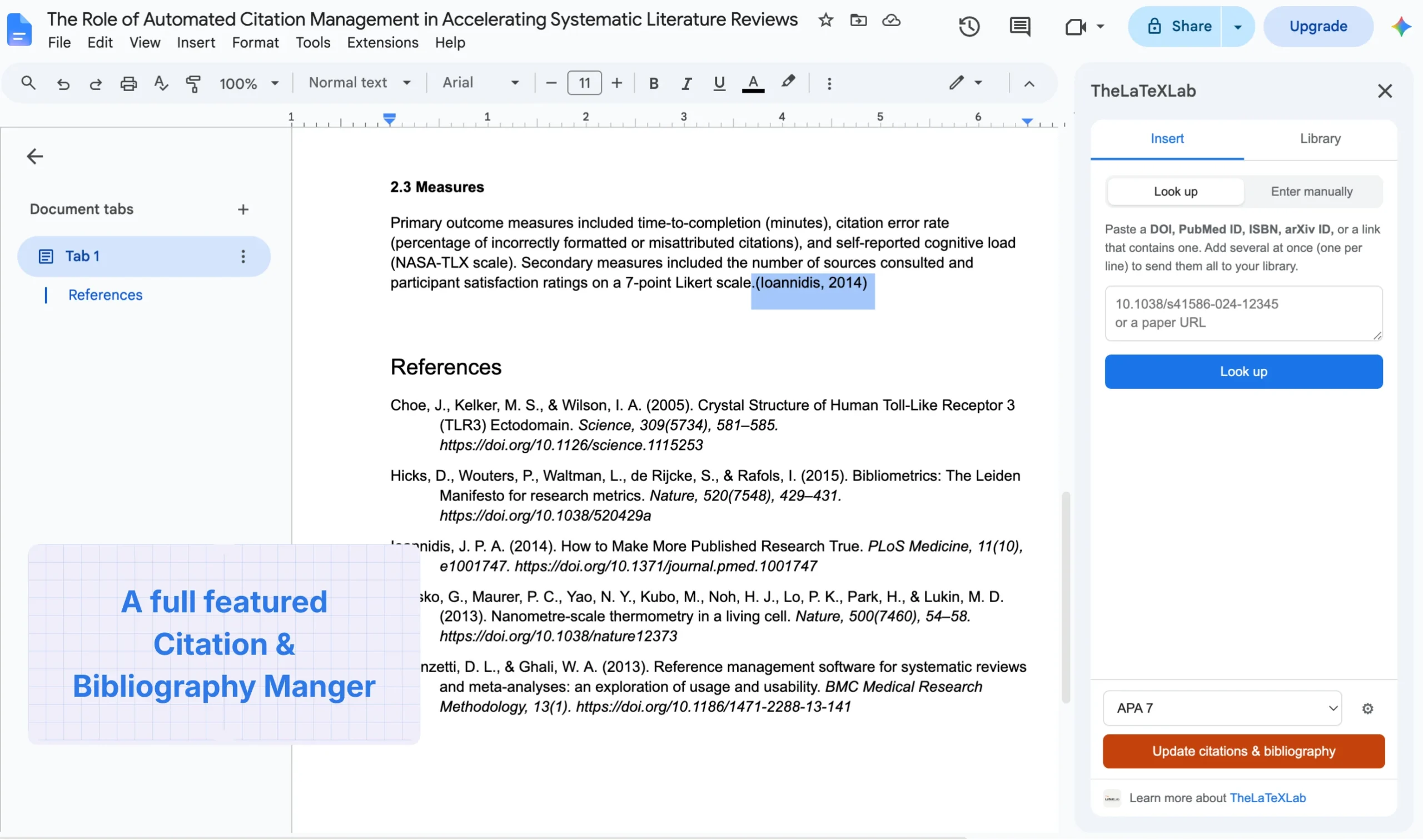
How to insert a citation in Google Docs
On the Insert tab:
- Paste one of these into the lookup box: a DOI (for example
10.1038/s41586-020-2649-2), a PubMed ID, an ISBN-10 or ISBN-13, an arXiv ID, a URL that contains one of those, or BibTeX text. - Click Look up. The add-on fetches the reference and shows you a preview so you can check it is the right one.
- Put your cursor in the document where you want the citation to appear.
- Click Insert at cursor. The in-text citation drops in, and the reference is saved to your library automatically.
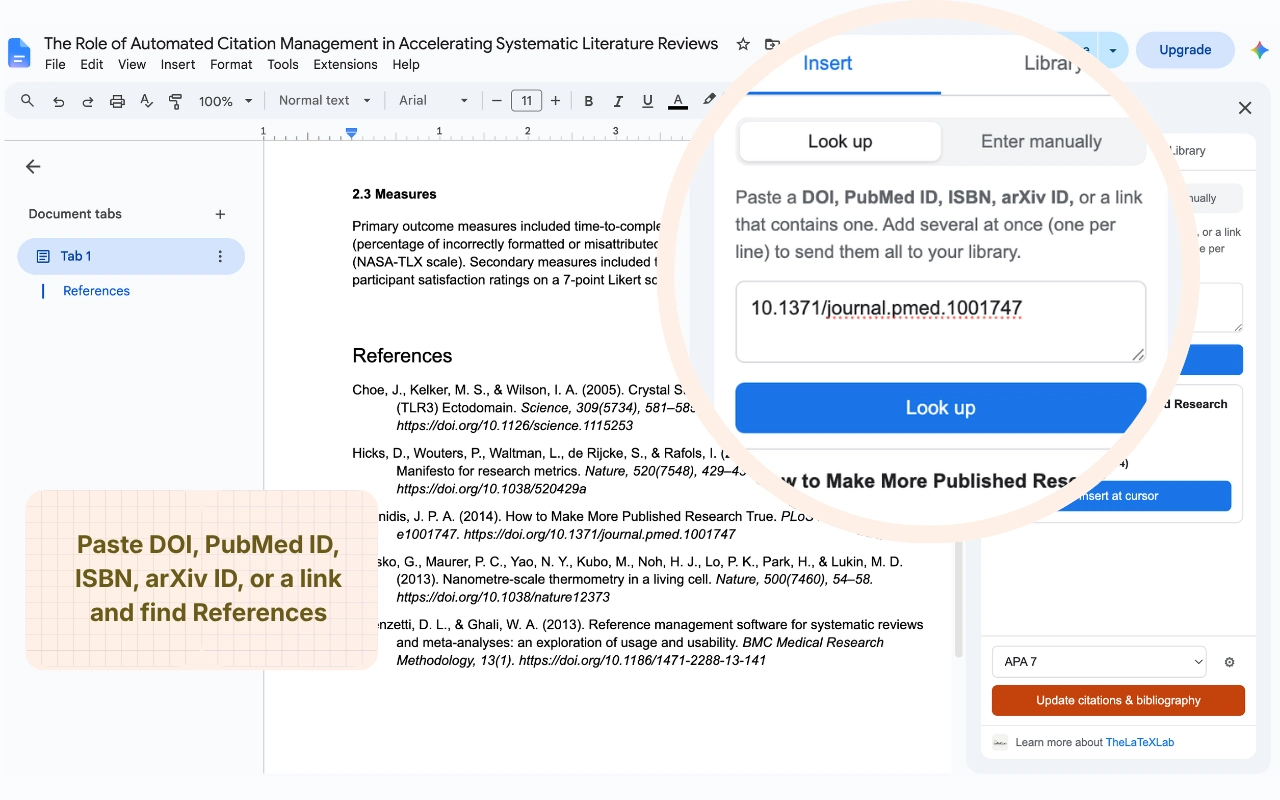
Repeat that for each source. Because it looks the reference up from the identifier, you are not typing out authors, years, and page numbers by hand, and the details come back complete rather than half-filled.
Choose a citation style: APA, MLA, IEEE and more
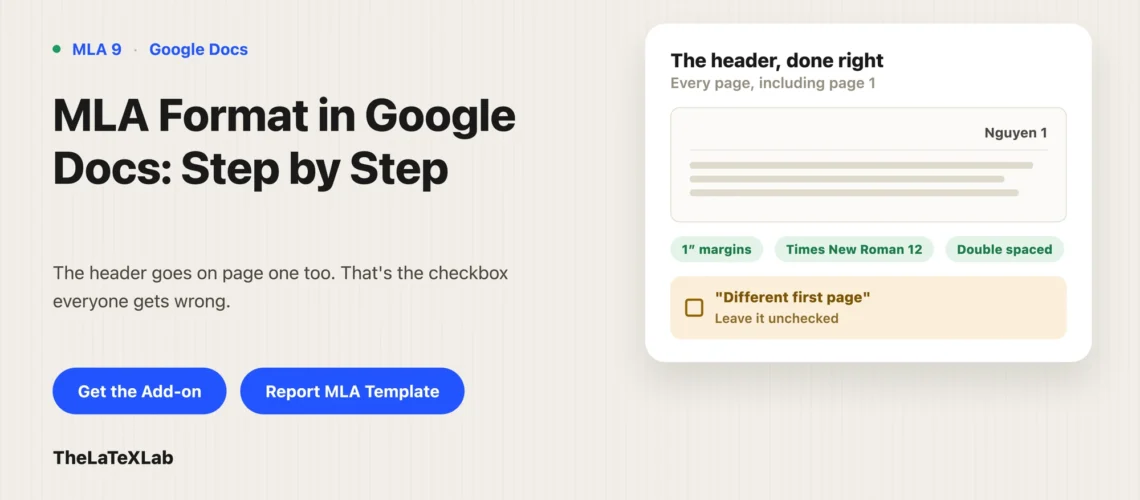
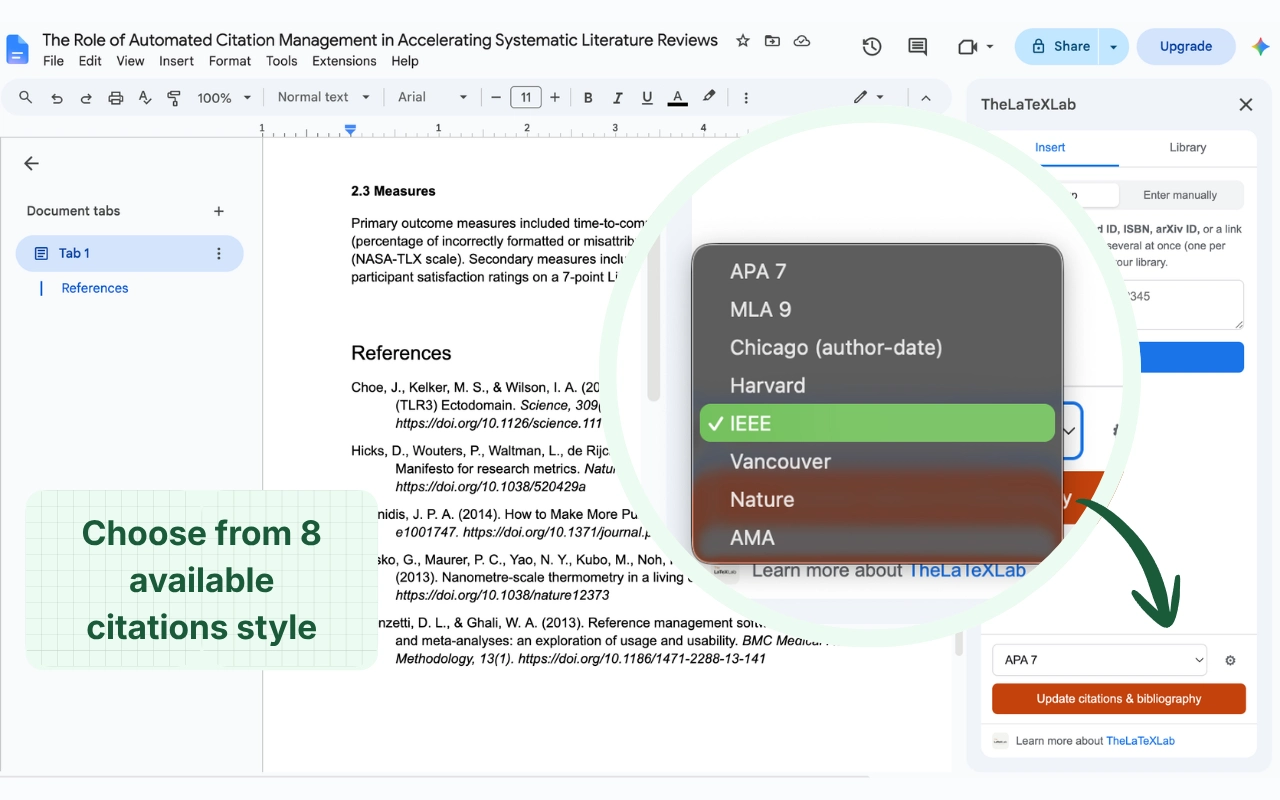
Choose your style from the dropdown at the bottom of the sidebar. There are eight: APA 7, MLA 9, Chicago (author-date), Harvard, IEEE, Vancouver, Nature, and AMA. The author-date styles (APA, MLA, Chicago, Harvard) show a name and year in the text; the numbered styles (IEEE, Vancouver, Nature, AMA) show a bracketed or superscript number. You can switch styles at any point and reformat the whole document. If you are writing to MLA, the page setup around the citations matters too, and that is covered in how to add an MLA header and MLA format in Google Docs.
How to add a bibliography in Google Docs
When you are ready for the reference list, click Update citations and bibliography at the bottom of the sidebar. It formats every in-text citation in your chosen style and writes the full reference list at the end of the document.
Run it again whenever you add or change sources. It replaces the existing bibliography in place, so it stays in sync and never leaves you with duplicate entries. One thing to watch: because it replaces the block, any text you typed inside the reference list gets replaced too, which matters if you are building an annotated bibliography in Google Docs.
Cite from a DOI or BibTeX inside Google Docs.
Our free add-on turns a DOI, PubMed ID, ISBN, arXiv ID, or BibTeX entry into an in-text citation and a reference list, in eight styles. No sign-up, no API key, and your library stays in your Google account.
Your saved reference library in Google Docs
Every reference you insert is kept on the Library tab, stored in your own Google account and private to you. You can search it by title, author, year, or source, and reuse a reference in another document without looking it up again.
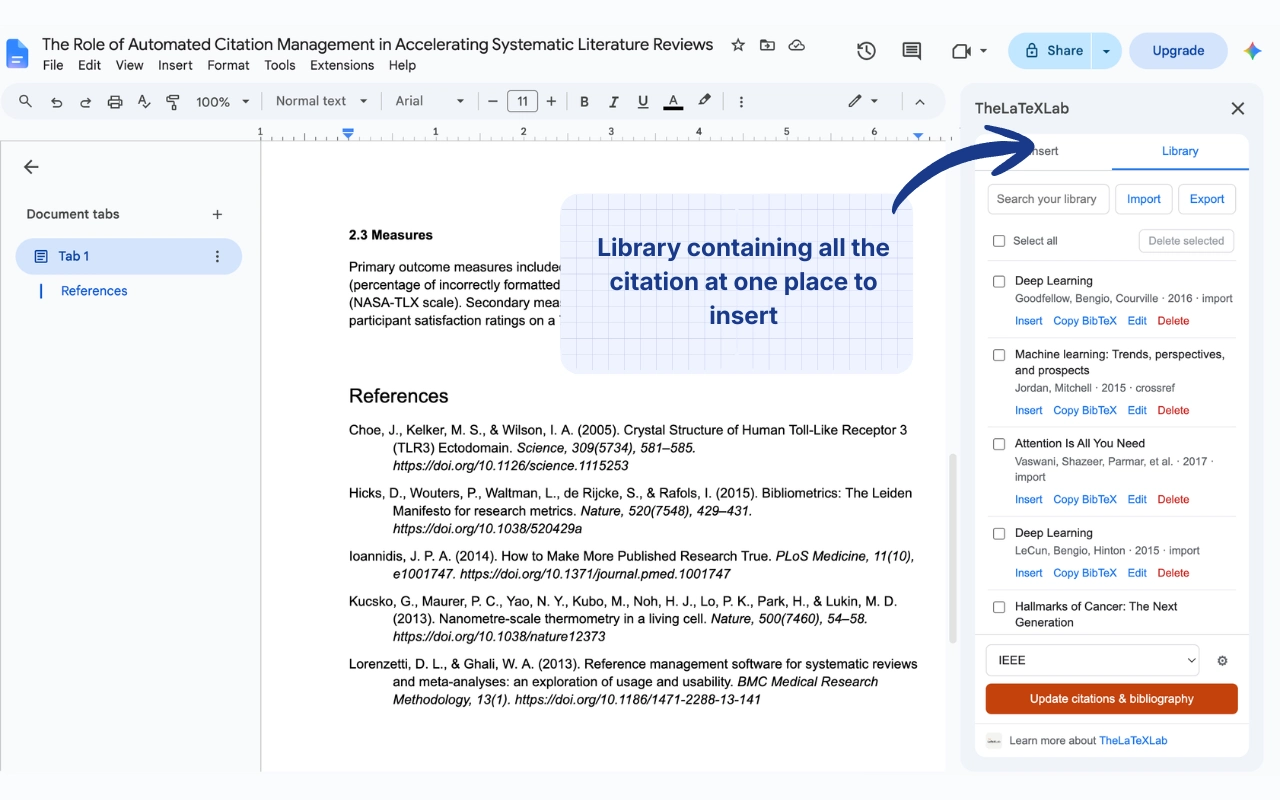
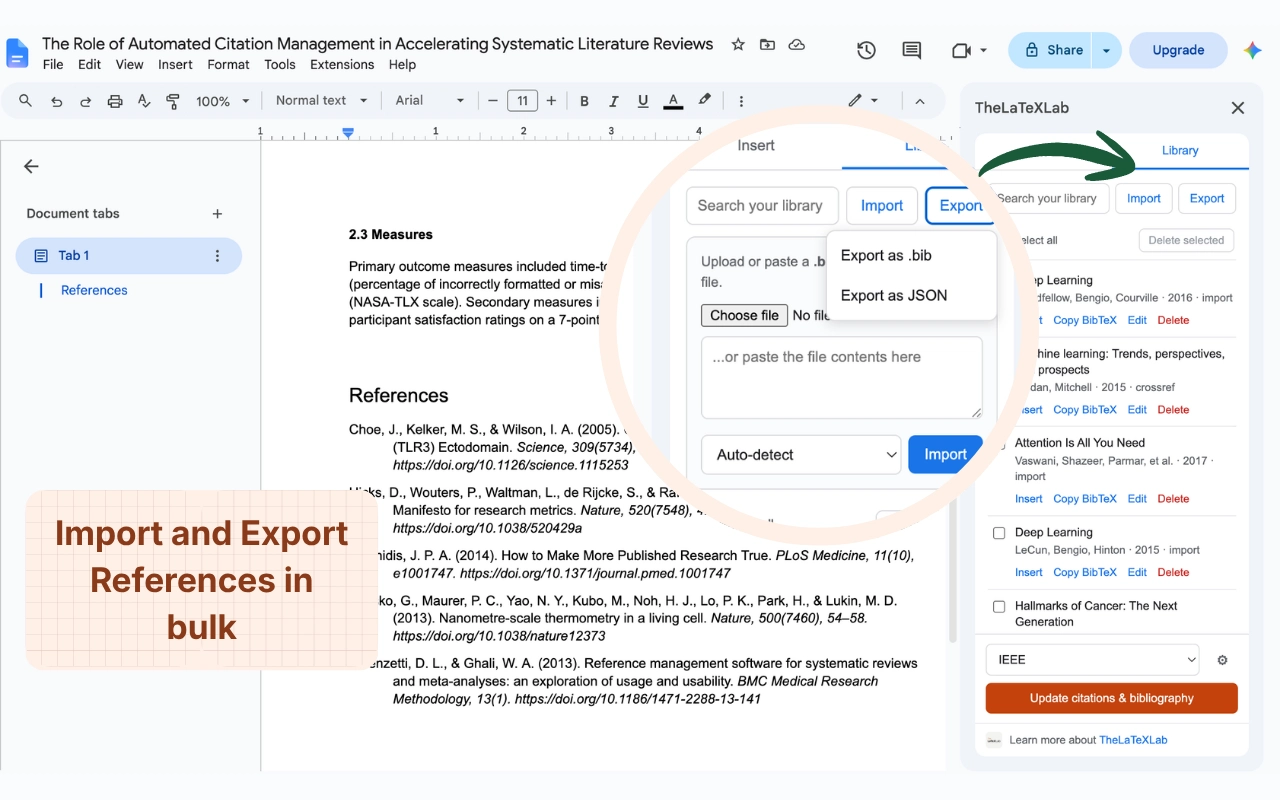
The library also imports and exports the common reference files, so you can bring in a .bib, .ris, .enw, or .nbib file from a database or another manager, or export your list to use elsewhere. The .bib route has its own guide, since native Docs cannot read one: how to use BibTeX in Google Docs. If you have references that are not in a file yet and you want them as BibTeX first, our BibTeX generator turns a DOI, ISBN, or arXiv ID into a .bib entry in the browser.
Adding citations in Google Docs on an iPad or phone
Add-ons run in Google Docs on the web, in a desktop browser, not in the Android or iPhone and iPad apps. So if you are drafting on a tablet, write there and add the citations later on a computer, or open the document in a desktop browser when you are ready to cite. There is no way to run a Docs add-on from the mobile app itself.