Building an annotated bibliography in Google Docs is two jobs, and only one of them is writing. First you need an accurate, correctly formatted reference list. Then you add an annotation under each entry, indented differently from the reference itself, which is the part Google Docs makes annoying. A citation add-on handles the first job, so you only do the second. Below is the workflow, the exact indent settings for APA and MLA, a template you can copy, and the one mistake that erases everything you typed.
What an annotated bibliography is and what each annotation contains
An annotated bibliography is a normal reference list where each entry is followed by a short paragraph about that source. The reference is formatted exactly as it would be in any APA or MLA reference list. The annotation is your own text.
Annotations usually do one or more of three things:
- Summarize. What the source argues, what it studied, what it found.
- Evaluate. How reliable it is, how it compares to other sources, what its limits are.
- Reflect. How you will use it in your own work, and why it earned a place in the list.
Neither APA nor MLA prescribes which of those you write, because that depends on the assignment. Check the brief before you start. The commonly quoted length is about 150 words per annotation, but that is a convention, not a rule in either style guide.
How to make an annotated bibliography in Google Docs step by step
Build the reference list first, then annotate it. Doing it in that order saves the most time and avoids the overwriting problem in the next section.
- Install our free Google Docs citation add-on from the Workspace Marketplace and open a document on a computer.
- Open the add-on from the right side panel and choose Open Citation Manager.
- On the Insert tab, paste a DOI, PubMed ID, ISBN, arXiv ID, or a BibTeX entry for each source and click Look up, then Insert at cursor. The full walkthrough is in our guide to adding citations in Google Docs.
- Pick your style from the dropdown: APA 7 or MLA 9 for most annotated bibliographies.
- Click Update citations and bibliography. You now have a correctly formatted, alphabetized reference list at the end of the document.
- Put your cursor at the end of the first reference, press Enter, and type the annotation. Repeat for each entry.
- Fix the indents on the annotation paragraphs, which do not inherit correctly. See the next section but one.
The sidebar, where steps 2 to 5 happen:
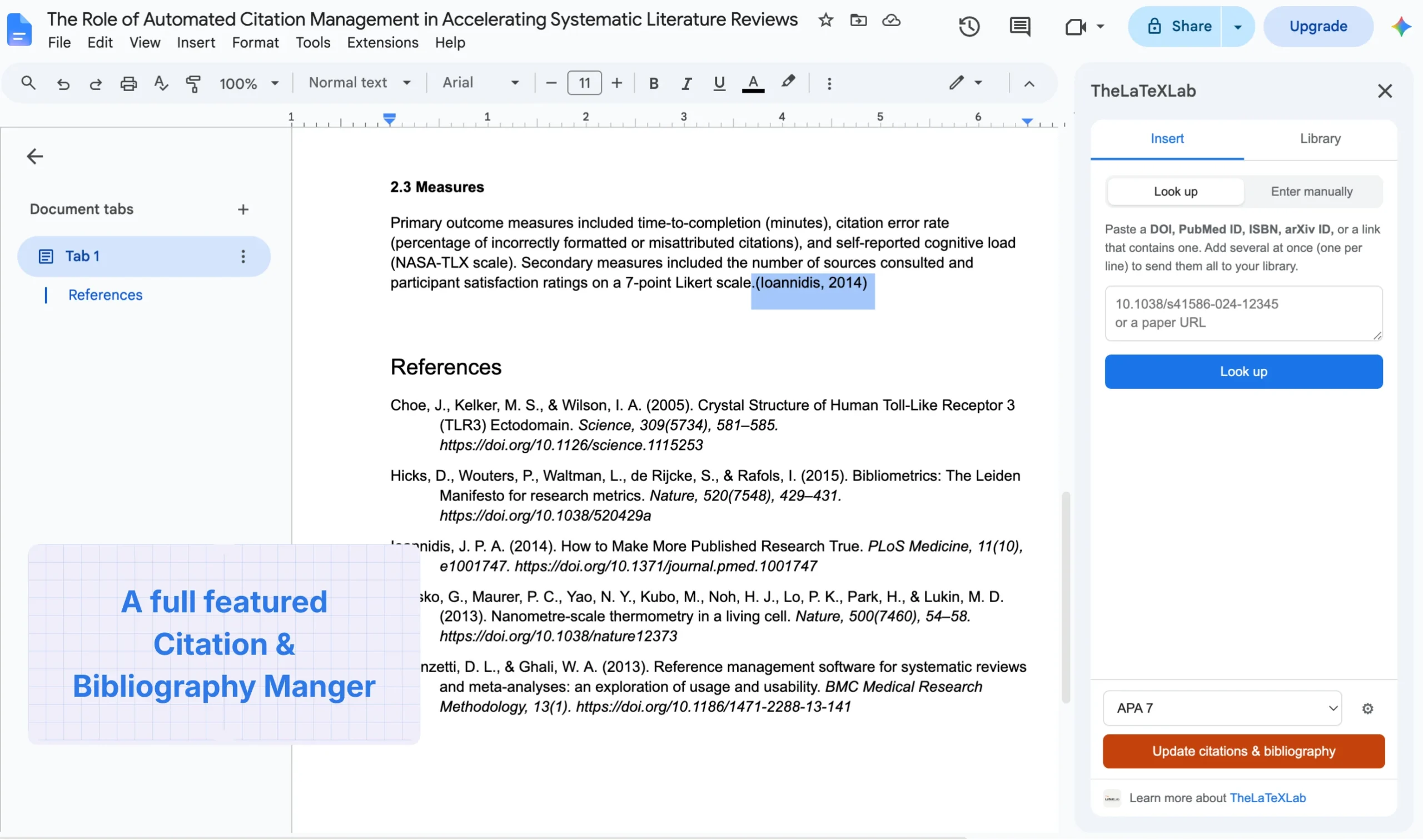
Looking a source up by identifier in step 3, with the preview you check before inserting:
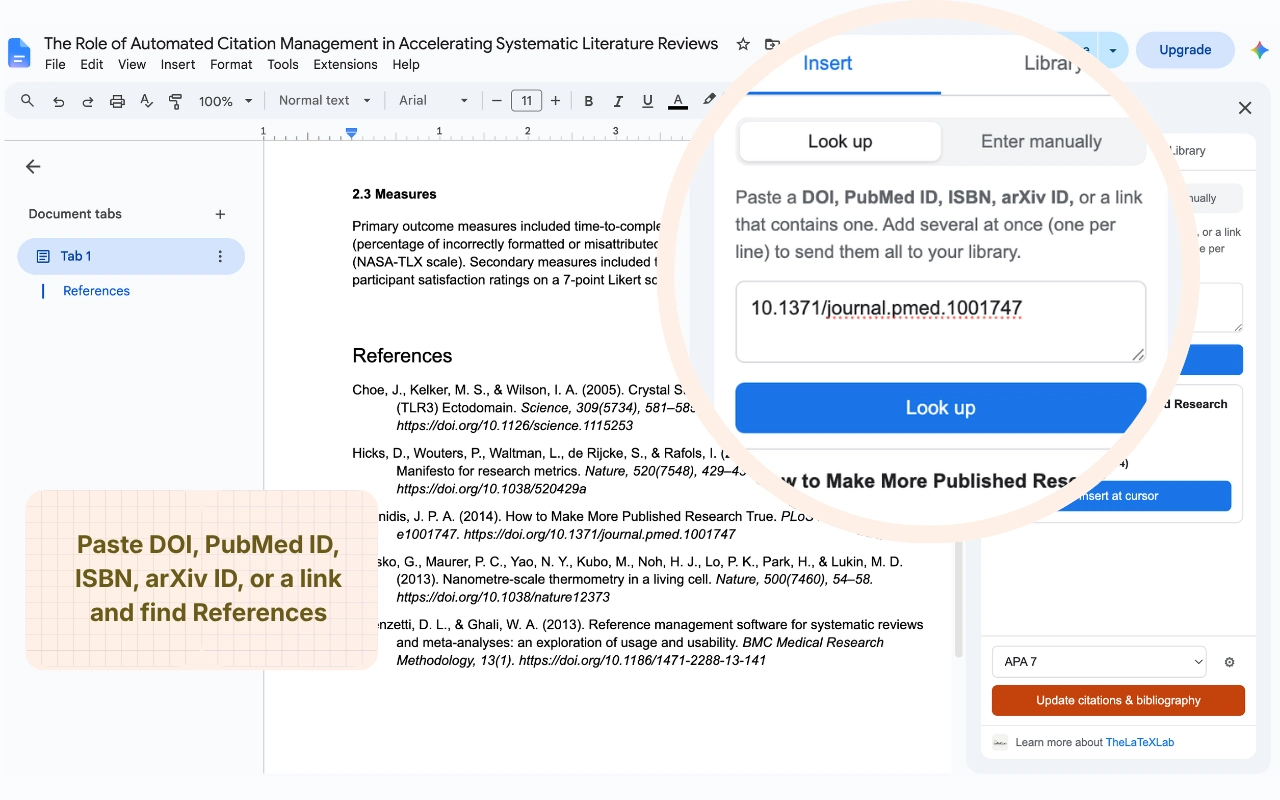
And the style dropdown in step 4, where you pick APA 7 or MLA 9:
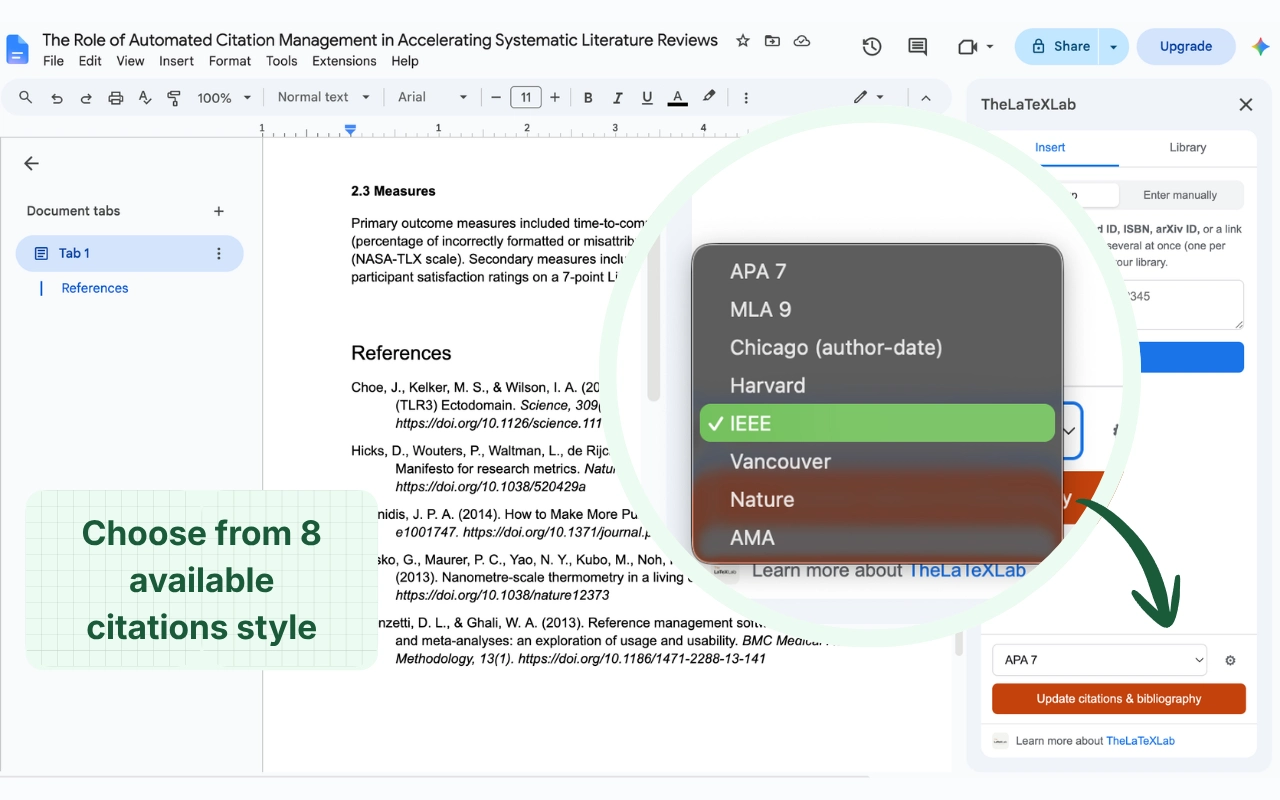
The point of doing it this way is that the tedious, error-prone half is done by lookup rather than typing. Author initials, journal names, page ranges, and the alphabetical order all come out right, and you spend your time on the annotations, which is the part being graded.
Updating the bibliography overwrites annotations you typed into it
Worth knowing before it happens to you. Update citations and bibliography replaces the existing reference list in place. That is what keeps it in sync when you add sources, but it also means any annotation text you typed inside that block is replaced along with it. The same is true of the built-in Google Docs citations tool under Tools > Citations: neither tool has a field for an annotation, because an annotation is your prose, not citation data.
Two ways to work around it, both fine:
- Finish the source list first. Add every source, run the update one last time, and only then start annotating. This is the simpler route for a fixed assignment list.
- Keep two blocks. Leave the generated bibliography where it is, copy it into a separate “Annotated Bibliography” section, and annotate the copy. Then you can keep adding sources and re-running the update without touching your annotations, and paste in the new references as they appear.
If you do get caught out, Google Docs version history (File > Version history) will have the version before the update.
How to set the hanging indent and the annotation indent in Google Docs
This is where most people lose time. The reference and the annotation need different indents, and Google Docs carries the reference’s indent onto the new paragraph, so the annotation comes out with its first line sticking out to the left.
Set them separately.
For the reference entries:
- Select the reference paragraphs.
- Format > Align & indent > Indentation options.
- Under Special indent choose Hanging, set it to 0.5, leave Left and Right at 0, and click Apply.
For the annotation paragraphs:
- Select only the annotation paragraphs.
- Open Indentation options again.
- Set Special indent to None. This is the step people miss.
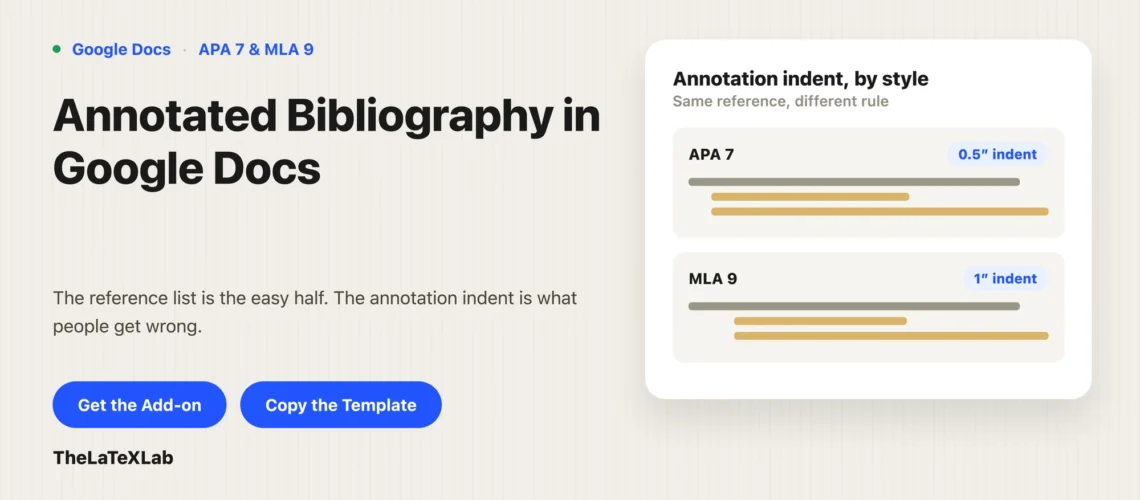
- Set Left to 0.5 for APA, or 1 for MLA.
Set line spacing to double for the whole thing (Format > Line & paragraph spacing > Double) and leave no extra blank line between a reference and its annotation. Both styles want the annotation directly under its reference.
One limitation: indentation options are only available in Google Docs in a desktop browser. The Android and iPhone apps cannot set a hanging indent, and add-ons do not run there either, so the formatting pass has to happen on a computer.
APA annotated bibliography format and template for Google Docs
APA covers annotated bibliographies in section 9.51 of the 7th edition Publication Manual. The rules:
- References are formatted and alphabetized exactly as in a normal APA reference list, with a 0.5 in hanging indent.
- The annotation is a new paragraph below its reference, with the entire annotation indented 0.5 in from the left margin, like a block quotation. Do not indent the first line further.
- If an annotation runs to more than one paragraph, indent the first line of each paragraph after the first by an extra 0.5 in.
- Double spacing throughout.
An APA annotated bibliography template for Google Docs is really just those four rules applied to an empty document. Here is the shape to copy. The first line of each entry sits at the margin, continuation lines are indented 0.5 in, and the annotation block sits at 0.5 in:
Author, A. A., & Author, B. B. (2024). Title of the article in
    sentence case. Journal Name, 12(3), 45-67.
    https://doi.org/10.xxxx/xxxxx

    This study tested X across Y participants and found Z. The sample
    is limited to one region, so the findings may not generalize. Useful
    for my second section, where I compare regional results.
MLA annotated bibliography format in Google Docs
MLA 9 differs from APA in one specific way that catches people who switch between them: the annotation indent is 1 in, not 0.5 in. That is deliberate, so the annotation is visibly distinct from the 0.5 in hanging indent of the entry above it.
- Entries are formatted exactly as in a Works Cited list, alphabetized, with a 0.5 in hanging indent.
- The annotation is indented 1 in from the left margin, double spaced, with no blank line between the entry and the annotation.
- Keep an annotation to one paragraph where you can. If you need more, indent each one and do not add extra space between them.
- Title the page Annotated Bibliography or Annotated List of Works Cited.
- The rest of the paper still needs the standard MLA setup, which is covered in MLA format in Google Docs.
Author, First. "Title of the Article." Journal Name, vol. 12, no. 3,
    2024, pp. 45-67.

        This article argues X. The evidence is mostly qualitative,
        which suits my argument about method but limits the claims
        I can make about scale.
Install Google Docs add-on to insert citation & reference in Google docs
Our free Google Docs citation add-on looks up each source from a DOI, PubMed ID, ISBN, arXiv ID, or BibTeX entry and formats the whole list in APA 7, MLA 9, or six other styles. No sign-up.
How to save your annotated bibliography template in Google Docs and reuse it
If you have to produce these regularly, set the formatting up once. Make a document with the heading, double spacing, and two dummy entries with the indents already applied, one reference and one annotation each.
How you reuse it depends on your account:
- Personal Google account. You cannot add your own template to the Google Docs template gallery. Name the file something like “Template – APA Annotated Bibliography”, keep it in Drive, and use File > Make a copy each time. Low tech, but it works.
- Google Workspace account (school or work). You can submit it to your organization’s gallery: from the Docs home screen, Template gallery, your organization’s name, then Submit template. Your admin has to have custom templates turned on.
Google’s own template gallery has report templates in MLA and APA layouts, but no annotated bibliography template, which is why building your own is worth the ten minutes.
If your sources already live in a reference manager, you do not have to re-enter them either. The add-on’s Library tab imports .bib, .ris, .enw, and .nbib files.
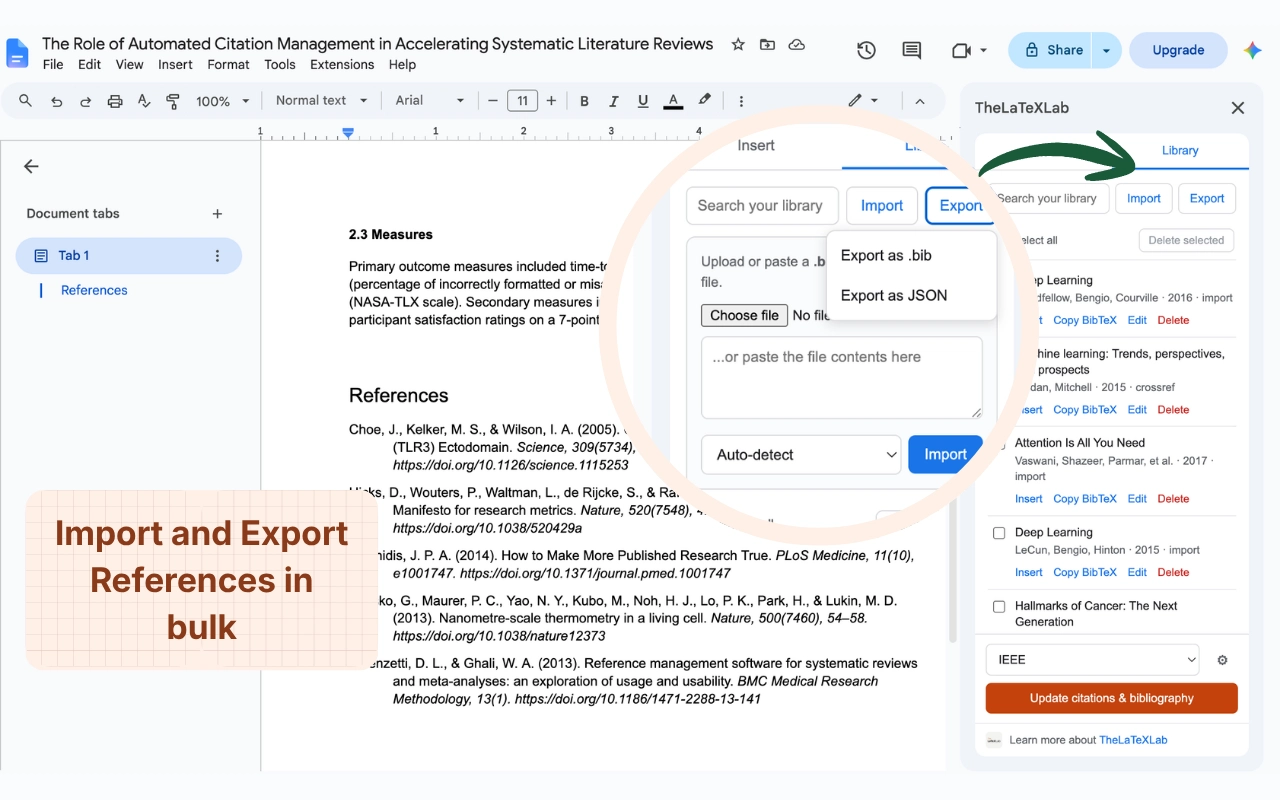 If you have identifiers but no file yet, our BibTeX generator turns a DOI, ISBN, or arXiv ID into a
 .bib entry you can import.
What to write in each annotation
The formatting is the easy half. A useful annotation answers, in a few sentences each: what the source does, how good it is, and what it is doing in your bibliography.
A workable pattern for a summary-plus-evaluation annotation:
- One or two sentences on the argument or method. What the author claims and how they got there. Not a blurb copied from the abstract.
- One or two sentences of evaluation. Sample size, date, scope, bias, whether it has been superseded. This is where most weak annotations go thin.
- One sentence on relevance. Which part of your own argument this supports or complicates.
Two things that reliably lose marks: annotations that are pure summary with no judgment, and annotations that describe the source’s topic rather than its content. “This article is about climate policy” says nothing. “This article compares carbon pricing outcomes in four EU states between 2005 and 2020 and finds no consistent effect on industrial emissions” says what the reader needs.
Purdue OWL has full worked samples in both APA and MLA if you want to see finished ones before writing your own.