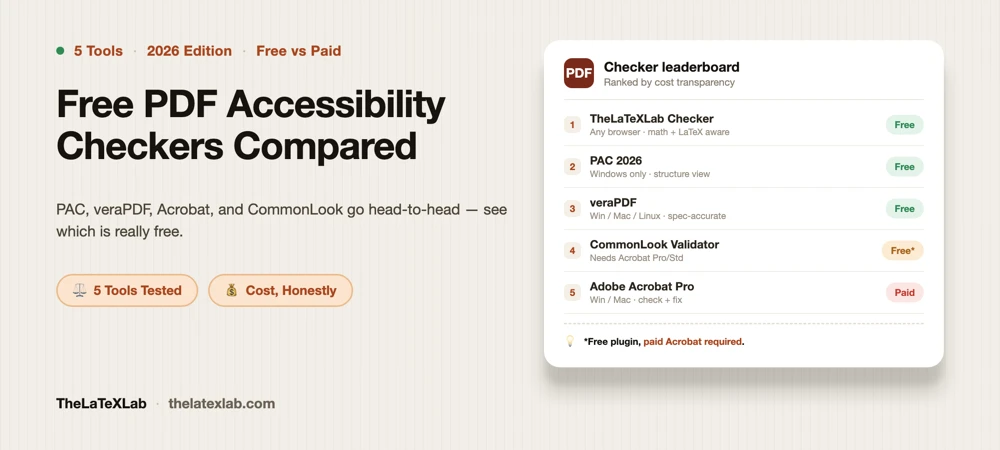
This is a comparison of free PDF accessibility checkers worth using in 2026, what each one is actually good at, and where each one quietly misleads you. Knowing which gaps each one leaves is the difference between a PDF that passes a checker and a PDF a blind reader can actually use.
PAC is the tool most people reach for first, and for good reason: it is free, it is thorough, and it shows you the actual tag structure, but it runs only on Windows. Run the same file through the PDF Accessibility Checker by TheLaTeXLab, veraPDF, Adobe Acrobat, and PAC, and you can easily get a different verdict from each one.
If you want the quick answer before the detail:
- Fastest first look, any OS: a browser-based checker (PDF Accessibility Checker by TheLaTeXLab).
- Most detail on Windows: PAC 2026.
- Best for Mac and Linux: veraPDF.
- Already own Acrobat Pro: its built-in checker, treated with suspicion.
- Deep table and form checking: CommonLook PDF Validator (needs Acrobat).
And the rule that matters more than any tool choice: an automated pass is only half the job. Every checker below tests the machine-checkable subset of accessibility. Reading order, alt text quality, and whether math is actually spoken still need a human with a screen reader. We cover that second half in our guide on how to check if a PDF is accessible. This post is about the tools for the first half.
Free PDF accessibility checkers at a glance
| Tool | Platform | Cost | Standards | Best for | Main weakness |
|---|---|---|---|---|---|
| PDF Accessibility Checker by TheLaTeXLab | Any browser, no install/signup | Free | WCAG 2.1 AA, PDF/UA-2, ADA Title II | Math (MathML) checks; reads LaTeX source or PDF | Automated check – confirms alt text exists but not its quality |
| PAC 2026 | Windows only | Free | PDF/UA-1, WCAG 2.1 AA | Seeing the real tag tree and structure | No Mac/Linux build; PDF/UA-2 support still maturing |
| veraPDF | Windows, macOS, Linux | Free, open source | PDF/UA-1 (UA-2 emerging), PDF/A | Cross-platform, spec-accurate validation | Terse, clause-number reports aimed at experts |
| Adobe Acrobat Pro checker | Windows, macOS | Paid (Pro) | WCAG, PDF/UA (partial) | Checking and fixing in one place | False positives and false negatives; not in free Reader |
| CommonLook PDF Validator | Windows (Acrobat plugin) | Free plugin, needs paid Acrobat | Section 508, WCAG, PDF/UA, HHS | Tables, forms, guided manual checks | Requires Adobe Acrobat; not standalone |
Notice the pattern in the cost column. “Free” has an asterisk on two of these. Read on before you assume any of them costs nothing to run.
PDF Accessibility Checker by TheLaTeXLab
Our own PDF Accessibility Checker is the browser tool we built for academic and LaTeX documents specifically. It takes either a compiled PDF or the LaTeX source itself (a .tex, a .cls, or a whole project .zip), runs in any browser, and needs no install and no signup. It checks against WCAG 2.1 AA, PDF/UA including PDF/UA-2, and the ADA Title II rule, and returns a readiness score and letter grade broken down by category (math readiness, tagging and structure, metadata), with each check mapped to its WCAG clause and marked with a confidence level.
Two things set it apart from the general-purpose validators above. First, math. It reports MathML coverage formula by formula, for example “all 51 formulas carry MathML,” instead of ignoring equations the way most checkers do. MathML is what lets NVDA with MathCAT, and JAWS 2025.1 and later, actually speak an equation instead of skipping it, so for a thesis or a STEM paper this is the check that matters most, and it is the one the other tools on this page do not focus on. Second, because it can read the LaTeX source, it tells you where a problem starts in your workflow and gives the fix in LaTeX terms (for instance, set pdfauthor, pdfsubject, and pdfkeywords through hyperref), instead of pointing at a symptom in the finished PDF.
It is still an automated checker, and it says so plainly in its own report. It confirms that figures carry alt text but not whether that text is meaningful; it flags heading and table structure but cannot judge whether the reading order actually makes sense or how a real screen reader behaves; and it treats a PDF/UA-2 conformance claim in the file’s metadata as a claim, not a verdict, pointing you to veraPDF for formal validation and to NVDA or JAWS for the listen-through. Use it as the first pass, especially when your document is math-heavy or still in LaTeX, then confirm the human-only parts by ear.
PAC 2026 (axes4)
PAC has been the reference free checker since 2010, and it was the first validator built against ISO 14289-1 (PDF/UA-1). The current release is PAC 2026, free from the official PAC site, no registration. If you are searching for “PAC 3” or “PAC 2021,” those are old versions; PAC 2021 was the first to add WCAG 2.1 AA checks, and everything since supersedes PAC 3. Use the current build.
What makes PAC worth installing is not the pass/fail score. It is the structure view: PAC renders the document’s tag tree and a logical-structure preview, so you can see how the PDF is actually built, which tags are nested wrong, and where the reading order breaks. That is far more useful than a number. PAC 2026 also added AI-assisted checks that try to flag weak semantics (for example, a heading tagged as plain text), reducing some of the manual work.
The honest limitations:
- Windows only. There is no Mac or Linux build. This is the single biggest reason people look elsewhere.
- PDF/UA-2 is still catching up. PAC is built primarily around PDF/UA-1. PDF 2.0 files and the newer PDF/UA-2 (ISO 14289-2) structures, which the modern LaTeX tagging workflow can produce, are not something any checker validates perfectly yet in 2026. A file built to the newer spec can still produce confusing results.
- It checks what a machine can check. Like every tool here, a clean PAC report is necessary, not sufficient.
Mac or Linux user? axes4 also runs axesCheck, a browser-based checker that is the online counterpart to PAC. It checks PDF/UA basics, logical structure, and the machine-verifiable WCAG A and AA criteria, without installing anything. Good when you cannot run the Windows app.
veraPDF
veraPDF is the open-source validator maintained under the Open Preservation Foundation, and it is the one we point Mac and Linux users to. It runs on a Java runtime, so no Wine and no Windows, and there is a web demonstrator if you just want to drop in a file.
veraPDF is the most spec-accurate tool in this list. It was built for archival PDF/A validation and extended to PDF/UA-1, and PDF/UA-2 support is being added. If it says a clause failed, it failed. The trade-off is the report: it speaks in ISO clause numbers, not plain English. For someone who knows the standard it is precise and fast. For someone new to PDF accessibility it can be baffling, because it tells you what failed without much on why it matters or how to fix it.
Use veraPDF when you need an authoritative PDF/UA-1 verdict, especially on a platform PAC does not support. Pair it with PAC’s structure view (if you have a Windows machine handy) when you want both the verdict and a readable picture of the tags.
Adobe Acrobat Pro checker
If you already have Acrobat Pro, its accessibility check sits under All tools, then “Prepare for accessibility,” then “Check for accessibility.” It grades each item Passed, Failed, or Needs Manual Check, and unlike the others here it also lets you fix problems in the same app: add tags, set reading order, edit alt text.
Two things to be honest about. First, it is not free. None of this is in the free Adobe Reader; you need the paid Pro subscription. Second, and this comes up constantly in practitioner discussions, Acrobat’s automated check produces both false positives and false negatives. It will flag correctly-tagged content as a problem, and it will pass files that a screen reader chokes on. The “Needs Manual Check” bucket is the honest part of the report: those are the items Adobe knows it cannot judge. Treat an Acrobat “Passed” as a starting point, never a certificate.
Where Acrobat earns its place is remediation. As a checker it is mediocre; as a tool for hand-fixing a one-off PDF, it is the most capable option most people already have.
CommonLook PDF Validator (Allyant)
CommonLook PDF Validator, now part of Allyant, is genuinely strong, and it is free to download. The catch is in the cost column: it is an Adobe Acrobat plugin, not a standalone app, so it only runs if you already have Acrobat Standard or Pro. Free tool, paid dependency.
What it does well: it is built for the hard cases. Multi-level tables, form fields, character-to-Unicode mapping, and metadata checks are where CommonLook is stronger than the general-purpose validators. It checks against Section 508, WCAG, PDF/UA, and HHS guidelines, and instead of stopping at automated results it walks you through the manual checks and produces a certification report. For US federal work, where 508 conformance has to be documented, that report is the draw.
If your documents are table-heavy or form-heavy and you are already in the Acrobat ecosystem, CommonLook is the most rigorous free option. If you are not on Acrobat, it is not available to you at all.
Fixing the same failures across every document?
A checker finds the problem in one file. If you publish a journal, a report series, or a whole course of PDFs, the durable fix is the template, not each file. We build LaTeX class and template setups that output tagged, WCAG and PDF/UA compliant PDFs by default, so the checker passes every time without per-file remediation.
Why the same PDF passes one checker and fails another
This is the part that frustrates everyone, so it is worth stating plainly. Getting different verdicts from different tools is normal, and it usually comes down to three things:
- They test different standards. One tool checks strict PDF/UA-1 structure, another checks WCAG outcomes, another checks Section 508. A file can satisfy one and not another because they are not asking the same questions.
- Format support lags the spec. PDF 2.0 and PDF/UA-2 are newer than most checkers’ validation engines. A file built to the current spec can trip an older validator that does not recognize the newer structures.
- Automated checks are imperfect. Every tool has false positives (flagging valid content) and false negatives (passing broken content). Acrobat is the most notorious, but none are immune.
A classic example: a checker reports “Tagged: yes” while a stricter validator reports “no valid tags found.” Both can be right. The file has a tag dictionary, but the tags are malformed or illegally nested. “Tagged” and “correctly tagged” are different claims. If the only thing you need to confirm is whether a file carries a valid tag tree, a focused PDF/UA tagged-file check settles it faster than running a full WCAG audit in four tools.
The takeaway is not to find the “right” checker. It is to stop chasing a single score. Run one structural validator, read the actual errors, and confirm the result with a screen reader.
Which checker should you actually use?
Pick by your situation, not by which tool has the best marketing:
- You just need a quick yes/no: a browser checker (the TheLaTeXLab checker or axesCheck). No install, works anywhere.
- Your document is full of equations, or still in LaTeX: the TheLaTeXLab checker, because it reports per-formula MathML coverage and can audit the LaTeX source, which the general validators do not do.
- You are on Windows and want to see the structure: PAC 2026. The structure view is the best free way to understand how your PDF is built.
- You are on Mac or Linux: veraPDF for the authoritative verdict, axesCheck in the browser for a faster look.
- You have Acrobat Pro and need to fix, not just check: Acrobat, with the screen-reader confirmation it cannot give you.
- Your documents are full of complex tables or forms, and you are on Acrobat: CommonLook PDF Validator.
Whatever you pick, the workflow is the same across all of them: automated pass to find the machine-detectable problems, then a manual screen-reader pass to catch the reading order, alt text, and math that no tool can score. The full two-step method is in our guide to checking PDF accessibility.
FAQ
Is PAC really free?
Yes. PAC (PDF Accessibility Checker) from axes4 is free to download and use, with no registration, from pac.pdf-accessibility.org. It is the only fully free desktop checker in this list. The catch is that it runs only on Windows.
What is the best free PDF accessibility checker for Mac?
veraPDF, because it runs cross-platform on a Java runtime and gives a spec-accurate PDF/UA-1 verdict. For a no-install browser option, axes4’s axesCheck works on Mac too. PAC and CommonLook are Windows or Acrobat bound, so they are not options on a Mac without a Windows machine.
Is CommonLook PDF Validator free?
The plugin itself is a free download, but it only runs inside Adobe Acrobat Standard or Pro, which is paid. So it is free software with a paid dependency. If you already have Acrobat, it is the most rigorous free validator for tables and forms; if you do not, you cannot run it.
Which free checker tells me if my math is accessible?
Most general checkers (PAC, veraPDF, Acrobat) focus on tags, structure, and metadata and do not report specifically on equations. TheLaTeXLab’s PDF Accessibility Checker does: it reports MathML coverage formula by formula, which is what determines whether NVDA with MathCAT or JAWS 2025.1 and later can speak your equations rather than skip them. Whichever tool flags the math, confirm it by listening with a screen reader.
Why does Adobe Acrobat say my PDF passes when other tools say it fails?
Because Acrobat’s automated accessibility check produces both false positives and false negatives. It passes some files that fail stricter validators like veraPDF or PAC, and it flags some correctly-tagged content as errors. Never treat an Acrobat “Passed” as final. Confirm with a second validator and a screen reader.
Can any free checker confirm my PDF is fully accessible?
No. Every automated checker, free or paid, only tests the criteria a machine can evaluate, which is roughly half of what WCAG requires. Reading order, meaningful alt text, table navigation, and spoken math need a human with a screen reader. Use a checker to find problems, then verify the rest by ear.
