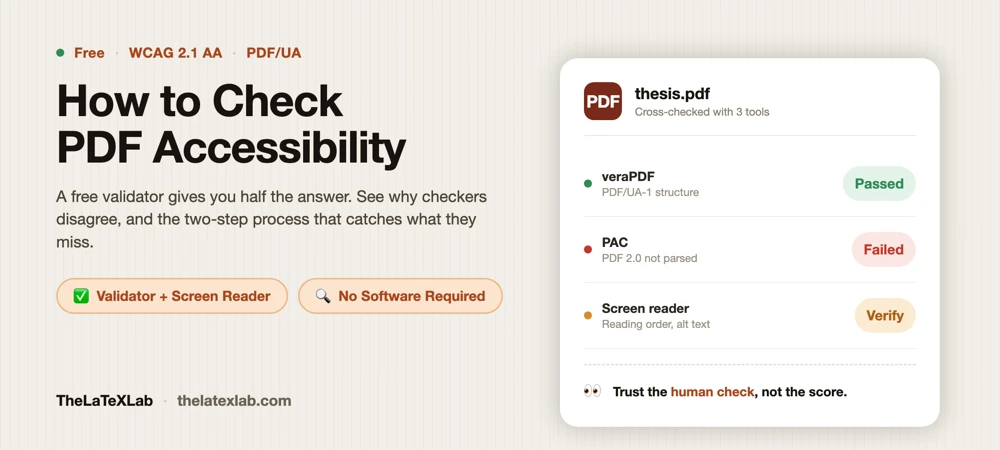
To check PDF accessibility, you run the file through a validator that inspects its tags, structure, and metadata, then you confirm the result with a screen reader. That second half is the part most people skip, and it is the reason people end up with a PDF that “passes” a checker but is still unusable for someone who cannot see the screen.
This page shows you how to verify a PDF properly, for free, on any operating system. It also explains something you need to know before you trust any tool: a green score is not proof. Checkers only test the part of accessibility a machine can measure, and they routinely disagree with each other on the same file.
The fastest free way to check PDF Accessibility
If you just want a quick verdict without installing anything, upload the file to a browser-based validator. Our free online PDF accessibility checker reports whether the document is tagged, whether it declares a title and language, and where the common WCAG and PDF/UA problems are. For academic work it also checks something most tools skip: whether your equations are exposed as navigable MathML rather than flat images. You can run either the compiled PDF or the LaTeX source, with nothing to install.
Use an online checker for a first pass or a sanity check. For anything you are about to submit to a university, a publisher, or a government body, back it up with one of the desktop validators below plus a manual screen-reader pass. No single automated tool is authoritative, and treating one as the final word is the most common mistake we see.
One caveat about online tools in general: you are uploading your document to a third party. If the PDF is unpublished research, an exam, or anything confidential, check what the service does with your file first, or use an offline tool like veraPDF instead.
What “accessible” actually means for a PDF
Before you check anything, it helps to know what the checker is looking for. An accessible PDF is a tagged PDF: underneath the visible page there is a hidden tree of tags (headings, paragraphs, lists, tables, figures, reading order) that assistive technology uses to interpret the document. A scanned image saved as a PDF has none of that. Neither does a PDF exported carelessly from LaTeX or Word.
Two standards define the target:
- PDF/UA (ISO 14289-1, sometimes called PDF/UA-1) is the technical specification. It defines exactly how the tags, structure tree, role maps, and metadata must be built inside the file. The newer PDF/UA-2 (ISO 14289-2) extends this for PDF 2.0 files.
- WCAG 2.1 AA is the outcome-based standard most laws point to. It says things like “provide a text alternative” or “use sufficient contrast” without dictating the file-format mechanism.
The relationship matters when you read a checker’s report. WCAG tells you the goal; PDF/UA tells you the technical mechanism a PDF must use to reach it. A file can satisfy the spirit of WCAG and still fail PDF/UA because its tag tree is not built to spec, and it can pass a structural PDF/UA check while still being useless to a real reader because the alt text is meaningless or the reading order is scrambled. This is why “did it pass?” is the wrong question. The right question is “what did it actually pass, and what still needs a human?”
The free tools to check PDF Accessibility worth using
There are four categories of free checker. Each covers a different slice of the problem. For a tool-by-tool breakdown of the specific apps, see our comparison of free PDF accessibility checkers.
| Tool | Platform | Cost | What it checks | Watch out for |
|---|---|---|---|---|
| PDF Accessibility Checker by TheLaTeXLab | Any browser, no install/signup | Free | Tagged structure, alt text/language/title, reading order & table headers, and – its standout feature – whether equations are exposed as navigable MathML instead of flattened images, per WCAG 2.1 AA and PDF/UA-2 | Automated check – confirms alt text exists but not its quality |
| PAC 2026 (PDF Accessibility Checker) | Windows only | Free | PDF/UA and WCAG 2.1 AA, with a visual structure view | No Mac or Linux build; PDF/UA-2 support still maturing |
| veraPDF | Windows, macOS, Linux | Free, open source | PDF/UA-1 and WCAG machine-checkable criteria | Runs on a Java runtime; report is technical, aimed at people who know the spec |
| Adobe Acrobat Pro | Windows, macOS | Paid (Pro only) | Built-in accessibility check plus tools to fix issues | Not in the free Reader; the automated check produces false passes and false failures |
PAC
PAC, made by axes4, was the first ISO 14289-1 validator and has been the reference free checker since 2010. The current release is PAC 2026, free from the official PAC site with no registration. Its best feature is the structure view: it shows you the tag tree and a “logical structure” preview, which is far more useful than a pass/fail number, and the 2026 build adds AI-assisted checks that flag weak semantics like a heading tagged as plain text. The catch is that it is Windows-only, and it is built primarily around PDF/UA-1. PDF/UA-2 validation is still maturing across every tool in 2026, so a PDF 2.0 file (which the newer LaTeX tagging workflow produces) can still give confusing results. We regularly see people conclude their file is broken when the checker simply does not read the newer format cleanly yet.
veraPDF
veraPDF is the open-source validator maintained under the Open Preservation Foundation, and it is the answer for Mac and Linux users who cannot run PAC or Acrobat. It runs on a Java runtime, so no Wine or Windows needed, and there is a web demonstrator if you want to try it without installing. Its report is precise and spec-accurate, which also makes it terse: it will tell you a clause number failed without explaining it in plain language. Good for confirming PDF/UA-1 conformance, less friendly if you are new to the terminology.
Adobe Acrobat Pro
If you already have Acrobat Pro, its checker lives under All tools, then “Prepare for accessibility”, then “Check for accessibility”. It returns three verdicts per item: Passed, Failed, and Needs Manual Check. The “Needs Manual Check” items are not a formality; they are the parts Adobe knows it cannot judge automatically, and they are where the real accessibility lives. Two things to know. First, none of this is in the free Adobe Reader; you need the paid Pro. Second, practitioners consistently report that Acrobat’s automated check yields both false positives and false negatives, so never treat an Acrobat “Passed” as the end of the story.
Want a template that compiles to an accessible PDF every time?
If your thesis or paper is written in LaTeX, we set up the source so every compile produces a tagged, WCAG 2.1 AA PDF, verified with a validator and a screen reader. No manual remediation, no per-draft cleanup.
Why two checkers disagree on the same file
Run the same PDF through PAC, veraPDF, an online tool, and Acrobat and you can easily get four different verdicts. This is normal, and it confuses everyone the first time. The reasons are concrete:
- Different standards, different clauses. One tool checks strict PDF/UA-1 structure; another checks WCAG outcomes; they are not testing the same things.
- Format lag. PDF 2.0 and PDF/UA-2 are newer than most checkers. A file built to the current spec can trip an older validator that does not recognize the newer structures.
- False positives and negatives. Some tools flag valid structures as errors, and some pass files that a screen reader chokes on.
A common example: the pdfinfo utility (and several checkers) will report a file as “Tagged: yes”, while a stricter validator reports “no valid tags found”. Both can be technically correct. The file has a tag dictionary, but the tags are not built to the standard, or they are nested illegally (paragraphs inside paragraphs, sections inside a text block). “Tagged” and “correctly tagged” are not the same thing, and only a structural validator plus a human can tell them apart. If your specific question is simply whether the file carries a valid tag tree at all, a focused PDF/UA tagged-file check answers that faster than a full WCAG audit.
The takeaway is not “checkers are useless”. It is “collect evidence, do not chase a score”. Use a checker to find problems it can find. Do not use it to declare victory.
The check automated tools cannot do
Every automated checker only tests the criteria a machine can evaluate: is a tag present, is there a title, is a language set, does an image have an alt attribute. That is roughly half of what WCAG actually requires. The other half needs judgment, and the fastest way to apply it is to listen to the document with a screen reader.
You do not need to be an expert. Open the PDF with a screen reader and move through it:
- NVDA on Windows is free. Download it, start it, open the PDF in a browser or Acrobat, and use the arrow keys to read line by line.
- VoiceOver is built into macOS. Turn it on with Command plus F5.
- JAWS is the paid Windows option most institutions test against, but NVDA is close enough for verification.
Listen for four things that no checker can score:
- Reading order. Does the content read in the order a sighted person would read it, or does it jump from a footer to a caption to the middle of a paragraph? Multi-column and figure-heavy documents fail here constantly.
- Alt text quality. A checker confirms alt text exists. Only a human can tell that “image1.png” or “chart” is useless while “Bar chart showing enrollment rising from 2020 to 2025” is not.
- Table navigation. Do the header cells get announced as you move across a row, or is the table read as a flat wall of numbers? Tables are the single most common thing that “messes up” an otherwise clean document.
- Math and equations. This is where academic PDFs fall apart. An equation rendered as a flat image reads as nothing, or as “image”. Verify that equations are announced as math, not skipped.
Two minutes of listening tells you more than any report. If it reads cleanly and the validator is happy, you have real evidence. If the checker passed but the screen reader is lost, trust the screen reader.
A practical two-step verification workflow
Here is the process we use to sign off on a document, stripped to the essentials:
- Automated pass. Run the file through a structural validator. Online for a quick look, then veraPDF (any OS) or PAC (Windows) for the detailed structure view. Note every error and warning. Do not fix yet, just collect.
- Manual pass. Open the same file in a screen reader and read it top to bottom. Check reading order, alt text, tables, headings, and any math.
A document is genuinely accessible only when both passes agree. A clean validator report with a screen reader that gets lost means the file is not done. A screen reader that reads perfectly with a validator throwing structural errors usually means a spec-compliance gap worth fixing for PDF/UA, but the content is already usable. Knowing which situation you are in is the entire point of checking.
What to look for, concretely
When you read the reports and listen to the file, these are the items that decide the outcome for an academic or professional PDF:
- The document is tagged, and the tags are valid (not just present).
- A document title is set, and the display shows the title rather than the filename.
- A primary language is declared.
- Headings use real heading tags in a logical order, not just bold text.
- Every meaningful image has a genuine text alternative; decorative images are marked as artifacts.
- Tables have proper header cells and a sensible reading order.
- Reading order matches the visual order.
- Color is not the only way information is conveyed, and text contrast is sufficient.
- Equations are exposed as math (MathML or a proper alternative), not baked into images.
What to do when the PDF fails
When a check fails, you have two options, and the right one depends on where the PDF came from.
Remediate the existing PDF. Tools like Acrobat Pro let you add and correct tags, set reading order, and add alt text by hand. This works, but it is slow, it has to be redone every time you regenerate the file, and for math-heavy or multi-column documents it is genuinely painful. For a one-off PDF you will never touch again, it is the pragmatic choice.
Fix the source. If the PDF is generated from LaTeX or Word, the durable fix is upstream, in the document that produces the PDF. A LaTeX document set up with the current tagging workflow (a \DocumentMetadata declaration, LuaLaTeX, and a recent TeX Live) produces a tagged, structured PDF every time you compile, with no manual remediation afterward. If your source is LaTeX, checking the source directly with a LaTeX accessibility checker catches problems before they ever reach the PDF, which is far cheaper than fixing them after.
For a thesis or dissertation, where the same template is reused for hundreds of pages of math and the university enforces WCAG 2.1 AA, fixing the template once is the only sane approach. That is exactly what our accessible LaTeX thesis template service does: it sets up the source so every compile produces a compliant, tagged PDF, rather than remediating each draft by hand.
FAQ
Is a PDF exported from Word already accessible?
Not automatically. Word can produce a tagged PDF if you use its built-in headings, alt text, and the “Save as PDF” (not “Print to PDF”) path, but the tagging is often incomplete, and equations exported as images are not accessible. Always verify a Word-exported PDF the same way you would any other: validator plus screen reader.
Does “Tagged: yes” from pdfinfo mean the PDF is accessible?
No. pdfinfo only reports whether a tag dictionary exists, not whether the tags are valid or correctly nested. A file can show “Tagged: yes” and still fail a strict PDF/UA validator because the structure is malformed. Tagged is necessary but not sufficient.
Which free checker should I use on Mac or Linux?
veraPDF. It is the only mature free validator that runs cross-platform (it needs a Java runtime, not Wine), and it checks against PDF/UA-1. PAC and Acrobat are Windows-first, and Acrobat is paid. Pair veraPDF with VoiceOver on Mac or NVDA on Windows for the manual pass.
Do I need to meet WCAG or PDF/UA?
Usually both, and they overlap. Most laws (ADA, Section 508, the European Accessibility Act) reference WCAG 2.1 AA as the requirement. PDF/UA is the technical route to satisfy WCAG inside a PDF. Meeting PDF/UA-1 gets you most of the way to WCAG for a document, but confirm the WCAG-specific items (contrast, meaningful alt text) separately, since those need human judgment.
Why does my LaTeX PDF pass one checker and fail another?
Almost always because the newer LaTeX tagging workflow outputs a PDF 2.0 / PDF/UA-2 file, and PDF/UA-2 validation is still maturing across tools in 2026, so a checker built primarily around PDF/UA-1 (PAC included) can read the newer format inconsistently. Validate it with an up-to-date tool, and confirm with a screen reader rather than trusting a single validator’s verdict.
