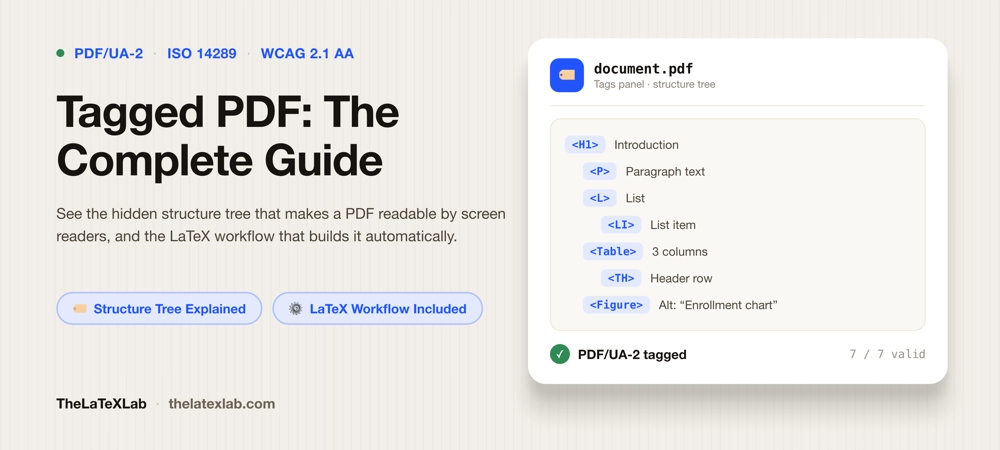
A tagged PDF is a PDF that carries a hidden structure tree, a layer of tags that label every heading, paragraph, list, table, and figure and fix the order they should be read in. That structure is what a screen reader uses to make sense of the file. Without it, even a perfectly formatted-looking PDF reads as a shapeless stream of text, or as nothing at all. Tagging is the single thing that separates an accessible PDF from an inaccessible one.
This guide covers what a tagged PDF actually is, how to tell whether a file is tagged, and how tagged PDFs get created, from Word and Acrobat through to the full LaTeX workflow that most guides leave out. If your documents come from LaTeX, that last part is where the real answer is, and it is covered in depth below.
What a tagged PDF is
Under the visible page, a tagged PDF holds a tree of tags much like the structure of an HTML page. Headings are marked as headings (H1, H2, and so on), lists as lists, tables as tables with header cells, and figures as figures that can carry alternative text. The tree also encodes reading order: the sequence assistive technology follows, which is not always the visual order on the page.
A few things follow from that:
- Tagged is not the same as visually formatted. A PDF can look immaculate and be completely untagged. The tags are invisible; they exist only for software.
- A scanned image is never tagged. A photo or scan saved as a PDF is just pixels. It needs OCR and tagging before any structure exists.
- Tagged is not the same as correctly tagged. A file can carry a tag tree that is malformed, mis-ordered, or missing alt text. It passes a shallow “is it tagged” check and still fails a real one.
Tagging is also the mechanism two standards rely on. PDF/UA (ISO 14289) is the technical specification for how the tags and structure must be built; the newer PDF/UA-2 extends it for PDF 2.0. WCAG 2.1 AA, the outcome-based standard most laws reference, expects the accessibility that tagging provides. You cannot satisfy either one with an untagged file.
How to tell if a PDF is tagged
Before you try to fix a file, find out whether it is tagged at all. Several ways, from quickest to most thorough:
- Acrobat Document Properties. Open the PDF in Acrobat, go to File, then Properties. The Description tab shows a “Tagged PDF: Yes/No” line. Fast, but it only tells you a tag tree exists, not whether it is any good.
- Acrobat Tags panel. View, then Show/Hide, Navigation Panes, Tags. This shows the actual tag tree. If it says “No tags available,” the file is untagged.
- The command line.
pdfinfo yourfile.pdfreports a “Tagged: yes” line. Again, presence only. - A dedicated checker. A focused PDF/UA tagged-file check confirms not just that tags exist but whether the file claims PDF/UA conformance, and a fuller PDF accessibility checker reports the structure, metadata, and per-issue problems.
The trap to know about: pdfinfo and Acrobat can both report “Tagged: yes” on a file whose tags are illegally nested or in the wrong order. “Tagged” and “correctly tagged” are different claims, and only a structural validator plus a screen reader can tell them apart. We walk through that full verification in our guide on how to check if a PDF is accessible.
How tagged PDFs get created
There are three common routes to a tagged PDF, and they are not equal.
From Word and Office
If you build a document with Word’s real heading styles, list tools, and alt text (not manual bold text pretending to be a heading), then use Save As PDF rather than Print to PDF, Office exports a tagged PDF. This works reasonably for straightforward text documents. It falls down on complex tables, and it does not handle equations well: math pasted as images loses all structure. For simple material it is the path of least resistance; for anything technical it is not enough on its own.
Automatic tagging in Acrobat
Acrobat Pro can add tags to an existing untagged PDF: All tools, then Prepare for accessibility, then Automatically tag PDF. It produces an Add Tags Report flagging what it could not work out. Auto-tagging is a starting point, not a finish line. It regularly gets reading order wrong on multi-column layouts, mis-tags tables, and cannot invent meaningful alt text. Every auto-tagged file needs manual review and correction, and for math-heavy documents the result is usually poor.
Tagged PDF from LaTeX
This is where most guides go quiet. For years the honest answer to “is LaTeX accessible?” was “not really,” because tagging LaTeX output was genuinely hard. That changed over 2024 and 2025. Modern LaTeX can now produce a tagged, PDF/UA PDF directly at compile time, with no post-processing in Acrobat, so a tagged PDF from LaTeX is finally a normal thing to produce rather than a research project. The rest of this guide is the working 2026 workflow for how to make a LaTeX PDF accessible. Read our guide on how to make accessible LaTeX thesis.
Need every compile to produce a tagged, accessible PDF?
We set up LaTeX sources and templates so tagging, alt text, Table headers, and MathML are correct by default, verified with a validator and a screen reader. For a thesis or a document series, fixing the template once is far cheaper than remediating every PDF by hand.
The LaTeX tagged PDF workflow (2026)
Here is how to make a LaTeX PDF accessible, start to finish. The core of it is a single declaration at the very top of your main file, before \documentclass. It switches on tagging and tells LaTeX which standard to target:
\DocumentMetadata{
  lang         = en-US,
  pdfstandard  = ua-2,
  tagging      = on,
  tagging-setup = {math/setup=mathml-SE}
}
\documentclass{article}
What each piece does:
langsets the document language, so a screen reader picks the right speech voice.pdfstandard = ua-2targets PDF/UA-2, the accessibility standard for PDF 2.0. The PDF version defaults to 2.0 under this declaration. You can addpdfstandard = a-4falongside it if you also need PDF/A archival compliance.tagging = onturns on the automatic tagging engine.tagging-setup = {math/setup=mathml-SE}tells LaTeX to emit MathML for equations, which is what makes math navigable to a screen reader.
Two environment requirements matter as much as the declaration:
- Compile with LuaLaTeX. Both LuaLaTeX and pdfLaTeX can tag, but LuaLaTeX is the recommended engine and it generates MathML for math automatically. With pdfLaTeX you have to supply MathML yourself.
- Use a current LaTeX release (TeX Live 2025 or newer, or the rolling release). Automated tagging is under active development and improves with every release. An old TeX Live will give you partial or broken results.
What tags automatically, and what you still do by hand
The declaration does a lot on its own, but it is not magic. Knowing the split saves hours of confusion.
Tagged automatically:
- Section structure and headings (from
\section,\subsection, and so on). - Standard lists (
itemize,enumerate). - Paragraphs, basic document structure, and reading order for straightforward layouts.
- Math, as MathML, when you compile with LuaLaTeX and the math setup above.
Still your job as the author:
- Alt text on figures. Add it on the graphic itself:
\includegraphics[alt={Bar chart of enrollment rising from 2020 to 2025}]{figure}. Mark purely decorative images as artifacts so they are skipped. - Table headers. Tell LaTeX which rows are headers, for example
\tagpdfsetup{table/header-rows={1}}, so a screen reader announces column headers instead of reading a wall of numbers. - Reading order in unusual layouts. Multi-column and float-heavy pages sometimes need checking.
Verify the output, do not assume it
Turning tagging on does not guarantee a clean result, especially if your document loads older packages that predate the tagging work. A known failure mode is that enabling tagging with an incompatible package can scramble the output or throw structure errors. So verify at both ends:
- Check the source with a LaTeX accessibility checker, which catches missing alt text, untagged constructs, and math that is not emitting MathML before you ever produce the PDF.
- Check the output with a structural validator (PAC on Windows, veraPDF on any OS, or our PDF checker) and then listen to it with a screen reader such as NVDA. A validator confirms the tags exist; only a screen reader confirms the document actually reads.
Where to go deeper
Tagging the whole document is the hub. Several parts have enough depth to be their own topic, and they are the places tagged PDFs most often go wrong:
- Math and equations. Getting MathML onto every formula, and understanding which screen readers actually read it, is its own subject. See how to make math accessible in PDFs.
- Figures and alt text. What makes alt text useful rather than just present, and how to mark decorative images, is where automated tools cannot help.
- Tables. Header rows, spanning cells, and complex layouts are the most common thing that reads as a wall of numbers.
- Slides and journals. Beamer cannot currently produce tagged PDFs, and journal document classes each behave differently, so both need their own approach.
For a math-heavy thesis, course materials, a journal article, or a class of documents that all share a template, the efficient move is to get the tagging right once in the source rather than fixing each PDF after the fact.
FAQ
What does it mean for a PDF to be tagged?
It means the PDF carries a hidden structure tree that labels its content: headings as headings, lists as lists, tables with header cells, figures with alt text, and a defined reading order. Assistive technology uses that tree to interpret the document. An untagged PDF has no structure, so a screen reader reads it as an undifferentiated stream of text, or cannot read it at all.
How do I check if a PDF is tagged?
The quickest way is Acrobat: File, Properties, Description tab shows a “Tagged PDF” line, and the Tags navigation pane shows the actual tag tree. On the command line, pdfinfo reports a “Tagged: yes” line. For a real assessment rather than a yes/no, run a PDF/UA or accessibility checker, since a file can be tagged and still be tagged incorrectly.
Is a tagged PDF the same as an accessible PDF?
Tagging is necessary but not sufficient. An accessible PDF is tagged, but it also needs correct tag structure, a sensible reading order, meaningful alt text, proper table headers, and accessible math. A file can be tagged and still fail accessibility if any of those are wrong. Tagging is the foundation, not the whole building.
Can LaTeX create a tagged PDF?
Yes, directly at compile time as of 2025 to 2026. Add a \DocumentMetadata declaration with tagging=on and pdfstandard=ua-2 before \documentclass, compile with LuaLaTeX on a current TeX Live, and LaTeX tags headings, lists, structure, and math automatically. You still add alt text and table headers by hand. No Acrobat post-processing is required.
Is LaTeX accessible?
It is now. For years LaTeX could not produce an accessible PDF without heavy manual post-processing, so the practical answer was no. That changed with the tagging work that landed through 2024 and 2025: with a current release, LaTeX accessibility is a built-in feature. A \DocumentMetadata declaration plus LuaLaTeX gives you a tagged, PDF/UA LaTeX accessible PDF at compile time. You still supply alt text and table headers by hand, but the structural tagging that used to be the hard part is now automatic.
Why did enabling tagging break my LaTeX document?
Almost always a package conflict. The automatic tagging engine is still under active development, and some older packages do not cooperate with it yet, which can scramble output or throw structure errors. Use a current LaTeX release, check the tagging project’s list of known package issues, and verify the result rather than assuming a clean compile means a clean tag tree.
