Making LaTeX table accessible comes down to one thing a screen reader needs that LaTeX does not add on its own: which cells are headers. Turn tagging on and LaTeX will tag a tabular as a table, but it cannot guess that your top row is column headings. Until you tell it, a screen reader reads the header row as if it were ordinary data, and every cell after it loses its label. This is how to mark that up, how to handle row headers, layout tables, and merged cells, and which table packages actually work with tagging in 2026.
This assumes tagging is already set up in your document. If it is not, start with tagged PDFs and how to create one (DocumentMetadata, LuaLaTeX, TeX Live 2025 or later), then come back for the table-specific part.
What a Table needs to become accessible
Four things:
- Tagging on, so the table is tagged as a table at all.
- The header row (and header column, if you have one) marked, so a screen reader announces the heading with each cell.
- A
\caption, which gives the table an accessible name. - A simple structure and a compatible table package. Merged cells and
tabularrayare where things break.
If your table is actually an image of a table, none of this applies and you have a different problem, covered at the end.
Telling LaTeX which row is the header
With tagging on, add one line before the table to mark the header row:
\tagpdfsetup{table/header-rows={1}}
\begin{tabular}{lrr}
...
\end{tabular}
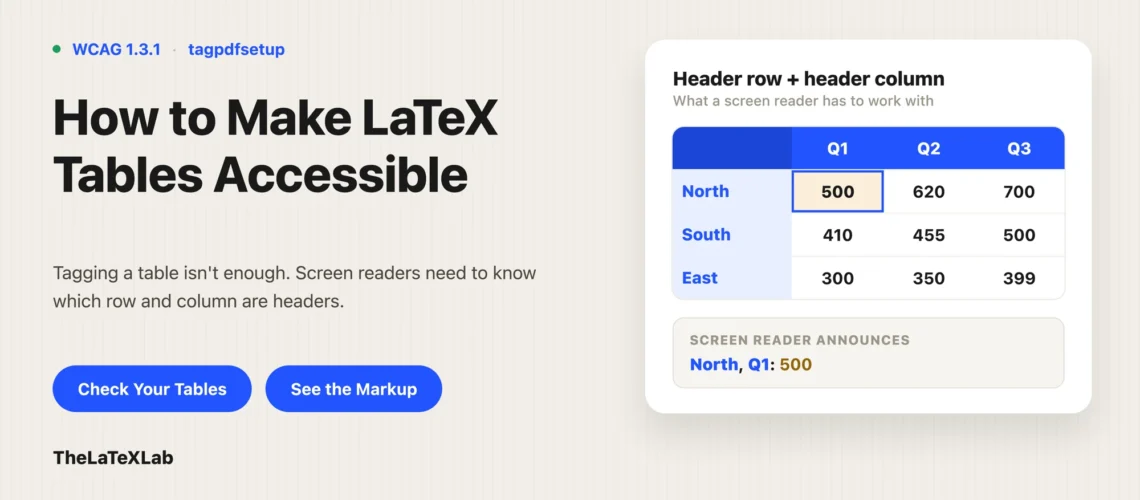
The number is the row position. If your header is two rows deep, use {1,2}. This is what associates the header cells with the data cells underneath them, so a screen reader reads “Revenue, Q1, 500” instead of a bare “500”. It maps to WCAG 1.3.1, which requires that the relationship between headers and data be available to assistive technology, not just visible.
Give the table a \caption as well. The caption becomes the table’s name, which is how a reader knows what the table is before stepping into it.
When the first column is also a header
Many tables use the first column as row labels: the leftmost cell of each row names what that row is. That is a header column, and it needs marking too:
\tagpdfsetup{table/header-columns={1}}For a table with both a header row and a header column (a corner table, common with data grids), set both keys. Then every data cell is announced with both its column heading and its row heading, which is what makes a dense table usable without sight.
Get Your Table Fixed for Accessibility
We mark the header rows and columns, sort out merged cells and any table package that breaks tagging, and confirm the result with a real screen reader. You get tables a reader can actually follow.
Tables you use for layout, not data
Sometimes a tabular is not really a table. People use them to line up two blocks of content side by side, or to position a logo next to text. Tagged as a data table, that grid gets announced as rows and columns of data that mean nothing to a reader.
Mark those as presentation so they are skipped as a structure:
\tagpdfsetup{table/tagging=presentation}The better fix is to not use a table for layout at all. But when you have inherited a template that does, marking it presentation stops it from confusing a screen reader.
Merged cells and complex tables
This is the honest limitation in 2026. Simple \multicolumn spans tag reasonably well. Complex cases, especially \multirow combined with \multicolumn, are still incomplete in the tagging code, and the reading order through a merged region can come out wrong.
So the practical advice is to keep tables simple. Avoid merged cells where you can. If a table has a complicated header with cells spanning several columns and rows, split it into two simpler tables. A plain table a reader can follow beats a clever one that tags badly. longtable (tables that break across pages) is handled, but the repeated header across page breaks is an edge case, so test a long one rather than assuming.
Which table packages work with tagging
Stick to the standard tools: tabular, tabularx, booktabs (which only draws rules, so it is fine), and longtable. These work with the tagging code.
Avoid tabularray for now. It is currently incompatible with the tagging code and is a common reason a table scrambles or drops its tags the moment you enable tagging. If that is happening to you, an incompatible package is usually the cause, which is covered in fixing LaTeX tagging when the PDF breaks.
A table saved as an image needs rebuilding, not alt text
People search for “LaTeX table alt text,” so it is worth being clear: a real LaTeX table does not take alt text. It gets header tagging and a caption, as above. Alt text is for images.
If what you have is an image of a table (a screenshot, or a table exported from another tool and dropped in with \includegraphics), alt text cannot help much. A short alt string cannot convey a grid a reader can navigate through. The right fix is to rebuild it as a real LaTeX table so it tags properly. Only if that is genuinely impossible do you fall back to describing it in alt text, and even then a real table is better. The alt-text mechanics for the cases where an image is unavoidable are in how to add alt text in LaTeX.
Checking that the table tagged correctly
Run the source through our LaTeX accessibility checker to confirm the header rows and columns are marked and the table is tagged as a table, not left as loose text. Then check the compiled PDF, and for anything important, listen to it with a screen reader: step across a data row and confirm you hear the column heading with each cell. That is the test that tells you the markup did what it was supposed to, which no score can confirm on its own.