LaTeX alt text used to be a pain to add. It is not anymore. With the current tagging code, you can add alt text in LaTeX and it is a key you pass to \includegraphics, and it goes into the tagged PDF where a screen reader can read it. This guide covers the exact syntax for figures, how to mark decorative images so they are skipped, the difference between alt text and actual text, how to handle TikZ diagrams and equations, what good alt text should say, and how to confirm it actually landed in the PDF.
Adding alt text to a figure in LaTeX
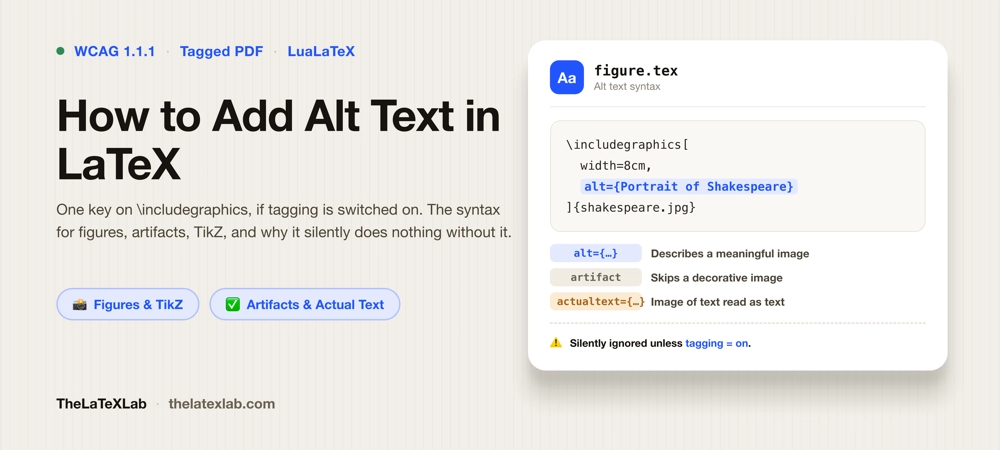
Alt text is a key on \includegraphics. Put it in the optional argument, alongside things like width or height:
\includegraphics[width=8cm, alt={Portrait of William Shakespeare}]{shakespeare.jpg}That is the whole mechanism for a normal figure. The text in the braces is what a screen reader announces in place of the image.
One requirement makes or breaks this: tagging has to be switched on. The alt key only does something when the document is being tagged, which means a \DocumentMetadata declaration with tagging = on before \documentclass, compiled on a recent LaTeX release. Without that, the key is quietly ignored and your alt text goes nowhere. If you have not set that up yet, our guide on tagged PDFs and how to create one covers it. This is the single most common reason people add alt text and then find the checker still reports it missing.
Marking decorative images as artifacts
Not every image needs a description. A divider rule, a background flourish, a logo that adds nothing to the content: these are decorative, and describing them just adds noise for a screen reader user. Mark them as artifacts instead, with the artifact key:
\includegraphics[width=4cm, artifact]{decorative-rule.png}An artifact is skipped entirely by assistive technology. The rule to remember is that every image has to be one or the other: it either carries alt text or it is marked as an artifact. An image that is neither is exactly what an accessibility checker flags.
Alt text versus actual text
There is a second key, actualtext, and it is not the same as alt. Use actualtext when the image is really a piece of text, and you want it to be read and copied as those exact characters rather than described.
\includegraphics[actualtext={A}]{fancy-drop-cap-A.pdf}A decorative drop cap, a word rendered as a graphic, or a logo that spells out a name are the typical cases. With actualtext, a screen reader reads the literal text and it copies as text. Use alt when you are describing a picture; use actualtext when you are replacing an image of text with the text itself.
Describing TikZ diagrams
The same keys work on TikZ. You can pass alt, artifact, or actualtext to the \tikz command and to the tikzpicture and picture environments:
\begin{tikzpicture}[alt={Flowchart: data flows from the sensor to the controller to the display}]
  ...
\end{tikzpicture}
TikZ is where alt text matters most and is easiest to forget, because the diagram is generated in code and there is no image file to remind you. A complex diagram usually needs more than a one-line description. If the figure carries real information, write a short alt line for the gist and put the full detail in the surrounding text or caption, where every reader benefits from it.
Handling equations in LaTeX
Equations are a different mechanism. You do not write alt text for a formula by hand in the normal case. The tagging setup emits MathML for your math, and MathML is what lets a screen reader read the equation properly, symbol by symbol. That happens automatically when you compile with LuaLaTeX and the math setup enabled. Getting equations right is its own topic, covered in how to make math accessible in PDFs. The short version: for math, aim for MathML, not an alt string.
What good alt text should say
Syntax is the easy part. Writing alt text that actually helps is the part tools cannot do for you. Alt text exists to satisfy WCAG’s requirement that non-text content has a text alternative (criterion 1.1.1), which is one of the criteria we cover in what WCAG 2.1 AA requires of a PDF. A few practical rules:
- Describe the purpose, not the pixels. Say what the image tells the reader in context, not what it literally looks like. For a results chart, the trend is the point, not the colors of the bars.
- Do not start with “image of” or “picture of.” The screen reader already announces that it is a figure. Get to the content.
- Keep it to a sentence or so. If the image needs a paragraph, that is a sign the detail belongs in the body text or caption, with a short alt line pointing at the gist.
- Decorative means artifact. If the honest description is “this adds nothing,” mark it as an artifact rather than writing filler.
- Match the context. The same photo can need different alt text in different documents, depending on why it is there.
The canonical guidance on writing alternatives is WebAIM’s alt text article, and it applies to LaTeX documents the same as anywhere else.
We make LaTeX documents accessible, alt text included.
We set up your LaTeX source so figures carry proper alt text, decorative images are marked as artifacts, TikZ diagrams are described, and equations emit MathML, checked with a validator and a screen reader. For a thesis or a document series, we get it right once in the template.
How to Add Alt text in Overleaf
The syntax is identical on Overleaf, but two settings have to be right or the tagging never runs and your alt text is ignored. Under Menu, set the Compiler to LuaLaTeX and the TeX Live version to a recent one (2025 or newer). With those set and a \DocumentMetadata block in place, \includegraphics[alt={...}] works exactly as above. This is worth checking first if alt text seems to do nothing on Overleaf.
Checking that it worked
Do not assume the alt text landed. Two quick checks. Run the source through a LaTeX accessibility checker, which flags any figure that has neither alt text nor an artifact marking before you even produce the PDF. Then confirm on the output: open the compiled PDF and read it with a screen reader, or inspect the tags, to hear the alt text in place. If a checker still reports missing alt text after you added the key, the cause is almost always that tagging is not actually enabled, not that the key is wrong.