Learn how to create accessible pdf in Overleaf (a tagged PDF a screen reader can actually read). It comes down to two settings and one block of code. Overleaf already ships a recent TeX Live, so you skip the part that makes this painful on a local install: installing and updating TeX yourself. This is the Overleaf-specific version of the setup: which settings to change in the Overleaf menu, the DocumentMetadata block, the rolling TeX Live catch, and how to check the result when Overleaf has no built-in accessibility checker.
For what tagging actually is and the full workflow, see tagged PDFs and how to create one. This post is about LaTeX accessibility in Overleaf specifically: you know you need a tagged PDF and just want it working in the editor.
TL;DR
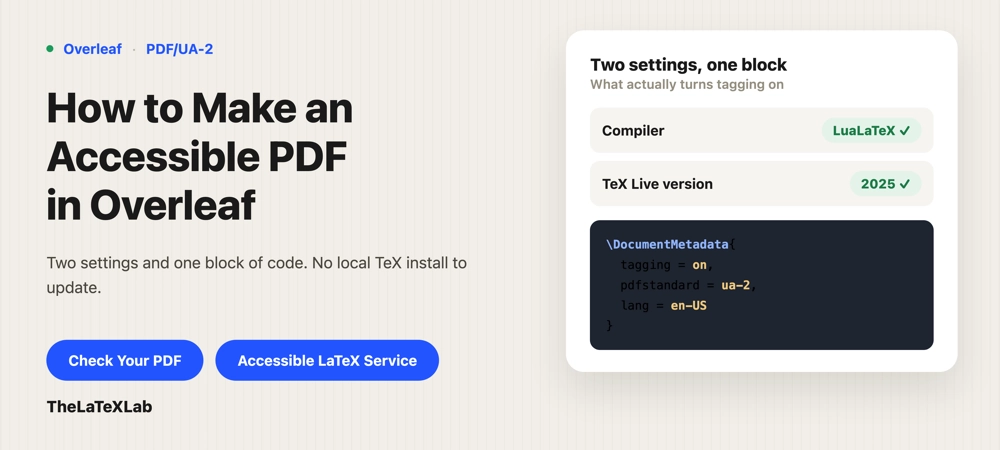
In Overleaf, do three things: set the compiler to LuaLaTeX, set the TeX Live version to 2025 (or the rolling image), and add a \DocumentMetadata block before \documentclass. That gives you an Overleaf tagged PDF (a PDF/UA-2 file) with MathML for the math. Alt text, tables, and checking work the same as any LaTeX document. The one real Overleaf limitation: you cannot update packages yourself, so if a package your template uses is not tagging-ready yet, you are stuck with whatever Overleaf’s image includes until it updates.
Why this is easier in Overleaf than on your own machine
The most common complaint about LaTeX accessibility on a local install is the setup: people spend a long time updating TeX Live and package trees before the tagging code even runs, and following an old guide that points at a version without tagging support wastes hours. We see this constantly.
Overleaf removes most of that. The tagging features live in TeX Live 2025 and later, and Overleaf already has those images, so you do not install or update anything. You change two settings and add the metadata block. If you have followed a local guide that starts with “run tlmgr update,” you can skip straight past it on Overleaf.
Switch the compiler to LuaLaTeX
Open the Overleaf menu (top left) or the project settings, find Compiler, and change it from pdfLaTeX to LuaLaTeX.
pdfLaTeX can produce tags, but LuaLaTeX is what you want for accessible math. The automatic MathML tagging of equations (the math/setup=mathml-SE option below) needs LuaLaTeX. Overleaf defaults new projects to pdfLaTeX, so this is a change you have to make deliberately; nothing warns you that your math is being left untagged.
Set the TeX Live version (and when you need rolling TeX Live)
Open the Overleaf menu, go to Settings, and find the TeX Live version dropdown. Set it to 2025 or later. TeX Live 2025 is the first version where the automatic tagging in \DocumentMetadata works, so a project pinned to an older version produces no tags at all no matter what you put in the preamble. Old projects often carry an old TeX Live setting, so check this first if tagging seems to do nothing.
The catch worth knowing: the LaTeX tagging code changes fast, and the fixed “2025” setting on Overleaf tracks the June 2025 LaTeX release. As of mid-2026, the newer November 2025 release is only available through Overleaf’s rolling TeX Live image, an experimental option that follows the latest releases. If a tagging feature or bug fix you need landed after mid-2025, switch to rolling TeX Live. The trade-off is that rolling moves under you, so a document that compiled cleanly last month can behave differently after an update. For a document you need to be stable, pin a fixed version; for one where you need the newest tagging fixes, use rolling.
We can set up your Overleaf project to produce an accessible PDF.
We configure the compiler, TeX Live version, and metadata, sort out the packages in your template that break tagging, and confirm the output with a real checker. You get a project that compiles to a tagged PDF every time.
Turn tagging on with DocumentMetadata
Add this as the very first thing in your main .tex file, before \documentclass. This is Overleaf’s own recommended block:
\DocumentMetadata{
  tagging = on,
  tagging-setup = {math/setup=mathml-SE},
  pdfstandard = ua-2,
  lang = en-US
}
\documentclass{article}
Briefly, tagging = on turns on tagged output, math/setup=mathml-SE tags equations as MathML (this is the part that needs LuaLaTeX), pdfstandard = ua-2 targets the PDF/UA-2 accessibility standard, and lang sets the document language. The full explanation of each key is in the tagged PDF guide. If it is not the first line in the file, it is silently ignored, which is a common reason a setup “does not work.”
From there, figures need an alt= description on \includegraphics, decorative images get artifact, and data tables need \tagpdfsetup{table/header-rows={1}} so the header row is announced. Those keys are the same on Overleaf as anywhere else and are covered in how to add alt text in LaTeX.
Packages and templates that break tagging on Overleaf
This is where Overleaf’s convenience turns into a limit. Not every package is tagging-ready yet, and a single incompatible one can scramble the output or drop the tags. A widely reported example: a university thesis template that loaded titlesec produced a mangled PDF the moment tagging was switched on; the fix was switching the compiler to LuaLaTeX. Custom .cls files, old titlesec, tocloft, caption, and heavy tikz use are the usual suspects. Check your package list against the LaTeX Tagging Project’s package status page before assuming the code is wrong.
On a local install, when a package is too old you update it. On Overleaf you cannot; there is no tlmgr update, and you get whatever the selected TeX Live image ships. So your only levers are switching to the rolling image (which may include a newer, fixed version of the package) or, sometimes, waiting for Overleaf to update. Department thesis templates are the most common trap here, because most of them predate tagging entirely, which is its own topic in making a LaTeX thesis WCAG compliant.
One more: fix every LaTeX error. A document that compiles with errors does not get a complete tag structure, so a file that “works” but throws errors is not actually accessible.
How to check the PDF
Overleaf has no built-in accessibility checker, so the check happens after you download the PDF. Two steps:
- Run the source through our LaTeX accessibility checker to catch missing alt text, untagged elements, and package problems before you compile.
- Download the compiled PDF and run it through a PDF accessibility check, and for anything math-heavy, listen to it with NVDA and the MathCAT add-on rather than trusting a score.
Two Overleaf-adjacent warnings. First, Canvas’s built-in accessibility checker sometimes flags a correctly tagged LaTeX PDF as inaccessible; that is a known false negative, so verify with a real PDF checker before you assume your file is broken. Second, do not re-tag the PDF in Adobe Acrobat afterward. Acrobat’s autotagging replaces the correct LaTeX tags with worse ones and will make a good file worse.
What Overleaf still can’t do for you
Two things to keep in mind. Beamer slides still cannot be turned into a tagged PDF, on Overleaf or anywhere else; that is a structural limit of Beamer, not an Overleaf setting, and the route around it is the experimental ltx-talk class. And whether a reader actually hears your math depends on their screen reader and PDF viewer, not on your Overleaf setup, so a file that reads perfectly for you can still fall short for someone on a Mac. If accessibility is a hard requirement and you would rather not manage the LaTeX yourself, our accessible LaTeX service sets the project up and verifies it.