Beamer accessibility is a problem most people find late, when a deadline forces them to check their lecture slides. A Beamer deck can look fine and compile cleanly and still fail an accessibility check, because to a screen reader the PDF is a set of pictures with no structure. The usual “turn on tagging” advice that fixes a LaTeX article does not fix Beamer. This post covers why Beamer slides fail, why you cannot tag your way out of it, what you can improve now, and the two routes to an accessible deck.
Why Beamer slides fail accessibility
There are two kinds of failure: the structural ones that make the deck unusable to a screen reader, and the visual ones that fail WCAG’s readability criteria. Beamer has both.
The structural ones are the serious problems:
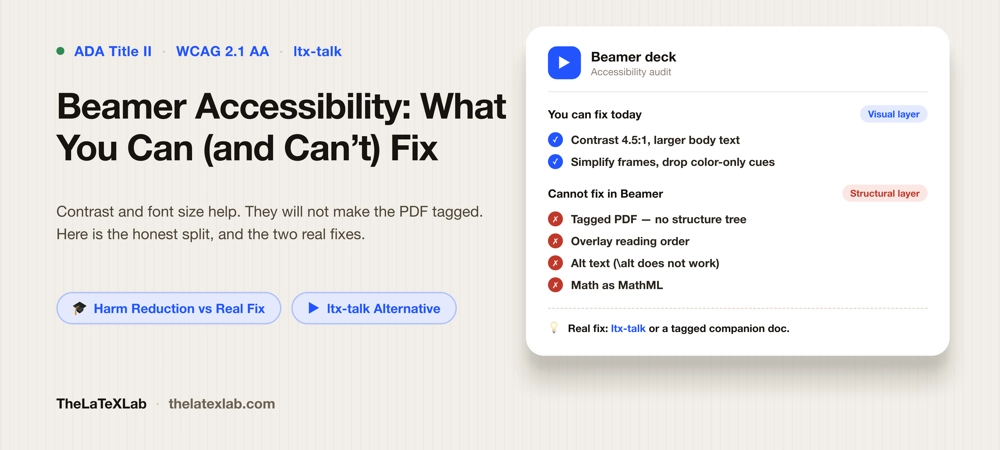
- The PDF is untagged. This is the root cause. A Beamer PDF carries no tag tree, so there are no headings, no lists, no reading order, no figure structure. A screen reader gets an undifferentiated stream, or nothing at all. An untagged PDF cannot meet WCAG or PDF/UA.
- Overlays break reading order. Overlays are Beamer’s signature feature and its worst accessibility problem. A frame with
\pauseor<1->specifications produces multiple slide states, and that overlaid content lands in the file in an order that does not match how a person reads the slide. Automated tagging tools cannot untangle the intended sequence. - Alt text cannot be added the normal way. The standard route for figure descriptions, the
\altcommand from the accessibility package, does not work inside Beamer. So you cannot attach proper alt text to a graphic the way you would in an article. - Math is baked in as images. Equations on slides render as images with no MathML behind them, so a screen reader skips them. For a technical talk that removes most of the content.
Then the visual failures, which affect low-vision users whether or not a screen reader is involved:
- Low-contrast themes. Many popular Beamer themes use mid-tone blues, greys, and colored blocks that fall below the required contrast ratios.
- Small default text. Beamer’s default body font is small for a projected slide, and dense frames make it worse.
- Color-only cues and decorative furniture. Navigation dots, colored alerts, and “the green box is the theorem” conventions rely on color alone. Headers and footers add clutter that a screen reader would read as noise if the file were tagged at all.
To see which slides in your own deck trip which failures, run it through a Beamer accessibility checker before you decide what to do.
Why you cannot just tag a Beamer PDF
Modern LaTeX gained a real tagging engine over 2024 and 2025: put a \DocumentMetadata declaration with tagging = on before \documentclass, compile an article with LuaLaTeX on TeX Live 2025, and you get a tagged, accessible PDF. You might assume the same works on Beamer, but it does not.
Beamer cannot produce properly structured tagged output through that mechanism. Its internals were designed years before tagged PDF mattered and do not emit a clean structure tree, and the overlay model makes the reading-order problem above unsolvable for automatic tagging. This is not a temporary gap waiting on a package update. The LaTeX team’s response was not to retrofit Beamer but to build a new presentation class designed around tagging from the start. University accessibility teams say the same thing: Beamer lacks the capability to render PDF slides in an accessible fashion.
Auto-tagging the finished Beamer PDF in Acrobat does not fix this either. On overlay-heavy frames it produces duplicated and mis-ordered content, it still has no real math, and you have to hand-repair the tag tree slide by slide every time you recompile. It is more work than either route below, for a worse result.
We can make your slides accessible for you.
We rebuild Beamer decks in ltx-talk where it fits, and produce a tagged, accessible companion document where it does not, with correct contrast, alt text, and MathML, checked with a validator and a screen reader. You keep presenting, and the accessible version is handled.
What you can fix in Beamer
If you are stuck on Beamer for this talk, it is still worth doing what you can. The visual criteria are real, they help real users, and they carry over if you migrate later. They will not make the PDF tagged, so treat this as harm reduction, not compliance.
- Fix contrast. Body text needs a contrast ratio of at least 4.5:1 against its background, and large text at least 3:1. Pick or adjust a theme that clears it; the WebAIM contrast thresholds are the reference. The plain default theme on a white background usually beats the fancier colored ones.
- Increase font size. Aim for body text around 18pt or larger and titles around 20pt or larger on the slide. Beamer’s defaults run smaller than that; a bigger base font size or a large-font option helps.
- Simplify frames. Fewer bullets per slide, no dense paragraphs, no all caps. This helps everyone, and it makes any later tagging cleaner.
- Stop relying on color alone. If a box color means “theorem” or red means “important,” add a word that says so.
These cover WCAG’s visual and readability criteria, the same ones in our guide on what WCAG 2.1 AA requires of a PDF. They do not cover the structural criteria, so they are a starting point, not the finish.
The two routes to an accessible deck
There are two ways to end up with slides that pass an accessibility check.
Route 1: rebuild the deck in ltx-talk. ltx-talk is the LaTeX team’s tagging-first presentation class. It produces a tagged, accessible PDF, with MathML for equations. The syntax is close to Beamer (frames, frame titles, overlays), so a structurally simple deck ports without much friction. The trade-off is that it is still experimental and several Beamer features are missing or partial. The details, including migration tools and what does not transfer, are in our guide on ltx-talk, the accessible Beamer alternative. Use this when your deck is reasonably simple and you need real accessibility.
Route 2: keep Beamer and ship an accessible companion document. If your slides use Beamer features ltx-talk does not cover yet, present from Beamer as usual and hand in a separate, properly tagged PDF as the accessible record: a long-form handout or notes version compiled in a normal document class. It is a practical bridge, and it is often a better experience for the reader anyway, because a linear tagged document reads far better in a screen reader than a slide deck. The mechanics of producing that tagged document, including math, are in how to make a tagged PDF and how to make math accessible in PDFs.
The thing to avoid is shipping an untagged Beamer PDF and hoping nobody checks. Under ADA Title II and the accessibility rules now applied to course materials, that is the option that creates exposure.